


视频编辑器
使用免费软件制作和编辑从贺卡到公司简介等不同复杂程度的视频。可以剪切和合并视频文件,应用音效和视效,添加滤镜,进行图像校正,创建幻灯片秀、添加背景音乐。使用多彩色色键和高级属性设置可以将视频升级到专业水平。软件支持所有常用的视频和音频格式。
视频转换器
此应用程序针对转换视频文件的格式,支持几乎所有常用的视频格式(读取和保存均可)。此外,程序可以大大简化转码任务,使视频能兼容特殊的多媒体设备,如iPhone、Microsoft Zune或Archos。操作非常简单,软件具有现代化界面以及所有处理视频必须的功能。
Animated Intro & Title Templates
Explore the VSDC Template Store with ready-made video templates for intros, animated titles, lower thirds, logo reveals, slideshows, glitch transitions, LUTs, and color grading presets. Drop a template into the VSDC Video Editor timeline, edit text, timing, and colors, and finish professional video projects in minutes.
Choose from 300+ exclusive packs of video transitions, LUT packs, text effects, GPS telemetry widgets, animated elements, and animated backgrounds for VSDC. All templates are fully customizable, support up to 4K resolution in 16:9, and help you build intros, wedding slideshows, travel videos, and tutorials much faster.
VSDC Cloud - Online video management
Keep your work safe, organized and always accessible! Back up your video projects, store media files online and access them from any device. Enjoy collaboration, share project updates and exchange files easily.
 视频编辑器
视频编辑器 视频转换器
视频转换器 音频转换器
音频转换器 Templates store
 Cloud
Cloud

多功能
一套免费视频软件包含丰富处理工具的种类。

高速
应用程序采用高速高效算法,适合于单核和多核处理器

实惠
VSDC视频软件可年免费下载到Windows系统操作的PC和笔记本。
News:
- 发布者:Amy Shao 发布时间:2026年6月30日 欢迎了解 VSDC Free Video Editor 的最新重磅更新:...
- 作者:Amy Shao 发布时间:2026年3月11日 对于富有创意的人来说,最好的礼物是什么?当然是新的可能性。VSDC 团队很...
- 作者:Amy Shao 2025年11月19日发布 欢迎了解期待已久的VSDC 10.2更新:这个新版本包含了令人难以置信的功能和重大改进,旨在为从爱好...
- 你好,我是Mattea Wharton,來自西雅圖的旅行影片創作者。整整三年,我一直在與那些會在我影片上加上難看浮水印的編輯軟體鬥爭,直到我發現了VSDC。這款...
将各种效果应用于VSDC中的视频或者图像
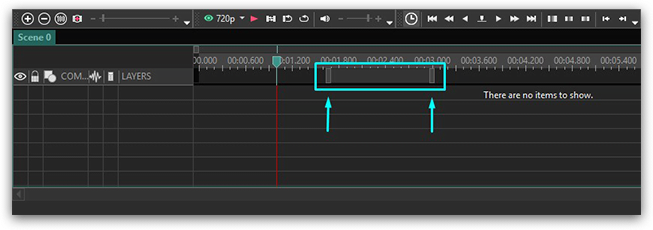
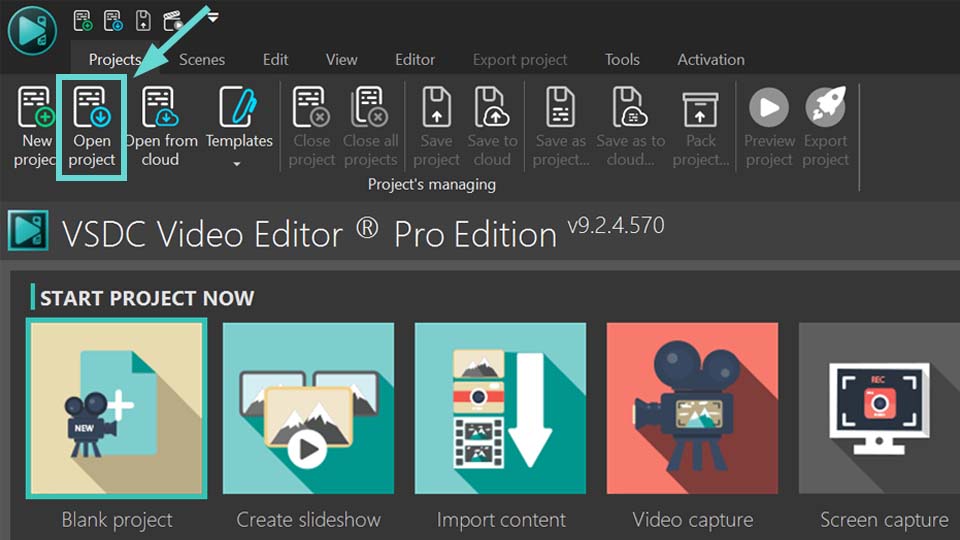
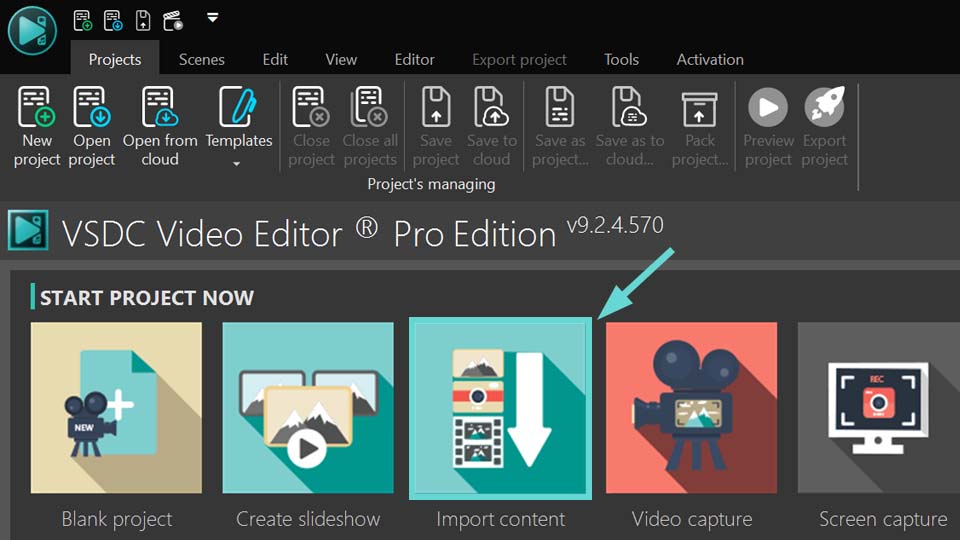
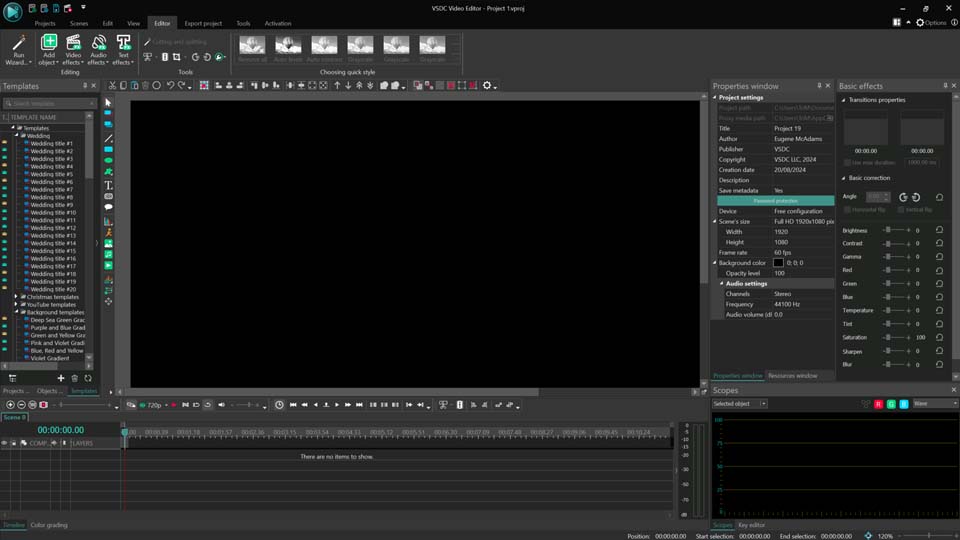
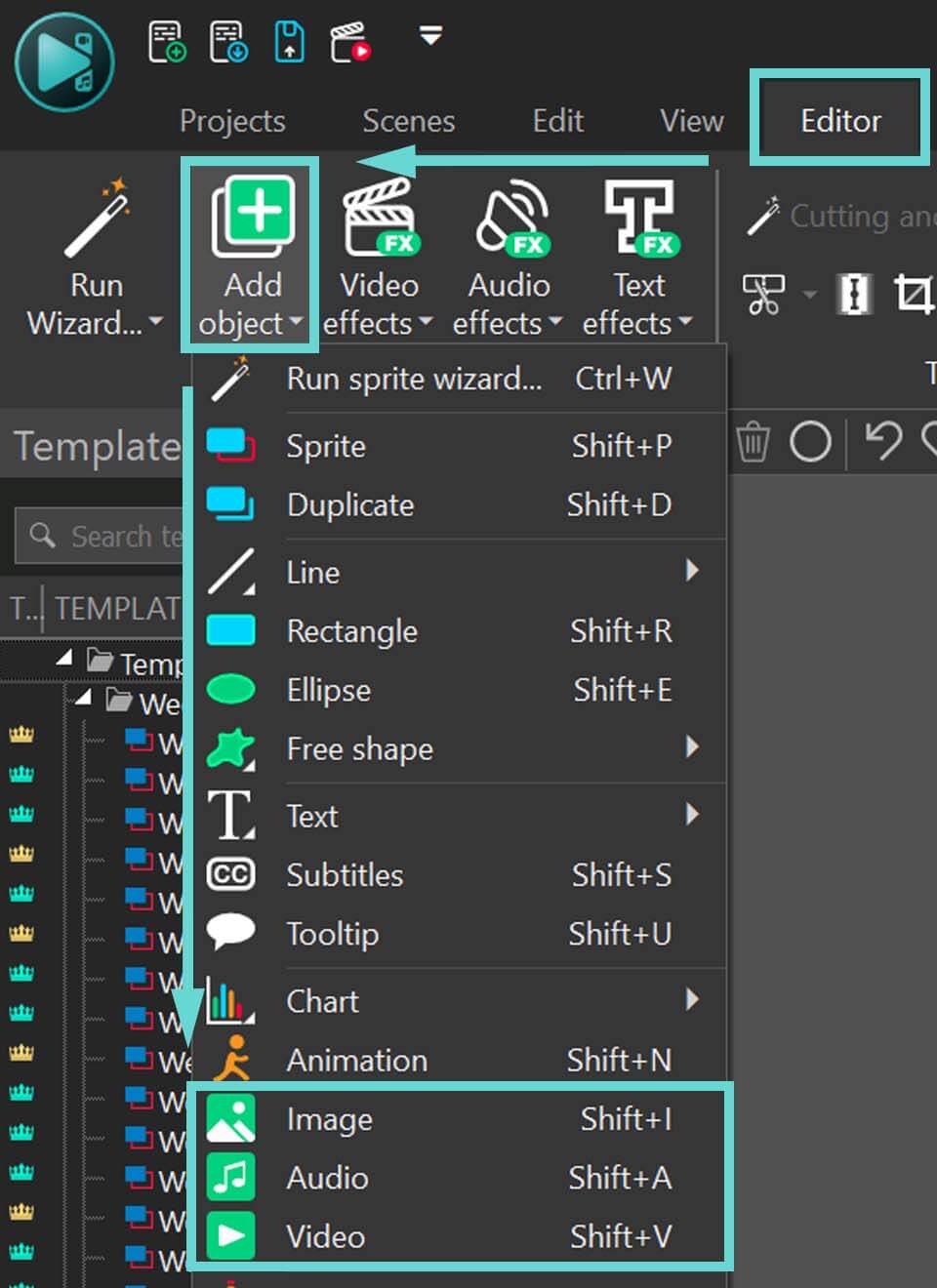
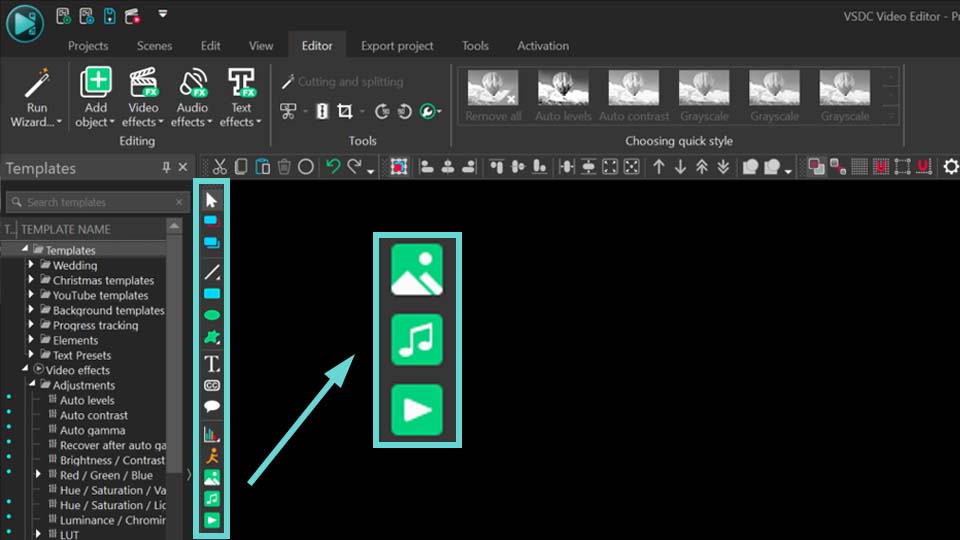
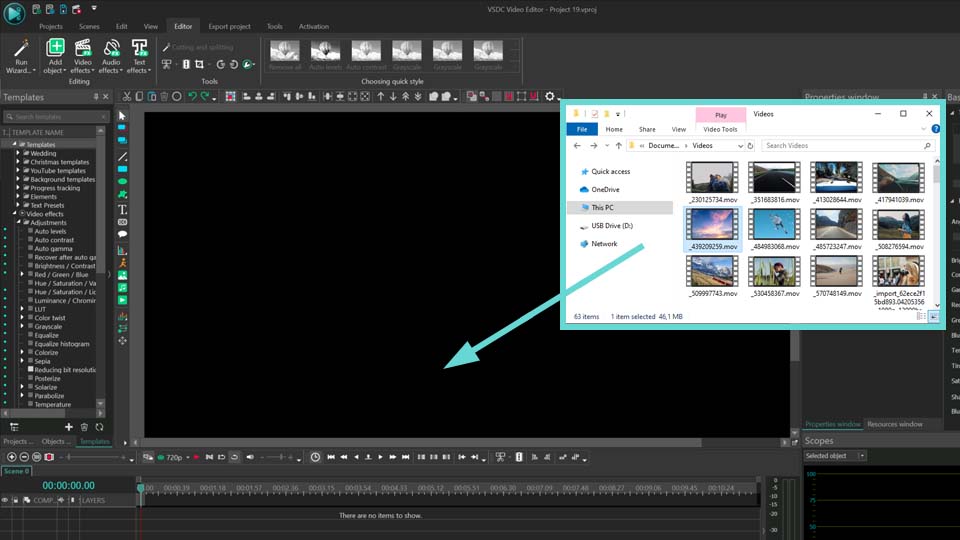
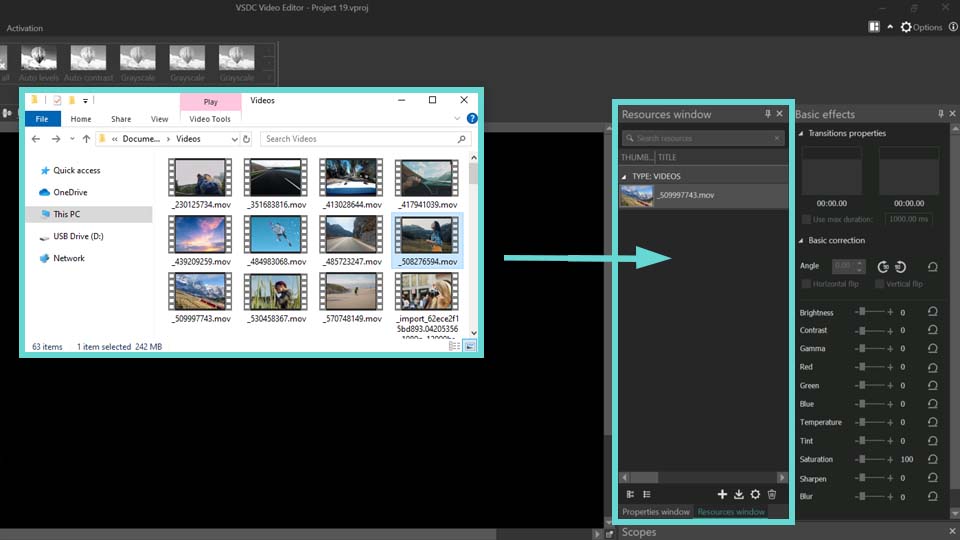
添加图像或者视频到场景上
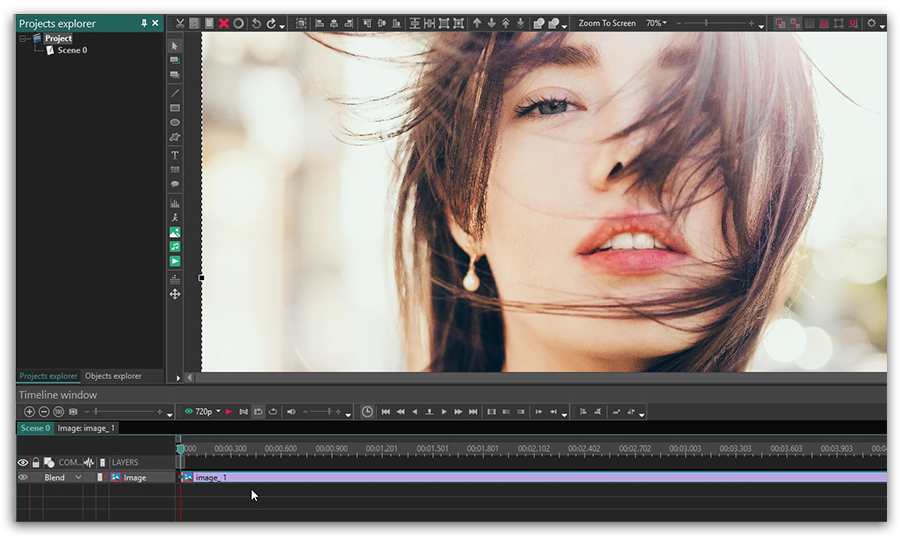
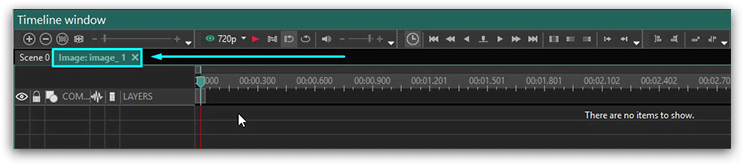
若要添加效果,应双击时间线上的图像。将出现一个带有对象名称的新选项卡。
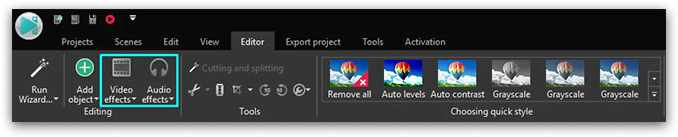
现在您需要打开带状命令栏上的选项卡“编辑器”,单击按钮“视频效果”(或者“音频效果”),查看可用效果的列表。
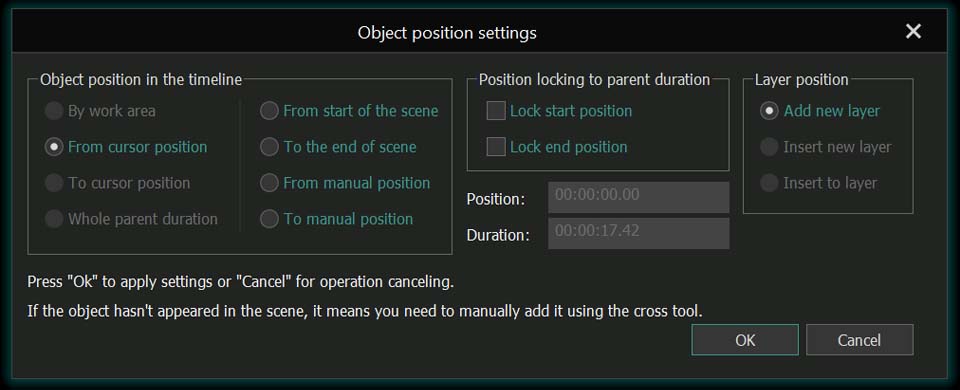
让我们选择一个模糊效果“滤镜->模糊”作为一个例子。打开一个新窗口,允许您及时设置对象位置。您可以根据父对象的持续时间选择影响的起始点、持续时间和动态。选定的效果将出现在时间线上。
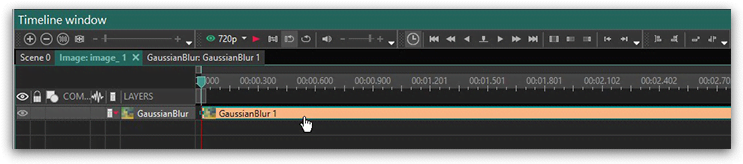
效果将立即应用于图像。
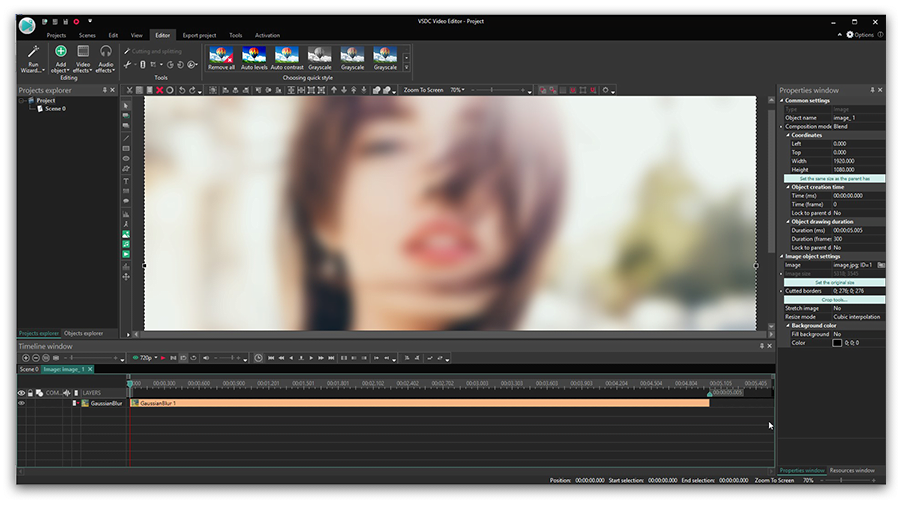
可以在“属性”窗口中配置其他效果参数。单击时间线上的效果,打开场景区域右侧的选项卡“属性窗口”。对于模糊效果,可用的参数有:模糊强度、初始模糊度和最终模糊度,使无级目标模糊效果或者无级对比效果增加。
立即获取VSDC免费视频编辑器 - 功能强大的非线性编辑软件,具备高级特效功能。非常适合YouTube创作者、社交媒体视频和专业项目。了解更多功能。



 下载VSDC免费视频编辑器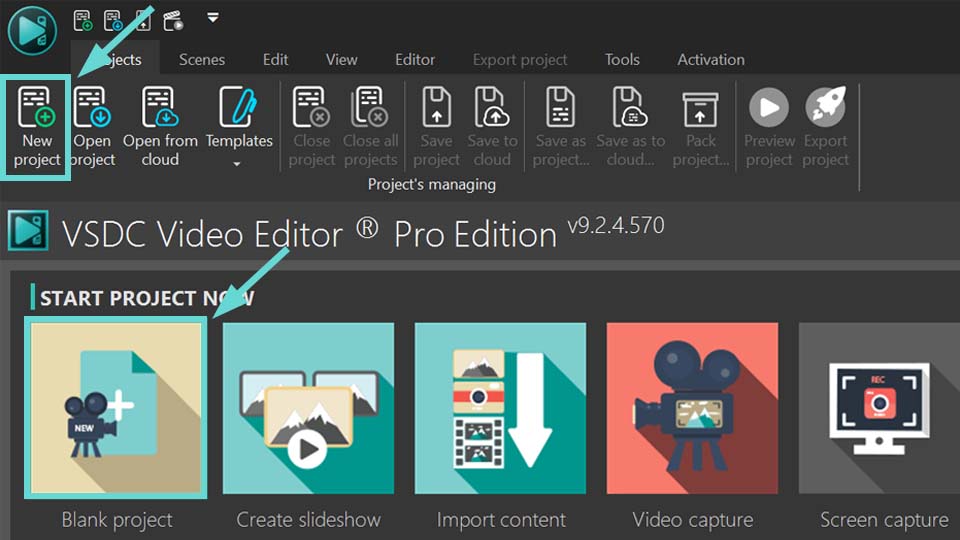

VSDC Video Editor Reviews & Ratings (Trustpilot, Capterra & Media)
VSDC Free Video Editor is rated 4.5/5 by real users on Trustpilot and Capterra. Here are a few reviews and quotes from creators and tech media.
Overall rating: 4.5/5 based on 200+ reviews on Trustpilot and 89 reviews on Capterra.
★★★★⯪
VSDC Free Video Editor is the best free video editor for Windows I’ve used, from color grading to picture-in-picture and cinematic results.
— Ejikeme Eloka Augustine
Source:Trustpilot
★★★★☆
Easy-to-use interface and quick export to social media make VSDC a versatile video editing tool for everyday projects.
— Karen C., E-Learning
Source:Capterra
★★★★☆
A feature-packed non-linear video editor for Windows that can compete with many paid video editing solutions.
— TechRadar
Source:TechRadar review
★★★★★
The free VSDC editor saved my YouTube channel – a powerful video editing software for chroma key, text effects and picture-in-picture.
— Paul Roberts
Source:Trustpilot
★★★★★
Fast and simple for YouTube videos with green screen, zoom, color tools and creative effects in one app.
— Marie R., Media Production
Source:Capterra
★★★★★
One of the best free video editor options for Windows users, ideal for GoPro, YouTube and family videos.
— VidProMom, YouTube creator
Source:Media reviews
★★★★★
I’ve been using VSDC for years; editing is easy and the final videos look great for my personal and professional projects.
— Long-time VSDC user
Source:Trustpilot
★★★★★
Great value and faster than many other free tools; I quickly create videos for YouTube, Instagram and Facebook with features my audience loves.
— Rabika B., Marketing & Advertising
Source:Capterra
★★★★★
VSDC offers many features you don’t usually find in free editors, including picture-in-picture, stabilization and modern codec support with no watermarks.
— Tech media review
Source:Media reviews
 Like us on Facebook
 Follow us on Twitter
Watch us on YouTube
 / @VSDCFreeVideoEditor
© 2011-2026, www.videosoftdev.com, FLASH-INTEGRO LLC. Privacy policy | Terms of use | About us
此处被引用的所有商标均为其各自所有者的专有财产。
只有获得网站管理员的书面许可,才能从本网站复制任何材料。