


视频编辑器
使用免费软件制作和编辑从贺卡到公司简介等不同复杂程度的视频。可以剪切和合并视频文件,应用音效和视效,添加滤镜,进行图像校正,创建幻灯片秀、添加背景音乐。使用多彩色色键和高级属性设置可以将视频升级到专业水平。软件支持所有常用的视频和音频格式。
视频转换器
此应用程序针对转换视频文件的格式,支持几乎所有常用的视频格式(读取和保存均可)。此外,程序可以大大简化转码任务,使视频能兼容特殊的多媒体设备,如iPhone、Microsoft Zune或Archos。操作非常简单,软件具有现代化界面以及所有处理视频必须的功能。
Animated Intro & Title Templates
Explore the VSDC Template Store with ready-made video templates for intros, animated titles, lower thirds, logo reveals, slideshows, glitch transitions, LUTs, and color grading presets. Drop a template into the VSDC Video Editor timeline, edit text, timing, and colors, and finish professional video projects in minutes.
Choose from 300+ exclusive packs of video transitions, LUT packs, text effects, GPS telemetry widgets, animated elements, and animated backgrounds for VSDC. All templates are fully customizable, support up to 4K resolution in 16:9, and help you build intros, wedding slideshows, travel videos, and tutorials much faster.
VSDC Cloud - Online video management
Keep your work safe, organized and always accessible! Back up your video projects, store media files online and access them from any device. Enjoy collaboration, share project updates and exchange files easily.
 视频编辑器
视频编辑器 视频转换器
视频转换器 音频转换器
音频转换器 Templates store
 Cloud
Cloud

多功能
一套免费视频软件包含丰富处理工具的种类。

高速
应用程序采用高速高效算法,适合于单核和多核处理器

实惠
VSDC视频软件可年免费下载到Windows系统操作的PC和笔记本。
News:
- 发布者:Amy Shao 发布时间:2026年6月30日 欢迎了解 VSDC Free Video Editor 的最新重磅更新:...
- 作者:Amy Shao 发布时间:2026年3月11日 对于富有创意的人来说,最好的礼物是什么?当然是新的可能性。VSDC 团队很...
- 作者:Amy Shao 2025年11月19日发布 欢迎了解期待已久的VSDC 10.2更新:这个新版本包含了令人难以置信的功能和重大改进,旨在为从爱好...
- 你好,我是Mattea Wharton,來自西雅圖的旅行影片創作者。整整三年,我一直在與那些會在我影片上加上難看浮水印的編輯軟體鬥爭,直到我發現了VSDC。這款...
如何创建语音使用视频编辑软件
许多视频都需要声音。教程视频,如何-托斯,游戏,视频博客-都是典型的使用声音,而不是软件。有各种各样的解决方案来记录您的声音并把它添加到镜头中。事实上,在专业水平上,甚至还有第三方的录音和处理音频的工具.例如,它们被用于专业的录音工作室。然而,一些视频编辑器也有用于录制声音的嵌入式工具。视频编辑就是其中之一。
有两种方法可以用来作为声音而不是软件。第一个版本属于免费版本的视频编辑器,第二个版本-一个更高级的方法 - 在版本中提供。下面我们将仔细观察这两种方式,并解释如何利用音频记录功能为您的视频。
在这两种情况下,您需要一个麦克风,或者嵌入或连接到您的计算机。两者最大的区别是用户需要的步骤顺序:
- 在VSDC免费版本中,您可以使用嵌入式语音创建音频评论。一旦录制了音频片段,就可以其添加到项目中并应用到所需的视频片段中。
- 在VSDC专业版本,您使用语音以上的软件功能。这意味着,在同一个窗口中,在视频预览的同时执行语音记录。它允许在电影的必要部分添加音频评论更容易和更精确。
第一个办法:如何在软件上使用VSDC作为免费语音
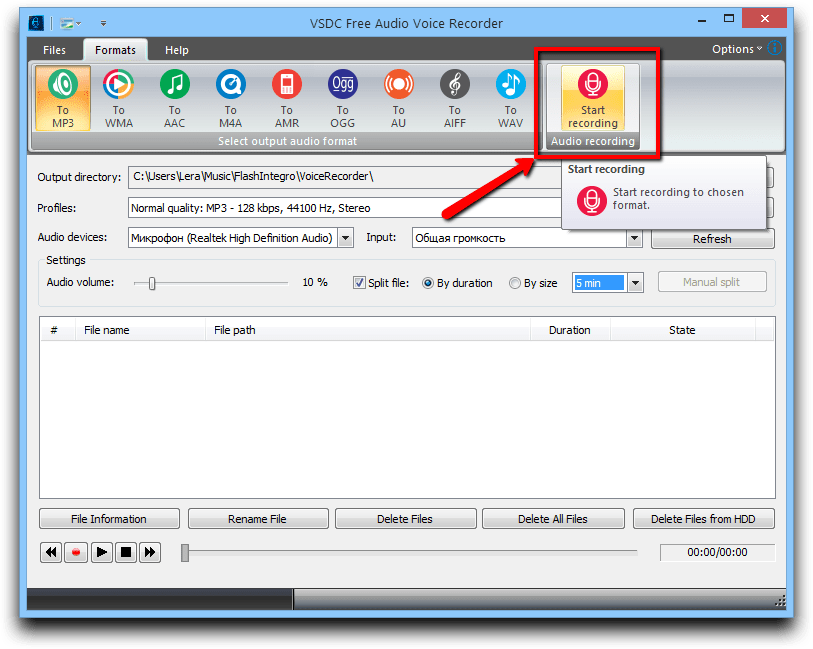
- 打开编辑器,转到选项卡“工具”,然后选择“声音”
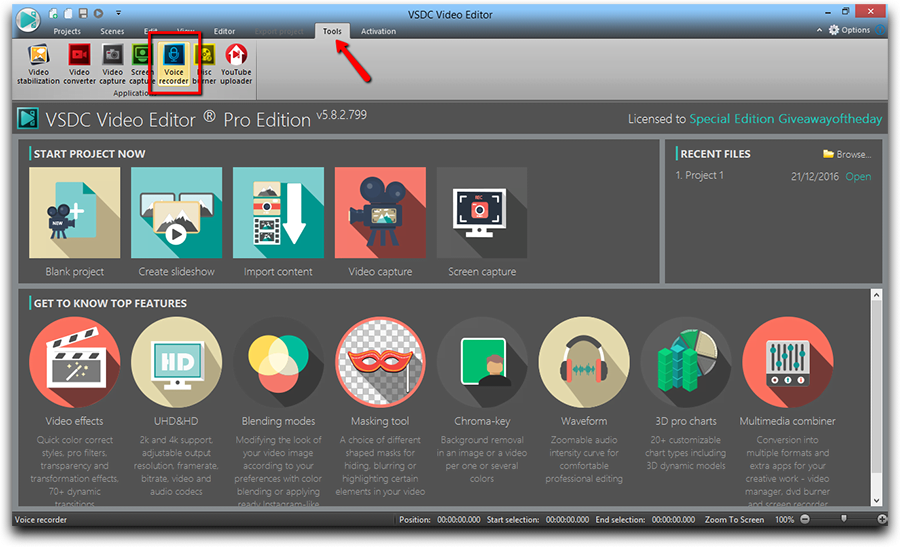
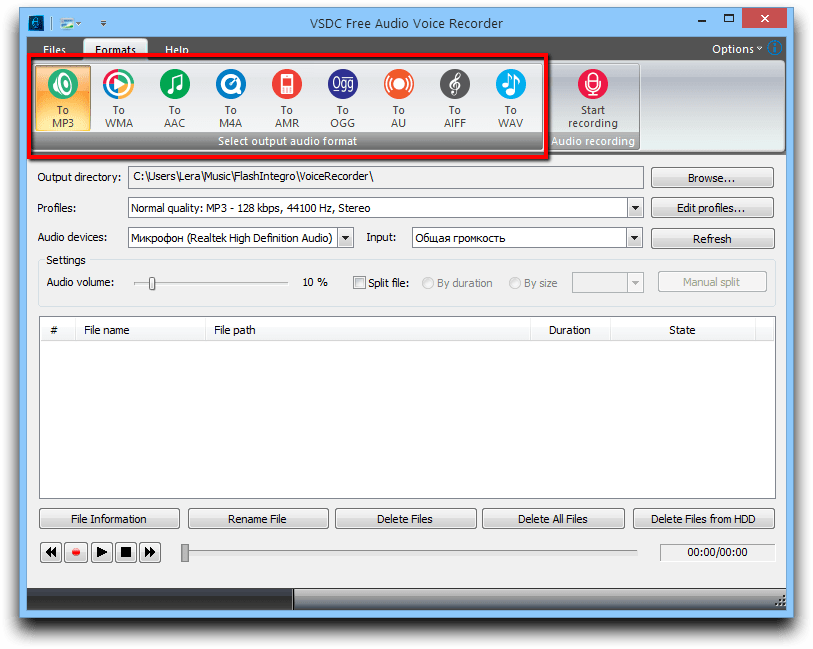
- 如果您需要以特定格式录制音频,首先您应该选择它。语音录音提供了很多流行的音频格式,如MP3、音响等等。
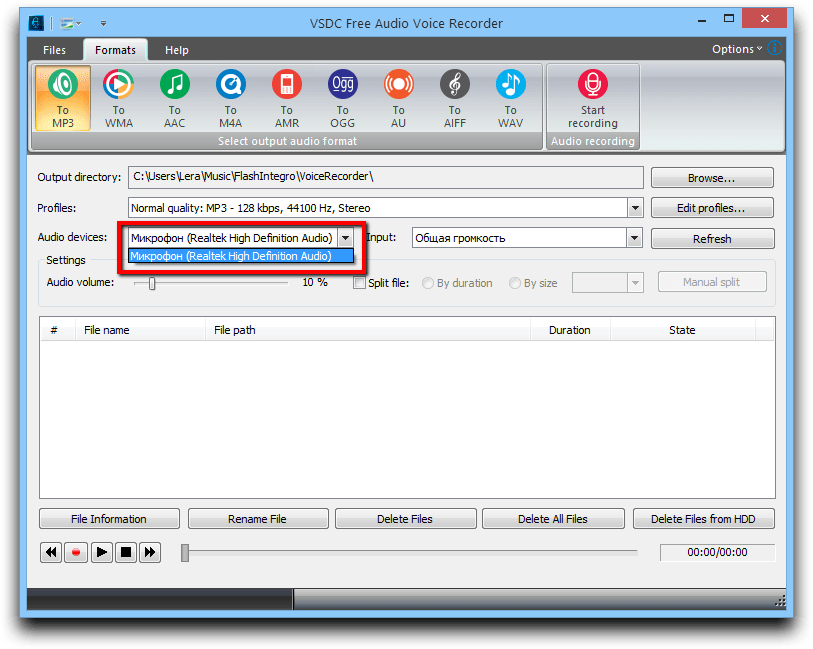
- 第二,选择您要用于录制的音频设备。
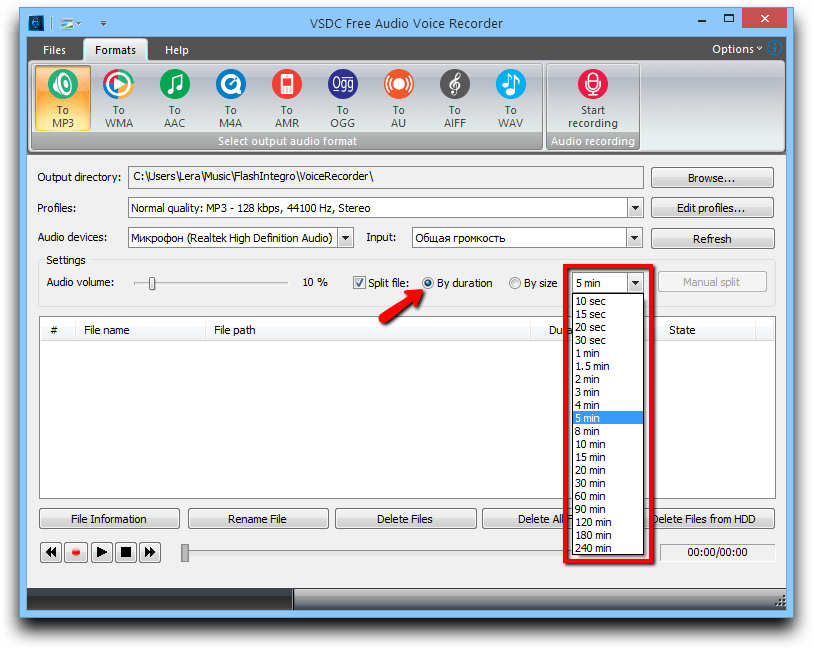
- 如果有必要,您可以检查按录制时间或者大小拆分录音的选项。
- 要开始录制您的声音,请单击相应的按钮。
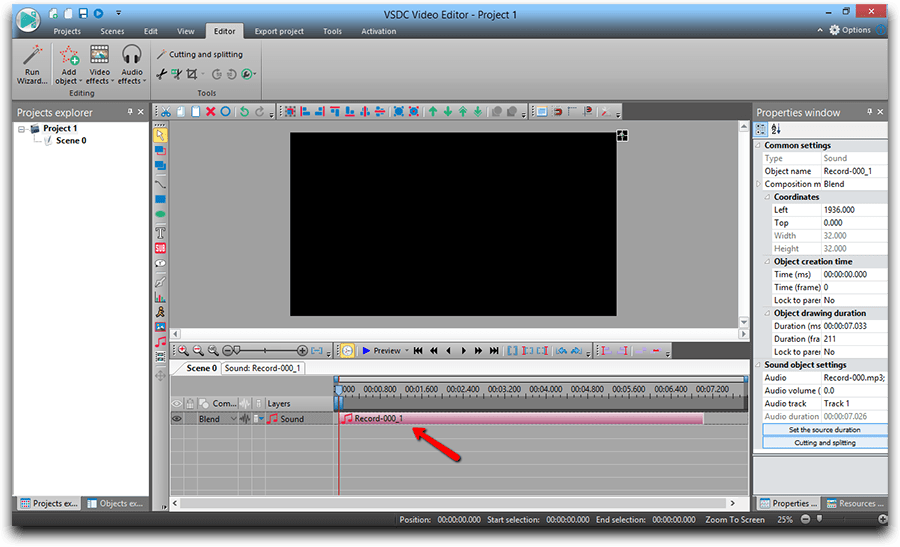
- 您的语音评论准备好的时候,转到您的项目,并添加音频文件到时间线-正是它需要添加的地方。
第二个办法:如何使用VSDC专业版本视频编辑器作为软件的更高级的声音
- 添加您的视频,在哪您想要添加您的声音。
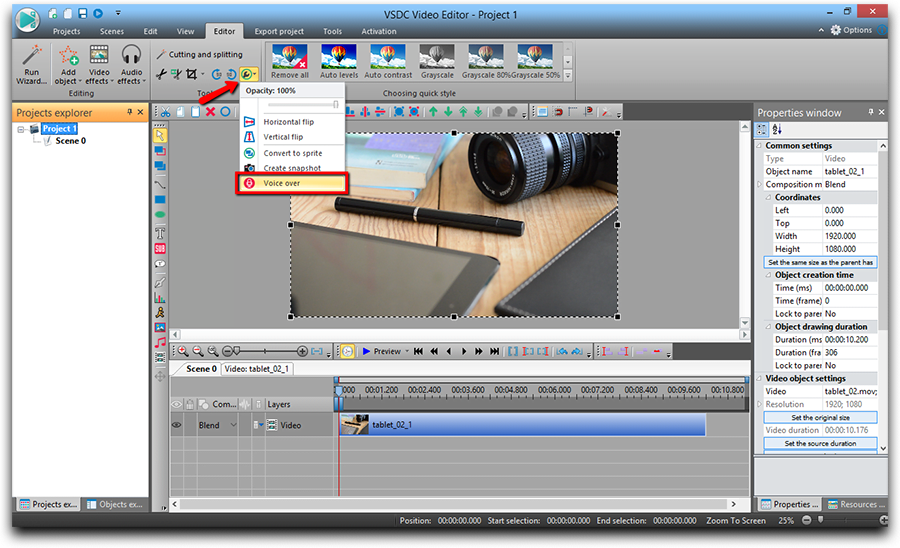
- 在画面上方面板上单击按钮 “更多工具...”更加清晰,然后选择“旁白”。
- 看看预览视频,然后决定您想在哪里添加您的评论。
- 移动光标到应该开始录制的视频的时刻。
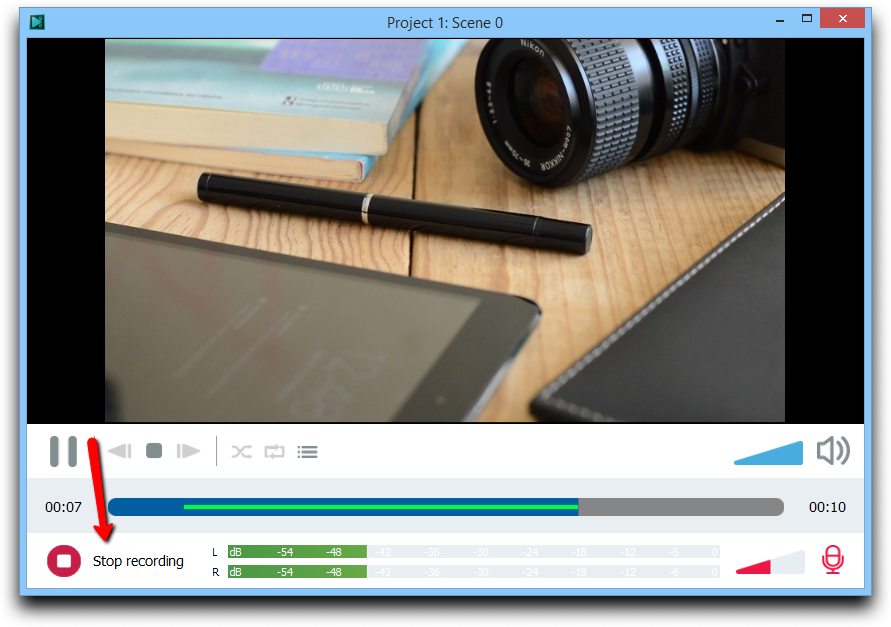
- 单击按钮“开始录制”。
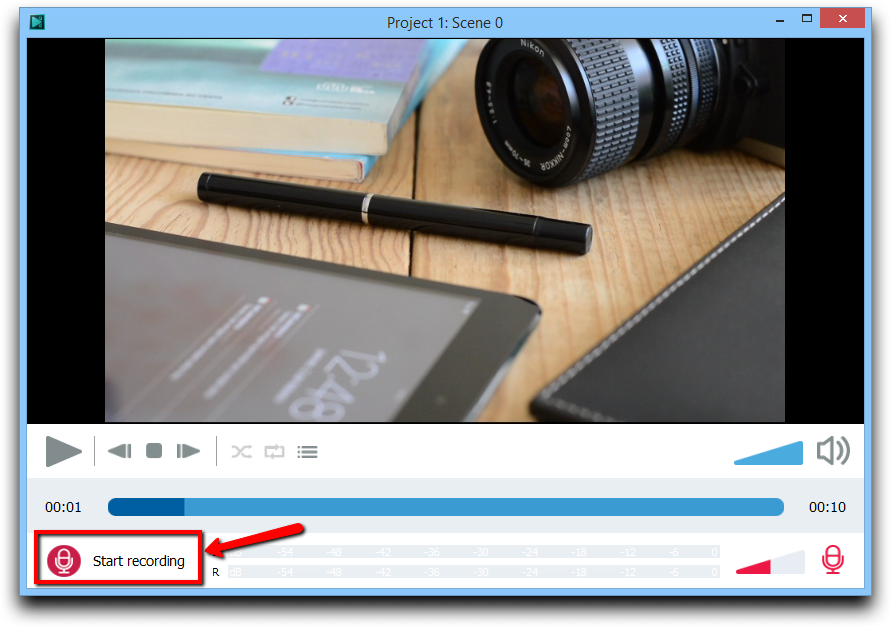
- 录制您的声音用使用麦克风。
- 在录制结束的时候单击“停止录制”。
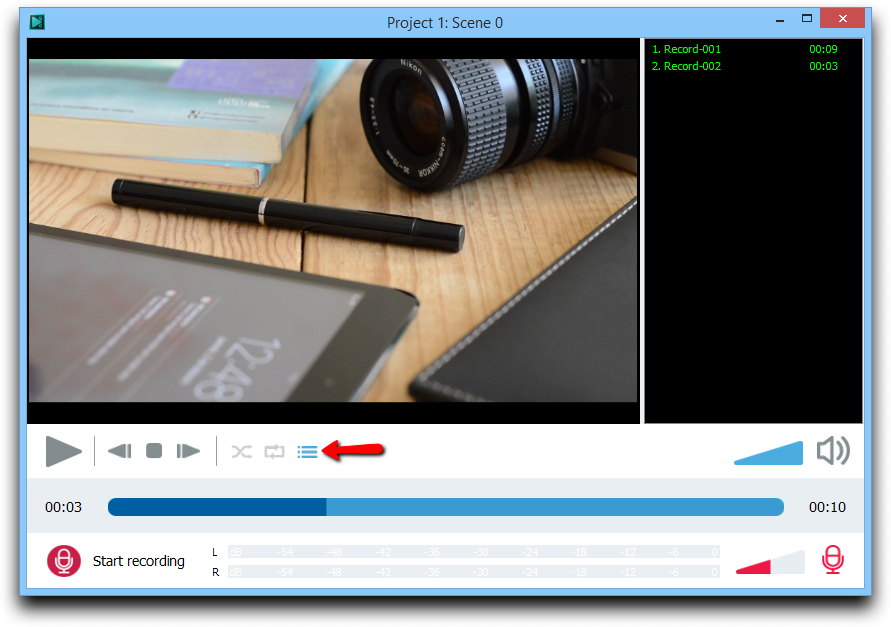
- 在按钮“播放列表”上查看录制列表。
- 关闭"旁白"窗口。
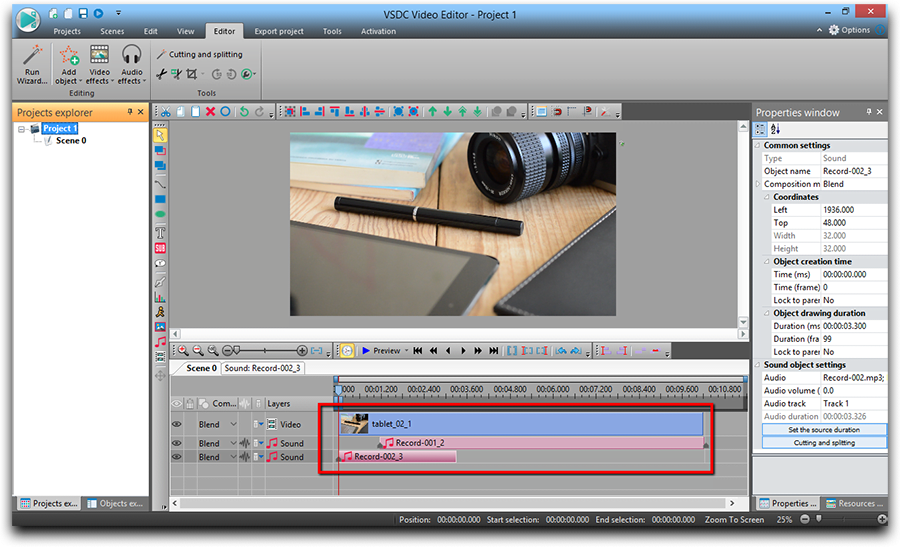
- 您的录音将自动出现在时间线上。
尽管这两种方式都可以帮助您完成工作,但是专业版本比软件更精确,节省了您的时间和精力。因此,如果录音不是一次工作,而是一项经常性的任务,您必须经常处理,您可能应该认为它是一个更方便的工具。
如果您正在寻找在您的视频制作过程中使用声音软件,您也可以查看我们的YouTube频道,看看您有多快和容易利用的目的。
您可以在免费视频编辑器 的描述页面上获得更多有关该程序的信息。


VSDC Video Editor Reviews & Ratings (Trustpilot, Capterra & Media)
VSDC Free Video Editor is rated 4.5/5 by real users on Trustpilot and Capterra. Here are a few reviews and quotes from creators and tech media.
Overall rating: 4.5/5 based on 200+ reviews on Trustpilot and 89 reviews on Capterra.
★★★★⯪
VSDC Free Video Editor is the best free video editor for Windows I’ve used, from color grading to picture-in-picture and cinematic results.
— Ejikeme Eloka Augustine
Source:Trustpilot
★★★★☆
Easy-to-use interface and quick export to social media make VSDC a versatile video editing tool for everyday projects.
— Karen C., E-Learning
Source:Capterra
★★★★☆
A feature-packed non-linear video editor for Windows that can compete with many paid video editing solutions.
— TechRadar
Source:TechRadar review
★★★★★
The free VSDC editor saved my YouTube channel – a powerful video editing software for chroma key, text effects and picture-in-picture.
— Paul Roberts
Source:Trustpilot
★★★★★
Fast and simple for YouTube videos with green screen, zoom, color tools and creative effects in one app.
— Marie R., Media Production
Source:Capterra
★★★★★
One of the best free video editor options for Windows users, ideal for GoPro, YouTube and family videos.
— VidProMom, YouTube creator
Source:Media reviews
★★★★★
I’ve been using VSDC for years; editing is easy and the final videos look great for my personal and professional projects.
— Long-time VSDC user
Source:Trustpilot
★★★★★
Great value and faster than many other free tools; I quickly create videos for YouTube, Instagram and Facebook with features my audience loves.
— Rabika B., Marketing & Advertising
Source:Capterra
★★★★★
VSDC offers many features you don’t usually find in free editors, including picture-in-picture, stabilization and modern codec support with no watermarks.
— Tech media review
Source:Media reviews
 Like us on Facebook
 Follow us on Twitter
Watch us on YouTube
 / @VSDCFreeVideoEditor
© 2011-2026, www.videosoftdev.com, FLASH-INTEGRO LLC. Privacy policy | Terms of use | About us
此处被引用的所有商标均为其各自所有者的专有财产。
只有获得网站管理员的书面许可,才能从本网站复制任何材料。