


Editor de vídeo
Use o editor de vídeo gratuito para criação e edição de vídeos de qualquer complexidade. Corte vídeos, aplique efeitos visuais e de áudio, use filtros e correção de imagem, faça apresentações de slides, adicione uma trilha sonora. Use Chroma Key e outras funções avançadas. Todos os formatos populares são suportados.
Conversor de vídeo
Converta vídeo de um formato para outro. Todos os formatos de vídeo mais populares são suportados - AVI, MOV, QT, MP4, M4V, MPEG, WMV, FLV, MKV, RealVideo (RM e RMVB), 3GP e 3G2. Prepare seus arquivos multimídia para reprodução instantânea em qualquer formato e em qualquer dispositivo.
Conversor de áudio
Converta arquivos de áudio de um formato para outro. Todos os principais formatos e codecs de áudio suportados. Você também pode gerenciar listas de reprodução e meta tags, extrair o áudio de arquivos de vídeo e salvar faixas em seu dispositivo em qualquer formato.
Animated Intro & Title Templates
Explore the VSDC Template Store with ready-made video templates for intros, animated titles, lower thirds, logo reveals, slideshows, glitch transitions, LUTs, and color grading presets. Drop a template into the VSDC Video Editor timeline, edit text, timing, and colors, and finish professional video projects in minutes.
Choose from 300+ exclusive packs of video transitions, LUT packs, text effects, GPS telemetry widgets, animated elements, and animated backgrounds for VSDC. All templates are fully customizable, support up to 4K resolution in 16:9, and help you build intros, wedding slideshows, travel videos, and tutorials much faster.
VSDC Cloud - Online video management
Keep your work safe, organized and always accessible! Back up your video projects, store media files online and access them from any device. Enjoy collaboration, share project updates and exchange files easily.
 Editor de vídeo
 Conversor de vídeo
 Conversor de áudio
 Templates store
 Cloud
Cloud

Multifuncionalidade
Uma ampla gama de ferramentas de processamento multimídia em um pacote de software de vídeo gratuito.

Alta velocidade
Algoritmos de nossos programas são rápidos e otimizados para CPU de núcleo único e múltiplos núcleos.

Disponibilidade
VSDC está disponível gratuitamente para PCs e laptops com sistema operacional Windows.
News:
- Publicado por Amy Shao em 30 de junho de 2026 Conheça a nova atua...
- Publicado por Amy Shao em 11 de março de 2026 Qual é o melhor pre...
- publicado por Amy Shao 19/11/25 Conheça a tão aguardada atualização VSDC 10....
- Olá, eu sou Mattea Wharton, videomaker de viagens de Seattle. Durante três anos ...
Como criar seus próprios LUTs no VSDC
De todas as ferramentas de correção de cores, os LUTs são os favoritos de todos. Eles são uma maneira rápida, fácil e versátil de fazer uma imagem ou vídeo médio parecer cinematográfico. É por isso que estamos tão felizes em anunciar que a partir da versão 6.9, o VSDC inclui um editor LUT integrado. Você não apenas pode aplicar LUTs importados aos seus vídeos, mas também editá-los e criar seus próprios LUTs personalizados.
Mas o mais importante, usuários do VSDC Pro podem exportar LUTs deles e usá-los em editores de fotos e vídeos de terceiros.
Neste tutorial, mostraremos como o editor LUT funciona no VSDC. Antes de começarmos, vamos responder a uma pergunta importante.
O que é um LUT, exatamente?
LUT, ou Look Up Table, é um conjunto de valores que definem como os tons de cor devem ser modificados. Pense em um LUT como um modelo de correção de cores pré-configurado.
Cado LUT contém uma tabela com informações sobre quais valores de matiz, saturação e luminosidade devem ser para cada tom de cor. Quando você aplica uma LUT a uma imagem, ele compara os valores originais com os valores da tabela e altera o original de acordo.
Os LUTs são incrivelmente populares porque podem ajudá-lo a compensar a falta de iluminação adequada durante a filmagem, substituir uma cor por outra e obter uma aparência cinematográfica.
Como criar um novo LUT no VSDC
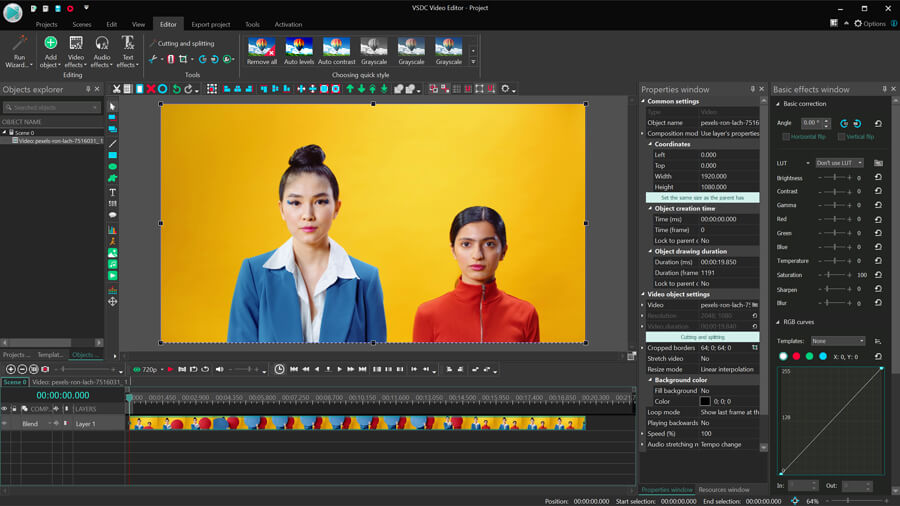
Importe sua imagem ou vídeo para a cena. A partir daí, você pode fazer o seguinte:
- aplicar uma dos LUTs integrados no menu VSDC
- aplicar qualquer LUT de terceiros que você encontrou na Internet
- criar seu próprio LUT para às suas necessidades
Para os propósitos deste tutorial, vamos com a terceira opção.
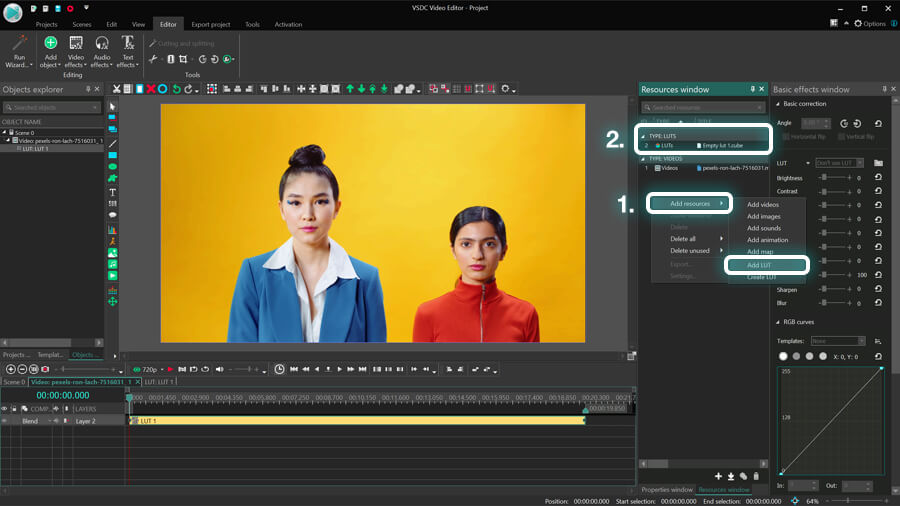
Para criar um novo LUT, abra a janela Recursos (se não conseguir encontrá-la, clique em Exibir no menu na parte superior e selecione a janela Recursos). Em seguida, clique com o botão direito do mouse em qualquer lugar da janela Recursos e prossiga para Adicionar recursos >> Criar LUT.
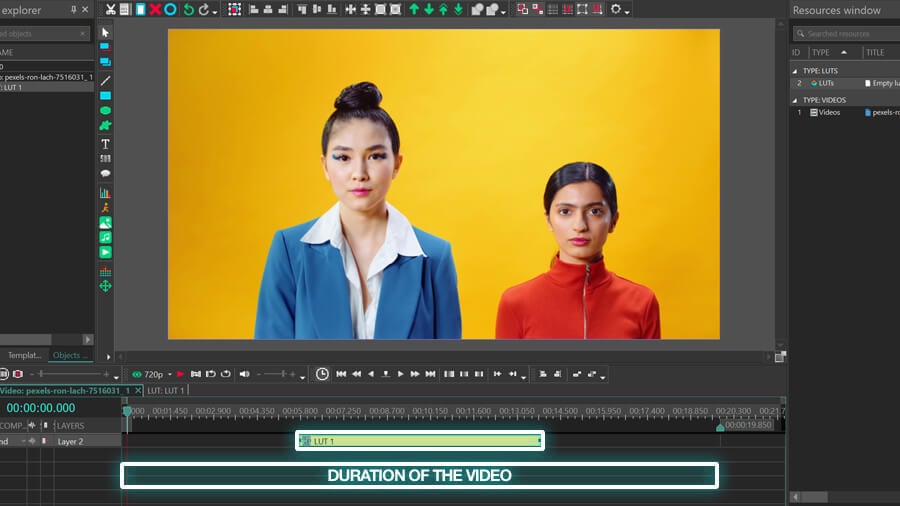
Seu novo LUT será adicionado à lista de recursos e denominado “Empty lut 1.cube”. Clique duas vezes na imagem ou vídeo para abri-lo e arraste o LUT da janela Recursos para a cena. Lembre-se de que, por padrão, o LUT será adicionado a partir da posição do indicador de reprodução na linha do tempo, portanto, convém ajustá-lo.
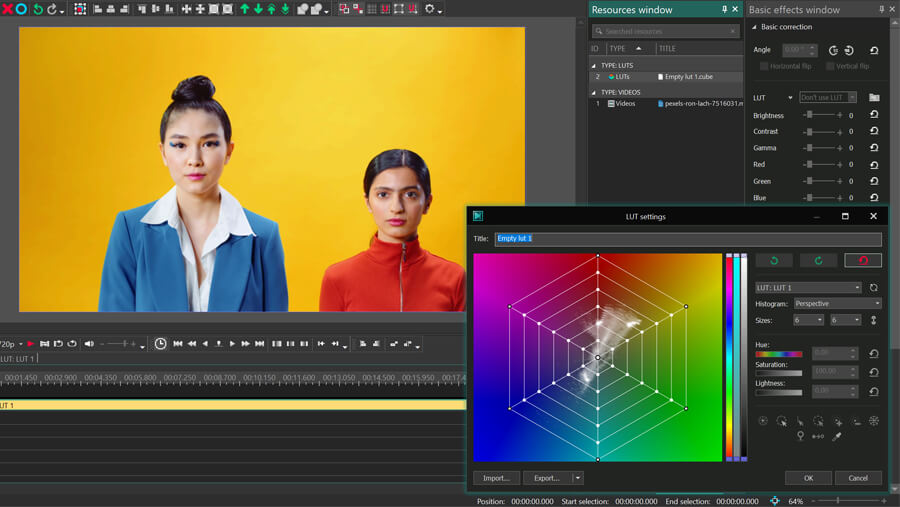
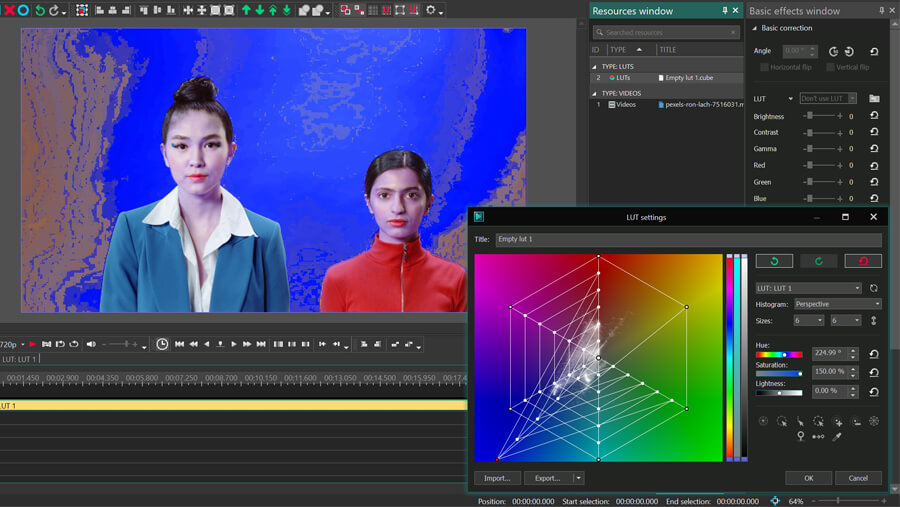
Agora que você criou um LUT vazia para aplicar à filmagem, clique duas vezes em seu ícone na janela Recursos para abrir o editor LUT.

O editor se parece com uma janela pop-up com um histograma HSL e um menu compacto no lado direito. Na seção a seguir, explicaremos o que cada opção significa e como você pode ajustar seu vídeo com este conjunto de ferramentas.
Como alterar as configurações de LUT
Vamos começar com uma rápida visão geral da janela do editor LUT.
As manchas brancas no histograma ajudam a identificar quais tons de cores são usados no vídeo. Tons de cores predominantes produzem áreas de manchas brancas mais saturadas.
Se você alternar entre dois tipos de histogramas – perspectiva e ortográfico – você notará que o padrão de ponto branco também muda.

A razão pela qual os tons de cor são refletidos de forma diferente é que o histograma de perspectiva inclui valores de luminosidade, enquanto o histograma ortográfico os exclui. Essencialmente, isso significa que você deve usar o histograma de perspectiva para corrigir imagens superexpostas e subexpostas – porque você deseja ver os valores de luminosidade no gradiente antes de ajustá-los.
Depois de selecionar o tipo de histograma, pode ajustar o número de raios. Quanto mais raios houver, mais pontos de controle a grade do histograma terá - e com mais precisão você poderá corrigir os tons de cores.
Os pontos de controle na grade são interativos. Vá em frente e selecione qualquer um deles para ver seus valores Matiz, Saturação, Luminosidade à direita. Também pode alternar os controles deslizantes HSL ou simplesmente pegar qualquer ponto de controle e arrastá-lo para ter uma ideia de como as coisas funcionam.
Agora que você está familiarizado com o histograma e os pontos de controle, vamos ver como movê-los em diferentes direções pode alterar a aparência de sua filmagem.
Configurações de controle de saturação
No histograma, as cores menos saturadas estão localizadas no centro, portanto, quanto mais próximo das bordas estivermos, maior será a saturação. Por exemplo, se você estiver trabalhando com imagens brutas, seus tons de cores geralmente não são saturados. É por isso que as manchas brancas no histograma estarão localizadas principalmente no centro.
Para aumentar a saturação de todos os tons de cor no vídeo de uma só vez, selecione o círculo de pontos de controle que inclui todos os pontos brancos (o que significa todos os tons de cor do vídeo) e expanda-o alternando o controle deslizante de saturação no lado direito.
Da mesma forma, para aumentar ou diminuir a saturação de um tom de cor específico, você pode selecionar pontos de controle nessa seção de tom de cor e arrastá-los para mais perto do centro ou da borda.
Configurações de matiz
Os valores de matiz mudam quando movemos pontos ao redor do histograma. Essencialmente, pode substituir qualquer cor por outra alterando sua tonalidade. Suponha que você queira substituir todos os tons de cor verde no vídeo por azul ou vermelho. Para fazer isso, selecione todos os pontos de controle na seção verde e arraste-os para a seção de cor de substituição.
Observe que, à medida que mudamos a tonalidade, os pontos brancos também estão migrando porque o esquema geral de cores do vídeo é reescrito. Os criadores de vídeo usam esse truque para alternar tons frios para tons quentes, ou vice-versa, ajustar a aparência de determinados objetos ou até melhorar os tons de pele.
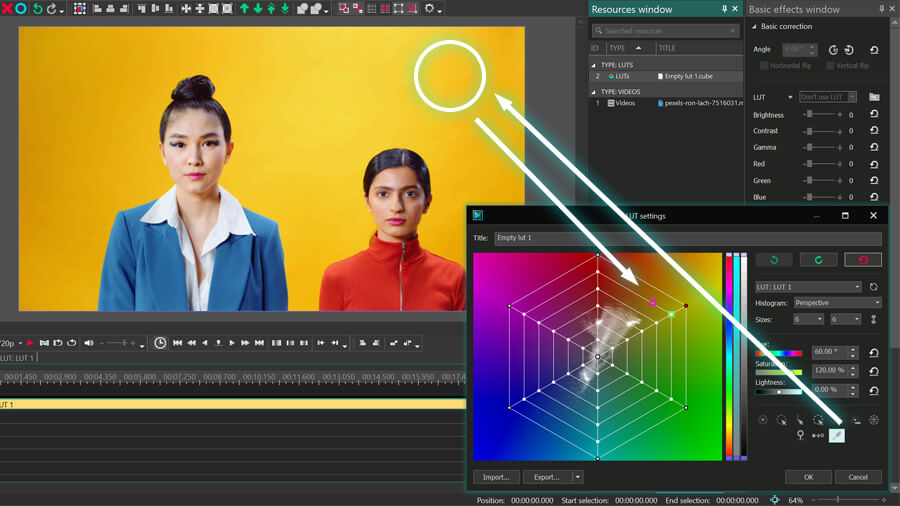
Dica rápida. Se você precisar selecionar um tom de cor específico no vídeo, mas não tiver certeza de como identificá-lo no histograma, use a ferramenta conta-gotas no menu do lado direito. Clique no ícone do conta-gotas e vá para a janela de visualização para encontrar o tom de cor com o qual deseja trabalhar. Ao mover o conta-gotas, você notará dois pequenos quadrados no histograma: roxo e verde.
O quadrado roxo mostra qual parte do histograma contém a cor para a qual o conta-gotas está apontando. O quadrado verde mostra o ponto de controle mais próximo na grade; para selecioná-lo, clique na cor.
Configurações de Luminosidade
Finalmente, vamos dar uma olhada no controle Luminosidade. O que faz deve ser autoexplicativo: permite tornar os tons de cores do vídeo mais escuros ou mais claros. A parte legal é que você pode ajustar o brilho para todos os tons de cores ou apenas tons de cores selecionados. Por exemplo, suponha que você queira tornar os tons verdes mais brilhantes. Isto é o que vai parecer:
No entanto, para clarear ou escurecer todos os tons de cores do vídeo, precisará selecionar os círculos correspondentes na grade. Por exemplo, vamos deixar todos os tons de cor no vídeo um pouco mais escuros e depois escurecer ainda mais os menos saturados.
Agora que abordamos o básico do trabalho com os controles Matiz, Saturação e Luminosidade, vamos dar uma olhada no restante do conjunto de ferramentas.
Seleção rápida de pontos de controle
Você pode selecionar pontos de controle individuais clicando neles diretamente. Também pode selecionar vários pontos de controle clicando neles um por um ou selecionando a área na grade onde eles estão localizados. No entanto, pode usar as ferramentas de seleção de pontos logo abaixo dos controles deslizantes HSL:
- Selecionar ponto central – use esta opção para selecionar apenas o ponto central
- Selecionar círculo externo – use para selecionar todos os pontos de controle no círculo externo
- Selecionar raio – use para selecionar um raio de pontos (indique o raio desejado selecionando pelo menos um ponto de controle nele)
- Selecionar círculo – use para selecionar um círculo de pontos (da mesma forma, você precisará indicar o círculo desejado primeiro selecionando pelo menos um ponto nele)
- Aumentar/Diminuir a seleção – use para aumentar ou diminuir o número de pontos selecionados com base na seleção inicial. Por exemplo, se selecionou um único ponto, esta opção selecionará ou desmarcará os pontos vizinhos. Se selecionou um círculo de pontos, esta opção selecionará ou desmarcará os círculos vizinhos
- Selecionar tudo – use esta opção para selecionar todos os pontos de controle na grade
Se você precisar impedir que um ponto de controle específico, um raio ou um círculo de pontos se mova, use o botão Fixar.
Da mesma forma, você pode usar o botão Fixar mais próximo para bloquear os pontos vizinhos.
Como exportar seu LUT do VSDC
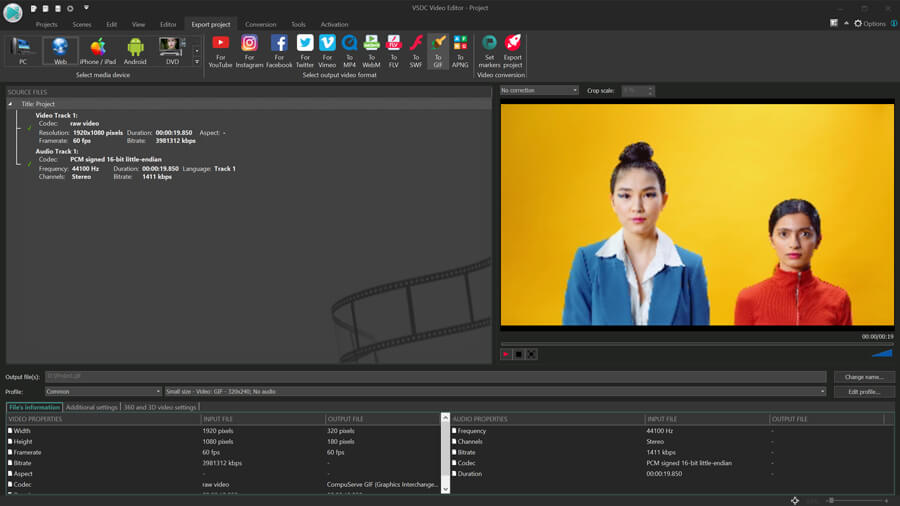
Vá para o campo Título e dê seu LUT um nome. Para exportar o LUT do VSDC e usá-lo em editores de terceiros, basta clicar em Exportar no canto inferior esquerdo e selecionar a pasta de saída no seu PC. Lembre-se de que a exportação de LUT está disponível apenas no VSDC Pro.
Pronto para criar seu primeiro LUT?
Agora deve ter uma ideia clara de como criar um novo LUT personalizado para suas necessidades. Embora tenhamos abordado o processo de criação de um LUT do zero, lembre-se de que você pode seguir as mesmas etapas para editar um LUT existente. Basta aplicar qualquer LUT da biblioteca e abrir os Recursos para encontrar esse LUT na lista de recursos e acessar a janela do editor.
Tem alguma pergunta? Sinta-se à vontade para nos enviar um e-mail para O endereço de e-mail address está sendo protegido de spambots. Você precisa ativar o JavaScript enabled para vê-lo. ou DM no Facebook.
Obtenha mais informações sobre o programa na página de descrição do Free Video Editor.




Ferramenta de captura de sua Área de Trabalho, que lhe permite salvar essa captura em um arquivo de vídeo e processar no editor.

Um programa para capturar vídeo de dispositivos externos. Você pode salvar o vídeo de sintonizadores de vídeo, câmeras web, placas de captura e outros dispositivos.
VSDC Video Editor Reviews & Ratings (Trustpilot, Capterra & Media)
VSDC Free Video Editor is rated 4.5/5 by real users on Trustpilot and Capterra. Here are a few reviews and quotes from creators and tech media.
Overall rating: 4.5/5 based on 200+ reviews on Trustpilot and 89 reviews on Capterra.
★★★★⯪
VSDC Free Video Editor is the best free video editor for Windows I’ve used, from color grading to picture-in-picture and cinematic results.
— Ejikeme Eloka Augustine
Source:Trustpilot
★★★★☆
Easy-to-use interface and quick export to social media make VSDC a versatile video editing tool for everyday projects.
— Karen C., E-Learning
Source:Capterra
★★★★☆
A feature-packed non-linear video editor for Windows that can compete with many paid video editing solutions.
— TechRadar
Source:TechRadar review
★★★★★
The free VSDC editor saved my YouTube channel – a powerful video editing software for chroma key, text effects and picture-in-picture.
— Paul Roberts
Source:Trustpilot
★★★★★
Fast and simple for YouTube videos with green screen, zoom, color tools and creative effects in one app.
— Marie R., Media Production
Source:Capterra
★★★★★
One of the best free video editor options for Windows users, ideal for GoPro, YouTube and family videos.
— VidProMom, YouTube creator
Source:Media reviews
★★★★★
I’ve been using VSDC for years; editing is easy and the final videos look great for my personal and professional projects.
— Long-time VSDC user
Source:Trustpilot
★★★★★
Great value and faster than many other free tools; I quickly create videos for YouTube, Instagram and Facebook with features my audience loves.
— Rabika B., Marketing & Advertising
Source:Capterra
★★★★★
VSDC offers many features you don’t usually find in free editors, including picture-in-picture, stabilization and modern codec support with no watermarks.
— Tech media review
Source:Media reviews
 Like us on Facebook
 Follow us on Twitter
Watch us on YouTube
 / @VSDCFreeVideoEditor
© 2011-2026, www.videosoftdev.com, FLASH-INTEGRO LLC. Política de privacidade | Termos de uso | Sobre nós
Todas as marcas comerciais mencionadas neste documento são de propriedade exclusiva de seus respectivos proprietários.
A cópia de qualquer material deste site é permitida apenas com o consentimento por escrito da Administração do Site.