 User Help Manual


Editor Video
L'editor video consente di modificare file e creare video di qualsiasi complessità. Potete applicare effetti video e audio effects ad oggetti modificati, trasformarli, applicare filtri e correzioni d'immagini. Tutti i popolari formati video e audio sono supportati (sia lettura che salvataggio).
Convertitore Video
Questo programma serve a convertire video file da un formato ad un altro. Quasi tutti i popolari formati video sono supportati. Inoltre, il programma semplifica drasticamente il compito di convertire video da riprodurre su determinati dispositivi multimedia quali iPhone, Microsoft Zune oppure Archos. Il programma è semplicissimo da usare, dispone di una moderna interfaccia e di tutte le necessarie funzioni per processare i video.
Convertitore Audio
Il convertitore audio vi aiuterà a convertire file audio da un formato ad un altro. Tutti i formati audio e codec chiavi sono supportati. Il programma vi consente inoltre di gestire playlist e meta tags, di estrarre audio dai file video e di salvare queste tracce sul vostro computer in qualsiasi formato.
Animated Intro & Title Templates
Explore the VSDC Template Store with ready-made video templates for intros, animated titles, lower thirds, logo reveals, slideshows, glitch transitions, LUTs, and color grading presets. Drop a template into the VSDC Video Editor timeline, edit text, timing, and colors, and finish professional video projects in minutes.
Choose from 300+ exclusive packs of video transitions, LUT packs, text effects, GPS telemetry widgets, animated elements, and animated backgrounds for VSDC. All templates are fully customizable, support up to 4K resolution in 16:9, and help you build intros, wedding slideshows, travel videos, and tutorials much faster.
VSDC Cloud - Online video management
Keep your work safe, organized and always accessible! Back up your video projects, store media files online and access them from any device. Enjoy collaboration, share project updates and exchange files easily.
 Editor Video
 Convertitore Video
 Convertitore Audio
 Templates store
 Cloud
Cloud

Versatilità
Più strumenti contemporaneamente per elaborare file video e audio in una singola applicazione.

Alta velocità
I nostri programmi
impiegano rapidi algoritmi di alta qualità per processori singoli a multipli.

Accessibilità
I nostri prodotti sono disponibili per essere scaricati gratuitamente su tutti i computer e dispositivi che supportano i sistemi operativi Windows.
Notizie:
- Pubblicato da Amy Shao il 30 giugno 2026 Scopri il nuovo grande a...
- Pubblicato da Amy Shao l’11 marzo 2026 Qual è il regalo migliore pe...
- pubblicato da Amy Shao 19/11/25 Ecco l'attesissimo aggiornamento VSDC 10.2: ...
- Ciao, sono Mattea Wharton, una videomaker di viaggi di Seattle. Per tre anni ho ...
3 modi semplici per rimuovere l'audio dai video in VSDC
Troppo spesso i video decenti sono accompagnati da un audio di bassa qualità. I motivi sono vari: rumori inattesi in sottofondo, sibili del vento o anche un microfono erroneamente coperto dal dito dell’operatore. Di conseguenza, durante la modifica del filmato, potresti dover rimuovere l'audio dal video e sostituirlo con musica o una registrazione vocale.
Esistono diversi modi per farlo, inclusi trucchi con due clic che ti consentiranno di disattivare l'audio di un video in letteralmente 3 secondi. Nell’articolo seguente descriveremo tre metodi e spiegheremo i vantaggi di ciascuno. Esamineremo anche ulteriori passaggi che potresti voler intraprendere, ad esempio rimuovere il rumore audio o modificare il volume di una parte dell'audio.
Per il tutorial utilizzeremo il software di editing video gratuito denominato VSDC. È progettato per il sistema operativo Windows e richiede risorse di sistema minime.
Scarica VSDC Editor video gratuito
Essenzialmente, esistono due modi per rimuovere l'audio da un video: disattivandolo ed eliminando completamente la traccia audio originale dal file. La prima è l'opzione più semplice e veloce se hai solo bisogno di silenziare il video. Quest'ultimo è più comodo se vuoi sostituire l'audio originale con una nuova colonna sonora. Esaminiamo ciascun metodo.
Come rimuovere l'audio dal video: metodo n. 1
Inizieremo con un trucco veloce in cui la traccia audio originale rimane parte del file ma diventa assolutamente silenziosa. Per provarlo, importa un file video in VSDC Free Video Editor e segui questi due passaggi:
- Utilizza il pulsante destro del mouse per fare clic sul video che desideri disattivare.
- Seleziona "Effetti audio --> Ampiezza --> Silenzio” come illustrato di seguito.
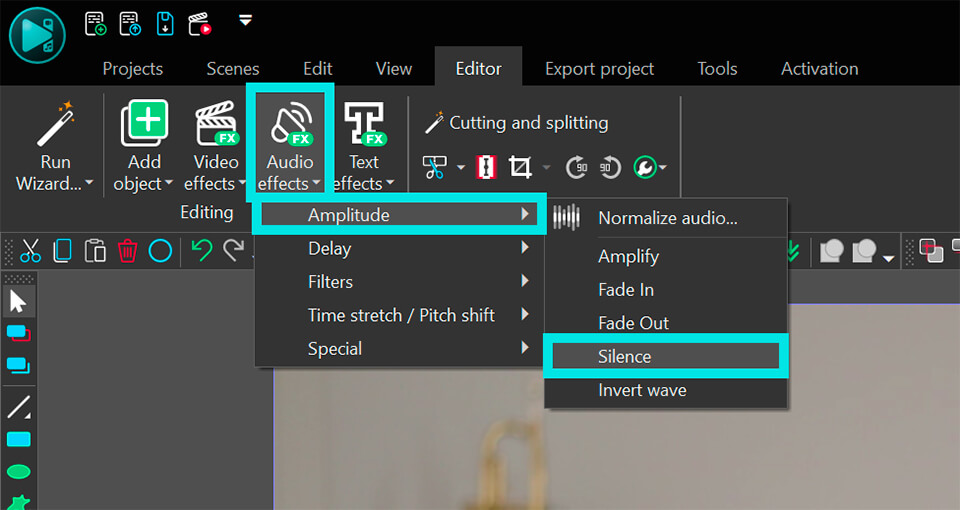
Ora, in sostanza, ciò che fai è aggiungere un livello "Silenzio" sul video. Significa che l'audio rimane parte del file ma viene disattivato dal filtro. E poiché puoi facilmente ridurre, allungare e spostare i livelli con il mouse, questo metodo funzionerà per silenziare l'intero video o silenziarne solo una parte. Per quest'ultimo, regola la dimensione del livello "Silenzio" con il mouse e spostalo sulla parte del filmato che devi disattivare.
Suggerimento rapido: se il motivo principale per cui vuoi rimuovere l'audio dal video è il rumore di fondo, potresti anche considerare i filtri di riduzione del rumore disponibili in VSDC. Un tutorial dettagliato sulla riduzione del rumore è pubblicato qui.
Come disattivare l'audio in un video: metodo n. 2
Il primo metodo era semplice, vero? Ora, il metodo successivo è di due clic più lungo (il che significa 4 clic). Ecco come eseguirlo:
- Importa un video che devi disattivare in VSDC Free Video Editor.
- Utilizzare il tasto destro del mouse per fare clic sul video e selezionare "Proprietà". La "finestra Proprietà" verrà visualizzata dal lato destro dell'editor.
- Scorri verso il basso fino al campo "Traccia audio" e passa a "Non utilizzare l'audio".
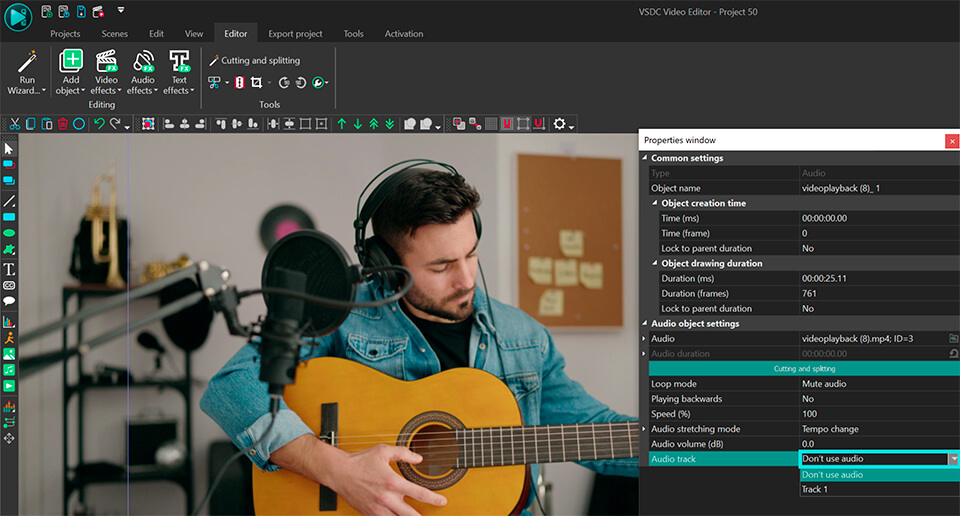
Questo metodo ti offre meno flessibilità. Quando lo usi, tecnicamente scegli di ignorare completamente il suono del file selezionato. Ciò, tuttavia, non ti impedisce di aggiungere un file audio al progetto e di utilizzarlo come nuova colonna sonora.
Come rimuovere l'audio dal video eliminando la traccia audio: metodo n. 3
Se preferisci, puoi fare un ulteriore passo avanti ed eliminare completamente la traccia audio del tuo file. Per fare ciò, segui i passaggi seguenti:
- Utilizza il pulsante destro del mouse per fare clic sul file che desideri disattivare e seleziona "Proprietà" dal menu. La "finestra Proprietà" verrà visualizzata dal lato destro.
- Scorri fino in fondo e utilizza il pulsante verde chiaro "Dividi in video e audio". Una volta fatto, vedrai che la colonna sonora ora appare come un livello separato sulla timeline.
- Selezionalo e premi Elimina.
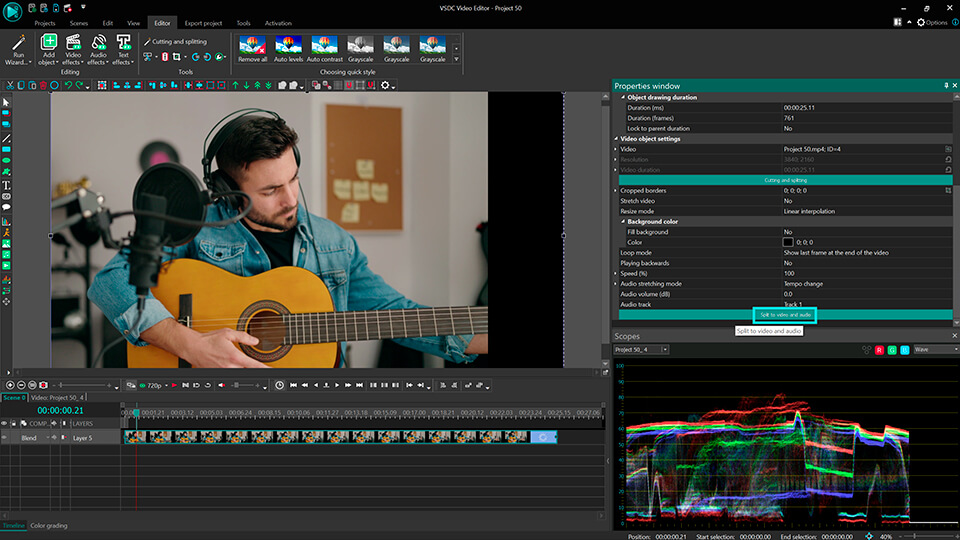
Avere separato un livello della colonna sonora è utile anche quando è necessario ritagliare o modificare un frammento dell'audio. Ecco un video dettagliato su come modificare il volume di una parte dell'audio in VSDC.
Come sostituire l'audio con un'altra colonna sonora o commenti vocali
Ti abbiamo mostrato 3 metodi per rimuovere l'audio da un video. Ora vediamo cosa fare dopo. Nella maggior parte dei casi, non lo fai Non lasciare che il tuo video rimanga silenzioso, quindi potrebbe essere necessario caricare una nuova colonna sonora. Per fare ciò, basta fare clic sul pulsante "Aggiungi oggetto" e scegliere "Audio" o utilizzare la combinazione di tasti Maiusc + A. Una volta che la traccia audio caricata si trova sulla timeline, regola l'audio per adattarlo al video spostando la nuova traccia lungo il livello. Se hai bisogno di tagliare il file o ritagliarne una parte, usa questo tutorial. La divisione dei file audio in VSDC funziona esattamente allo stesso modo della divisione dei video.
Infine, se hai bisogno di registrare commenti vocali per il video, puoi farlo anche direttamente in VSDC. Lo strumento di acquisizione vocale è disponibile nella versione gratuita del programma e ti consente di creare voci fuori campo con il minimo sforzo. Potrai aggiungere la registrazione vocale alla timeline come nuovo livello e regolarla proprio come faresti con qualsiasi altro file audio. Guarda le nostre istruzioni su come aggiungere video voice over qui.
Ora che sai come disattivare, rimuovere e sostituire una traccia audio, vai avanti e provalo tu stesso. Scegli il metodo più conveniente e inizia i tuoi esperimenti di montaggio!
Inviaci un messaggio su Facebook se hai domande e iscriviti al nostro canale YouTube per altri tutorial.
Puoi ottenere maggiori informazioni sul programma nella pagina di descrizione di Free Video Editor.
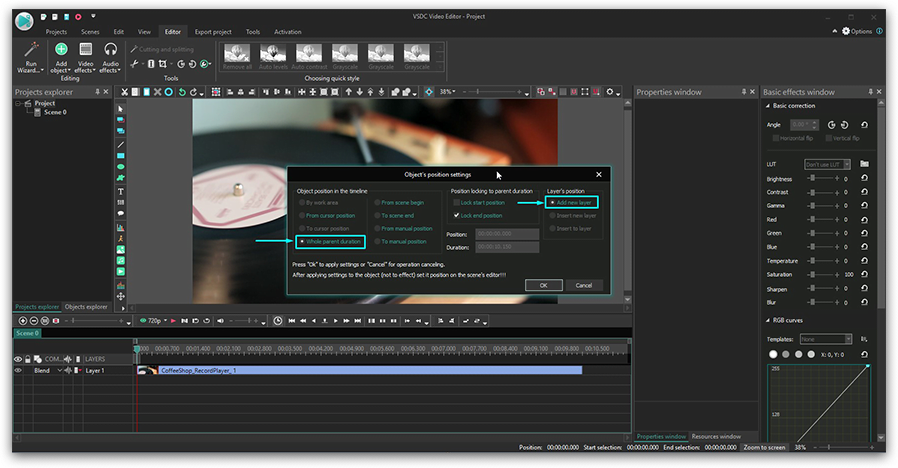
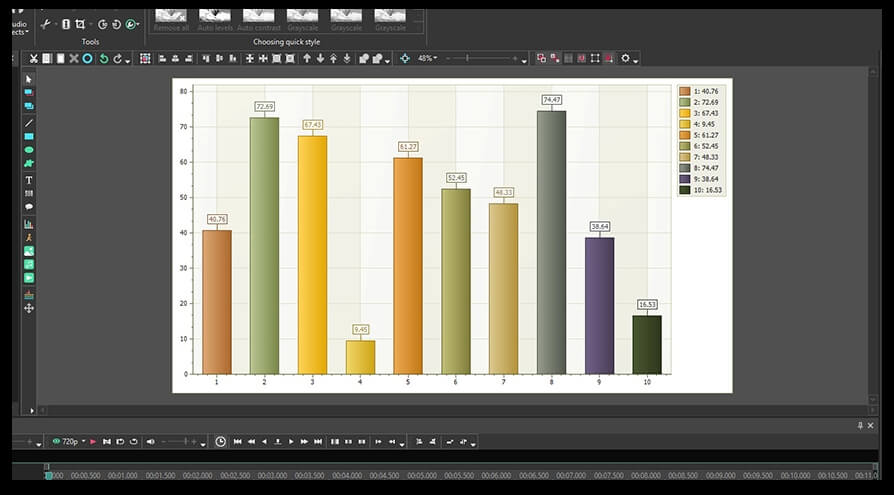
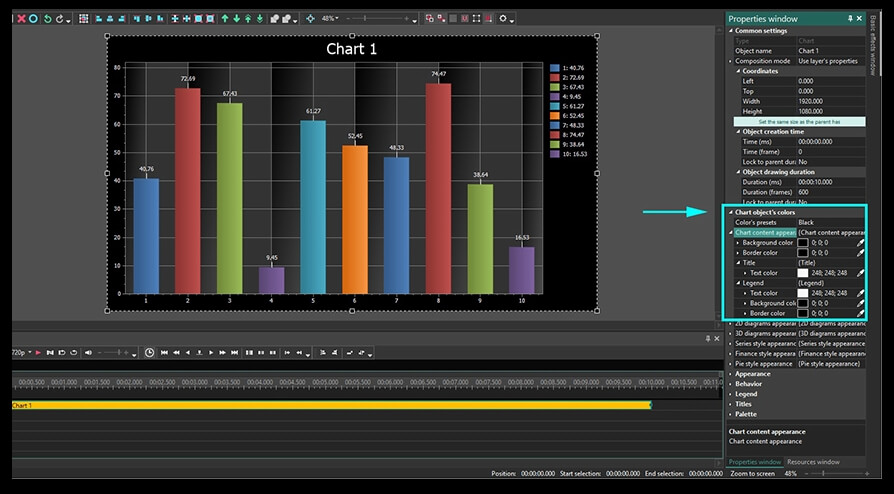
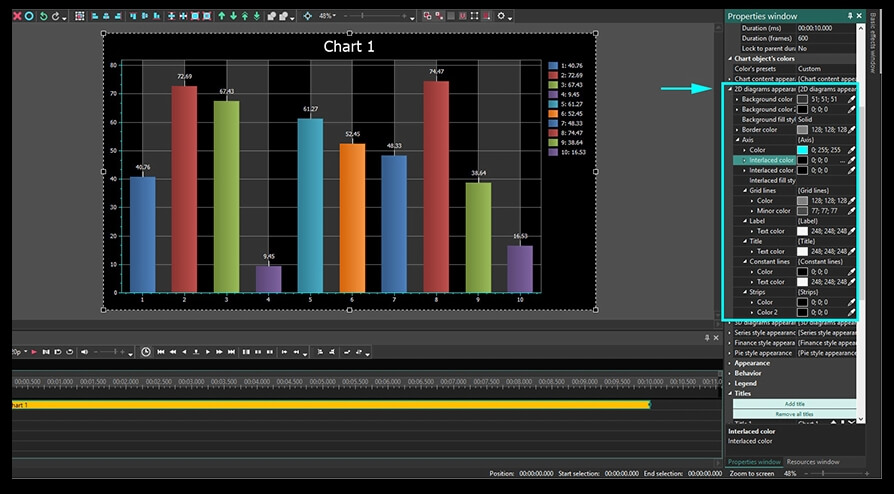
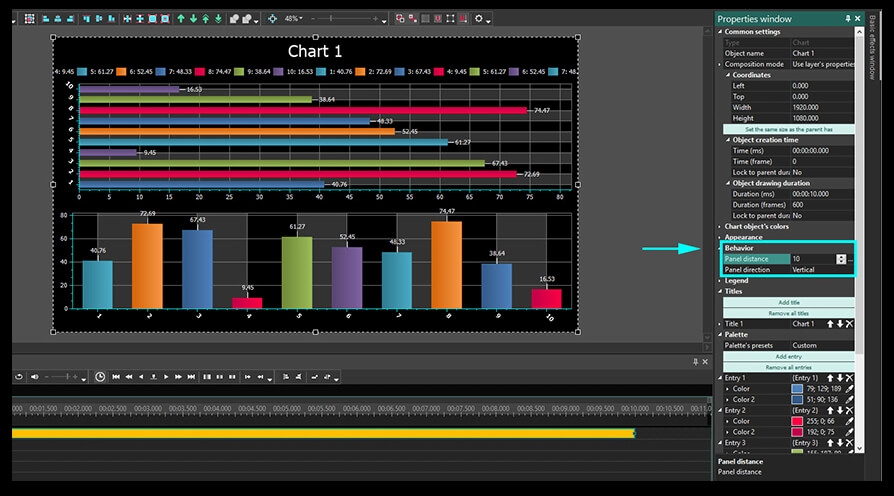
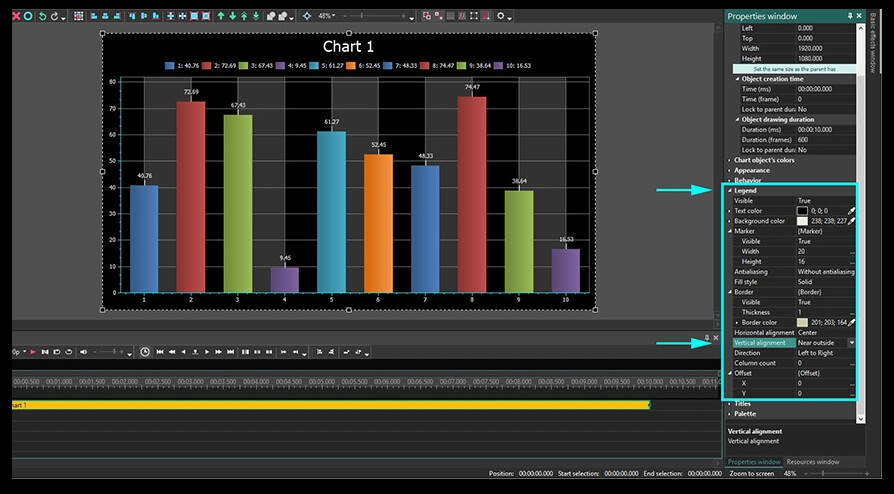
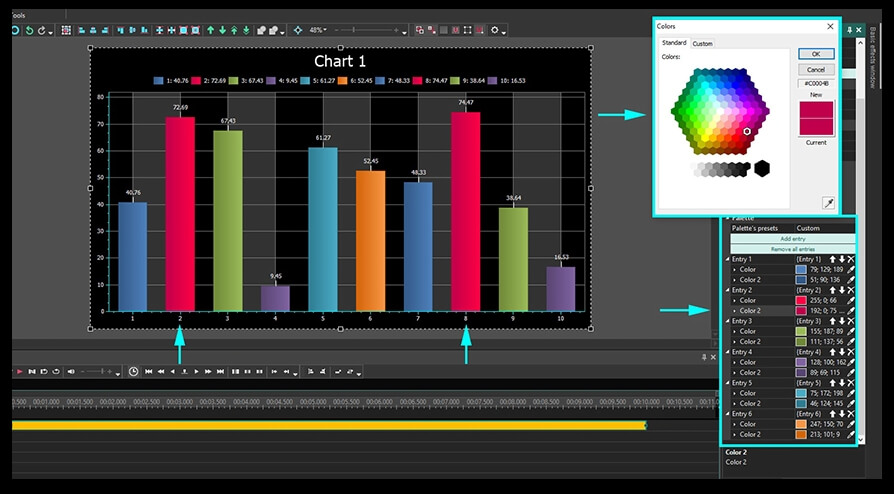
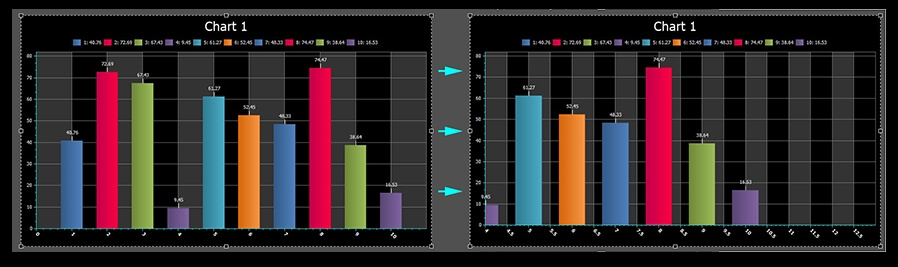
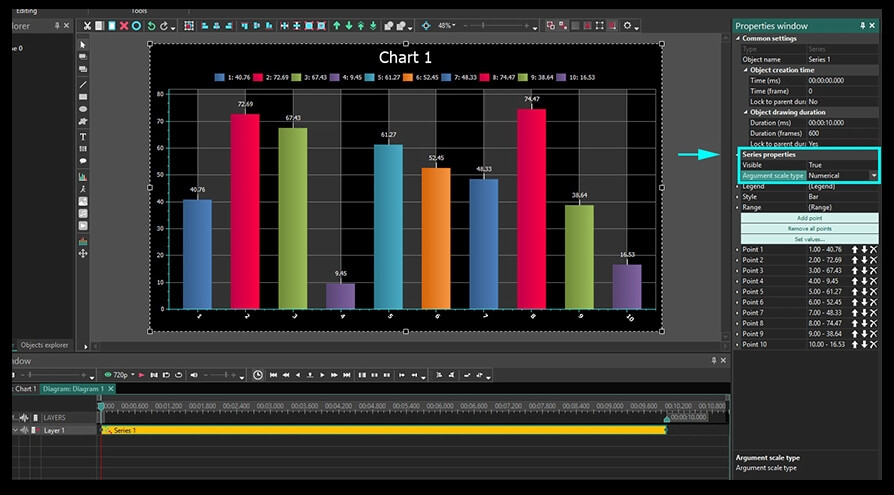
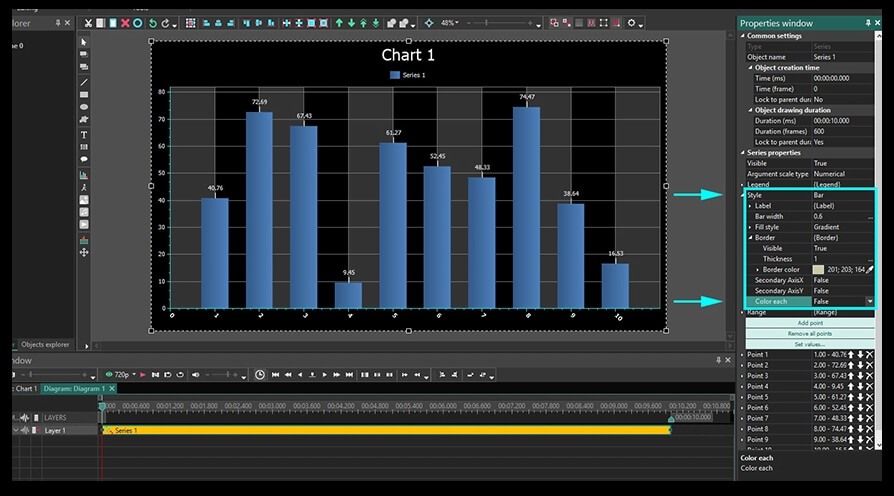
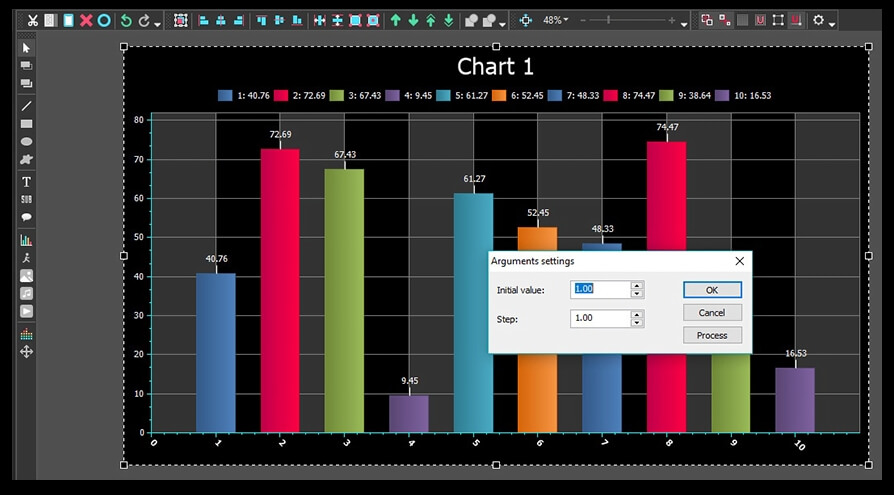
 dedicata nel menù al lato sinistro o la combinazione Shift + C. Nella finestra a comparsa si chiede di confermare la posizione dell’oggetto sulla cronologia - solo fate un clic su OK. Un modo della tabella generica sarà postato nella scena quando attuate questo azione.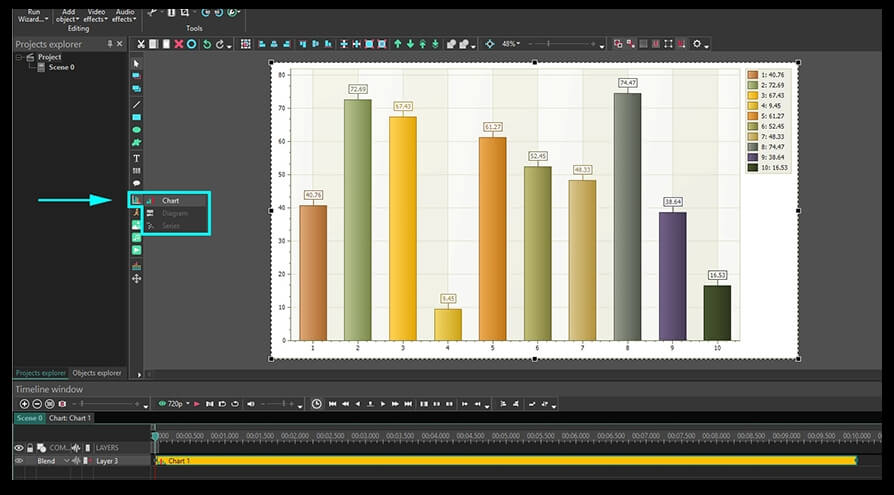

Con questo programma è possibile registrare i video dal desktop e salvarli sul computer in diversi formati. Insieme al video editor è ideale per creare presentazioni e demo.

Il programma serve per catturare video da dispositivi esterni e e per registrarli sul computer in qualsiasi formato video. Potete salvare il video da sintonizzatori video, webcam, schede di acquisizione e vari dispositivi.
VSDC Video Editor Reviews & Ratings (Trustpilot, Capterra & Media)
VSDC Free Video Editor is rated 4.5/5 by real users on Trustpilot and Capterra. Here are a few reviews and quotes from creators and tech media.
Overall rating: 4.5/5 based on 200+ reviews on Trustpilot and 89 reviews on Capterra.
★★★★⯪
VSDC Free Video Editor is the best free video editor for Windows I’ve used, from color grading to picture-in-picture and cinematic results.
— Ejikeme Eloka Augustine
Source:Trustpilot
★★★★☆
Easy-to-use interface and quick export to social media make VSDC a versatile video editing tool for everyday projects.
— Karen C., E-Learning
Source:Capterra
★★★★☆
A feature-packed non-linear video editor for Windows that can compete with many paid video editing solutions.
— TechRadar
Source:TechRadar review
★★★★★
The free VSDC editor saved my YouTube channel – a powerful video editing software for chroma key, text effects and picture-in-picture.
— Paul Roberts
Source:Trustpilot
★★★★★
Fast and simple for YouTube videos with green screen, zoom, color tools and creative effects in one app.
— Marie R., Media Production
Source:Capterra
★★★★★
One of the best free video editor options for Windows users, ideal for GoPro, YouTube and family videos.
— VidProMom, YouTube creator
Source:Media reviews
★★★★★
I’ve been using VSDC for years; editing is easy and the final videos look great for my personal and professional projects.
— Long-time VSDC user
Source:Trustpilot
★★★★★
Great value and faster than many other free tools; I quickly create videos for YouTube, Instagram and Facebook with features my audience loves.
— Rabika B., Marketing & Advertising
Source:Capterra
★★★★★
VSDC offers many features you don’t usually find in free editors, including picture-in-picture, stabilization and modern codec support with no watermarks.
— Tech media review
Source:Media reviews
 Unisciti a noi
  Seguici
 Guardaci
 / @VSDCFreeVideoEditor
© 2011-2026, www.videosoftdev.com, FLASH-INTEGRO LLC. Tutela della privacy | Condizioni di utilizzo | Chi siamo
Tutti i marchi citati nel presente documento sono di proprieta esclusiva dei rispettivi proprietari.
La copia di qualsiasi materiale da questo sito e consentita solo con il consenso scritto dell'amministrazione sito.