 User Help Manual
  Learn FAQ
  Send us feedback


- Published by Amy Shao on June 30, 2026 Meet the new major update ...
- Published by Amy Shao on March 11, 2026 What is the best gift for...
- published Amy Shao 11/19/25 Meet the long-awaited VSDC 10.2 update: a new ve...
- Hi, I'm Mattea Wharton, a travel videographer from Seattle. For three years I ba...
How to set properties of object position in time
Video editor enables to work with different objects, namely: "Sprite", "Duplicate", "Line", "Rectangle", "Ellipse", "Tooltip", "Image", "Sound", "Video", "Movement" and also with a large quantity of video and audio effects.
You can add these objects using the same methods which are divided into three stages: choice of object, setting up its position in time and on the scene. For more information about the first and the third stages see example of adding video and image to the scene in section "How to open video file or image for editing". In the present section we shall explain how to set object when it is added to the scene.
When you add object to the scene or when you apply effect to object you see the following window which sets object/effect position in time:
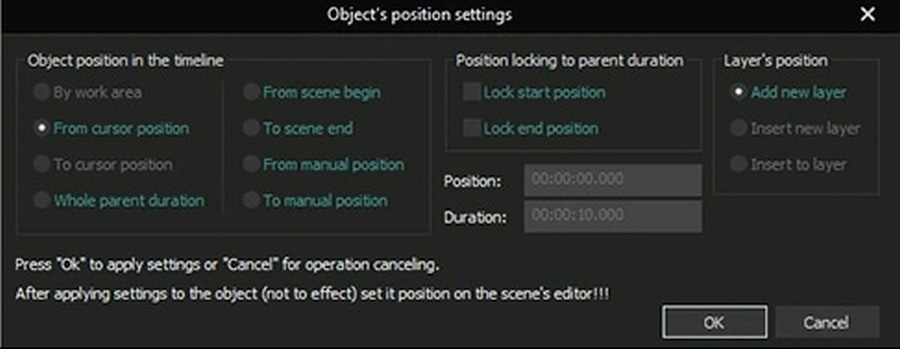
In this window you may set time of object appearance to the scene (effect start time), duration of display (effect duration), as well as its dynamics upon change of parent object duration. Let’s review in details each parameter:
- By work area – sets time of appearance and duration as per the marked working area on timeline (duration of video and audio objects is set not according to working area duration, but in accordance with duration of video and audio material in a file).
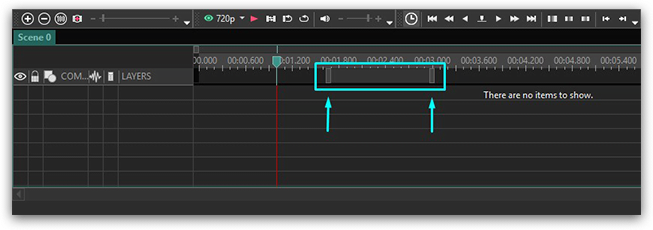
- From cursor position - sets time of appearance starting from cursor position on timeline and automatically sets duration to the end of the scene (duration of video and audio objects is set not to the end of the scene but according to video and audio material in a file).
- To cursor position – sets time of appearance starting from beginning of parent object (scene or sprite) to cursor position on timeline (duration of video and audio objects is set not to cursor position but according to video and audio material in a file).
- Whole parent duration - sets time of object appearance and its duration equal to parent object duration. Connection of object duration with parent object duration is also set ("Lock end position").
- From scene begin - sets time of appearance starting from parent object. Object duration is manually set (except for video and audio objects which have duration set according to duration of material).
- To scene end - sets time of object disappearance equal to time of parent object disappearance. Duration is manually set. Connection of object appearance time and its duration with parent object duration are also set ("Lock start position and "Lock end position").
- From manual position – time of object appearance and its duration are manually set.
- To manual position – time of object disappearance and its duration are manually set.
- Lock start position - sets connection of object appearance time with parent object duration, i.e. if parent object duration is changed object appearance time will be automatically recalculated.
- Lock end position - sets connection of object duration with parent object duration, i.e. if parent object duration is changed object duration will be automatically recalculated.
We recommend to choose "Whole parent duration" option for filters and other effects covering the whole duration of parent object, because in this case "Lock end position" option is set and when object duration is changed, effect duration will be automatically changed.
At the same time for transition effects we recommend to choose "From scene begin" or "To scene end". In such case options "Lock start position" and "Lock end position" are set the way that when object duration is changed, duration of effect will not be changed, and effect finish time will always coincide with time of object disappearance if you choose option "To scene end".
Frequently Asked Questions
1. If VSDC automatically places objects on the timeline when I add them, why do I need additional settings for their position?
Automatic placement is convenient, but it works according to default settings, often placing an object at the beginning of the timeline or at the current cursor position. For simply joining clips, it may be enough. However, as soon as a task requires greater precision, for example, to make a title appear exactly on a musical beat, for complex graphics to start moving at a specific moment or for several elements to display an effect simultaneously, manual settings become essential for good result.
2. Are the parameters for placing an object on the timeline related to the keyframe function in VSDC?
No, these are different functions, but they complement each other. Placement settings determine when an object appears and disappears on the timeline, while keyframes control how the object changes (moves, scales, fades) while it is visible. First, you set the time segment, and then you create the animation within it.
3. What is a parent object?
It is an object to which the display time and duration time of another object are attached. When you apply transformations (movement, rotation, scale) to the parent, all its "child" objects automatically repeat these changes.
You can run an experiment: add a video to the scene, then double-click on it on the timeline. You will be taken to its internal track. Place an object there, for example, a circle shape. Now return to the main scene ("Scene 0"). Try moving or scaling the video in the preview window. You will see that the circle you added moves and scales along with it, as a single unit. In this example, the video is the parent object and the circle is the child, bound to its properties.
Get VSDC Free Video Editor - powerful non-linear editing software with advanced features. Perfect for YouTube creators, social media videos, and professional projects. Learn more about features.
 Like us on Facebook
 Follow us on Twitter
Watch us on YouTube
 / @VSDCFreeVideoEditor
© 2011-2026, www.videosoftdev.com, FLASH-INTEGRO LLC. Privacy policy | Terms of use | About us
All trademarks referenced herein are the sole property of their respective owners.
Copying any materials from this site allowed only with written consent of Site Administration.