 User Help Manual
  Learn FAQ
  Send us feedback


VSDC 11.1 Adds Direct Insta360 Video Editing, GPS Overlays and Auto-Save
Published by Amy Shao on
What is the best gift for a creative person? New possibilities, of course. With the VSDC 11.1 update, editing footage from Insta360 cameras becomes much more straightforward. If you shoot panoramic or action videos and want a simple yet powerful editor for turning them into polished 2D content, this release is built for you.
Alongside the new Insta360 workflow, VSDC 11.1 also brings smoother everyday editing with Auto-Save, enhanced waveform visualization, quicker timeline navigation and stability improvements.
In this article
- Direct Insta360 Editing: from Fisheye Footage to 2D Video
- GPS Workflow for Insta360 Footage: Add Speedometers and Route Maps
- Made for Smoother Video Editing: Auto-Save, Enhanced Waveform, Timeline Controls and Stability Fixes
- FAQ: Your Questions About VSDC 11.1 Answered
 Download VSDC Free Video Editor
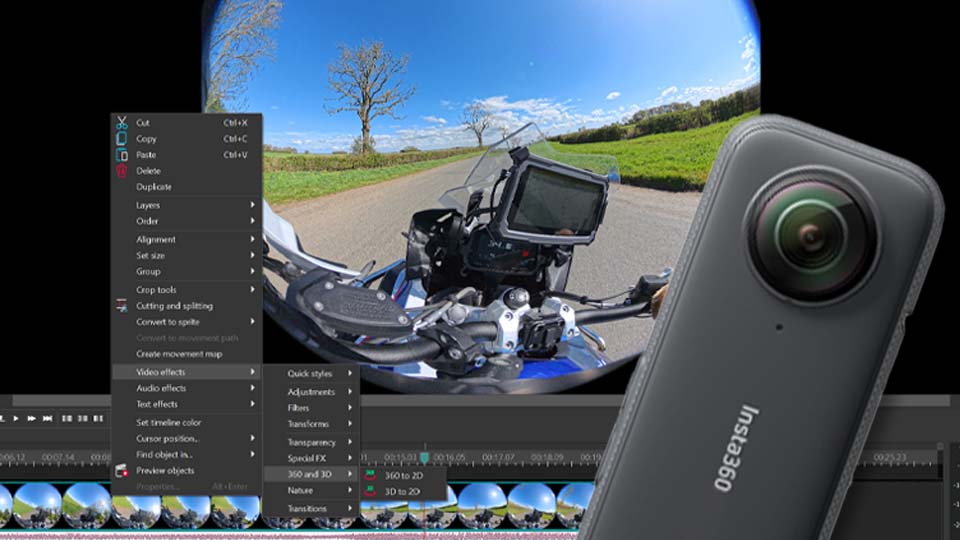
Direct Insta360 Editing: from Fisheye Footage to 2D Video
If you have ever opened raw Insta360 footage and seen two fisheye spheres instead of a ready-to-edit frame, you know how awkward the first step can be. VSDC 11.1 simplifies that workflow and helps you move from native camera footage to an editable 2D result much faster.
Imagine you filmed an active winter ride on a snowmobile or on skis using an Insta360 camera and copied the .insv files to your computer. Previously, preparing such footage often meant relying on extra tools before the real editing could even begin. In VSDC 11.1, that process becomes much more direct.
To get started, add your Insta360 files to VSDC 11.1 or later. Right-click the clip on the timeline and go to Video Effects → 360 and 3D → 360 to 2D. In the Properties window, use the new adjustment mode under the Type of 360 option to convert fisheye footage into a 2D view. You can then fine-tune the field of view, edge blending and camera convergence angle along the X and Y axes.
GPS Workflow for Insta360 Footage: Add Speedometers and Route Maps
For action footage, visuals are only part of the story. Speed, route and motion data make the final video much more immersive. If your Insta360 workflow includes recorded GPS data, VSDC makes it easy to turn that information into visual overlays such as speedometers, route maps and other telemetry elements.
Important: to use this workflow correctly, your footage must contain recorded GPS data or you need a separate telemetry file. Make sure your tracker or mobile app had a stable signal during filming and that telemetry recording was enabled. For camera-specific setup details, refer to the official Insta360 website.
You can extract GPS data directly from the video if it is embedded in the file by using the editor’s Resources window and right-clicking the clip there, or you can load the data separately as an external file. Then, with ready-made VSDC templates, you can add a speedometer for a mountain descent, overlay an animated route map and build a much more informative action edit. You can also watch our video on working with GPS gauges in VSDC.
Made for Smoother Video Editing: Auto-Save, Enhanced Waveform, Timeline Controls and Stability Fixes
And that is not all. VSDC 11.1 also expands the creative side of the 360 workflow by making it easier to turn panoramic footage into stylized fisheye clips within the same editing process.
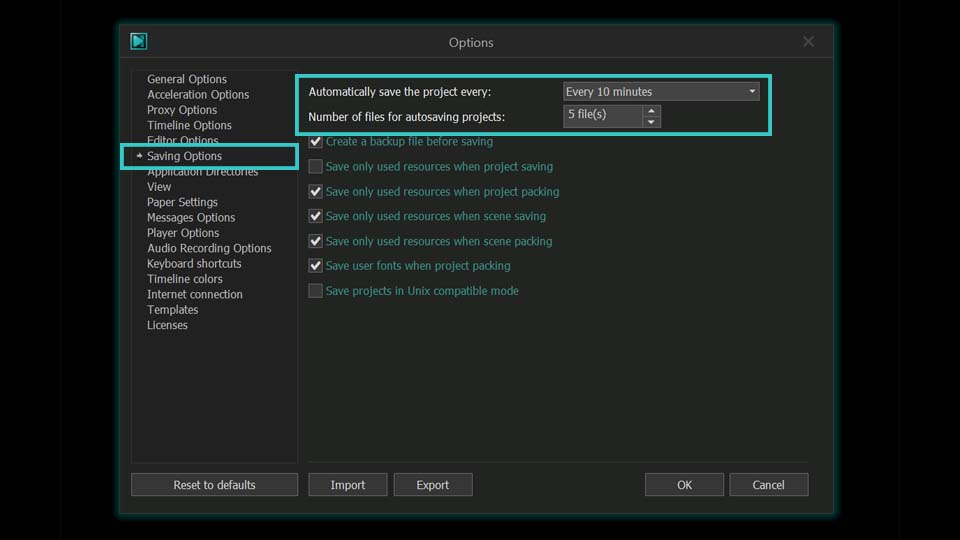
We have also added Auto-Save to help protect your work. By default, the project is saved every 15 minutes, so you can focus on editing instead of worrying about manual saves. If you want a different interval, open Options > Saving Options and adjust it to your preference.
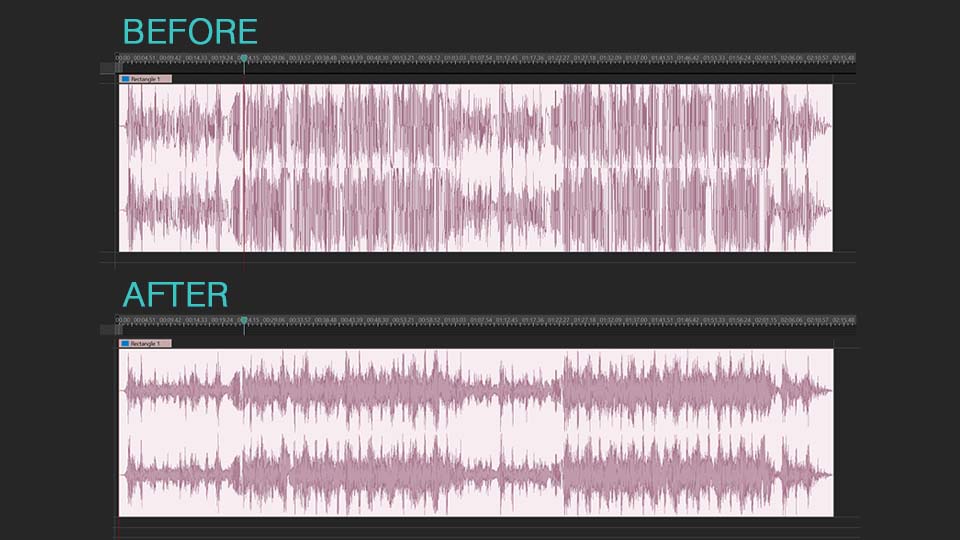
The waveform visualization is now more detailed, giving you a clearer view of beats, pauses and subtle audio changes. You can also enable automatic waveform generation as soon as you add a video to the timeline. In addition, new quick navigation controls in the bottom-left corner of the timeline help you move around the project faster and adjust your workspace more comfortably.
We have also addressed reported issues and improved overall stability, especially in projects involving effects, where reliability matters most. HDR workflows on supported configurations have also been refined to provide more consistent on-screen playback.
We are excited to see what you create with the new tools in VSDC 11.1. Share your projects, impressions and suggestions with us at This email address is being protected from spambots. You need JavaScript enabled to view it..
FAQ: Your Questions About VSDC 11.1 Answered
1. I have an Insta360 camera. Should I update to VSDC 11.1?
Yes. VSDC 11.1 makes working with Insta360 footage much more direct by simplifying the path from native camera files to an editable 2D result. If your workflow also includes GPS data, you can combine that footage with VSDC telemetry overlays such as speedometers and route maps.
2. What if my GPS data is not showing up correctly?
This usually happens when the GPS signal was unstable during recording or telemetry recording was not enabled. Check your Insta360 app or tracker settings and make sure the data was recorded properly. If needed, refer to the official Insta360 website for camera-specific setup instructions.
3. I saw something about a fisheye effect. Is that part of the new workflow too?
Yes. VSDC 11.1 makes it easier to work with this type of footage by expanding the 360 to 2D workflow and allowing you to create stylized fisheye-looking results within the same editing process.
4. Auto-Save sounds useful. Can I change how often it saves?
Absolutely. By default, VSDC saves every 15 minutes, but you can change the interval in Options > Saving Options.
 Like us on Facebook
 Follow us on Twitter
Watch us on YouTube
 / @VSDCFreeVideoEditor
© 2011-2026, www.videosoftdev.com, FLASH-INTEGRO LLC. Privacy policy | Terms of use | About us
All trademarks referenced herein are the sole property of their respective owners.
Copying any materials from this site allowed only with written consent of Site Administration.