 User Help Manual
  Learn FAQ
  Send us feedback


Video Editor
Download and use the free video software to create and edit videos of any complexity from a family greeting card to a company presentation. Apply vsdc free video editor for light edit hdr-video, any raw-video formats from cams - BRAW, ProRes RAW, any high resolution 4k or more due to video proxies technologies in the editor.
Cut, merge video files, apply visual and audio effects, use filtration and image correction, make slideshows and add an appropriate soundtrack. Use multi-color Chroma Key and advanced parameters settings to give your video a professional look.
All popular video and audio formats are supported.
Video Converter
This program is intended for converting video files from one format to another. Nearly all popular video formats are supported (both reading and saving). In addition, the program drastically simplifies the task of converting videos for playback on specific multimedia devices, such as iPhone, Samsung Galaxy or Huawei P30 Pro. The program is extremely easy to use, has a modern interface and all necessary video processing functions.
Audio Converter
The audio converter will help you convert audio files from one format to another. All key audio formats and codecs are supported. The program also allows you to manage playlists and meta tags, extract audio from video files and save these tracks on your computer in any format.
Animated Intro & Title Templates
Explore the VSDC Template Store with ready-made video templates for intros, animated titles, lower thirds, logo reveals, slideshows, glitch transitions, LUTs, and color grading presets. Drop a template into the VSDC Video Editor timeline, edit text, timing, and colors, and finish professional video projects in minutes.
Choose from 300+ exclusive packs of video transitions, LUT packs, text effects, GPS telemetry widgets, animated elements, and animated backgrounds for VSDC. All templates are fully customizable, support up to 4K resolution in 16:9, and help you build intros, wedding slideshows, travel videos, and tutorials much faster.
VSDC Cloud - Online video management
Keep your work safe, organized and always accessible! Back up your video projects, store media files online and access them from any device. Enjoy collaboration, share project updates and exchange files easily.
 Video Editor
 Video Converter
 Audio Tools
 Templates store
 Cloud
Cloud

Multifunctionality
A wide array of multimedia processing tools in one free video software suite.

High speed
Our programs use fast
and high-quality algorithms optimized for single and multi-core CPU’s.

Affordability
VSDC video software is freely available for download to Windows OS-based PCs and laptops.
News:
VSDC
Store
Templates / Animated Backgrounds / Aurora Drift
VSDC Aurora Drift
10 background templates
$9
Buy
Description
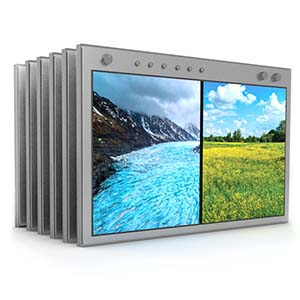
Infuse your projects with elegance of the Aurora Drift background collection – a selection of 10 unique designs inspired by the natural beauty of flowing light and soft gradients. These backgrounds radiate a sense of calm and sophistication, making them perfect for setting an elegant tone in your videos, presentations and many other projects.
Key Features
Optimized for All Resolutions100% Fully Customizable
Available InstantlyEasy to UseNumber Of Items: 10
File Size: 200 MBResolution: 2560x1440Frame Rate: 30 FPS
VSDC
Store
Templates / Telemetry Widgets / Strike Display
VSDC Strike Display
25 templates
$49
BuyDescription
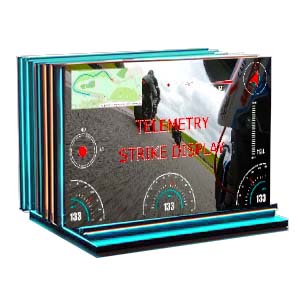
Make your data impossible to ignore! Strike Display brings bold character to your videos with heavyweight telemetry widgets: Speed Arcs, G-Force meters, Altitude Graphs and more in the distinct Impact font.
Perfect for gaming montages, tech reviews, sports highlights and action content where performance and precision take center stage!
Perfect for gaming montages, tech reviews, sports highlights and action content where performance and precision take center stage!
Key Features
SVG Vector Graphics
Full Customization
Color Presets
Individual Widgets & Full Suites
Number Of Items: 25
File Size: 77Mb
VSDC
Store
Templates / Telemetry Widgets / Clear Metrics
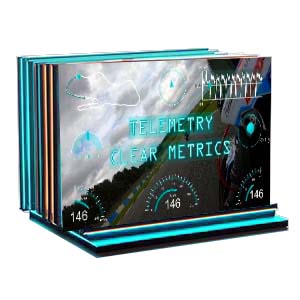
VSDC Clear Metrics
25 templates
$49
BuyDescription
Transform your raw data into a gripping narrative! The "Clear Metrics" pack overlays professional telemetry like Speed Arcs, G-Force meters, Altitude Graphs and other parameters onto your footage. Choose individual widgets or ready-made color suites for instant multi-gauge displays.
Crafted in Myriad Pro for ultimate clarity, these templates are perfect for FPV drones, GoPro, motorsports and action scenes!
Crafted in Myriad Pro for ultimate clarity, these templates are perfect for FPV drones, GoPro, motorsports and action scenes!
Key Features
SVG Vector Graphics
Full Customization
Color Presets
Individual Widgets & Full Suites
Number Of Items: 25
File Size: 96Mb
Frequently Asked Questions
Can I use these widgets with my GoPro HERO 13 Black footage?
Yes, absolutely! The "Clear Metrics" pack works great with any modern GoPro model (HERO 7 and newer) as well as Insta360 X3 cameras. Just import your MP4 file with embedded GPS data into VSDC and the software will extract the telemetry to create the gauges. It's truly a one-click process.
Yes, absolutely! The "Clear Metrics" pack works great with any modern GoPro model (HERO 7 and newer) as well as Insta360 X3 cameras. Just import your MP4 file with embedded GPS data into VSDC and the software will extract the telemetry to create the gauges. It's truly a one-click process.
I record motorcycle rides. What exactly can I show to my viewers?
Everything that makes your ride exciting and easy to understand: real-time speed (as a beautiful speedometer or digital display), G-Force meters that show how sharply you took turns, altitude graphs for elevation changes, plus heading and route data. Choose individual widgets or ready-made suites and get a perfect, professional result!
Everything that makes your ride exciting and easy to understand: real-time speed (as a beautiful speedometer or digital display), G-Force meters that show how sharply you took turns, altitude graphs for elevation changes, plus heading and route data. Choose individual widgets or ready-made suites and get a perfect, professional result!
Why does the font matter so much? I'm not a designer.
It's all about viewer experience. When you're moving at high speed, viewers shouldn't struggle to read the numbers. We use the clean, professional Myriad Pro font because it's extremely legible even on small smartphone screens or in fast-paced action. You're not a designer and that's exactly why we've handled this detail for you.
It's all about viewer experience. When you're moving at high speed, viewers shouldn't struggle to read the numbers. We use the clean, professional Myriad Pro font because it's extremely legible even on small smartphone screens or in fast-paced action. You're not a designer and that's exactly why we've handled this detail for you.


 Like us on Facebook
 Follow us on Twitter
 / @VSDCFreeVideoEditor