Video Editor

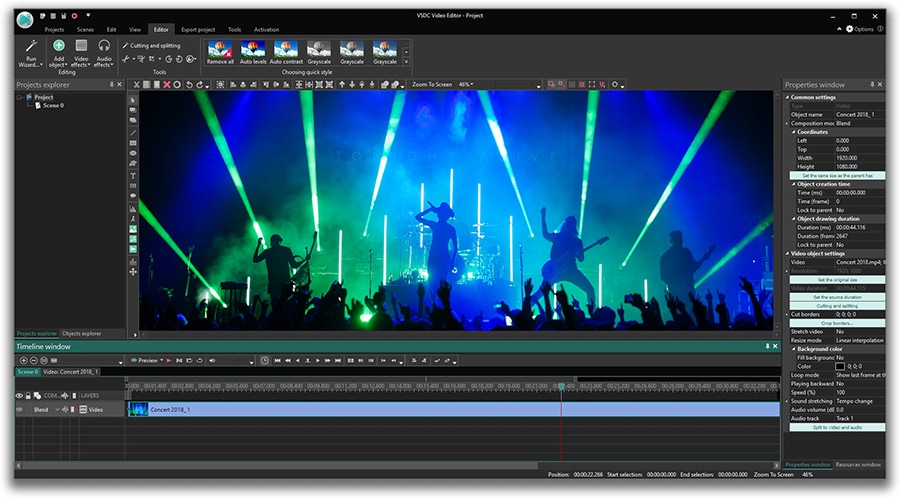
Download and use the free video software to create and edit videos of any complexity from a family greeting card to a company presentation. Apply vsdc free video editor for light edit hdr-video, any raw-video formats from cams - BRAW, ProRes RAW, any high resolution 4k or more due to video proxies technologies in the editor.
Cut, merge video files, apply visual and audio effects, use filtration and image correction, make slideshows and add an appropriate soundtrack. Use multi-color Chroma Key and advanced parameters settings to give your video a professional look.
All popular video and audio formats are supported.

Read more about Video Editor...

Video Converter

This program is intended for converting video files from one format to another. Nearly all popular video formats are supported (both reading and saving). In addition, the program drastically simplifies the task of converting videos for playback on specific multimedia devices, such as iPhone, Samsung Galaxy or Huawei P30 Pro. The program is extremely easy to use, has a modern interface and all necessary video processing functions.

Read more about Video Converter...

Audio Converter

The audio converter will help you convert audio files from one format to another. All key audio formats and codecs are supported. The program also allows you to manage playlists and meta tags, extract audio from video files and save these tracks on your computer in any format.

Read more about Audio Converter...

Animated Intro & Title Templates

Explore the VSDC Template Store with ready-made video templates for intros, animated titles, lower thirds, logo reveals, slideshows, glitch transitions, LUTs, and color grading presets. Drop a template into the VSDC Video Editor timeline, edit text, timing, and colors, and finish professional video projects in minutes.

Choose from 300+ exclusive packs of video transitions, LUT packs, text effects, GPS telemetry widgets, animated elements, and animated backgrounds for VSDC. All templates are fully customizable, support up to 4K resolution in 16:9, and help you build intros, wedding slideshows, travel videos, and tutorials much faster.

Store catalog

VSDC Cloud - Online video management

Keep your work safe, organized and always accessible! Back up your video projects, store media files online and access them from any device. Enjoy collaboration, share project updates and exchange files easily.

Online video editing management capabilities

Multifunctionality

Multifunctionality

A wide array of multimedia processing tools in one free video software suite.

High speed

High speed

Our programs use fast
and high-quality algorithms optimized for single and multi-core CPU’s.

Affordability

Affordability

VSDC video software is freely available for download to Windows OS-based PCs and laptops.

Meet VSDC Free Video Editor 6.3.5: new timeline, VirtualDub effects, and Hue-Saturation curve

We stick to our promises to make the editor’s interface a lot user-friendlier and the functionality more apt to all trendy video-making demands. Let’s see what lies beneath this beautiful wording this time: a long-expected timeline enhancement, new effects, and filters from the VirtualDub library, special export profiles for iOS and Android users, and Hue/Saturation curve for advanced color correction.

New color correction tools

In addition to the powerful RGB curve added in the spring release, now photographers and video makers also get access to Hue and Saturation curves. The new tool allows for a more precise and convenient way of making your video image colors more saturate or a bit more faded if needed.

New timeline

Processing a video on the timeline gets more conventional: now objects can be placed in one layer instead of a vertical order, which makes your work more visually comprehensible. Consequently, you can cut and split a series of objects at one go as well as sync your video with an audio track in a more convenient way.

New effects and filters

Starting this version, VSDC Video Editor supports VirtualDub plug-ins. It means that just in a couple of clicks you can download any effect from a large open-source library with more than 200 filters to choose from. To name just a few: multiple deinterlacing options, noise reduction, and cartoonizer instruments.

New export profiles for smartphones

No more pain in the neck if you can’t make up your mind what format will be more suitable for reproducing a video on your mobile. New export profiles for iOS and Android come in handy for users of iPhone, Samsung, Xiaomi, Sony and Huawei.

For any questions or recommendations, do not hesitate to drop a line to This email address is being protected from spambots. You need JavaScript enabled to view it.

To download the new version of VSDC Free Video Editor, please proceed to www.videosoftdev.com/free-video-editor.
VSDC Spring Release: Vaster Opportunities for Professional Color Correction and Advanced Animation

With the previous version launch, we’ve initiated a whole series of interface enhancements, both in terms of design and user-friendliness. The show goes on with the spring release focused on making the process of color correction a lot handier and more effective with a new convenient control panel and a number of advanced tools.

Basic effects window introduced

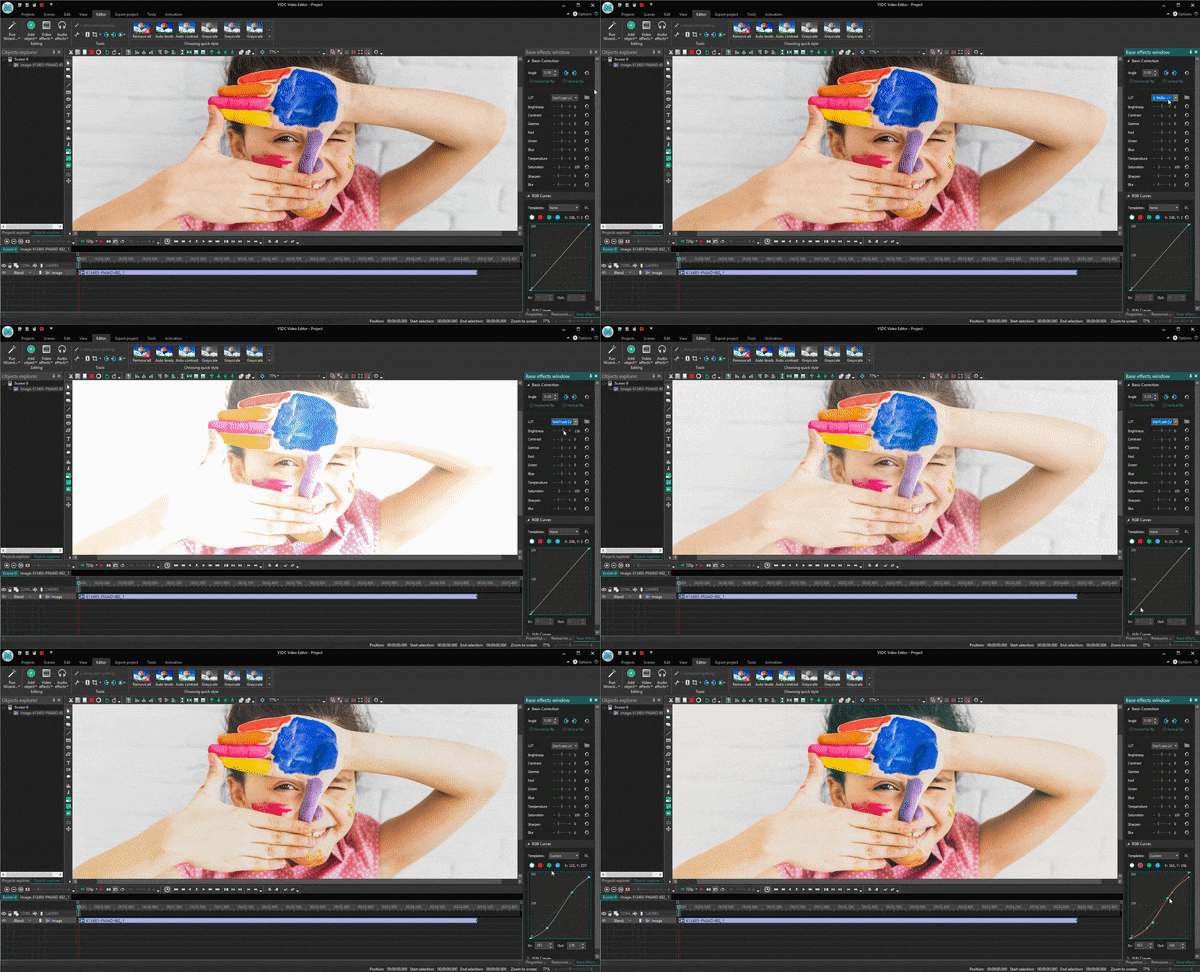
A new panel activated in the View tab brings a completely different way of working with advanced color correction tools. It makes all the color adjustment effects reachable from one processing area allowing users to set required effect levels, select a LUT preset, and work with curves. Not to mention the changes applied to the image are now instantly visible on the working area, and that makes the overall editing process a lot easier and speedier.

New panel with basic effects

RGB Curves added

Experienced video makers are well aware of how intense and time-consuming color correction can be. One of the most helpful must-have assistants, in this case, is a curves tool. It is a versatile instrument making it possible to implement both subtle and significant tonal changes i.e. remap black and white levels, brighten or darken midtones, and match colors between various shots in a sequence. As the RGB abbreviation prompts, you can create adjustments for red, green, and blue channels creating your own stylish look and fixing white balance issues.

Professional color correction - RGB curves

Rotation effects improved

Another touch of the interface user-friendliness policy has been applied to the rotation feature:

  • now you can rotate an object right on the scene using only a mouse;
  • you can also apply rotation along a motion vector while working with the Movement effect;
  • rotation center can be set both according to the absolute and incremental coordinate system.

All these smart words mean that even if you have the trickiest animation idea for a project - say, a boat trip in a rough sea or a comet flight - you will now be able to visualize it in VSDC.

Minor improvements

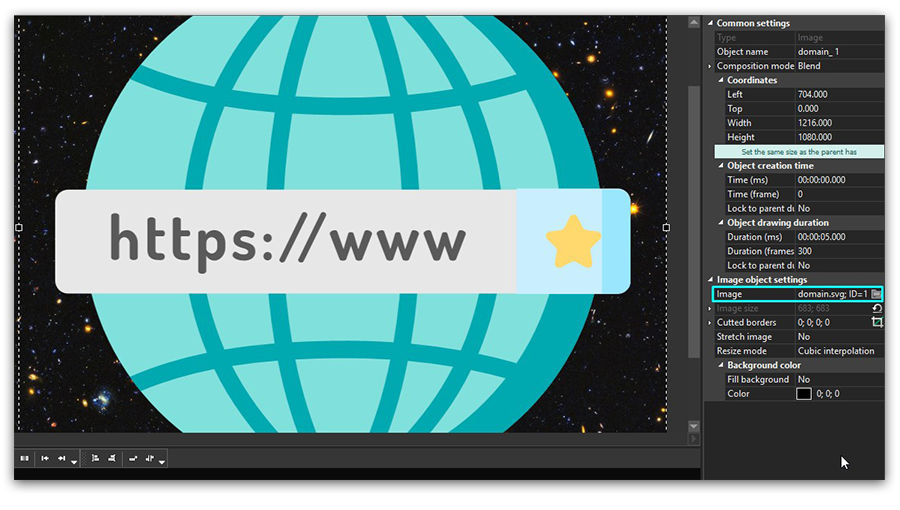
  • New image formats supported: SVG and webP;
  • Making an object semi-transparent is now possible right on the timeline and can be used for quick blending level adjustment.

Supported vector format SVG

For any questions or recommendations, do not hesitate to drop a line to This email address is being protected from spambots. You need JavaScript enabled to view it.

To download the new version of VSDC Free Video Editor, please proceed to www.videosoftdev.com/free-video-editor.
Free 360 Video Editor and 3 Tips for Making the Most Out of It


The world of video production is moving fast. Just a couple of years ago we were excited about having a GoPro and the perspectives of shooting in 4K. Today, on Amazon, you’ll find a dozen of cameras capable of shooting 360° videos and available at any budget – from less than $100 to over $1000.

But what about 360 video editors? How is video editing software market catching up with the camera manufacturers? Apparently, quite well. Along with expensive software developers like Adobe, freeware providers have recently joined the 360°-degree club too. So, even if you broke your piggy bank to purchase that cutting-edge camera, it doesn’t mean you’ll have to break another one for purchasing a program to edit what you’ve shot. You can edit spherical videos at zero cost.

In this post, we’ll review VSDC, free 360° video editing software for Windows, and share a few tips on how to make the most out of it taking 360° video specs into consideration.

Download VSDC – Free Video Editing Software for Windows

But first, how is a 360° video editor different from regular one?

The answer is – barely.

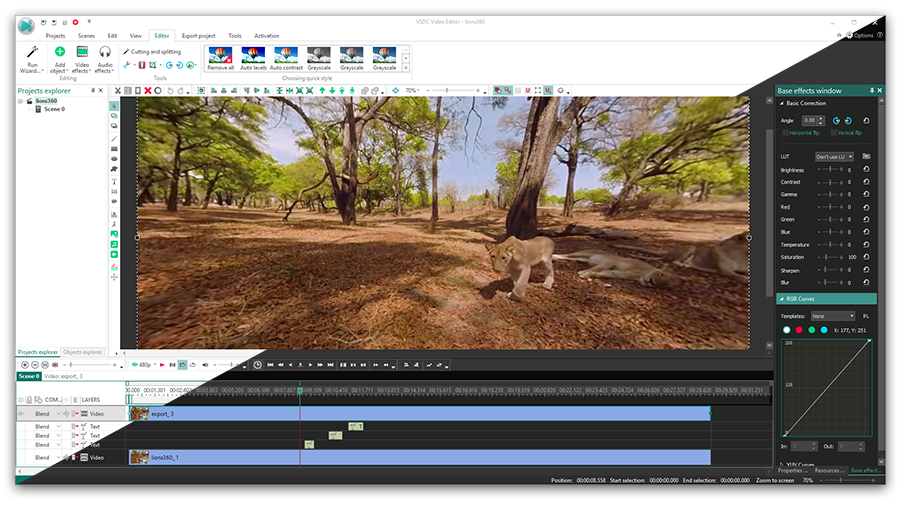
Don’t let the terminology intimidate you. The difference between editing a regularly-angled video and the one shot in 360° degrees, is that you first need to “flatten” the latter to achieve a convenient user-friendly view if you’re planning to cut out a fragment or add text. This process is called rendering, and different tools render 360° videos in a slightly different manner. For instance, here is how a 360° video looks in VSDC after you import it and flatten to a 120-degree panorama angle that is much easier to work with.


How to open a 360° video for editing?

Launch VSDC and import your 360° video file – it will be automatically placed on the timeline. After that, go to the Video Effects tab in the top menu, choose 360 and 3D and click on the 360 to 2D option.

Depending on the camera type, your video will either look like a panorama or a divided screen. In the case of the latter, you’ll need to change the type of 360 video. To do that, go to the Properties window on the right and choose between Equirectangular format and Equi-Angular Cubemap. After you get the right view, choose a 90-degree angle or a panoramic 120-degree angle. You can also move around the sphere – both horizontally and vertically. In the same Properties window, choose X angle or Y angle and either change the values using arrows or manually drag the cursor on the timeline. Below is a video instruction on how to perform everything we’ve just talked about.


Moving the sphere, you get full control of the picture and can always check what’s seen from other angles to cut out the unnecessary fragments.

Cutting and merging a 360° video in VSDC

Cutting an unnecessary fragment out of a spherical footage is not different from cutting a regular video. Once you’ve imported the 360 video to VSDC and rendered it to 2D, scroll through the timeline and use the Cutting and Splitting menu at the top to get rid of the bad shots. Note that when you remove a fragment of a video, that time period is removed from your entire spherical footage. Merging files and adding transitions is just as simple. 

Important: when you finish the editing process, you’ll need to remove the “360 to 2D” effect before saving your file. Otherwise, the video will be saved as flat 2D footage. To remove the “360 to 2D” effect, simply click on it on the timeline and hit Delete.

Adding titles and images in a 360° video editor

When you add objects – titles or images – to a 360° video, keep in mind you’re not placing them on a flat surface, but on a spherical one. In other words, the edges of the added object will be slightly curved to fit the shape of the video. Use the X-angle and the Y-angle properties to find the area you want to work with and then go to the Add object tab in the top menu. If you want to add a title, choose “Text” and use the built-in text editor to adjust the style of your title.


As a rule of thumb, you want to place titles at a natural eye level or slightly above it to make sure they get seen. Another recommendation provided by Jamie Stark at Stanford Journalism is keeping the font below 35 pt. so that it would look big enough for comfortable reading but not too big to avoid excessive curving.

Adding images works the same way. Go to “Add object” tab and choose Image, then import a file from your PC.

Important: if you want a title or an image to be attached to a specific area on the 360 video, you need to add it before rendering it to 2D. After adding a text object, you need to export the video “as is” and then open it in VSDC once again if you need to make further edits.

If you add a title after the rendering process, the title will stay exactly where you place it in the frame and will be seen in the same spot even when the viewer “looks around” just like in the illustration above.

Exporting a 360° video after editing

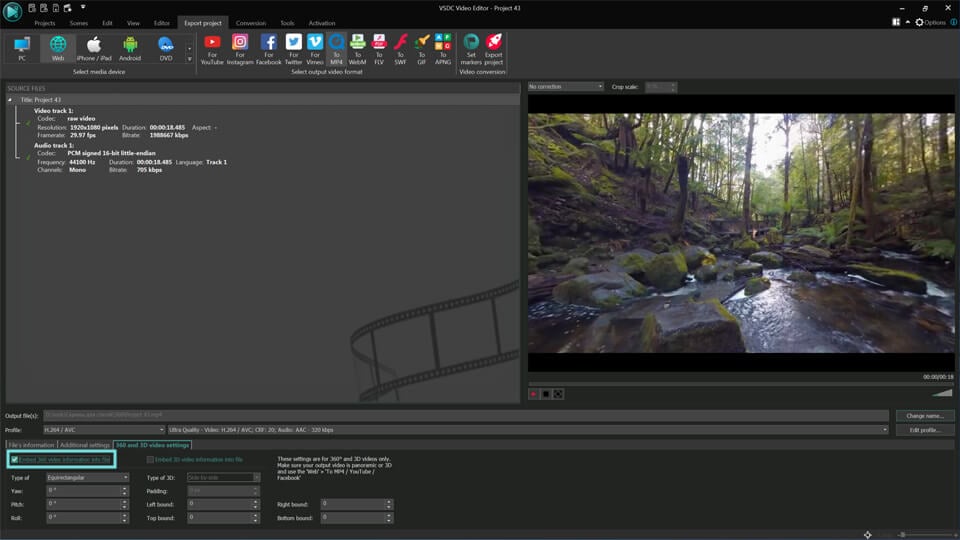
Once you’re finished editing the video, go to Export project tab in the top menu and choose the option that fits your goals. For the highest quality, use Web export profile and MP4 format. Then go to the bottom menu and open 360 video settings tab. YouTube, Facebook and some other 360 video players require each spherical video file to contain metadata that enables 360° playback. That’s why the “Embed 360 video information into file” box must be checked and the 360 video type chosen correctly. Otherwise video players will not be able to recognize your file as a 360° video and may display it as flat 2D footage.


360 video export settings in VSDC


Keep in mind, that 360° videos are typically much larger than regular videos but trying to reduce the size by lowering the quality is never a good idea. So keep this parameter as high as possible. We talk about how important resolution is a couple of paragraphs later.

If you’re planning to upload the video to Facebook or YouTube, choose For YouTube or For Facebook export profiles. They are pre-configured to match these social networks video upload requirements, so we always recommend using them when applicable. For Facebook, 720p will be the maximum resolution acceptable, however for YouTube, you can always set a higher resolution if your original video quality allows that. To change video resolution, open a drop-down Profile menu and choose between 4K, 2K, and 1080p.

Tips for working with 360° video

Although we’ve mentioned that using a 360° video editor is not too different from editing regular footage, there are some general tips you should be aware of before you get to the post-production process.

Use additional equipment when recording
360° cameras have plenty of unbeatable advantage, but you’ll also need to learn a couple of tricks to operate them. One is remembering that literally everything around your device is being recorded. When you have a regular camera with a limited viewpoint, you are in control of what will be in the footage. With a spherical camera, it’s not just unexpected passersby, but your face and even your fingers are being recorded pretty close if you’re holding it in your hand. To avoid that, you might want to use a monopod or a tripod if you want the camera to be shooting independently.


Don’t get too close to the objects you’re shooting

Another important rule is keeping at least a couple of foot distance between the camera and the object you’re recording. Being too close will create the unnecessary fisheye effect and stretch the image. Besides, you should place the camera at the same spot where you imagine a viewer’s eye level would be if they were present to witness the events you recorded. Finding unusual angles might add an interesting perspective for a moment, but you should always think of those who will be watching the video and choose the most convenient viewpoint.

Keep the resolution as high as possible

Video quality is crucial when it comes to 360° videos, especially knowing that some viewers may actually watch your movie with a headset expecting a great experience. You should also remember that YouTube and Facebook 360° video players are known to compress quality drastically. That’s why when shooting, you want to set the highest resolution possible and when you export it from the video editor, you want to keep it the same.

If you choose VSDC as your 360° video editor, remember that it allows you to keep the highest output quality. So, when you have a chance to shoot in 4K – do it, because after editing you’ll be able to export the video with zero quality loss.

Frequently asked questions

1. How to start working with 360° video in VSDC?

Simply import your file into the program and the editor will automatically recognize the format.
To make the video editable, you need to apply the "360° to 2D" effect. You can do this either through the Editor menu (select "Video Effects" → "360° & 3D") or via the right-click context menu on the file in the timeline (choose "Video Effects" → "360° & 3D").

2. Are there any differences between editing 2D and 360° video in VSDC?

Once the 360° to 2D effect is applied, the editing process is essentially the same as working with regular 2D video, the same tools and editing operations can be used.

3. Are panoramic video and 360° video the same thing in VSDC?

Not exactly. All 360° videos are considered panoramic, but not all panoramic videos are spherical 360° videos. "Panoramic video" is a broader term that covers various wide‑format videos, while "360° video" is its full spherical variant that provides a complete view in all directions.

If you have any further questions, feel free to send them to us at: This email address is being protected from spambots. You need JavaScript enabled to view it..

Christmas Gifts from VSDC Team: Brand New Interface and Expanded Color Grading Toolset

This Christmas release is focused on the interface enhancements – both in terms of design and user-friendliness. Feature-wise, the long-awaited LUT tool has become the key update of the new version, set to expand VSDC color correction capabilities.

Let’s have a look at all these updates in more detail.

New year, new look

We’ve had enough of ‘VSDC interface is somewhat outdated’ opinions. It’s high time we made changes.

Starting this version, the app will welcome you in a stylish black outfit with white buttons – the new default look of the editor. Meanwhile, those on the light side of force are not forlorn either, as there’s an option to switch the color theme to white. But as tired office workers say, one screenshot is worth a thousand words, so here is how VSDC looks in its new style.

New black theme of the interface

Yet more convenience on the timeline

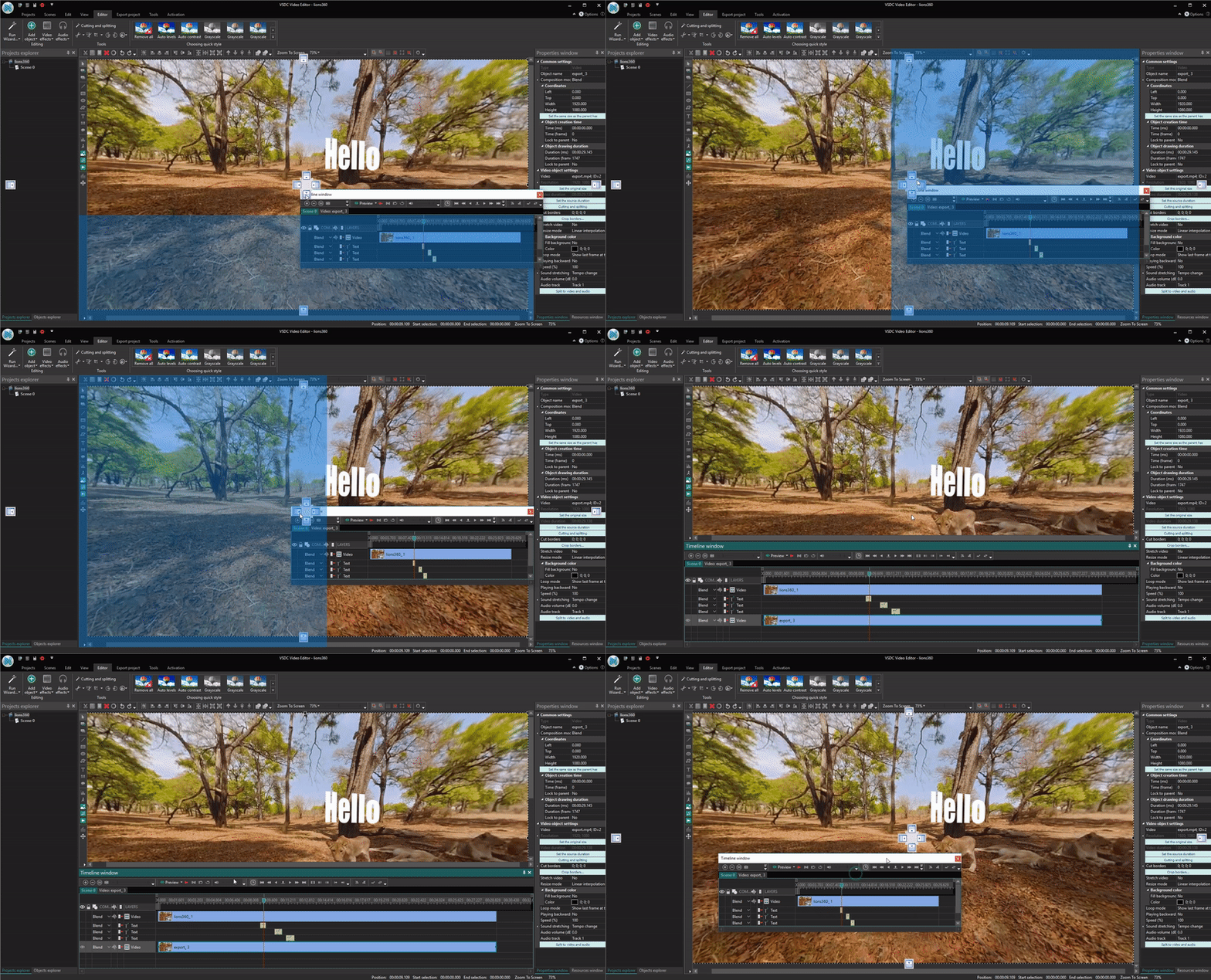
Now you can minimize the timeline and even detach it from the scene. It might come in especially handy when working with two monitors. From now on, busy video makers and designers will be able to preview the scene on one screen while processing the video on the other. Here is a short demo:

Timeline can be minimized and even detached

New opportunities for professional color grading

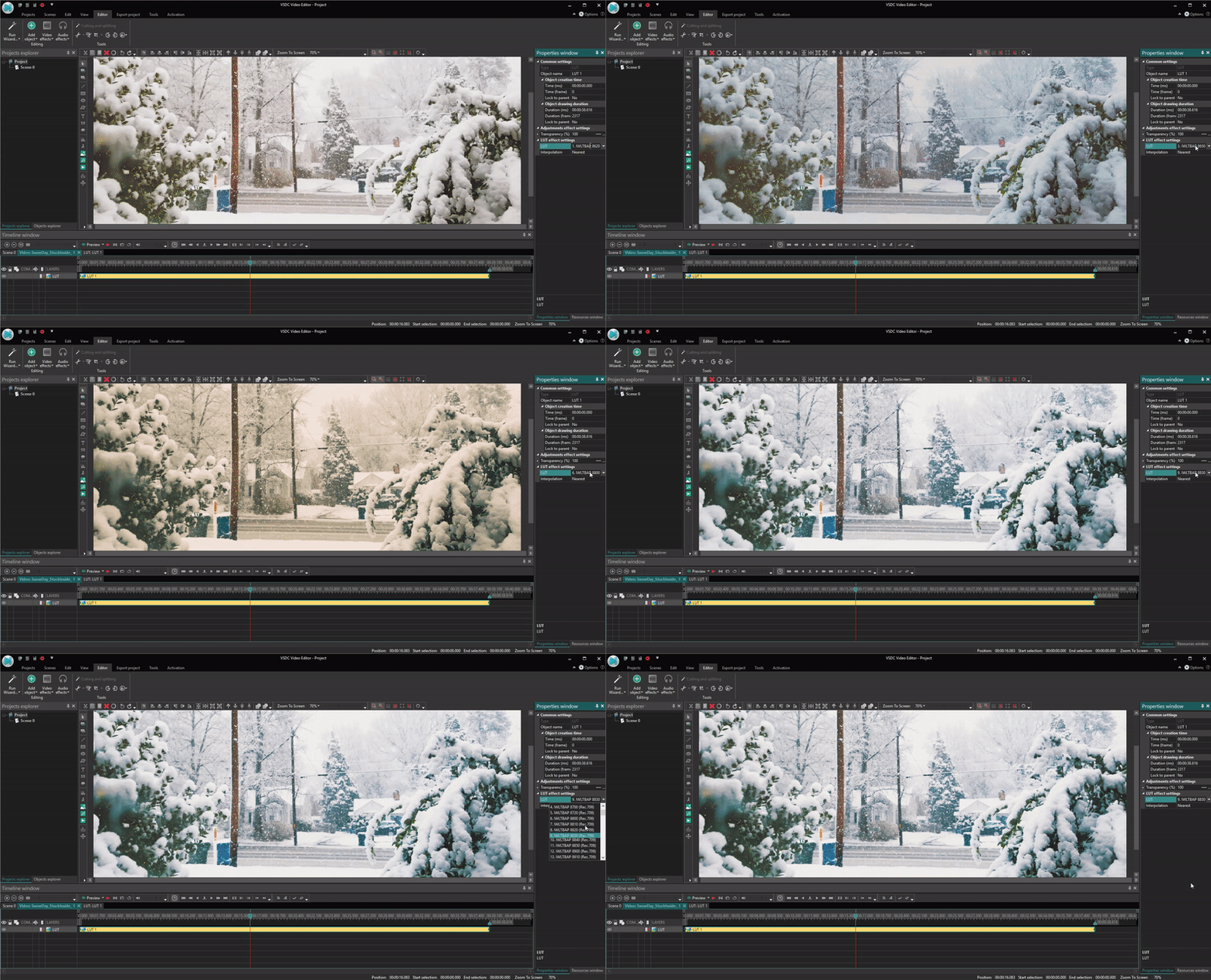
Look Up Tables (widely known as LUTs) are technically just a table of numbers that transform colors of an image. But when it comes to video editing, they become one of those magic tools to make your poorly colored video shot look like a major motion picture.

LUT is available in 'Adjustments'

Last but not the least

  • The video preview window has been reworked and enhanced according to the feedback collected.
  • The ability to import 120 fps footage has been added (Ho, ho, ho GoPro users!)
  • Automatic alignment while dragging objects on the scene has been implemented

For any questions or recommendations, do not hesitate to drop a line to This email address is being protected from spambots. You need JavaScript enabled to view it.

To download the new version of VSDC Free Video Editor, please proceed to www.videosoftdev.com/free-video-editor

VSDC Video Editor Receives 360°/3D Footage Support and Video Background Templates

October 30, 2018

In June VSDC team participated in CeBIT 2018, the largest international IT expo, where Virtual and Augmented Reality (VR/AR) were among the most discussed and fastest-growing trends. To follow the latest tendencies and demands, the new VSDC updates are focused on 360°/3D footage support. As usual, that is the main but not the only enhancement we look forward to sharing with you.

360°/3D Video Editor

If you are into shooting panoramic videos either with a specialized action camera or a top-notch smartphone, VSDC Free Video Editor will be able to process this footage with maximum ease possible. Enabling the corresponding option (‘360 to 2D’) in ‘Video effects’ allows you to select a required type of the 360° video as well as a viewing angle convenient for the preview.

vsdc 360

The needs of stereoscopy fans have been met too. 3D video can be previewed and edited in a hassle-free manner, selecting the ‘3D to 2D’ option. The settings in this case provide you a possibility to choose a certain visible image you need to work with at the moment.


New templates and presets


The previous release saw a new custom template system that aims at giving more flexibility and choice at work. With this version launched, there is a new template category available – transition effect presets.

vsdc templates

Not everyone likes creating their own unique masterpieces and some of you might be looking for quick solutions here and now. We’re happy and excited to invite you to the recently launched VSDC store. Currently it offers a series of ready-made background templates for Halloween, Christmas and other special occasions. We sure have plans to expand this range of creative presets on a regular basis.

Last but not the least

As always, the new update has a range of minor improvements that do not fall into any specific category. Starting this release, you will also be able to:

  • give a try to a new format of the timeline settings and its scale saving modes;
  • enjoy new group operations and Audio Spectrum parameters;
  • save a scene together with its output resources.


For any questions or recommendations, do not hesitate to drop a line to This email address is being protected from spambots. You need JavaScript enabled to view it.

To download the new version of VSDC Free Video Editor, please proceed to www.videosoftdev.com/free-video-editor

News

VSDC 11.1 Adds Direct Insta360 Video Editing, GPS Overlays and Auto-Save

Published by Amy Shao on March 11, 2026 What is the best gift for a creative person? New possibilities, of course. With the VSDC 11.1 update, editing footage from Insta360 cameras becomes...

VSDC 10.2: GPS Gauges for GoPro and Other Action Cameras, Selective Export, Metadata Editing, Extended Codecs and Smarter Workflow

published Amy Shao 11/19/25 Meet the long-awaited VSDC 10.2 update: a new version packed with incredible features and significant enhancements designed to empower all of you, from hobbyists to professionals. GPS...

Major VSDC 10.1 Update: Advanced HDR, GPS Telemetry, New Effects, Great Variety of New Templates and Tools For Different Needs

published Amy Shao 6/10/25 The wait for something new and unusual is finally over! The update is here and it isn’t just another version: it’s VSDC 10.1! VSDC 10.1 Update: Advanced HDR, GPS Telemetry,...

VSDC Christmas Update 9.4: Enhanced Effect Management, 100+ Background Templates and Streamlined Editing

This holiday season embraces new beginnings with the latest update of VSDC Video Editor! We’ve listened to your feedback and decided to focus on enhancing the tools you love most—all while laying the...

How VSDC Free Became My Secret Weapon for Watermark (Free 4K Editing in 2025)

Hi, I'm Mattea Wharton, a travel videographer from Seattle. For three years I battled with video editors that slapped ugly watermarks on my videos until I found VSDC. This free no-subscription editor completely...

VSDC 9.3: 150+ Templates, Text Transformer, Sprite Auto-Detect and GUI Update

Change is all about improvement, and this process wouldn't be possible without your input. After carefully reviewing your feedback, we’ve addressed several key issues and introduced updates designed...

Best Special Effects Software

Intro In 2024 the options range for creating visual effects is incredibly diverse and it becomes more and more challenging to identify the top choices. Here you can find a guide to the top visual FX...

VSDC 9.2: AI Segmentation Models, 300+ Transitions, VSDC Cloud and New Templates Pack

Are you ready to explore new heights with the latest major VSDC update? Finally, Version 9.2 is here! Packed with groundbreaking features, including the new AI-powered Segmentation tool, this update offers...

How Black and White Movies Were Colorized

Are you a fan of classic black and white films? Ever been curious about how they would appear if they were in color? Many filmmakers have pondered the same, leading to numerous classic movies being colorized....

The Best Online Video Editors in 2025: Benefits and Drawbacks

May 15, 2025 published by Amy Shao In today’s digital landscape, the popularity of video content is gaining momentum, with users increasingly turning to video creation both for personal advantage and...
 

Screen Recorder Box

This program allows you to capture the video of your desktop and save it on your PC in various formats. Coupled with a video editor, the program is a great tool for creating presentations, tutorials and demo videos.

Read more about Screen Recorder...


Video Capture Box

The program captures video from external devices and records it to computer in a free format. You can save video from video tuners, webcams, capture cards and other gadgets.

Read more about Video Capture...

VSDC Video Editor Reviews & Ratings (Trustpilot, Capterra & Media)

VSDC Free Video Editor is rated 4.5/5 by real users on Trustpilot and Capterra. Here are a few reviews and quotes from creators and tech media.

Overall rating: 4.5/5 based on 200+ reviews on Trustpilot and 89 reviews on Capterra.

★★★★⯪

VSDC Free Video Editor is the best free video editor for Windows I’ve used, from color grading to picture-in-picture and cinematic results.

— Ejikeme Eloka Augustine

Source:Trustpilot

★★★★☆

Easy-to-use interface and quick export to social media make VSDC a versatile video editing tool for everyday projects.

— Karen C., E-Learning

Source:Capterra

★★★★☆

A feature-packed non-linear video editor for Windows that can compete with many paid video editing solutions.

— TechRadar

Source:TechRadar review

★★★★★

The free VSDC editor saved my YouTube channel – a powerful video editing software for chroma key, text effects and picture-in-picture.

— Paul Roberts

Source:Trustpilot

★★★★★

Fast and simple for YouTube videos with green screen, zoom, color tools and creative effects in one app.

— Marie R., Media Production

Source:Capterra

★★★★★

One of the best free video editor options for Windows users, ideal for GoPro, YouTube and family videos.

— VidProMom, YouTube creator

Source:Media reviews

★★★★★

I’ve been using VSDC for years; editing is easy and the final videos look great for my personal and professional projects.

— Long-time VSDC user

Source:Trustpilot

★★★★★

Great value and faster than many other free tools; I quickly create videos for YouTube, Instagram and Facebook with features my audience loves.

— Rabika B., Marketing & Advertising

Source:Capterra

★★★★★

VSDC offers many features you don’t usually find in free editors, including picture-in-picture, stabilization and modern codec support with no watermarks.

— Tech media review

Source:Media reviews