Video Düzenleyici

Aile tebrik kartından şirket sunumuna kadar her türlü karmaşıklıkta videolar oluşturmak ve düzenlemek için ücretsiz video yazılımını kullanın. Video dosyalarını kesin, birleştirin, görsel ve ses efektleri uygulayın, filtreleme ve görüntü düzeltme kullanın, slayt gösterileri yapın ve uygun bir film müziği ekleyin. Videonuza profesyonel bir görünüm kazandırmak için çok renkli Renk anahtarı ve gelişmiş parametre ayarlarını kullanın. Tüm popüler video ve ses formatları desteklenir.

Video Düzenleyici hakkında daha fazla bilgi edinin...

Video Dönüştürücü

Bu program video dosyalarını bir biçimden diğerine dönüştürmek için tasarlanmıştır. Hemen hemen tüm popüler video biçimleri (hem okuma hem de kaydetme) desteklenir. Ayrıca iPhone, Huawei P30 Pro veya Samsung Galaxy gibi belirli multimedya cihazları için videolar oluşturmak da mümkündür. Programın kullanımı son derece kolaydır, modern bir arayüze ve gerekli tüm video işleme fonksiyonlarına sahiptir.

Video Dönüştürücü hakkında daha fazla bilgi edinin...

Ses Dönüştürücü

Bir ses dönüştürücü kullanarak ses dosyalarını bir biçimden diğerine dönüştürebilirsiniz. Tüm önemli ses biçimleri ve codec bileşenleri desteklenir. Program ayrıca çalma listelerini ve meta etiketlerini yönetmenize izin verir, ayrıca video dosyalarından sesi dışa aktarmak ve parçaları herhangi bir biçimde bilgisayarınıza kaydetmeniz de mümkündür.

Ses Dönüştürücü hakkında daha fazla bilgi edinin...

Animated Intro & Title Templates

Explore the VSDC Template Store with ready-made video templates for intros, animated titles, lower thirds, logo reveals, slideshows, glitch transitions, LUTs, and color grading presets. Drop a template into the VSDC Video Editor timeline, edit text, timing, and colors, and finish professional video projects in minutes.

Choose from 300+ exclusive packs of video transitions, LUT packs, text effects, GPS telemetry widgets, animated elements, and animated backgrounds for VSDC. All templates are fully customizable, support up to 4K resolution in 16:9, and help you build intros, wedding slideshows, travel videos, and tutorials much faster.

Store catalog

VSDC Cloud - Online video management

Keep your work safe, organized and always accessible! Back up your video projects, store media files online and access them from any device. Enjoy collaboration, share project updates and exchange files easily.

Online video editing management capabilities

Çok işlevsellik

Çok işlevsellik

Tek bir ücretsiz video yazılım paketinde çok çeşitli multimedya işleme araçları

Yüksek hız

Yüksek hız

Programlar hızlı, optimize edilmiş çok işlemcili algoritmalar kullanır.

Kullanılabilirlik

Kullanılabilirlik

VSDC video yazılımı, Windows işletim sistemi tabanlı tüm bilgisayarlarda ve cihazlarda ücretsiz olarak indirilebilir.

Top Free Chroma Key Software

Removing a green background from video footage requires chroma key software, a tool designed to isolate and eliminate a specific color. This allows for easy replacement of the background with another image or video, or even making it transparent. We've evaluated top intuitive, and beginner-friendly free chroma key software for PC, macOS, and Linux, offering hassle-free solutions for your editing needs.

Key Takeaways

For those diving into the realm of chroma keying, here's a quick rundown of our top recommendations:

  1. VSDC (Windows) – recommended for PC users
  2. iMovie (iOS and macOS) – recommended for Apple device users
  3. Shotcut (Windows, iOS, Linux)
  4. OpenShot (Windows, iOS, Linux)
  5. HitFilm Express (Windows, macOS)

Below, you’ll find their brief overview, system requirements, and tutorials on how to edit in green screen, helping you get started with these programs.

What is Chroma Key?

Chroma key software, often referred to as green screen software, empowers you to alter video backgrounds seamlessly. These chroma key applications not only enable timeline editing and trimming but also allow for the addition of custom background colors. With the ability to share and organize footage, good green screen software has become indispensable for video editors.

Best Free Chroma Key Software

The quest for the perfect free greenscreen software can be overwhelming given the vast array of options. This section delves deeper into both renowned and hidden gems among free and paid chroma key software, offering insights into various green screen apps and programs.

1. VSDC Free Video Editor (Windows)

VSDC is a free video editor for Windows that brings a lot of handy add-ons on board. Its toolset includes a desktop screen recorder, a webcam video grabber, a voiceover tool, and a YouTube uploader.

VSDC is free chroma key software for Windows

Once you launch VSDC, the chroma key tool will be available in the Video effects menu. To remove a green background from your footage, follow these steps:

  1. Import your video using the Import content option on the start screen
  2. Got to Video effects and select Transparency >> Background remover
  3. If the green background hasn’t disappeared automatically, open the Properties window on the right-hand side
  4. Find the parameter named Chromakey color and click on the eyedropper. Then click anywhere on the green background to select the color that needs to be removed

If there are any green highlights left around the object, go back to the Properties window and manually change the values of the brightness and chromaticity thresholds. Check out this detailed video tutorial below to see the process for yourself:

Once you remove the background, you can replace it with another image or video. Just drag the new file to the timeline and place it one layer below the original video. The new footage will be seen through the deleted areas that used to be green. If you want, you can export your video with a transparent background, too!

VSDC system requirements: VSDC is very lightweight and runs even on low-end PCs. You’ll need to have 1Gb RAM, at least 300Mb of free disk space, Intel, AMD or compatible processor with the working frequency at 1.5 GHz or higher. It’s always recommended to have the latest Windows OS as well, however, you’ll be able to run VSDC even on Win 7 or XP

Download the latest version of VSDC


2. iMovie (iOS and macOS)

iMovie is a default video editor for iOS and Mac, and the best part about this app is that it works on both the desktop and the mobile devices by Apple.

Just like VSDC, iMovie is a non-linear video editor. This means files can be placed on different layers one under another on the timeline, so you can blend them together. Unlike VSDC though, iMovie allows you to remove both green and blue screens.

iMovie is a default video editor with a chroma key feature for Apple devices

The process goes as follows:

  1. Place the new background image or video on the timeline
  2. Then add a green or blue screen video to the layer above it
  3. Use the Video Overlay Settings button and select Green/Blue screen from the dropdown menu
  4. Once you perform this action, the chroma key controls, such as Softness and Clean-up, will display on the toolbar at the top. Use them to adjust the effect and brush up any imperfections

For a detailed guide to using the iMovie chroma key feature on iPad and iPhone, check the official tutorial.

iMovie system requirements: if you’re planning to use it on an iPad, iPhone, or iPod touch, you should have iOS 13.4 or later. For Mac, you’ll need macOS 10.14.6 or later, 2GB of RAM (4GB recommended), an OpenCL-capable graphics card.

Download iMovie from the App Store.


3. Shotcut (Windows, macOS, Linux)

Shotcut is an open-source video editor that works on Windows, macOS, and Linux. It’s a powerful software with the chroma key feature available among the list of effects. However, if you’re new to video editing, you might feel slightly overwhelmed by the layout, mainly because it’s quite minimalistic and it’s not always obvious where you can find the required features.

The great part about this program though is the selection of hotkey combinations that will help you speed up the editing process.

Shotcut is an open-source video editor with the chroma key effect

Below is a short guide to removing green screen in Shotcut:

  1. First, upload the file that will serve as a new background. Next, import the green-screen video (use Ctrl + I to add a new video track to the timeline).
  2. Make a click on the green-screen video and open the Filters menu from the toolbar at the top.
  3. Use the “+” icon and search for the option titled Chroma Key: Simple
  4. Most times, the effect is applied immediately. However, if it didn’t work for you or the green color has disappeared partially, use the eyedropper and/or manually adjust the parameter called Distance.

Shotcut system requirements: x86-64 Intel or AMD; at least one 2 GHz core for SD, 2 cores for HD, OpenGL 2.0, at least 4 GB RAM (8 GB for HD).

Visit the official website to download the software for your OS.


4. OpenShot (Windows, macOS, Linux)

The following chroma key software on the list is called OpenShot. Its interface is way simpler than any other solutions have, and the menu structure makes this tool a great Movie Maker alternative for beginners.

OpenShot brings a chroma key tool that allows you to manually pick a color to remove

To replace a green background in OpenShot, follow these steps:

  1. Drag your files (the green-screen video and the new background) to the Project Files tab.
  2. Place the clips on the timeline following the same order: green-screen video on the top layer, the new background footage – below.
  3. In the Effects tab, search for Chroma Key and drag the effect to the timeline over the green-screen video.

Once you apply the effect, you’ll notice a “C” icon above the green-screen video on the timeline. It stands for “Chroma Key settings”. Unlike most free chroma key software, OpenShot allows for removing any color and doesn’t limit you to green or blue. However, that adds an extra layer of work because you’ll need to manually pick the color you want to key out.

To do that, right-click on the “C” icon and open the Properties menu. Find the parameter named “Key color” and make a double-click. A color palette window will pop up, and you’ll be able to pick a color for isolation. If you notice that some areas in the video remain green, use a feature called “Fuzz” available in the Properties menu. Want to see everything for yourself? Watch the official tutorial here.

OpenShot system requirements: 64-bit OS, 4GB of RAM (16GB recommended), 500 MB of hard-disk space for installation, Multi-core processor with 64-bit support.

Visit the official developer’s website.


5. HitFilm Express (Windows and macOS)

HitFilm Express is the free version of the premium video editing software by FXhome. The developer company is focused on bringing special effects to amateur filmmakers, so naturally, the green screen and the blue screen removal tool made it to the list of key features.

HitFilm Express chroma key allows you to remove green, blue, and red background from a video

Here is a quick guide to using this chroma key software:

  1. Upload project files by dragging them to the Media box. Then place them on the timeline with the green or blue-screen video being on the top layer.
  2. Open the Effects tab and type Green screen, then drag the Color difference key effect to the timeline over the green-screen video.
  3. Make a double-click on the effect to open additional controls. Toggle the Min, Max, and Gamma settings to achieve the desired level of transparency.

HitFilm Express system requirements: this is probably the most resource-demanding tool on the list. To use it, you’ll need a 64-bit OS, 4th Generation Intel® Core™ Processors or AMD equivalent, at least 4Gb of RAM, and a minimum of 1Gb video memory. Graphic card: NVIDIA GeForce 600, AMD Radeon R5 240, or Intel HD Graphics 5000 (GT3).

Visit FXhome official website.

How to choose the best chroma key software for your computer?

It’s always a good idea to download and test a couple of solutions before making the final decision. Here are the questions that will help you make the right choice:

1. What are the software system requirements?

Here is the thing. When it comes to software, the final say belongs to your computer. And if you have a low-spec machine, perhaps, you should search among video editors for slow computers in the first place.

However, it’s not just the video editor and your computer. The size of the files you’re planning to work with matters a lot, too. This means if you’re planning to edit large or high-quality files, there is always a chance of the software freezing or crashing in the process. With that in mind, make sure to find out how to set the autosave feature (most video editors have it built-in) and how the backup works.

2. Which color is the background in your video?

Some chroma key software can help you remove video background only if it’s green. Other tools are able to key out any color. So, if you need to replace blue, red, or any other color that is different from green, make sure that the software of your choice allows that.

For instance, iMovie allows you to remove green and blue colors only. OpenShot, on the other hand, allows you to key out any color but you’ll have to pick it manually.

3. Will you need any other editing features?

So… what are your plans? Are you here to quickly do one thing and forget all about video editing, or are you on a mission to start your tiny but mighty video production studio? If it’s the latter, you might want to poke around and see other features the tool offers. You also need to check the software developer company’s social media, how-to guides, or any other platforms you’ll be able to resort to, should you have questions.

As a bare minimum, we recommend practicing some basic operations like video splitting and merging, changing the playback speed, importing or removing audio, and adding titles. Make sure these features are intuitive to you. Next, consider sifting through a list of text or video tutorials to get an idea of what else the software is capable of.

Resources for your inspiration

If you enjoy the magic that chroma key software brings, you might want to learn more about it and eventually try more complex tricks. There are plenty of resources at your disposal, both for practicing and inspiration.

We suggest checking out the following links:

Videezy and Videvo – free video stock marketplaces where you can download green screen videos at zero cost to test the new software and practice your skills.

Our green screen software guide – this article includes a few DIY ideas for shooting a green screen video at home.

Cine 24 VPX – a YouTube channel with lots of green screen video hacks and ideas you’ll definitely want to replicate.

Got any questions? Feel free to shoot us a message on Facebook.

Happy editing!

Helps You Produce Instagram-Worthy Videos with New Effects and AI Art Generator

16 May 2023

In the fast-paced era of social media, creators need fast solutions to easily turn everyday footage into stylish videos. To keep up with the trends, VSDC rolls out a set of new visual effects available in one click:

  • Raindrops effect
  • Lens flare effect
  • Bokeh glare effect

Along with this, the VSDC dev team has called on the AI forces, and now you can stylize images using the power of neural networks. Let’s look into all these enhancements in detail.


Lens flare effect

The Lens flare effect has been one of the most popular requests from our YouTube channel subscribers for a while. (By the way, are you our YouTube channel subscriber yet?)

And finally, with version 6.5.1, VSDC delivers. The Lens flare effect is available in the OpenGL category of the Video effects menu.

The Lens flare video effect is perfect for imitating a strong source of light, such as sunlight – located both in the frame or outside of it. It also helps to create a dreamy atmosphere in a video and highlight particular areas or objects in the scene.

When used right, the Lens flare effect can help you achieve a perfect cinematic look.

To ensure the result looks authentic in the video, VSDC allows you to tailor the effect at two levels. You can adjust both the parameters of the light source, and the flares it produces.


Customizable Bokeh glare effect

“Bokeh” comes from a Japanese word meaning "blurred" or "hazy" and describes the character of the out-of-focus areas of an image.

In video editing, Bokeh is a popular effect achieved with a special shooting technique. It involves bright lights in the background that appear out of focus because of the way the camera renders them. As a result, you get a soft blurry background with round or edgy lights shining through.

With the new version of VSDC, you don’t need to recreate the special shooting conditions to achieve this look. The quick effect allows you to overlay the Bokeh glare on a video and customize its parameters including the shape, size, color, and the opacity level.


Raindrops and foggy glass effect

Compared to the Lens flare effect used to imitate a bright sunny day, the Raindrops effect enables you to “change” the weather in the opposite direction.

The effect includes two aptly named modes: “Raindrops” and “Foggy glass”. In practice, you can create anything from the effect of condensate on the camera lens to the effect of heavy rain with droplets freezing right on the glass.

The new effect comes with versatile settings allowing you to control the size and the density of water drops, the speed they are falling with, and even trails left by the raindrops on the glass.


Artificial Intelligence Art Generator

The next huge step toward fast image and video processing is VSDC AI art generator. Powered by neural networks, it is capable of producing artistic interpretations of your shots.

Have you ever wondered what your image would look like if Van Gogh or Munch painted it? Now you can find out! The AI Art Generator is available in the Special FX category of the Video effects menu and includes 20+ presets including mosaic, feathers, flares, fire, starry night, and others.


Polar coordinates effect

Another long anticipated tool we’ve added to the new version is a distortion effect called Polar coordinates. It allows you to create unique circular images by spinning objects around the center of a scene (the pole). You’ll be able to apply this effect to photos, videos, text, and even an audio equalizer.

Download VSDC Free Video Editor

Polar coordinates is available as a type of the Distort effect located in the Transforms category of the Video effects menu. You can apply it in one click and then customize the details. The Polar coordinates distortion is most known for the power to turn panoramic photos into 360º “little Earth” pictures, but there is no limit to how you can use it.


Additional enhancements

In addition to these major updates, VSDC 6.5.1 has received a few minor yet long-awaited enhancements:

  • Starting this release, AMD and Intel video card owners will be able to benefit from a doubled export speed. That makes video production even more efficient for VSDC Pro fans using hardware acceleration.
  • VSDC text editor now supports special characters used by Hindi-speaking users.

Got any questions left? Do not hesitate to drop us a line at Bu e-Posta adresi istenmeyen posta engelleyicileri tarafından korunuyor. Görüntülemek için JavaScript etkinleştirilmelidir.

To download the new version of VSDC Free Video Editor, please proceed to www.videosoftdev.com/free-video-editor.

VSDC Big Release is Here: Motion Tracking Tool and New Visual Effects

We’re beyond excited to share the big news with the community: the new version of VSDC Video Editor is here, and it takes the video editing experience to a new level.

The VSDC Pro users now can now benefit from motion tracking – the most anticipated feature that allows for tracking object’s movement in a video and assigning the same motion path to filters, masks, titles, or images. Users of the free version receive a series of new visual transformation effects and new export profiles for Instagram.

Motion tracking, the long-awaited tool for video editing pros

What makes motion tracking such a special feature? To put it simply, motion tracking enables you to attach any object, say a piece of text or a mask, to a moving element in a video.

This tool will come in handy when you need to perform the following:

  • apply censorship to an object that is moving in a video,
  • animate a still image to match it with the motion of action footage,
  • create a stylish intro where captions follow the object they belong to.

The technology behind motion tracking is unique and has been exclusively designed by the VSDC development team. The precision of object recognition is guaranteed by the Speeded Up Robust Features (SURF) algorithm widely used in computer vision for similar purposes.

It is due to the SURF algorithm, that the new version of VSDC is able to outperform some of the strongest contenders in the market. By targeting the weakest points of other video editing software’s motion tracking capabilities, the unique technology helps achieve two major goals. First, it significantly reduces the risk of losing a tracked object – the issue frequently experienced in other video editors. Second, the SURF algorithm ensures that the VSDC’ processing speed is at least 30% higher in comparison with the current counterparts’ performance.

New video transformation effects are available

To continue the series of stylish distortion effects, two new options are now available in the Video Effects menu under the Transforms category: “Lens distortion” and “Distort”.

Lens distortion is a powerful effect imitating image deformation caused by the optical design of a lens. The new effect comes with a set of fine-tuning options allowing you to reach the desired result.

The Distort effect is created with the help of remapping technology and comes with a series of popular visual presets: Faceted glass, Fish eye, Swirl, Whirlpool, Twirl, Polar, Explode, Wave, and others.

More enhancements

On top of the major updates, VSDC has received a few minor yet long-awaited enhancements:

  • Instagram export profile has been updated with an option to select the best settings for IGTV;
  • The frequencies of 64,000, 88,200 and 96,000 Hz are now available for audio processing;
  • JFIF has been added to the list of supported image formats.


Got any questions? Do not hesitate to drop a line to Bu e-Posta adresi istenmeyen posta engelleyicileri tarafından korunuyor. Görüntülemek için JavaScript etkinleştirilmelidir.

To download the new version of VSDC Free Video Editor, please proceed to www.videosoftdev.com/free-video-editor.

VSDC announces the release of "Edit the beat" - a revolutionary tool to synchronize video effects to music

This year, we all have to #stayhome a lot more than usual - and some of us decided to dedicate that spare time to exercise creativity. At VSDC, we’re happy to contribute our part and provide more instruments for your video projects! With the new version, you get an expanded set of transition effects, enhanced motion tracking feature, and a brand new tool for synchronizing video to music - called “Edit the beat”.

Edit the beat - synchronization of video effects and audio

Edit the beat is a unique tool developed by the VSDC engineers and available to the Pro users. It allows you to synchronize any video effects to the background audio. That means that the value of the chosen effect will automatically change during the playback based on the rhythm and the frequency of the soundtrack.

There are other audio editing apps on the market that provide a similar synchronization possibility - however, users are forced to apply it manually. Meanwhile, with “Edit the beat”, the entire process is completely automated, and that’s why we can’t help calling this tool unparalleled (even though we don’t like marketing clichés).

New video effects: drop shadow and page turn

The new version of VSDC brings a fresh look at the “Drop shadow” and the “Page turn” effects by adding professional-level fine-tuning tools. Both effects are available in the free version.

Drop shadow

This quick and easy effect will help you draw a realistic shadow for any object added to a video, be it a piece of text, an image, or an icon. Paired with the motion tracking module, it is perfect for creating a moving text title as it adds the illusion of volume that almost looks like a 3D effect.

The “Shadow” effect has been added to the video effects menu in VSDC

Ready to try it for yourself? Find “Drop shadow” in the “Special FX” category of the video effects menu.

Page turn

The page turn transition in its basic version has been available in VSDC for a while. But even such a simple effect can be taken to a whole new level if you have the right tools at hand.

In VSDC 6.4.5, you can get really geeky about the angle, the curl, the shadows, and other little details of the page-turning process.

Performance speed-up

The long-awaited VSDC core update has allowed for optimizing the software performance. Specifically, the encoding/decoding speed has increased by 30%, and the format compatibility has been extended with new codecs and formats including HDR video.

Along with that, the newly-implemented proxy mode provides another option to accelerate video preview which in turn will reduce the overall processing time.

More enhancements

  • New motion tracking algorithms make it possible to analyze video step by step from the last frame to the first one. It means that the area of potential tracking has expanded and motion detection has become more precise.
  • Two Inpainting mask modes help repair corrupted pieces of an image or a video and make them look visually appealing. These techniques will come in handy if you need to remove red-eye, unwanted objects, or stamped date in your video.

Got any questions left? Do not hesitate to drop a line to Bu e-Posta adresi istenmeyen posta engelleyicileri tarafından korunuyor. Görüntülemek için JavaScript etkinleştirilmelidir..

To download the new version of VSDC Free Video Editor, please proceed to www.videosoftdev.com/free-video-editor.

2026'da Windows Movie Maker'a 5 Ücretsiz Alternatif

2026'nın en iyi ücretsiz Windows Movie Maker alternatifleri

Windows Movie Maker artık geçmişte kaldı, ancak birçok kullanıcı hâlâ onun en iyi yaptığı şeyi arıyor: fotoğraf ve video klipleri fazla karmaşık bir kurgu sürecine girmeden hızlıca tamamlanmış bir videoya dönüştürebilen, kullanımı kolay bir Windows video düzenleyici.

Microsoft, Movie Maker'ın da dahil olduğu Windows Essentials 2012 desteğini 2017'de sona erdirdi. O zamandan beri Windows'ta video düzenleme ciddi şekilde değişti. Windows 11 artık Microsoft Clipchamp ile geliyor, açık kaynaklı video editörleri daha güçlü hale geldi ve masaüstü düzenleme yazılımları yapay zeka ile içerik oluşturma, HDR işleme, anahtar kare animasyonu, modern codec desteği ve 4K iş akışları gibi özellikler sunmaya başladı.

Bu sayfaya Windows Movie Maker alternatifi arayarak geldiyseniz, 2026 için güncellenmiş bu rehber hâlâ tam size göre. Güncelliğini koruyan programları listede tuttuk, artık önerilmesi zor olan seçenekleri ana listeden çıkardık ve günümüz Windows kullanıcılarına daha uygun alternatifler ekledik.

Bazı editörler özellikle basit kullanım sunar. Bazıları ise zamanla daha gelişmiş projelere geçmek isteyenler için çok daha fazla alan bırakır. Clipchamp'ı zaten denediyseniz ancak daha fazla kontrol istiyorsanız, bu listedeki birkaç program aynı zamanda güçlü birer Clipchamp alternatifi olarak değerlendirilebilir.

2026'nın en iyi Windows Movie Maker alternatifleri

Video düzenleyici En uygun kullanım Fiyat Öne çıkan avantaj
VSDC Free Video Editor Basit kurgudan gelişmiş düzenlemeye geçmek isteyen Windows kullanıcıları Ücretsiz / Pro sürümü mevcut Yapay zeka, HDR, telemetri, efektler, anahtar kareler ve gelişmiş Windows düzenleme araçları
Microsoft Clipchamp Hızlı kurgu ve sosyal medya videoları Ücretsiz / Premium özellikler Basit arayüz ve Windows 11 entegrasyonu
OpenShot Basit açık kaynaklı video düzenleme Ücretsiz Kolay öğrenilen çok izli çalışma düzeni
Kdenlive Daha fazla kontrol isteyen açık kaynak kullanıcıları Ücretsiz Proxy dosyaları, esnek arayüz ve güçlü zaman çizelgesi
Shotcut Format uyumluluğu ve teknik kontrol Ücretsiz Geniş codec desteği ve HDR araçları

VSDC Free Video Editor

VSDC, bu makalenin ilk sürümünden beri önerdiğimiz programlardan biri ve bunun temel nedeni hâlâ geçerli: Movie Maker'a göre çok daha fazla özgürlük sunarken video kesme, müzik ekleme, başlık oluşturma ve geçiş uygulama gibi tanıdık işlemlerle başlamanıza da izin veriyor.

Movie Maker'dan farklı olarak VSDC, doğrusal olmayan video düzenleme mantığıyla çalışır. Video, görsel, metin, ses, grafik ve efektler ayrı katmanlarda bağımsız biçimde yer alabilir ve aynı sahnede aynı anda görüntülenebilir.

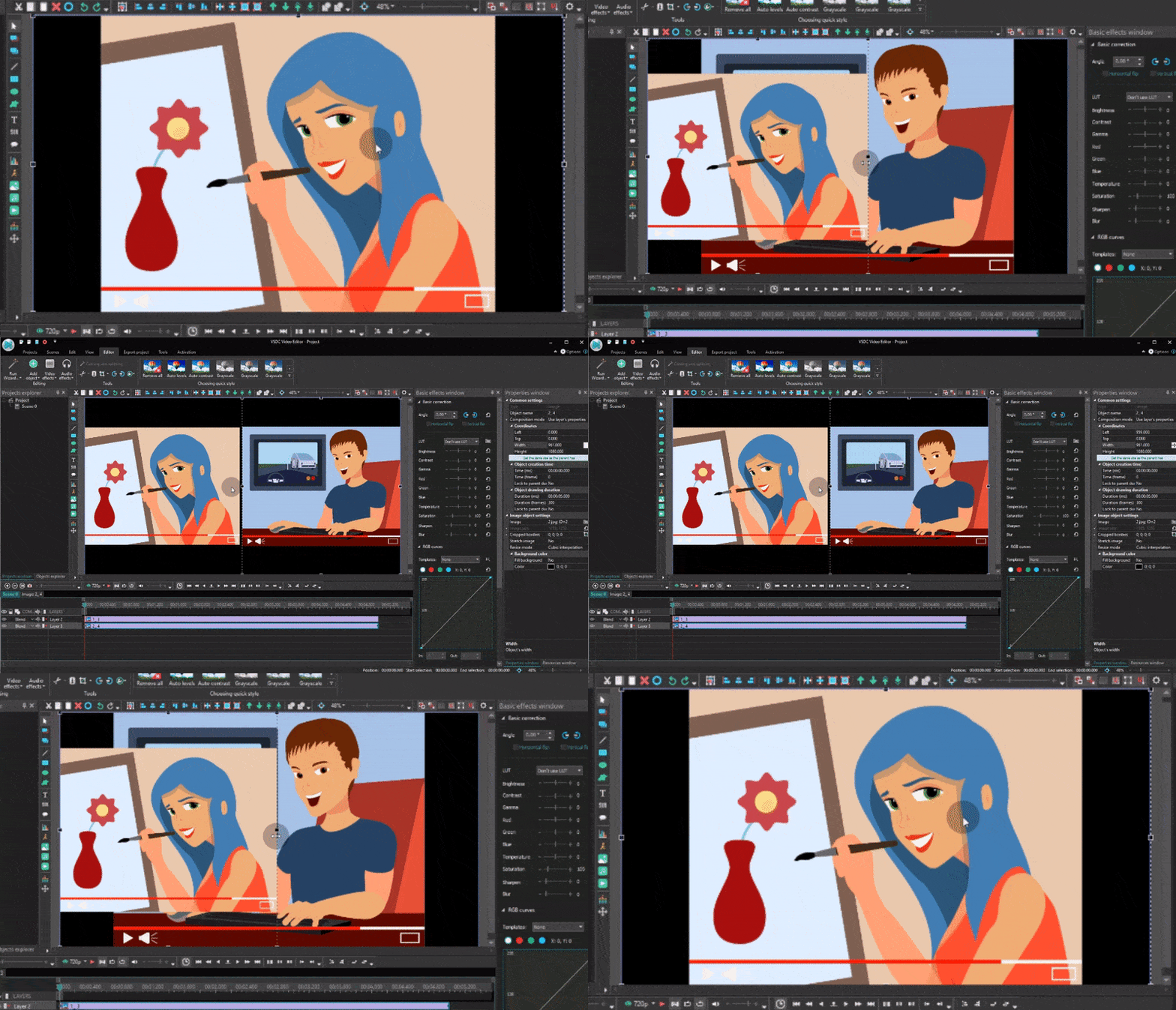
Örneğin bölünmüş ekran efekti oluşturmak için iki videoyu içe aktarmanız, boyutlarını ayarlamanız ve yan yana yerleştirmeniz yeterlidir.

VSDC'de bölünmüş ekran efekti Windows Movie Maker alternatifi

VSDC Free Video Editor'da bölünmüş ekran efekti

Aynı çok katmanlı çalışma mantığıyla resim içinde resim, bindirme efektleri, hareketli grafikler, daha gelişmiş başlıklar ve aynı anda birden fazla öğenin göründüğü kompozisyonlar da oluşturabilirsiniz.

VSDC, bu karşılaştırmanın ilk yayımlandığı dönemden bu yana ciddi biçimde gelişti. 2026'da artık yalnızca temel kesme, geçiş ve metin araçları sunan bir Movie Maker alternatifi değil; yapay zeka, HDR, telemetri ve gelişmiş anahtar kare düzenleme gibi daha ileri seviye iş akışlarını da kapsıyor.

Yapay zeka ile görsel ve video üretimi doğrudan editörde

VSDC 11.3, fal.ai entegrasyonu sayesinde yapay zeka ile görsel oluşturma, yapay zeka ile video oluşturma ve yapay zeka destekli görsel düzenlemeyi doğrudan video düzenleme iş akışına ekliyor.

Bir yapay zeka modeli seçebilir, metin istemi girebilir, bir görsel veya video oluşturabilir ve sonucu doğrudan açık VSDC projenize ekleyebilirsiniz. Projede zaten bulunan görseller de yapay zeka ile düzenlenebilir.

Pratik avantajı şu: oluşturulan içerik ayrı bir hizmette kalmıyor. Dosyayı indirip tekrar editöre aktarmanız gerekmiyor. İçeriği hemen kesebilir, kendi çekimlerinizle birleştirebilir, metin ve altyazı ekleyebilir, geçiş uygulayabilir, animasyon oluşturabilir veya VSDC'nin normal araçlarıyla düzenlemeye devam edebilirsiniz.

HDR video düzenleme ve tone mapping

HDR video artık akıllı telefonlarda, aksiyon kameralarında, dronlarda ve yeni nesil kameralarda oldukça yaygın. VSDC, HDR video düzenleme ve tone mapping için özel araçlar sunarak HDR görüntülerin nasıl yorumlanacağını ve dönüştürüleceğini daha ayrıntılı kontrol etmenizi sağlar.

Yeni nesil telefonlar, GoPro, DJI cihazları ve diğer HDR destekli kameralarla çekilmiş görüntüler üzerinde çalışıyorsanız bu özellikler özellikle kullanışlıdır. Daha fazla bilgi için VSDC'de HDR video ve GPS telemetri desteği sayfamıza bakabilirsiniz.

Garmin, DJI ve GPS telemetrisini videoda gösterin

VSDC, GPS ve telemetri verilerini doğrudan videonun üzerine yerleştirebilir. Veri kaynağına bağlı olarak rota, hız, irtifa, kalp atış hızı, pedal kadansı ve pusula yönü gibi bilgileri göstermek mümkündür.

Bu özellikler bisiklet, motosiklet, antrenman, seyahat, aksiyon kamerası ve drone videoları için özellikle kullanışlıdır. İzleyici yalnızca görüntüyü değil, aynı zamanda ne kadar hızlı, ne kadar yüksekte veya hangi yönde hareket edildiğini de görebilir.

Ayrıntılı iş akışı için VSDC ile GPS ve telemetri verilerini videoda görselleştirme rehberimize göz atabilirsiniz.

Anahtar kareler ve animasyon üzerinde daha fazla kontrol

Movie Maker'ın sadeliği başlangıç için iyiydi, ancak animasyonları ayrıntılı biçimde oluşturmak istediğinizde seçenekler sınırlıydı.

VSDC'de konum, yakınlaştırma, opaklık ve efekt parametrelerini zaman içinde canlandırabilir, birden fazla anahtar kareyi birlikte düzenleyebilir, eğrileri ayarlayabilir ve daha gelişmiş başlık animasyonları veya hareketli grafikler oluşturabilirsiniz.

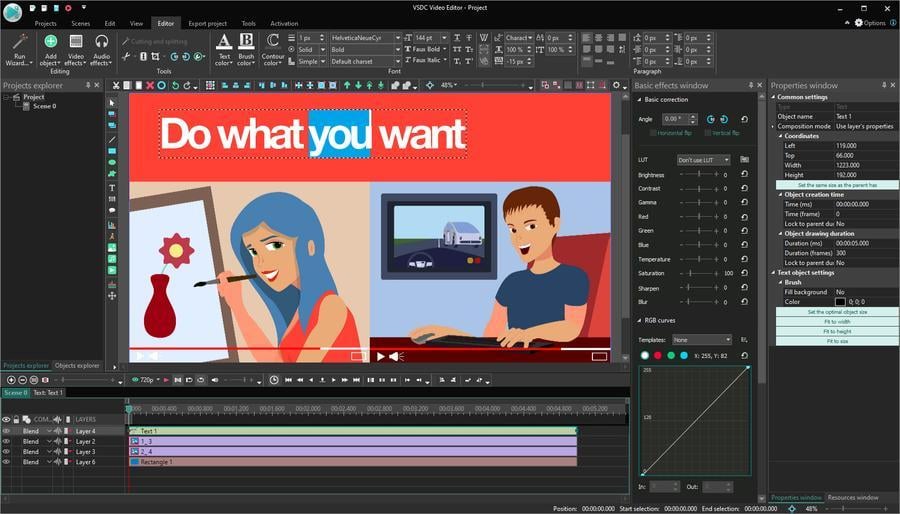
VSDC metin başlık ve anahtar kare düzenleme araçları

VSDC metin, başlık, animasyon ve görsel efektler üzerinde ayrıntılı kontrol sunar

Editörde ayrıca maskeler, chroma key, renk düzeltme, karıştırma modları, ses efektleri, altyazılar, görselleştiriciler ve büyüyen bir hazır şablon kütüphanesi bulunur.

Ücretsiz bir Windows Movie Maker alternatifi arıyor ve projeleriniz ilerledikçe hemen başka bir editöre geçmek istemiyorsanız, VSDC hâlâ en güçlü seçeneklerden biridir.

VSDC Free Video Editor'ı indirin

Microsoft Clipchamp

Microsoft'un bir gün Movie Maker'ın modern bir halefini sunmasını bekliyorsanız, Clipchamp bugün bu fikre en yakın seçenek.

Clipchamp, Microsoft'un Windows 11 için sunduğu güncel video düzenleyicisidir. Arayüzü hızlı düzenleme, sürükle-bırak, şablonlar, stok medya, metin, geçişler, filtreler, ekran kaydı, altyazılar, seslendirme ve sosyal medya içerikleri üzerine kuruludur.

Eski Movie Maker kullanıcıları için en büyük avantajı bu sadeliktir. Klipleri kesip birleştirebilir, müzik ve metin ekleyebilir, ekran veya web kamerası kaydı yapabilir ve karmaşık bir post-prodüksiyon ortamını öğrenmeden hızlıca sosyal medya videosu hazırlayabilirsiniz.

Ücretsiz sürüm birçok günlük proje için yeterlidir. Ancak daha gelişmiş kompozisyon, ayrıntılı anahtar kare kontrolü, HDR işleme, telemetri veya format ve efektler üzerinde daha fazla kontrol istediğinizde daha kapsamlı bir Clipchamp alternatifi aramaya başlayabilirsiniz.

En uygun olduğu kullanıcılar: hızlı video hazırlayanlar, sunum ve sosyal medya içeriği üretenler ve Windows 11'e entegre bir çözüm isteyenler.

VSDC'yi tercih edin: Basit bir editörden animasyon, HDR, telemetri, kompozisyon ve yapay zeka destekli daha gelişmiş iş akışlarına geçmek istiyorsanız.

OpenShot

OpenShot, Movie Maker'dan çok izli düzenlemeye geçişi nispeten kolaylaştırdığı için bu makalenin ilk sürümünde de yer alıyordu. Bu avantaj bugün de geçerli.

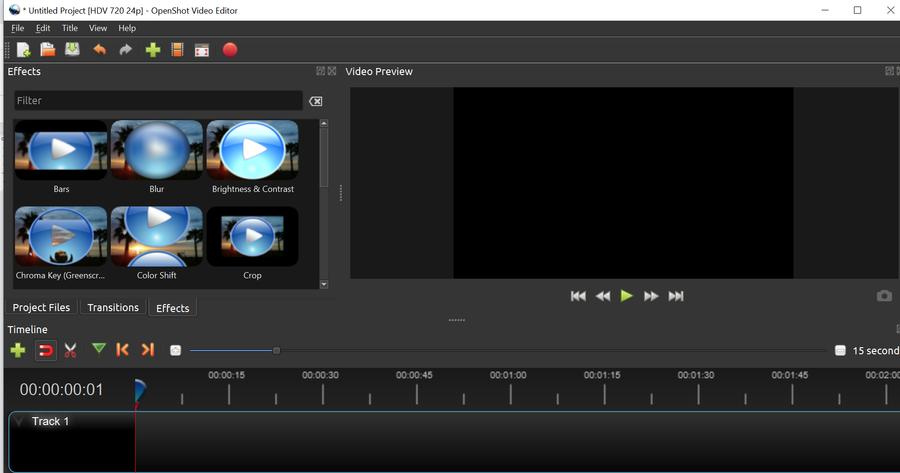
OpenShot ücretsiz Windows Movie Maker alternatifi

OpenShot hâlâ en kolay öğrenilen açık kaynaklı video editörlerinden biridir

OpenShot ücretsiz ve açık kaynaklıdır; Windows, macOS ve Linux'ta çalışır. Çok izli zaman çizelgesi, sürükle-bırak düzenleme, anahtar kareler, efektler, geçişler ve geniş format desteği sunar.

Bugünkü OpenShot, eski rehberde incelediğimiz sürüme göre çok daha gelişmiştir. Yeni sürümlerde renk araçları, kayıt özellikleri, ses görselleştirme, maskeleme ve zaman çizelgesi kontrolleri önemli ölçüde iyileştirildi.

Temel olarak video kesmek, geçiş ve başlık eklemek, basit animasyonlar oluşturmak ve birkaç iz üzerinde çalışmak istiyorsanız OpenShot hâlâ iyi bir Movie Maker alternatifidir.

OpenShot'ı indirin

En uygun olduğu kullanıcılar: Görece basit ve açık kaynaklı bir Movie Maker alternatifi isteyenler.

VSDC'yi tercih edin: Windows odaklı bir iş akışı, yapay zeka ile medya oluşturma, HDR kontrolü, telemetri ve daha gelişmiş kompozisyon araçları istiyorsanız.

Kdenlive

Kdenlive da makalenin ilk sürümünden bugüne ulaşan ve 2026'da hâlâ güncelliğini koruyan önerilerden biridir.

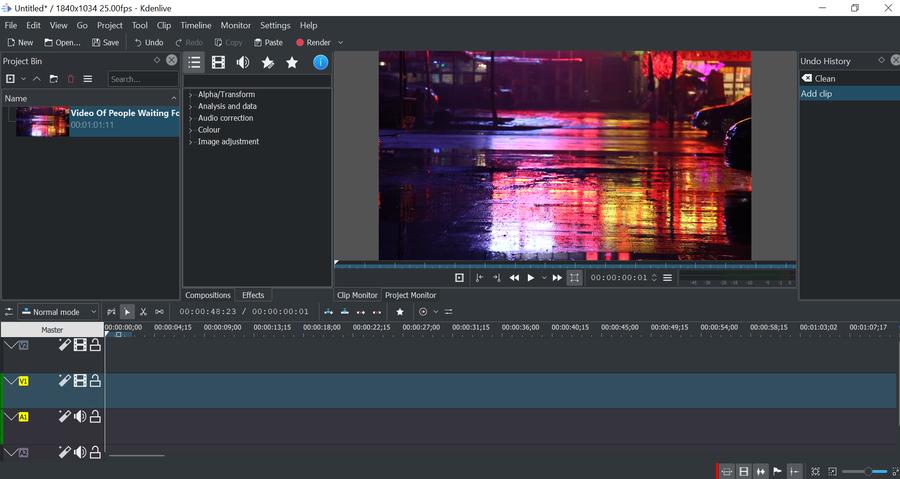
Kdenlive ücretsiz açık kaynaklı Windows Movie Maker alternatifi

Kdenlive esnek ve özelleştirilebilir bir doğrusal olmayan düzenleme ortamı sunar

Kdenlive, Windows, macOS ve Linux için ücretsiz ve açık kaynaklı bir video editörüdür. Birden fazla video ve ses izi, efektler, geçişler, renk araçları, başlıklar, chroma key, dalga biçimi görünümü ve özelleştirilebilir arayüz sunar.

Proxy iş akışı, özellikle daha az güçlü bir bilgisayarda yüksek çözünürlüklü veya ağır video dosyalarını düzenlerken kullanışlıdır. Yazılımın geliştirilmesi de devam ediyor; yeni sürümlerde kararlılık, zaman çizelgesi davranışı, kullanılabilirlik ve iş akışı iyileştirmelerine odaklanılıyor.

Öğrenme eğrisi Clipchamp veya eski Movie Maker'a göre daha diktir, ancak karşılığında çok daha fazla düzenleme kontrolü elde edersiniz.

Kdenlive'ı indirin

En uygun olduğu kullanıcılar: Olgunlaşmış bir açık kaynaklı NLE kullanmak isteyen ve biraz öğrenme süresini göze alanlar.

VSDC'yi tercih edin: Ana platformunuz Windows ise ve yapay zeka üretimi, telemetri, HDR araçları ve VSDC'nin şablon ekosistemi projeleriniz için daha uygunsa.

Shotcut

Shotcut, 2026 güncellemesinde ana listeye eklediğimiz yeni seçeneklerden biri. OpenShot ve Kdenlive gibi ücretsiz, açık kaynaklı ve Windows, macOS ve Linux desteğine sahip.

Shotcut özellikle geniş format uyumluluğu ve daha teknik düzenleme yaklaşımıyla bilinir. Çok izli kurgu, filtreler, anahtar kareler, altyazılar, LUT'lar ve çok sayıda ses-video formatı için destek sunar.

Yeni sürümler HDR iş akışlarını da genişletti; zaman çizelgesi, anahtar kareler, altyazılar ve konuşmayı metne dönüştürme gibi işlevlerde iyileştirmeler yapıldı.

Clipchamp kadar şablon odaklı değildir ve yalnızca birkaç klibi hızlıca birleştirmek isteyen kullanıcılar için arayüzü biraz daha teknik görünebilir. Ancak ayrıntıları kendiniz kontrol etmeyi seviyorsanız bu esneklik avantaja dönüşür.

Shotcut'ı indirin

En uygun olduğu kullanıcılar: Format desteği, filtreler, HDR ve teknik kontrolü önceliklendirenler.

VSDC'yi tercih edin: Benzer bir gelişme alanı isterken aynı zamanda yapay zeka üretimi, aksiyon kamerası telemetrisi ve Windows odaklı daha geniş bir özellik seti arıyorsanız.

Olive ve HitFilm Express'e ne oldu?

Bu makalenin eski bir sürümünü daha önce gördüyseniz Olive Video Editor ve HitFilm Express isimlerini hatırlayabilirsiniz.

Bu programları sayfadan tamamen silmedik çünkü orijinal rehber yayımlandığında ikisi de gerçekten Windows Movie Maker alternatifi olarak değerlendirilebiliyordu. Ancak 2026'da yeni bir video editörü seçen bir kullanıcıya artık ana öneri olarak sunmuyoruz.

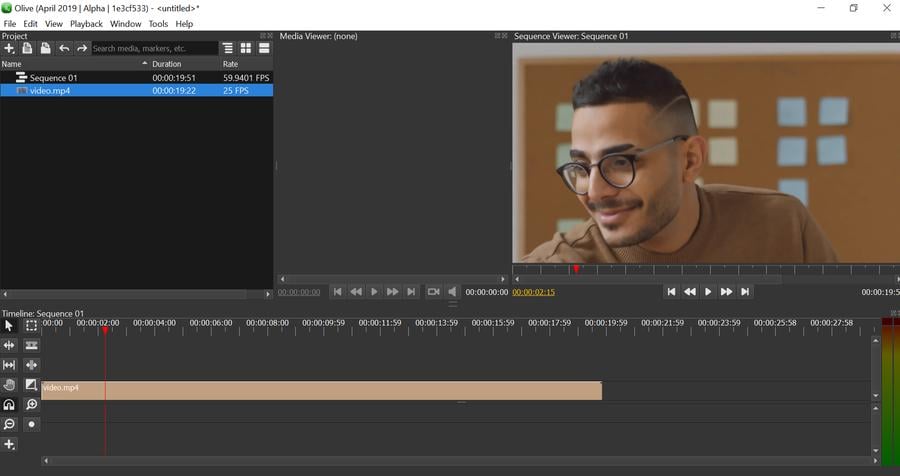
Olive Video Editor eski Windows Movie Maker alternatifleri listesinde yer alıyordu

Olive önceki sürümde listede yer alıyordu ancak artık güncel Top 5 içinde değil

Olive'ın mevcut geliştirme durumu, yeni kullanıcılar için günlük ve kararlı bir video editörü olarak önerilmesini zorlaştırıyor.

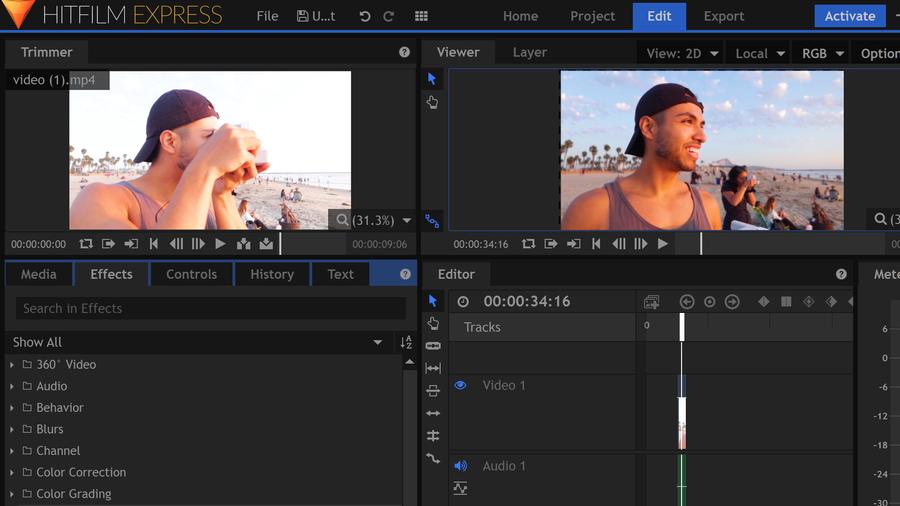
HitFilm Express daha önce Windows Movie Maker alternatifi olarak öneriliyordu

HitFilm Express uzun süre güçlü bir ücretsiz seçenekti ancak artık yeni kullanıcılar için pratik bir uzun vadeli tercih değil

Bu nedenle 2026 güncellemesinde ana listedeki Olive ve HitFilm Express'in yerini Microsoft Clipchamp ve Shotcut aldı.

2026'da iyi bir Windows Movie Maker alternatifi ne sunmalı?

Bu sorunun cevabı, makalenin ilk yayımlandığı dönemden bu yana oldukça değişti.

Eskiden iyi bir Movie Maker alternatifi için videoyu kesmek, birkaç klibi birleştirmek, başlık ve müzik eklemek ve sonucu sorunsuz biçimde dışa aktarmak yeterliydi.

2026'da ise birçok kullanıcı ücretsiz bir video düzenleyicide şu özellikleri de bekliyor:

  • dikey video ve sosyal medya iş akışları
  • 4K desteği
  • daha gelişmiş renk düzeltme
  • altyazı ve ses araçları
  • ekran kaydı
  • modern codec desteği
  • anahtar kare animasyonu
  • HDR düzenleme
  • yapay zeka destekli araçlar ve içerik üretimi
  • tekrarlanan işleri hızlandıran şablonlar

Elbette herkesin tüm bu özelliklere ihtiyacı yok.

Eski Movie Maker'ın basit kullanımına mümkün olduğunca yakın kalmak istiyorsanız Clipchamp veya OpenShot daha tanıdık gelecektir.

Açık kaynak ve daha esnek iş akışları sizin için daha önemliyse Kdenlive veya Shotcut iyi seçeneklerdir.

Basit kesme işlemleriyle başlayıp zamanla yapay zeka ile video oluşturma, HDR, telemetri, gelişmiş animasyon, efektler ve daha karmaşık projelere geçmek istiyorsanız VSDC, doğrudan profesyonel bir post-prodüksiyon paketine geçmeden uzun süre kullanabileceğiniz bir seçenek sunar.

VSDC vs Clipchamp: Hangisini seçmelisiniz?

Clipchamp artık Windows 11'de Microsoft'un temel video düzenleme çözümü olduğu için 2026'da VSDC vs Clipchamp karşılaştırması eski “VSDC vs Movie Maker” karşılaştırmasından çok daha anlamlı.

Clipchamp size daha uygunsa:

  • hemen düzenlemeye başlamak istiyorsanız
  • şablonlarla sosyal medya videosu hazırlıyorsanız
  • temel kesme ve birleştirme işlemleri yapıyorsanız
  • ekran ve web kamerası kaydı kullanıyorsanız
  • Windows 11 ile entegre bir editör istiyorsanız

VSDC size daha uygunsa:

  • tam özellikli doğrusal olmayan zaman çizelgesi istiyorsanız
  • daha gelişmiş kompozisyon yapmak istiyorsanız
  • anahtar kareleri ayrıntılı biçimde kontrol etmek istiyorsanız
  • HDR işleme ve tone mapping kullanıyorsanız
  • Garmin, DJI ve GPS telemetrisi eklemek istiyorsanız
  • yapay zeka ile görsel ve video üretimini düzenleme sürecinde kullanmak istiyorsanız
  • efekt, renk ve animasyon üzerinde daha fazla kontrol istiyorsanız
  • daha karmaşık projelere geçtikçe aynı editörü kullanmaya devam etmek istiyorsanız

Yani mesele hangi editörün mutlak anlamda “daha iyi” olduğu değil; projelerinizde ne kadar ileri gitmek istediğinizdir.

Sık sorulan sorular

2026'da en iyi Windows Movie Maker alternatifi hangisi?

Basitlik sizin için öncelikliyse Clipchamp, Movie Maker'ın modern yaklaşımına en yakın seçeneklerden biridir. Windows'ta daha gelişmiş video düzenleme istiyorsanız VSDC; doğrusal olmayan kurgu, anahtar kareler, HDR, telemetri ve yapay zeka ile içerik üretimi gibi daha geniş bir araç seti sunar.

Windows Movie Maker hâlâ kullanılabilir mi?

Microsoft, Windows Movie Maker'ın da dahil olduğu Windows Essentials 2012 desteğini 2017'de sona erdirdi. Movie Maker artık Microsoft tarafından resmi olarak desteklenen ve dağıtılan bir video editörü değildir.

Windows 11'de Windows Movie Maker'ın yerini ne aldı?

Microsoft Clipchamp, bugün Windows 11 için sunulan Microsoft video düzenleyicisidir ve basit, entegre bir kurgu deneyimi arayan kullanıcılar için Movie Maker'a en yakın modern seçeneklerden biridir.

Filigransız ücretsiz Windows Movie Maker alternatifi var mı?

Evet. VSDC, OpenShot, Kdenlive ve Shotcut zorunlu filigran eklemeden ücretsiz düzenleme seçenekleri sunar. Clipchamp da ücretsiz özellikler ve ücretsiz medya kullanılan projelerde filigransız dışa aktarmaya izin verir.

Windows için en iyi Clipchamp alternatifi hangisi?

Clipchamp'ın sadeliğini seviyor ancak daha gelişmiş özelliklere ihtiyaç duyuyorsanız VSDC doğal bir sonraki adım olabilir. Doğrusal olmayan kurgu, anahtar kareler, HDR, telemetri, yapay zeka üretimi ve daha ayrıntılı efekt kontrolü sunar.

VSDC yapay zeka ile video oluşturabilir mi?

Evet. VSDC 11.3, fal.ai üzerinden yapay zeka ile görsel ve video oluşturmayı ve yapay zeka destekli görsel düzenlemeyi destekler. Oluşturulan içerik doğrudan açık VSDC projesine eklenip diğer materyallerle birlikte düzenlenebilir.

VSDC Free Video Editor'ı indirin

News

VSDC 11.3: Yapay Zeka ile Video Oluşturma, Yeni Şablonlar ve Telemetri

VSDC 11.3'te öne çıkanlar Doğrudan VSDC içinde yapay zeka ile görsel ve video oluşturma Yapay zeka ile görsel düzenleme Yeni el kamerası, geniş açı düzeltme ve ses spektrumu...

Kayıp dosyalar için akıllı arama, GPS verileri ve video senkronizasyonu, H.266 (VVC), 4K/8K için bile hızlandırılmış proxy oluşturma, şekiller için ana kare desteği ve yepyeni tasarımcı şablonları

Yayınlayan: Amy Shao 30 Haziran 2026 VSDC Free Video Editor’ün yeni büyük güncellemesiyle tanışın: 11.2 sürümü! Projelerinizde kayıp dosyaları aramak için ne kadar zaman...

VSDC 11.1: Insta360 kameralar ve büyük iyileştirmelerle yeni yaratıcı olanakları keşfedin

Amy Shao tarafından yayımlandı: 11 Mart 2026 Yaratıcı bir insan için en iyi hediye nedir? Elbette yeni olanaklar. VSDC ekibi, Insta360 kameralardan gelen videoları doğrudan düzenlemenizi...

GoPro ve Diğer Aksiyon Kameraları için GPS Ölçüm Cihazları, Meta Veri Düzenleme, Genişletilmiş Kodekler ve Daha Akıllı İş Akışı

yayınlayan Amy Shao 19/11/25 Uzun zamandır beklenen VSDC 10.2 güncellemesiyle tanışın: hobicilerden profesyonellere kadar herkesi güçlendirmek için tasarlanmış inanılmaz özellikler ve önemli...

Büyük VSDC 10.1 Güncellemesi: Gelişmiş HDR, GPS Telemetrisi, Yeni Efektler, Farklı İhtiyaçlar İçin Çok Çeşitli Yeni Şablonlar ve Araçlar

published Amy Shao 6/10/25 Yeni ve sıradışı bir şey için bekleyiş nihayet sona erdi! Güncelleme burada ve bu sadece başka bir sürüm değil: Bu VSDC 10.1! VSDC 10.1 Güncellemesi: Gelişmiş...

VSDC Noel Güncellemesi 9.4: Geliştirilmiş Efekt Yönetimi, 100'den Fazla Arka Plan Şablonu ve Kolaylaştırılmış Düzenleme

Bu tatil sezonu, VSDC Video Editörü'nün en son güncellemesiyle yeni başlangıçları kucaklıyor! Geri bildirimlerinizi dinledik ve en sevdiğiniz araçları geliştirmeye odaklanmaya karar verdik—tüm...

VSDC Free, Filigran İçin Gizli Silahım Nasıl Oldu (2025'te Ücretsiz 4K Düzenleme)

Merhaba, ben Mattea Wharton, Seattle'dan bir seyahat videografçısıyım. Üç yıl boyunca videolarıma çirkin su kimlikleri (filigran) basan video editörlerle mücadele ettim, ta ki VSDC'yi bulana...

150+ Şablon, Metin Dönüştürücüsü, Sprite Otomatik Algılama ve GUI Güncellemesi

Değişim, gelişim demektir ve bu süreç sizlerin geri bildirimleri olmadan mümkün olamazdı. Geri bildirimlerinizi titizlikle değerlendirdik ve düzenleme deneyiminizi iyileştirmek için birkaç...

En İyi Özel Efekt Yazılımı

Giriş 2024 yılında görsel efekt oluşturma seçenekleri son derece çeşitli ve en iyi seçenekleri belirlemek giderek zorlaşıyor. Projelerinize orijinallik katmanıza yardımcı olacak en iyi...

VSDC 9.2: AI segmentasyon modelleri, 300'den fazla geçiş, VSDC Cloud ve yeni şablon koleksiyonu

VSDC 9.2 burada ve hassas nesne kaldırma, gelişmiş renk düzeltme ve videolarınızı geliştirmek için çeşitli efektler sağlayan yeni AI destekli segmentasyon aracı gibi çığır açan özellikler...
 

Screen Recorder Box

Bu program ile masaüstünüzün video videosunu çekebilir ve bilgisayarınıza çeşitli biçimlerde kaydedebilirsiniz. Bir video düzenleyiciyle eşleştirilmiş program, sunumlar ve demolar oluşturmak için idealdir.

Ekran Kaydedici hakkında daha bilgi edinin...


Video Capture Box

Program, dış aygıtlardan video yakalar ve ücretsiz bir biçimde bilgisayara kaydeder. Video tarayıcılardan, web kameralardan, yakalama kartlarından ve diğer araçlardan da video kaydedebilirsiniz.

Video Yakalama hakkında daha fazla bilgi edinin…


İnceleyen


"VSDC Ücretsiz Video Düzenleyici her ne kadar alışılmadık bir video düzenleyici olsa da şaşırtıcı derecede güçlü"

- PC Advisor


"Bu video düzenleyici size tonlarca kontrol ve düzenleme gücü veriyor"

- CNet


"Bu video düzenleyici tüm popüler video formatlarını destekler ve çok çeşitli özelliklere sahiptir. Aydınlatma seviyesini değiştirebilir, videoları birleştirebilir, filtreler ve geçişler uygulayabilirsiniz"

- Digital Trends