


Editeur Vidéo
A l’aide de l’éditeur vidéo, vous pourrez éditer les fichiers vidéo et créer des vidéo de divers niveaux de complexité. Vous aurez également la possibilité d’appliquer des effets vidéo et audio aux objets d’édition, les transformer, introduire la filtration et la correction des images. Le logiciel prend en charge tous les formats et codecs vidéo et audio populaires en lecture comme en enregistrement.
Convertisseur Vidéo
Ce logiciel sert à transformer les fichiers vidéo d’un format en un autre. Il prend en charge presque tous les formats vidéo populaires en lecture comme en enregistrement. En outre, il offre la possibilité de création des vidéos pour des dispositifs multimédia concrets, tels que iPhone, Microsoft Zune ou Archos. Le logiciel est très simple d’emploi, il est doté d’une interface moderne et fournit un ensemble de fonctions de base pour traiter les vidéos.
Convertisseur Audio
Grâce à ce convertisseur audio, vous pourrez convertir les fichiers audio d’un format vers un autre. Le logiciel prend en charge tous les formats et codecs audio répandus. Le logiciel permet également de traiter les sélections et les balises META des fichiers, offre la possibilité d’exporter des pistes audio depuis un fichier vidéo et d’enregistrer les pistes sur l’ordinateur au format voulu.
Animated Intro & Title Templates
Explore the VSDC Template Store with ready-made video templates for intros, animated titles, lower thirds, logo reveals, slideshows, glitch transitions, LUTs, and color grading presets. Drop a template into the VSDC Video Editor timeline, edit text, timing, and colors, and finish professional video projects in minutes.
Choose from 300+ exclusive packs of video transitions, LUT packs, text effects, GPS telemetry widgets, animated elements, and animated backgrounds for VSDC. All templates are fully customizable, support up to 4K resolution in 16:9, and help you build intros, wedding slideshows, travel videos, and tutorials much faster.
VSDC Cloud - Online video management
Keep your work safe, organized and always accessible! Back up your video projects, store media files online and access them from any device. Enjoy collaboration, share project updates and exchange files easily.
 Editeur Vidéo
 Convertisseur Vidéo
 Convertisseur Audio
 Templates store
 Cloud
Cloud

Multifonctionnalité
Un large éventail d'outils de traitement des fichiers multimédia dans un seul logiciel de montage vidéo gratuit.

Haute vitesse de fonctionnement
Les logiciels utilisent des algorithmes multiprocesseurs rapides optimisés.

Disponibilité
VSDC est un logiciel vidéo qu’on peut télécharger gratuitement sur les PCs et ordinateurs portables à base de système d'exploitation Windows
Comment créer des sous-titres dans VSDC
Les sous-titres rendent les vidéos plus accessibles, notamment sur les réseaux sociaux, où de nombreux utilisateurs regardent les contenus sans le son. Ils facilitent également l’accès aux vidéos pour les personnes sourdes ou malentendantes. VSDC Video Editor permet d’importer un fichier de sous-titres SRT existant ou de créer gratuitement des sous-titres directement dans le programme.
Dans ce guide, nous allons expliquer étape par étape comment ajouter des sous-titres à une vidéo, modifier leur texte et leur synchronisation, générer un balisage sous forme de marqueurs à partir des répliques, personnaliser leurs paramètres, mettre en forme les sous-titres et exporter la vidéo finale avec des sous-titres incrustés.
Vous pouvez commencer par regarder le tutoriel vidéo, puis suivre les instructions détaillées ci-dessous.
 TÉLÉCHARGER GRATUITEMENT VSDC FREE VIDEO EDITOR
Étape 1. Ajouter ou créer des sous-titres
Commencez par ajouter la vidéo et les sous-titres à la scène. Pour importer la vidéo, utilisez le bouton Importer du contenu sur l’écran de démarrage. Choisissez ensuite l’une des deux méthodes ci-dessous selon que vous disposez déjà ou non d’un fichier de sous-titres SRT.
Si vous disposez déjà d’un fichier de sous-titres SRT
L’importation d’un fichier de sous-titres existant est la méthode la plus rapide pour ajouter des sous-titres dans VSDC. Pour suivre la procédure décrite dans ce guide, le fichier doit porter l’extension .srt et respecter la structure standard SubRip.
Vous pouvez créer un fichier SRT avec le Bloc-notes de Windows ou utiliser un éditeur de sous-titres spécialisé, tel qu’Open Subtitle Editor ou Jubler. Lorsque vous téléchargez des sous-titres depuis YouTube ou une autre plateforme, vérifiez d’abord l’extension du fichier. Si le fichier est au format VTT, SBV ou dans un autre format, convertissez-le en SRT avant de l’importer dans VSDC.
Lorsque vous enregistrez un fichier SRT dans le Bloc-notes, choisissez l’encodage UTF-8. Cela permet de préserver correctement les accents, les caractères spéciaux et les alphabets non latins.
Une fois le fichier prêt, cliquez sur le bouton CC dans la barre d’outils située à gauche et sélectionnez le fichier SRT.
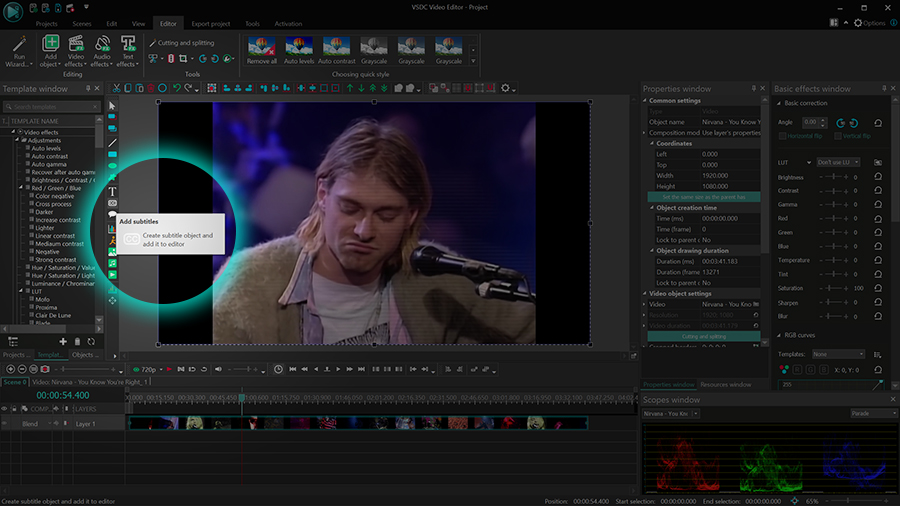
Dans la fenêtre Paramètres de position de l’objet, cliquez sur OK. Dessinez ou positionnez ensuite la zone des sous-titres dans la scène. L’objet de sous-titres apparaît sur la timeline et le texte s’affiche dans la fenêtre d’aperçu.
Si vous ne disposez pas encore d’un fichier de sous-titres SRT
Vous pouvez également créer les sous-titres directement dans VSDC. Cliquez sur le bouton CC à gauche, sélectionnez Annuler lorsque le programme propose d’ouvrir un fichier de sous-titres, puis cliquez sur OK dans la fenêtre Paramètres de position de l’objet. Dessinez la zone des sous-titres dans la scène, puis cliquez sur Modifier les sous-titres dans la fenêtre Propriétés.
Saisissez les sous-titres réplique par réplique en respectant la structure SRT standard :
1
00:00:06,107 --> 00:00:08,534
Texte du sous-titre
2
00:00:10,234 --> 00:00:18,530
Texte du sous-titre
La première ligne contient le numéro d’ordre du sous-titre. La deuxième indique les moments précis où le sous-titre apparaît et disparaît. La troisième contient le texte du sous-titre. Laissez toujours une ligne vide entre deux blocs de sous-titres.
Utilisez toujours le format temporel SRT standard : HH:MM:SS,mmm --> HH:MM:SS,mmm. Les deux horodatages doivent être séparés par deux tirets suivis du signe supérieur à, et les millisecondes doivent être précédées d’une virgule.
Si un sous-titre comporte deux lignes de texte, saisissez-les toutes les deux sous l’horodatage. Ajoutez ensuite la ligne vide qui sépare ce bloc du sous-titre suivant.
Étape 2. Générer le balisage des sous-titres et ajuster la synchronisation
VSDC peut générer un balisage sous forme de marqueurs sur la timeline (chronologie) à partir des différentes répliques. Chaque marqueur indique le début d’un bloc de sous-titres. Cette fonctionnalité est utile pour synchroniser les séquences vidéo, l’audio, les animations ou les effets avec les sous-titres et la narration.
Pour générer les marqueurs, sélectionnez l’objet de sous-titres sur la timeline et ouvrez la fenêtre Propriétés à droite. Cliquez ensuite sur Ajouter des marqueurs. Le résultat se présente comme suit :

Modifier le texte ou la synchronisation et régénérer les marqueurs
Si un sous-titre apparaît trop tôt ou trop tard, ou si son texte est incorrect, sélectionnez l’objet de sous-titres et ouvrez la fonction Modifier les sous-titres dans la fenêtre Propriétés.
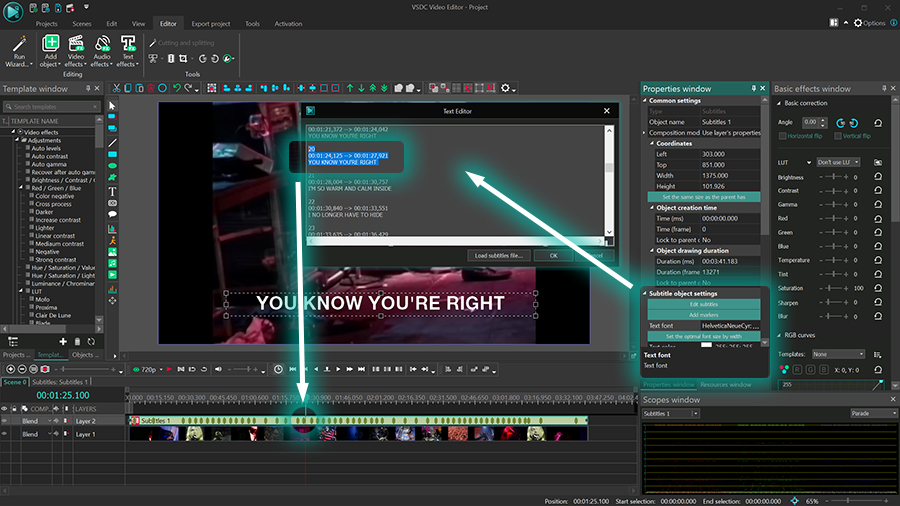
Pour corriger le texte, sélectionnez la réplique concernée et saisissez le nouveau contenu. Pour modifier la synchronisation, déterminez les moments où le sous-titre doit apparaître et disparaître, puis mettez à jour les horodatages dans l’éditeur de sous-titres. L’indicateur temporel situé en haut à gauche de la timeline permet d’identifier précisément la position souhaitée.
Conservez le format SRT standard lorsque vous modifiez les horodatages : HH:MM:SS,mmm --> HH:MM:SS,mmm. Dans le cas contraire, le sous-titre risque de ne pas s’afficher correctement.
Lorsque les modifications sont terminées, cliquez sur OK. Si les marqueurs ont déjà été générés, cliquez de nouveau sur Ajouter des marqueurs afin que le balisage de la timeline corresponde à la nouvelle synchronisation.
Personnaliser les marqueurs de sous-titres
Outre la modification de leur position par l’intermédiaire des horodatages, vous pouvez changer la couleur des marqueurs, leur attribuer un nom, ajouter des commentaires, choisir leur type et définir leur visibilité. Double-cliquez d’abord sur le calque des sous-titres, puis sur le marqueur que vous souhaitez modifier.
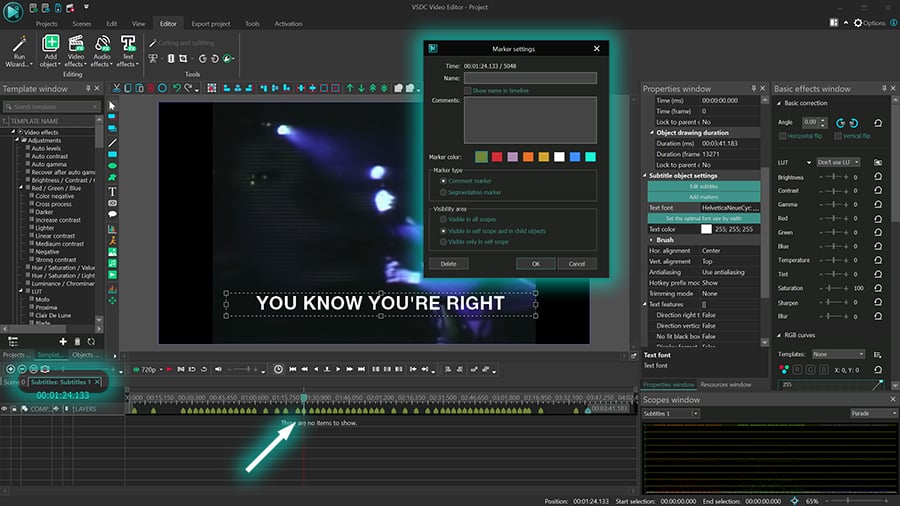
Dans la fenêtre Paramètres du marqueur, vous pouvez :
- attribuer un nom au marqueur
- ajouter un commentaire
- modifier la couleur du marqueur
- modifier le type du marqueur
- modifier la visibilité du marqueur
Les trois premières options facilitent l’identification des marqueurs. Le nom et le commentaire s’affichent lorsque vous placez le pointeur de la souris sur le marqueur dans la timeline. Activez l’option Afficher le nom dans la timeline pour que le nom reste visible en permanence. Une couleur personnalisée permet de retrouver plus facilement le marqueur sur les différents niveaux de la timeline où il est affiché.
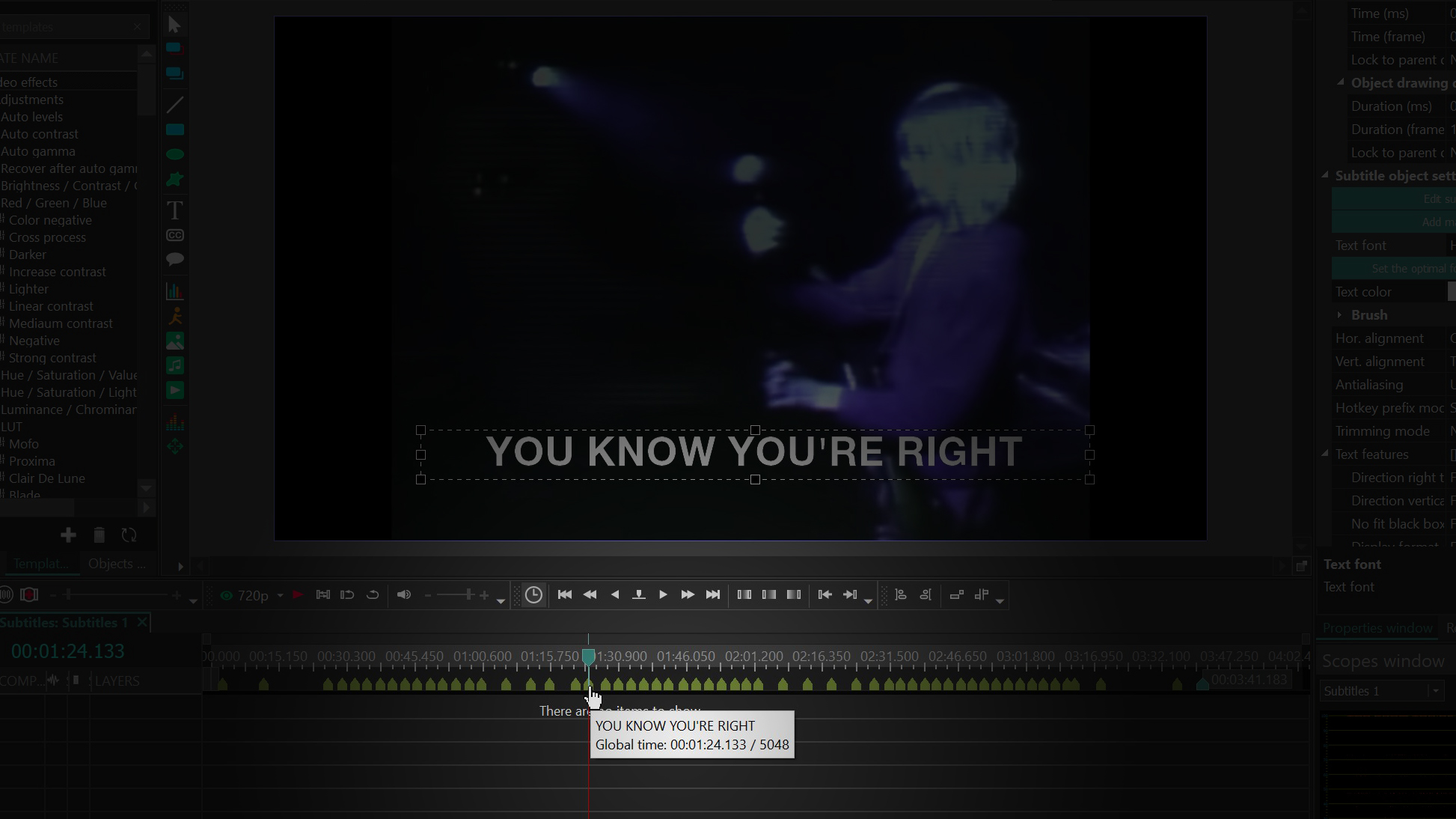
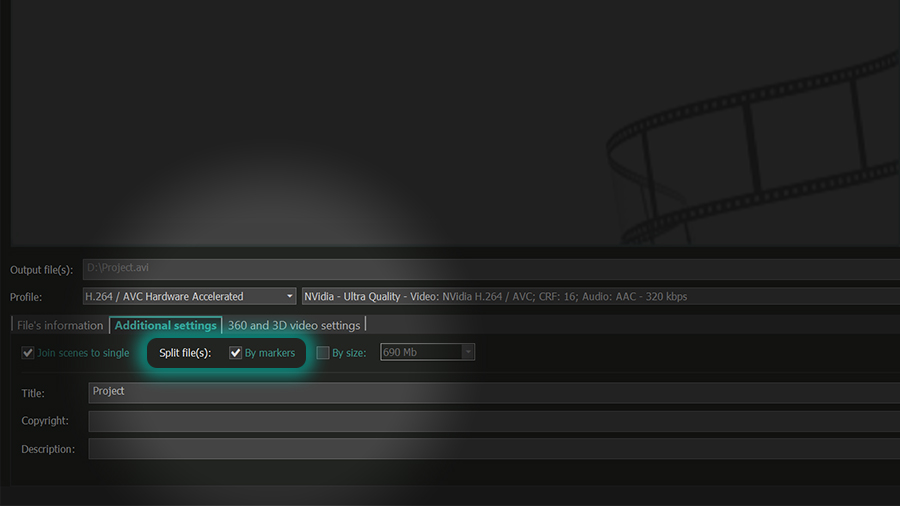
L’option Type de marqueur permet d’utiliser certains marqueurs pour diviser le projet exporté en plusieurs fichiers. Remplacez le type Marqueur de commentaire par Marqueur de segmentation. Au moment de l’exportation, activez l’option Diviser par marqueurs. VSDC créera alors plusieurs fichiers vidéo en fonction des marqueurs de segmentation ajoutés.
Le menu d’édition comprend également le paramètre Zone de visibilité. Celui-ci détermine les niveaux de la timeline sur lesquels le marqueur, son nom et ses commentaires sont visibles.
Trois niveaux de visibilité sont disponibles :
- Visible dans toutes les zones — le marqueur est visible sur tous les niveaux de la timeline
- Visible dans sa propre zone et dans les objets enfants — le marqueur est visible au niveau actuel et sur tous les niveaux inférieurs
- Visible uniquement dans sa propre zone — le marqueur n’est visible qu’au niveau actuel
Par exemple, si vous choisissez Visible dans toutes les zones, vous pouvez revenir à l’onglet principal de la timeline et continuer à voir le marqueur au-dessus de celle-ci.
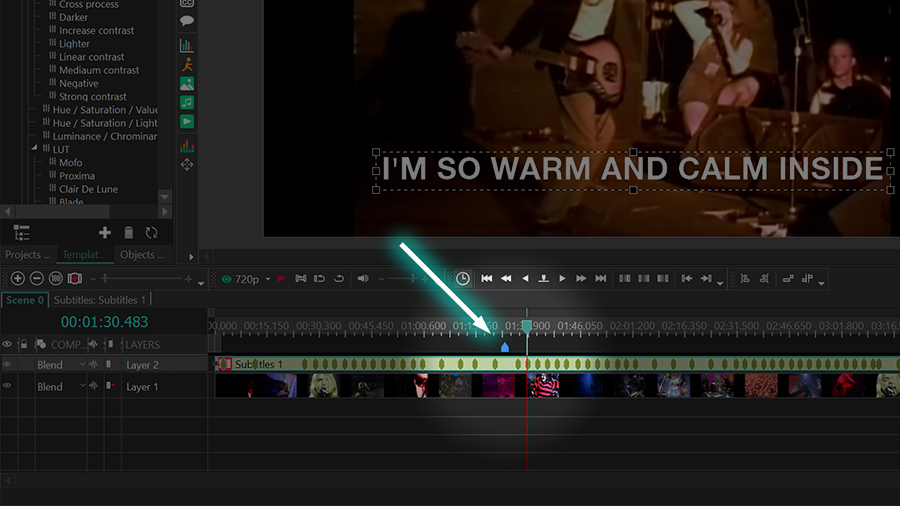
Avec les deux autres options, le balisage reste limité au calque des sous-titres ou aux niveaux enfants associés.
Étape 3. Mettre en forme les sous-titres
Sélectionnez l’objet de sous-titres sur la timeline, puis utilisez l’onglet Éditeur et la fenêtre Propriétés pour personnaliser son apparence. VSDC permet d’adapter la zone des sous-titres à la largeur de la vidéo et de régler les paramètres suivants :
- famille, style et taille de police
- couleur et opacité du texte
- couleur et épaisseur du contour
- alignement horizontal et vertical
- position du texte dans la zone des sous-titres
- interligne et autres paramètres de paragraphe
- arrière-plan et couleur d’arrière-plan des sous-titres
Veillez à conserver la zone des sous-titres à l’intérieur du cadre visible et contrôlez plusieurs répliques dans l’aperçu avant l’exportation. Le texte doit rester lisible aussi bien sur les parties claires que sombres de la vidéo. Un contour contrasté ou un arrière-plan peut améliorer la lisibilité lorsque l’image change fréquemment.
Pour appliquer des effets vidéo ou des effets de texte à certaines répliques, cliquez avec le bouton droit sur l’objet de sous-titres dans la timeline et sélectionnez Convertir en texte. VSDC transforme les répliques en objets texte modifiables. Vous pouvez ensuite appliquer des effets et modifier chaque objet séparément.
Étape 4. Exporter la vidéo avec les sous-titres au format MP4
Une fois le texte, la synchronisation et la mise en forme terminés, prévisualisez l’intégralité du projet. Dans cette procédure, les sous-titres sont ajoutés à la scène comme un objet visuel. Lors de l’exportation, VSDC les rend directement dans l’image vidéo. Vous obtenez ainsi des sous-titres incrustés : ils restent visibles en permanence dans le fichier MP4 exporté et ne peuvent pas être désactivés comme une piste séparée.
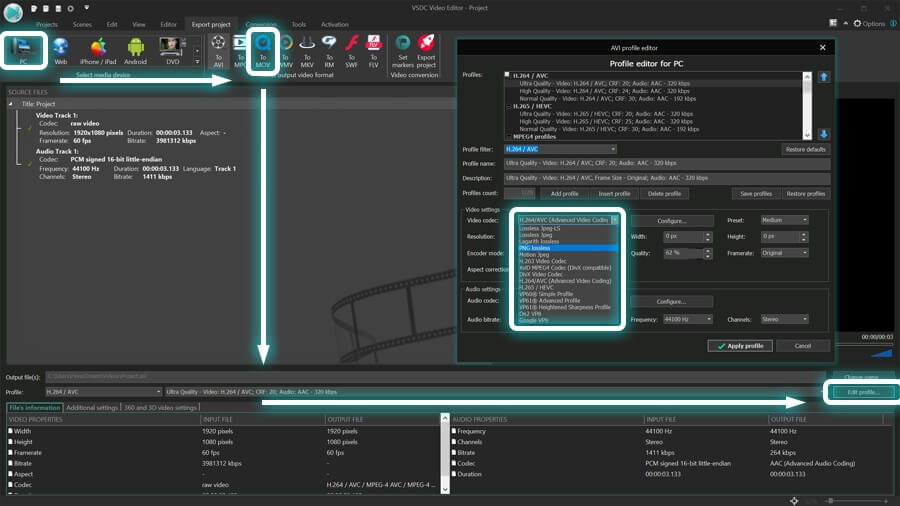
Pour exporter le projet, ouvrez l’onglet Exporter le projet dans le ruban. Choisissez PC ou Web comme appareil cible, puis sélectionnez MP4 comme format de sortie. Choisissez ensuite un profil adapté à la résolution et à la qualité souhaitées.
Vérifiez les paramètres Fichier d’entrée et Fichier de sortie dans la partie inférieure de la fenêtre. Utilisez Modifier le nom pour sélectionner un autre dossier de destination ou un autre nom de fichier. Pour régler plus précisément le codec, la résolution, la fréquence d’images, le débit et l’audio, cliquez sur Modifier le profil.
Lorsque tous les paramètres sont prêts, cliquez sur Exporter le projet dans le ruban afin de lancer le rendu. Une fois l’opération terminée, ouvrez le fichier MP4 et vérifiez plusieurs passages pour vous assurer que les sous-titres sont lisibles et correctement synchronisés. Pour en savoir plus sur les profils d’exportation, consultez le guide d’exportation des projets dans VSDC.
Vous pouvez maintenant ajouter des sous-titres à vos vidéos
Des sous-titres bien préparés améliorent l’accessibilité, facilitent la compréhension des vidéos regardées sans le son et permettent de toucher un public plus large. Ils sont particulièrement importants pour les vidéos destinées aux réseaux sociaux, les tutoriels, les présentations, les interviews et les contenus destinés à un public international. Avec VSDC, vous pouvez gratuitement importer un fichier SRT, créer des sous-titres manuellement, modifier leur synchronisation, mettre le texte en forme, générer des marqueurs et exporter une vidéo finale avec des sous-titres incrustés.
Questions fréquentes
1. Comment modifier la police, la taille et la couleur des sous-titres dans VSDC ?
Sélectionnez l’objet de sous-titres sur la timeline, ouvrez la fenêtre Propriétés et recherchez la section Paramètres de l’objet de sous-titres. Vous pouvez y choisir la police et sa taille, définir les couleurs du texte et du contour, régler l’alignement et la position du texte, puis configurer l’arrière-plan des sous-titres.
2. Pourquoi les horodatages des sous-titres s’affichent-ils différemment sur la timeline de VSDC ?
La timeline peut afficher le temps en images plutôt qu’en millisecondes. Ouvrez les paramètres de l’éditeur à l’aide de l’icône en forme d’engrenage située en haut à droite, accédez aux Options de l’éditeur et définissez le Format de temps de la timeline sur hh:mm:ss:ms. Les horodatages contenus dans un fichier SRT doivent néanmoins conserver le format standard HH:MM:SS,mmm --> HH:MM:SS,mmm.
3. Puis-je ajouter une ombre aux sous-titres dans VSDC ?
VSDC ne propose pas de réglage d’ombre spécialement conçu pour les sous-titres. Vous pouvez toutefois simuler cet effet en dupliquant l’objet de sous-titres. Placez la copie sur un calque situé sous l’original et appliquez-lui la couleur souhaitée pour l’ombre. Décalez ensuite légèrement sa position ou utilisez Effets vidéo > Transformations > Inclinaison afin d’obtenir le décalage et l’angle voulus.
4. Puis-je faire apparaître les caractères des sous-titres un par un dans VSDC ?
L’objet de sous-titres ne dispose pas d’une animation caractère par caractère dédiée. Cliquez avec le bouton droit sur l’objet de sous-titres dans la timeline et sélectionnez Convertir en texte. VSDC transforme alors les répliques en objets texte modifiables auxquels vous pouvez appliquer des effets et des animations. Pour plus de détails, consultez le guide des effets de texte dans VSDC.
5. Les sous-titres seront-ils inclus lorsque j’exporte une vidéo VSDC au format MP4 ?
Oui. Dans la procédure décrite dans ce tutoriel, les sous-titres sont ajoutés à la scène comme un objet visuel et sont directement rendus dans l’image lors de l’exportation. Ils sont donc incrustés de façon permanente dans la vidéo MP4 et ne peuvent pas être désactivés comme une piste de sous-titres séparée.
Vous avez d’autres questions ? Écrivez-nous à l’adresse Cette adresse e-mail est protégée contre les robots spammeurs. Vous devez activer le JavaScript pour la visualiser. ou envoyez-nous un message sur Facebook.
Téléchargez VSDC Free Video Editor — un logiciel de montage vidéo non linéaire pour Windows avec des outils pour les sous-titres, les effets de texte, les vidéos YouTube, les réseaux sociaux et les projets plus avancés. Découvrir toutes les fonctionnalités.





A l’aide de ce logiciel, vous pourrez faire des vidéos de votre bureau et les enregistrer sur l’ordinateur sous différents formats. Avec l’éditeur de vidéo, ce logiciel est une solution idéale pour créer des présentations et des bandes démos.

Le programme est pour le but de récupèrer le vidéo des périphériques et de l’enregistrer sur l’ordinateur dans n'importe quel format vidéo. Il vous permet de sauvegarder les vidéos des tuners vidéo, des caméras Web, des cartes de capture et d’autres unités.
VSDC Video Editor Reviews & Ratings (Trustpilot, Capterra & Media)
VSDC Free Video Editor is rated 4.5/5 by real users on Trustpilot and Capterra. Here are a few reviews and quotes from creators and tech media.
Overall rating: 4.5/5 based on 200+ reviews on Trustpilot and 89 reviews on Capterra.
★★★★⯪
VSDC Free Video Editor is the best free video editor for Windows I’ve used, from color grading to picture-in-picture and cinematic results.
— Ejikeme Eloka Augustine
Source:Trustpilot
★★★★☆
Easy-to-use interface and quick export to social media make VSDC a versatile video editing tool for everyday projects.
— Karen C., E-Learning
Source:Capterra
★★★★☆
A feature-packed non-linear video editor for Windows that can compete with many paid video editing solutions.
— TechRadar
Source:TechRadar review
★★★★★
The free VSDC editor saved my YouTube channel – a powerful video editing software for chroma key, text effects and picture-in-picture.
— Paul Roberts
Source:Trustpilot
★★★★★
Fast and simple for YouTube videos with green screen, zoom, color tools and creative effects in one app.
— Marie R., Media Production
Source:Capterra
★★★★★
One of the best free video editor options for Windows users, ideal for GoPro, YouTube and family videos.
— VidProMom, YouTube creator
Source:Media reviews
★★★★★
I’ve been using VSDC for years; editing is easy and the final videos look great for my personal and professional projects.
— Long-time VSDC user
Source:Trustpilot
★★★★★
Great value and faster than many other free tools; I quickly create videos for YouTube, Instagram and Facebook with features my audience loves.
— Rabika B., Marketing & Advertising
Source:Capterra
★★★★★
VSDC offers many features you don’t usually find in free editors, including picture-in-picture, stabilization and modern codec support with no watermarks.
— Tech media review
Source:Media reviews
 Rejoignez-nous
  Suivez-nous
 Regardez-nous
 / @VSDCFreeVideoEditor
© 2011-2026, www.videosoftdev.com, FLASH-INTEGRO LLC. Politique de confidentialité | Conditions d'utilisation | Qui sommes nous
Toutes les marques commerciales citées sont la propriété exclusive de leurs propriétaires respectifs.
La copie de tout matériel de ce site n'est autorisée qu'avec le consentement écrit de l'administration du site.