 User Help Manual
  Learn FAQ
  Send us feedback


 Video Editor
 Video Converter
 Audio Tools
 Templates store
 Cloud
Cloud


With VSDC Video Editor 11.3, you can generate images from text descriptions, turn photos into short videos, and edit existing pictures with AI. This guide explains how to connect fal.ai, choose and configure an AI model, and add the result to your VSDC project.
Quick Start: Your First AI Generation in VSDC
- Create a fal.ai account and obtain an API key.
- In VSDC, open Options → Internet Connection → AI Providers and enter the key.
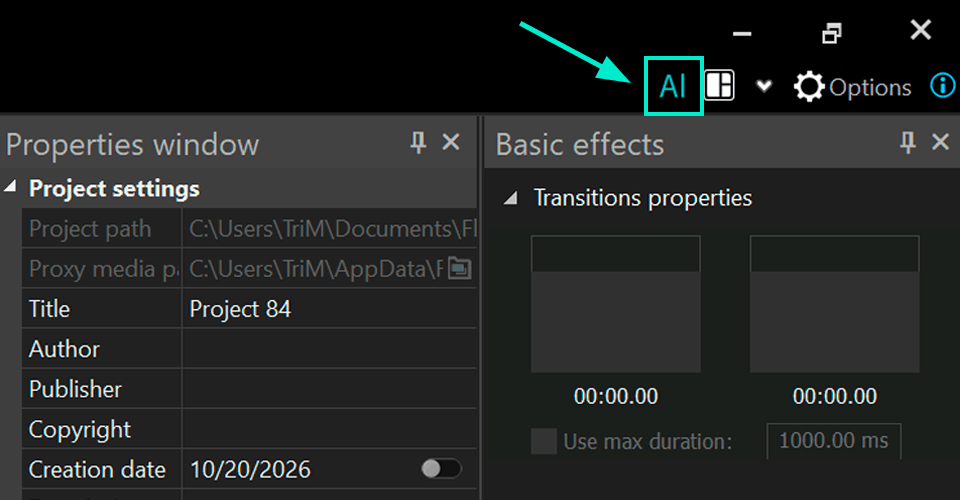
- Click the AI button in the upper-right corner of the editor.
- Choose a model and a generation mode: image or video, based on text or an existing picture.
- Write your prompt, check the estimated price in Status , and click Generate .
- Use the plus (+) icon to add the finished image or video to VSDC Resources.
A quick look at what is new in VSDC 11.3
Watch the official 32-second VSDC 11.3 release video to see AI image and video generation, AI-powered image editing, Garmin and DJI telemetry, new templates and Key Editor improvements.
What You Need to Use AI in VSDC
VSDC AI tools work through the fal.ai service. VSDC provides an interface for selecting a model, configuring a request, and using the resulting media file. The selected AI model processes your request on the provider’s servers.
- VSDC Video Editor 11.3 or newer , with the AI button in the editor.
- A fal.ai account with access to the models you want to use.
- An API key from your fal.ai account to connect VSDC to the generation service.
- An internet connection and available provider funds when paid generation is required.
How is AI generation billed? You use AI models through your own fal.ai account. The cost depends on the selected model and its settings; it is not a fixed fee inside VSDC. Check the estimated price in the Status area before starting. Service availability and payment methods may vary by region.
First, decide what you want to create. For a background or illustration, text-to-image generation is suitable. To animate a family photo or show a product in motion, choose a model that supports creating video from an existing image.
Step 1. Connect fal.ai to VSDC with an API key
You only need to connect your account once. If an API key has not yet been added, VSDC will guide you to the correct settings.
- Launch VSDC and click the AI button in the upper-right corner of the main window.
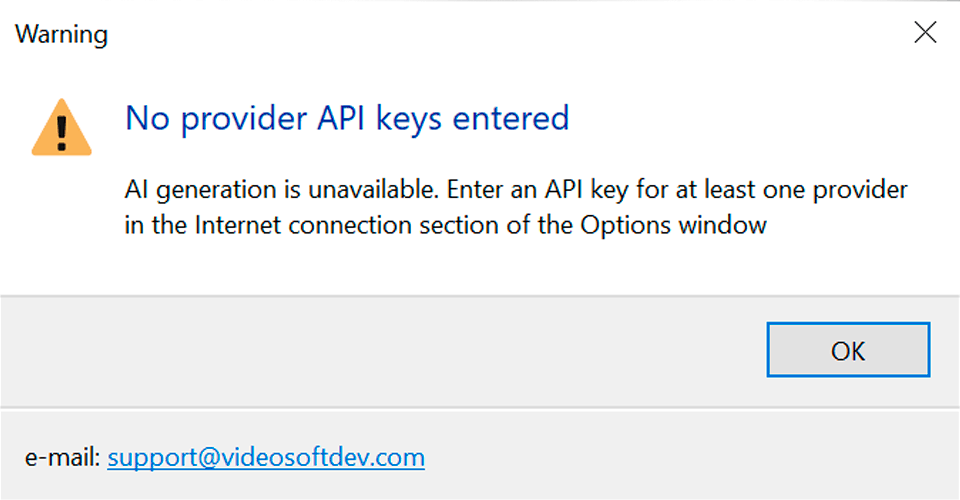
- If the key is not configured, you will see a warning that provider API keys have not been entered. Click OK to read the instructions.
- Open your fal.ai account, generate an API key, and copy it.
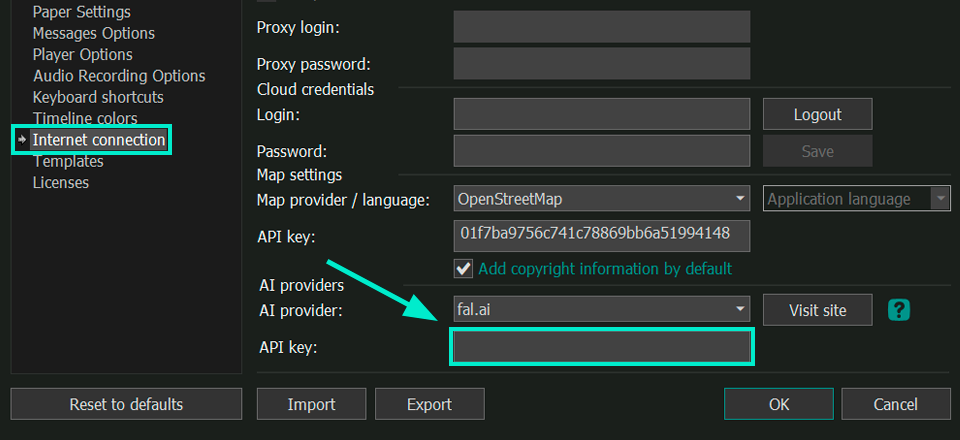
- Return to VSDC. Open Options → Internet Connection and find the AI Providers section.
- Select fal.ai as your provider, paste the key into the API Key field, and save your settings.
- Click AI again to open the AI Generation window.
Keep your API key private. The key authorizes requests through your account. Do not include it in screenshots, public comments, or support messages. If a key is exposed, replace it in your provider account and update the VSDC settings.
Step 2. Explore the AI Generation Window
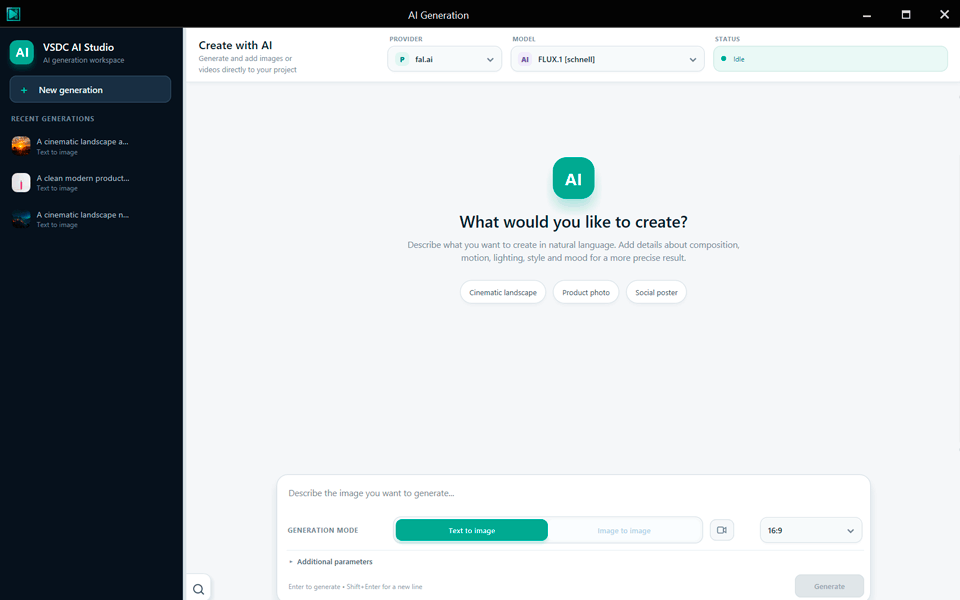
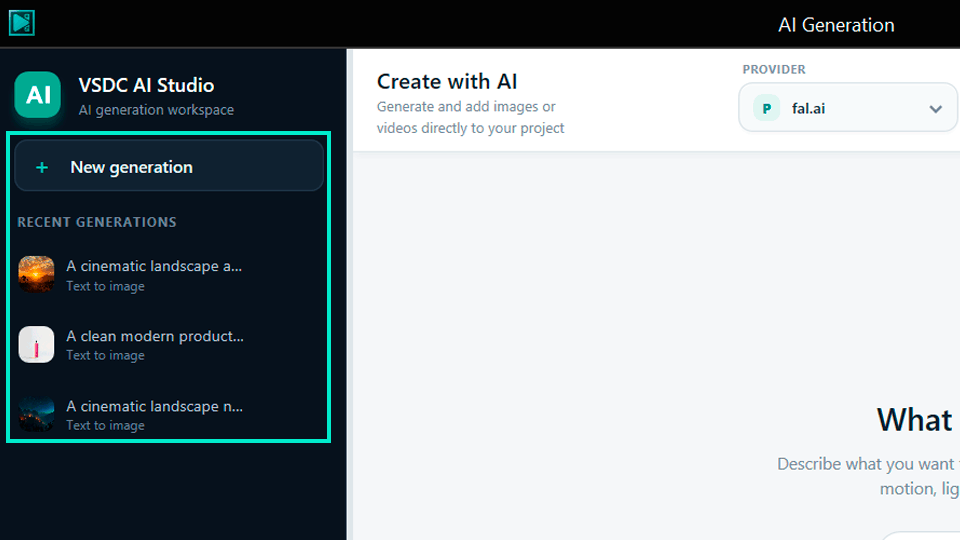
After connecting your account, VSDC AI Studio opens. Here you can select a model, configure generation, and return to previous requests.
- Left panel — chats. Find previous AI conversations and create new chats. Each chat keeps your requests and generated results.
- Top panel — provider, model, and status. Select the AI service and model, review its information, and check the estimated cost.
- Generation area. Choose an output type and generation mode, write your prompt, and adjust the settings available for the selected model.
- Results history. Generated images and videos appear in the current chat, with additional actions next to each result.
How to Use Chats
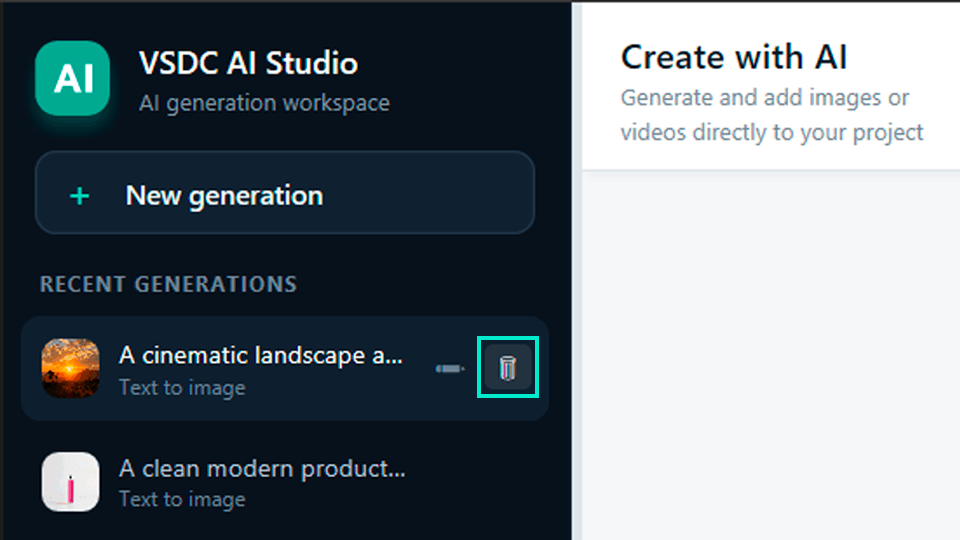
We recommend using a separate chat for each task: for example, one for a work presentation, another for a family birthday video, and a third for recipe illustrations. Give chats meaningful names to make your results easier to find.
To start from scratch, click New Generation. This opens an empty chat with no image attached. To edit a particular photograph, start a chat with that image directly from the VSDC Resources window, as explained below.
Deleted chats cannot be recovered. If you may need a result again, save it to your computer or add it to VSDC Resources before deleting the chat.
Step 3. Choose a model and review the generation cost
In the Provider field, choose fal.ai, then open the Model list. Different models are designed for different tasks, so we do not recommend choosing solely by name or sample-image quality.
For a first test image, choose a faster model. For a more detailed image or realistic animation, select a model with the corresponding capabilities.
The available capabilities, settings, speed, and price depend on the model. The fal.ai catalog contains models for different media types, but not all models available on fal.ai can be used directly in VSDC.
What does the Status field tell you?
Click Status to read about the selected model on the fal.ai website. VSDC also displays the estimated generation cost, helping you compare models and plan your budget.
For example, an illustration for a work report may only need a more economical model, whereas a high-quality video clip may require a model with greater detail. Changing image resolution or video duration can affect the price, so check it again before generating.

How to reduce generation costs. Start with a clear, simple prompt and basic quality settings. If you like the result, try a higher resolution or a more advanced model. Each regeneration is a separate request and may incur an additional charge.
Step 4. Choose text-to-image, image-to-image, text-to-video, or image-to-video
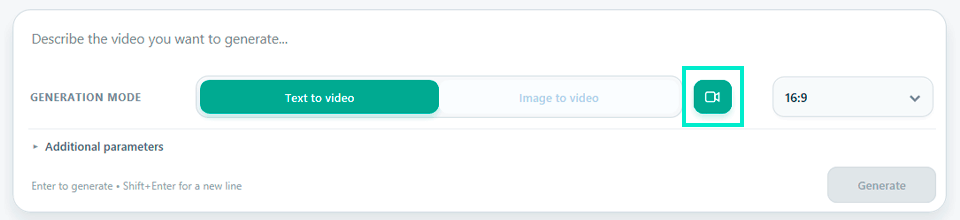
First choose what you want to create: an image or a video. Click the video-camera icon to switch to video generation, then choose the generation method.
| Mode | What it does | Typical use |
|---|---|---|
| Text to image | Creates a picture from written instructions. | Presentation backgrounds, video title cards, illustrated recipe intros. |
| Image to image | Edits or restyles an existing picture from a prompt. | Changing a background or adjusting a visual mood. |
| Text to video | Generates a video clip from a description when supported by the model. | Intros, atmospheric inserts, transitional footage. |
| Image to video | Creates motion based on a source picture. | Animating a photograph or adding camera motion to a still scene. |
Where Does the Source Image Come From?
In image-to-image and image-to-video modes, VSDC automatically uses the most recent image from the current chat as the source. If the chat is new and contains no images, these modes are unavailable until a source image has been added.
To use a photo from your project rather than the last generated picture, open the VSDC Resources window and start a new chat with the selected file. Follow the steps below.
Step 5. Write a Prompt and Configure Model Settings
A prompt is a text description of the picture or video you want to create. No programming is required. To help the model understand your idea, describe the subject, setting, action, style, and composition. For videos, also specify how the subject and camera should move.
How to Write a Precise AI Prompt
Example of an overly general prompt
A nice office presentation background.
A more specific prompt for a work presentation
A bright modern office, natural morning light, calm blue and beige tones, minimalist photorealistic style, wide horizontal frame, empty space on the left for a headline, no text, logos, or watermarks.
The second prompt gives the model more guidance about color, lighting, format, and the space where you will add text in VSDC. A description guides generation but cannot guarantee the exact position of every element.
Settings to Check Before Clicking Generate
| Setting | Purpose |
|---|---|
| Aspect ratio | Match your video format: 16:9 for horizontal footage, 9:16 for vertical videos, or 1:1 for a square post. Available ratios vary by model. |
| Resolution | Controls image or video size; higher values can require more time or cost. |
| Seed | A number that affects the generated result. If the model supports a fixed seed, reusing the same seed with identical settings can produce similar images, but an exact match is not guaranteed. |
| Quality | Controls available rendering settings, if exposed by the selected model. |
| Background and other parameters | Available settings vary between models. |
Once the settings are ready, check the price and click Generate. The request is processed on fal.ai servers. Processing time depends on the model, settings, and service load. If the result is not immediate, wait for processing to finish rather than clicking the button again.
Prompt language. Support for Russian depends on the selected model. If the result does not match your description, refine the prompt or try writing it in English.
Step 6. Work with Your Generated Result
When generation finishes, the image or video appears in the current chat. You can add the result to your VSDC project or continue editing it with AI.
-
 Edit prompt. Open the text description and specify what should change in the latest result. For example: “Keep the product where it is, but make the lighting warmer.”
-
 Regenerate. Create another variation from the same description. The new result may differ from the previous one, even with similar settings.
-
 Add to VSDC Resources. Transfer the image or video to the current project’s Resources window. Then place it on the scene or timeline and continue editing.
-
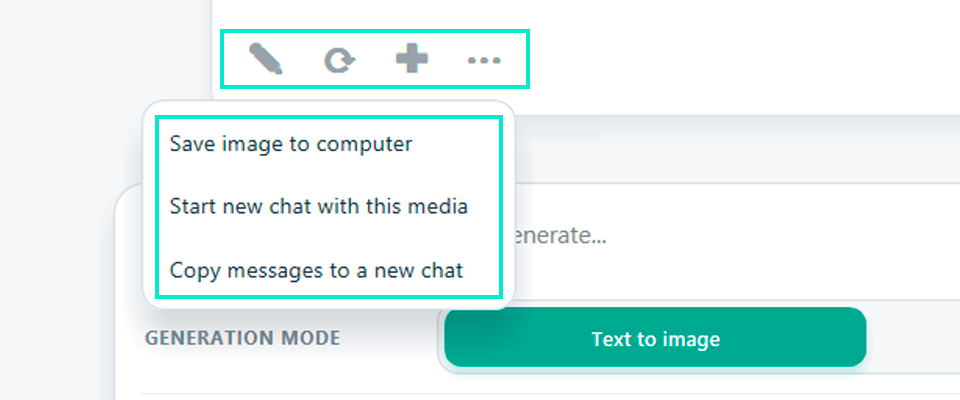
 More actions. Save the image to your computer, start a new chat with the selected media file, or copy the messages into a new chat.
How Do the Chat History Commands Differ?
Start a new chat with this media creates a new conversation using the selected image or video as the starting point.
Copy Messages to a New Chat creates a new chat with a copy of the current conversation history.
New Generation opens an empty chat for a new request.
How to Save and Find a Downloaded File
To save an image or video to your computer, choose the Save command from the More Actions menu.
Note: the file date may reflect when the result was generated, not when it was downloaded. If an image was created yesterday and saved today, it may appear among yesterday’s files. Keep this in mind when looking for it.
How to Edit AI-Generated Images and Videos in VSDC
After adding generated images and videos to VSDC Resources, you can edit them with the standard tools. For example, use an image as an intro, add text, animation, masks, or color correction. You can trim generated video, combine it with other clips, and add music, titles, and effects. AI-generated media becomes a normal part of your video project.
Step 7. Edit Your Own Photo with AI in VSDC
You can do more than generate images from scratch: VSDC AI tools also let you edit existing photos. Replace the background of a product photo, improve a family picture, or refine an illustration for a presentation. Select the image in the VSDC Resources window to open it for AI editing.
- Import your image into the VSDC project.
- Find the image in the Resources window and right-click it.
- Choose AI Generation Chat from the context menu.
- Select New Chat with This Media to edit the chosen image. If you have already worked with it, select Continue Chat with This Media.
- In the window that opens, select Image-to-Image or Image-to-Video, depending on your goal.
- Enter a text prompt and adjust the selected model’s settings if necessary.
- Check the cost and click Generate.
- When generation is complete, add the finished image or video to VSDC Resources.
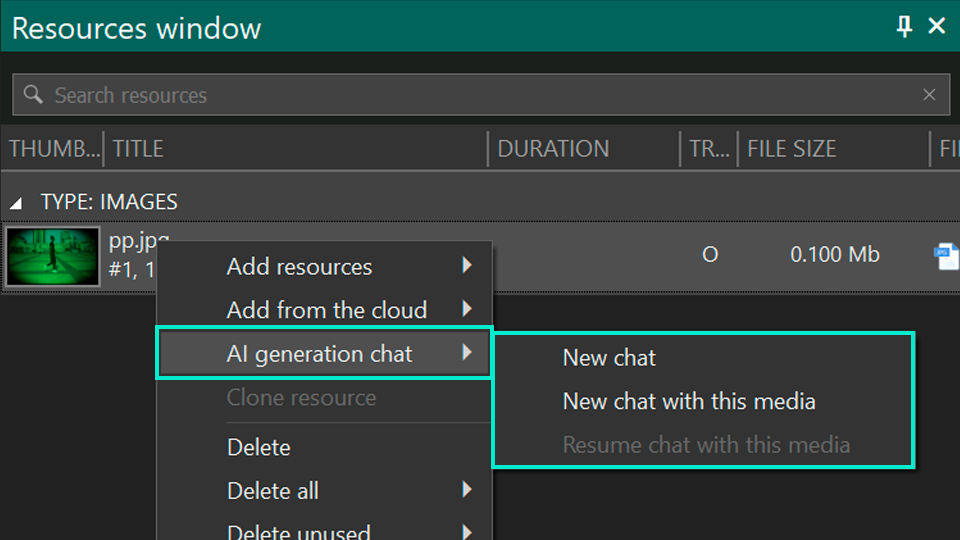
Note that New Chat opens an empty chat without a source image. To keep working with your chosen photograph, use New Chat with This Media.
Practical AI Examples for Work and Personal Projects
VSDC AI tools are useful not only for visual effects but also for everyday projects. Here are four practical examples for work and home that are suitable even if you are new to editing.
Example 1. Create an Intro for a Work Presentation
Task. You need a short introduction for a video report or training presentation. Instead of filming extra footage or searching for suitable stock images, generate a background directly in VSDC.
- Open AI Studio, select Text-to-Image, and choose a compatible generation model.
- Describe the background you want and specify where the title should have empty space.
- Generate several versions, choose the most suitable image, and add it to VSDC Resources.
- Put the image on the timeline and use VSDC tools to add the report title, date, and your company logo.
- Apply a fade-in effect if needed, then export the finished video.
Example prompt
A bright modern conference room with large windows, soft daylight, calm blue-gray tones, realistic style, horizontal composition, empty space on the right for a title, no text or logos.
Result: a reusable branded intro for work presentations and video reports. Update the title and other details whenever you prepare a new report.
Example 2. Create a Family Birthday Video from a Photograph
Task. Turn a favorite family photograph into a short animated birthday greeting. With VSDC AI, you can add movement to a still image and then combine the resulting clip with music and a congratulatory message.
- Import the photo into the VSDC Resources window.
- Select AI Generation Chat → New Chat with This Media.
- Switch to Image-to-Video and select a model that supports it.
- In your prompt, describe the movement you want — for example, a slow camera push-in or subtle movement in the background.
- Add the resulting video to the VSDC timeline, combine it with other family photographs, and add text and music.
Example prompt
A slow, smooth camera push-in on the photograph, natural soft lighting, subtle background motion, preserve the main faces and composition, no abrupt animation and no new objects.
Please note: photos are processed by the external fal.ai service. Before using personal images, especially photographs of children or pictures containing personal data, make sure you are comfortable sending them to a third-party service.
Example 3. Create an Illustration for a Cooking Video
Task. You have filmed a recipe but do not have a good photograph of the finished dish for the title card. Use VSDC AI to create a suitable illustration for your cooking video.
- Open AI Studio and select Text-to-Image.
- Describe the dish, camera angle, lighting, background, and the space reserved for the recipe title.
- Generate several versions, select the best image, and add it to the VSDC project. Then use VSDC text tools to add the dish name and continue with the real cooking footage.
Example prompt
A homemade apple pie on a light wooden kitchen counter, morning light through the window, 45-degree camera angle, cozy natural style, empty space near the top for the recipe title, no text.
If accurate representation matters, such as showing a real product for sale, use a genuine photograph of the dish and reserve AI for the background or presentation.
Example 4. Create a Product Video by Changing the Photo Background
Task. You want to make a short promotional video for social media, but your product photo has a busy or unsuitable background. With VSDC AI, you can create a more appropriate background while preserving the appearance of the product.
- Add the product photo to a VSDC project, then choose AI Generation Chat → New Chat with This Media.
- Select Image-to-Image and a model suited to photo editing.
- Ask the model to replace the background while keeping the product’s shape, colors, and other features unchanged.
- Check the resulting image carefully to make sure AI has not altered the product or any important details.
- Add the finished image to VSDC Resources, then use the editor’s text tools to add the product name, current price, and contact information.
Example prompt
Preserve the product’s shape, color, and all details without changes. Replace the busy background with a bright neutral interior. Add soft studio lighting and a natural shadow under the product. Do not add text, logos, or new elements.
Compare the final result with the original photograph to confirm that the product is represented accurately.
AI Generation Not Starting? What to Check
To identify the cause of a problem, first find out at which step the generation stopped.
- “Provider API keys have not been entered.” Open Options → Internet Connection and make sure your fal.ai API key is entered and saved.
- The AI window opens, but the request does not start. Check your internet connection, the API key, your available fal.ai balance, and whether the selected model supports the chosen mode.
- Image-to-Video is unavailable. Make sure the current chat contains a source image and the selected model supports this mode. To use your own photo, open it from VSDC Resources.
- The generated result does not match your expectations. Refine the subject, lighting, viewing angle, and object positions in the prompt. Avoid contradictory instructions; try another model if needed.
- The video has too much movement. Ask for slower, smoother camera and object motion in your next prompt.
- The generation cost is higher than expected. Check the model, resolution, video duration, and quality settings. Repeating a generation may result in an additional charge.
- The result did not appear on the timeline. Click “+” beneath the generated result, find the file in VSDC Resources, and add it to the timeline.
- You cannot find the downloaded file by date. Check its generation date, which may be stored in the file properties instead of the download date.
If you still need help, contact support with your VSDC version, AI model name, generation mode, and the error message. Never send your API key to support.
Frequently Asked Questions About AI in VSDC
Can I use AI in VSDC without video editing experience?
Yes. Connect fal.ai, select an AI model, enter a text prompt, and start generation. Add the finished image or video to VSDC Resources and place it on the timeline for further editing.
Do I need to install a separate AI program?
No. AI generation tools are built into VSDC 11.3. You need a fal.ai account, an API key, and an internet connection to use them.
Is AI generation in VSDC free?
AI tools are built into VSDC, but generating images and videos through fal.ai is billed according to the provider’s rates. The cost depends on your model and settings. VSDC shows an estimated price before you submit a request.
Can I turn my own photo into a video?
Yes, provided the selected model supports Image-to-Video. Add your photo to Resources, choose New Chat with This Media, and describe the movement you want.
Why are image-based modes unavailable in a new chat?
A new, empty chat has no source image. Generate an image in the chat first or open an existing photo from VSDC Resources using New Chat with This Media.
What does Seed mean in AI generation?
Seed is a number that influences the generated result. Reusing the same seed and settings may create similar images or videos, but exact matches are not guaranteed.
Can I edit generated images and videos with standard VSDC tools?
Yes. Click “+” to add the result to VSDC Resources. You can then trim video, add text, transitions, and effects, correct colors, and use other editor tools.
Can I continue working with a previously generated result?
Yes. Open the appropriate chat, revise the prompt, regenerate, or start a separate chat with the selected image or video.
What happens if I delete a chat?
Deleted chat history cannot be restored. Before deleting a chat, save the files you need or add them to your project’s Resources window.
Are my images sent to an external service?
Yes. AI generation and image editing take place through fal.ai. If you use your own photo, it is sent to the service for processing. Review the fal.ai privacy policy before uploading personal or confidential images.



 Like us on Facebook
 Follow us on Twitter
 / @VSDCFreeVideoEditor