動画編集

家族のグリーティングカードから会社のプレゼンテーションまでのどんな複雑性でも動画を作成できるように、動画編集 フリーウェアを使用しています。 カットをはじめて、動画ファイルの併合、視覚効果や効果音やフィルターや画像修正などの適用、適当なサウンドトラックの追加、スライドショーを作成できます 。動画がプロフェツショナルに見えるように、クロマキーおよび詳細設定を使用してください。 全ての人気の動画形式/音声フォーマットをサポートしています。

動画編集について...

ビデオ変換器

このプログラムは他のフォーマットにビデオを変換することに志向されます。人気のビデオフォーマットの大半をサポートしています。(読込みと保存)その上、プログラムは特定のマルチメディア装置で、例えばiPhone、 Microsoft ZuneまたはArchos、再生するためにビデオを変換するタスクを大幅な簡素化します。プログラムは非常に簡単で使用するし、モダンインターフェースがあるし、必要なビデオ処理の機能があります。

ビデオ変換器について...

オーディオ変換器

オーディオ変換器は他のフォーマットにオーディオファイルを変換します。基本的なオーディオフォーマットとコーデックをサポートしています。プログラムはプレイリストとメタタグを管理し、ビデオファイルからオーディオを抜き出して、パソコンでどんなフォーマットでもこのトラックを保存させます。

オーディオ変換器について...

Animated Intro & Title Templates

Explore the VSDC Template Store with ready-made video templates for intros, animated titles, lower thirds, logo reveals, slideshows, glitch transitions, LUTs, and color grading presets. Drop a template into the VSDC Video Editor timeline, edit text, timing, and colors, and finish professional video projects in minutes.

Choose from 300+ exclusive packs of video transitions, LUT packs, text effects, GPS telemetry widgets, animated elements, and animated backgrounds for VSDC. All templates are fully customizable, support up to 4K resolution in 16:9, and help you build intros, wedding slideshows, travel videos, and tutorials much faster.

Store catalog

VSDC Cloud - Online video management

Keep your work safe, organized and always accessible! Back up your video projects, store media files online and access them from any device. Enjoy collaboration, share project updates and exchange files easily.

Online video editing management capabilities

Multifunctionality

多機能性

1つのビデオソフトウェアのスイートではマルチメディア処理ツールの広い配列があります。

High speed

高速度

シングルコアやマルチコアのCPUに最適化した高品質と高速なアルゴリズムを使用します。

Affordability

費用を負担できること

VSDCはWindows OSベースのPCとラップトップに無料でダウンロードできます。

Every twist, jump and freefall moment in your footage is more than just a video: it's a story waiting to be told in a completely new way.

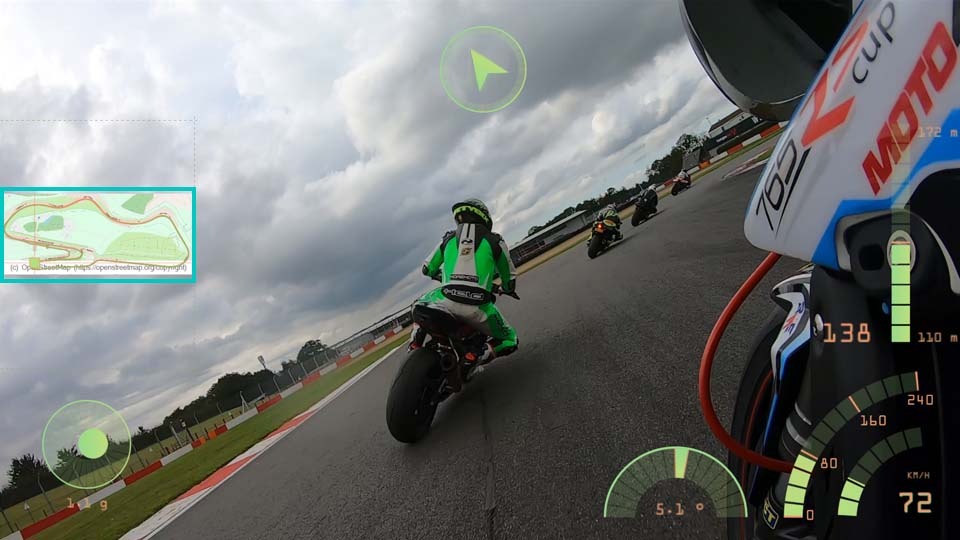
With the GPS visualization tool that first appeared in VSDC 10.1 and became even more functional starting from version 10.2, your action clips transform into eye-catching travelogues. Exclusively in VSDC, you get GPS functionality whose analogues are hard to find elsewhere!

Add routes, overlay them on maps, display a compass, speed via customizable gauges, altitude graphs and much more: all within VSDC! The process is intuitive and doesn’t take much time.

Let’s explore all the details of how it works. But first, the most important thing:

Ensure you have VSDC Video Editor version 10.2 or higher installed!

Adding GPS Data Files

The first step as usual is importing your GPS data into VSDC. The process is flexible and supports two primary methods.

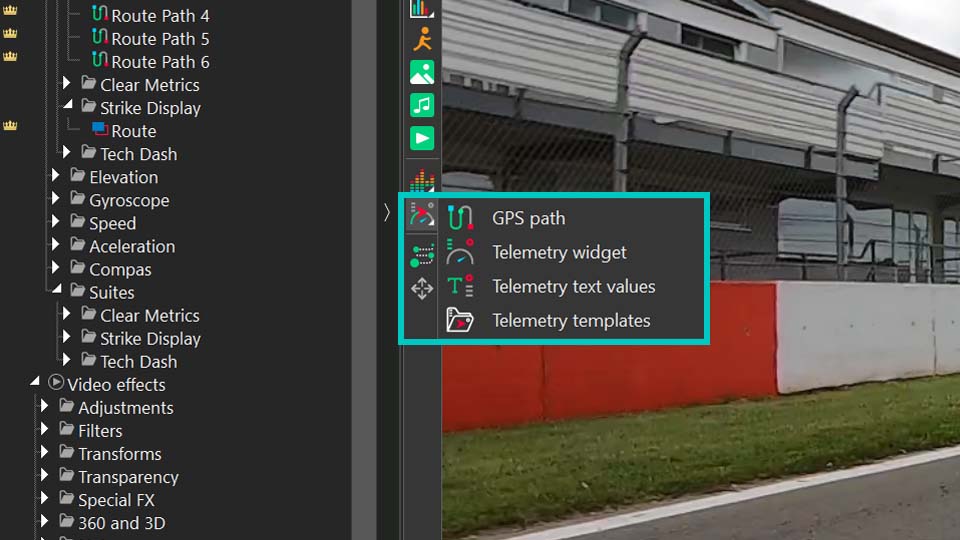
If you have a separate GPS data file, such as a .GPX export from your action camera or a dedicated tracking device, you can load it directly. Simply click the "Add telemetry" button on the toolbar to the left of the preview screen. It opens a menu with several options: GPS path, Telemetry widget, Telemetry text values and Telemetry templates.

VSDC interface showing the Add Telemetry menu with GPS visualization options
Accessing GPS and telemetry options in VSDC Video Editor.

The GPS path option is the most straightforward way to visualize your route's track from a GPX file. Use this if your primary goal is to display the route itself and work directly with the path overlay. The next two options—Telemetry widget and Telemetry text values—allow for creating custom gauges and displays (please check out this video to see how to do it). Finally, Telemetry templates opens a gallery of pre-designed styles.

Note that when using templates, you first select your preferred visual style via this option, then double-click the generated object on the timeline and click on the dedicated GPS object. In its properties window you link the object to your GPX file via the Telemetry resource option, which will populate the template with your data.

How to connect GPS data to a template in VSDC video editor.

For GoPro and other action camera users with GPS enabled, the process is simpler. VSDC can automatically detect and extract the telemetry data embedded directly in the video file. Just import your clip as usual, and the editor will promptly ask if you'd like to extract the GPS data and place it in the Resources window. A simple confirmation is all it takes.

Once imported via either method, your telemetry data becomes a standalone asset. You can find it in the Resources window under the "Telemetry" section, where its icon indicates its origin. The moment you drag this telemetry object from the Resources window onto your scene, VSDC will present the "Telemetry templates" gallery. Here you can choose the visual style for your data, selecting from a range of ready-made gauges, graphs and maps that will overlay your video.

Automatic GPS data extraction from action camera footage in VSDC.

Setting Up Widgets

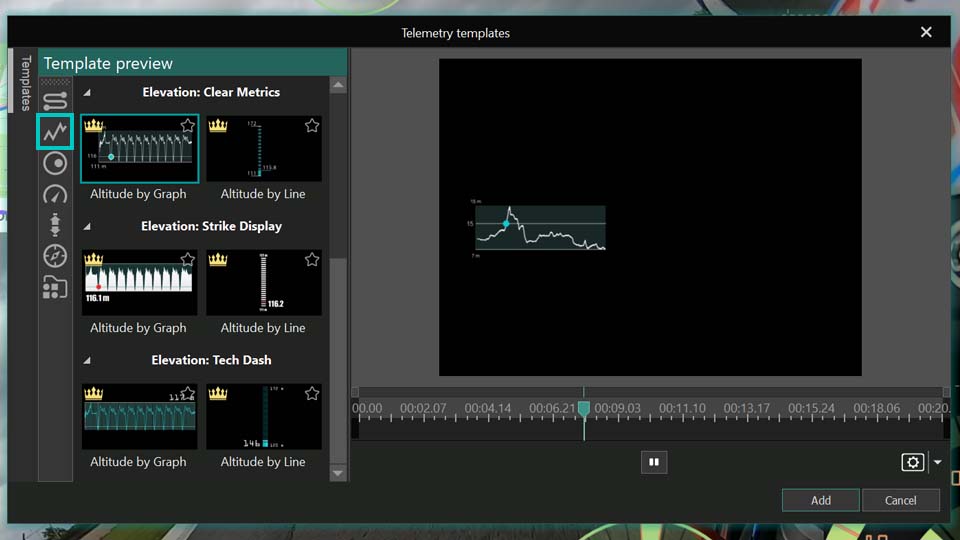
So, we’ve found ourselves in the telemetry template window. There are plenty of templates here for things like path tracking, speed, altitude and more. Just a quick heads-up: you can try all these features for free inside the editor, but exporting will require a VSDC Pro license. And if you’re using Premium packs, you’ll need to purchase the ones featured in your projects. You can buy packs individually or grab them all at once with the handy Bundle Offer.

Visit our Store to see all the collections available.

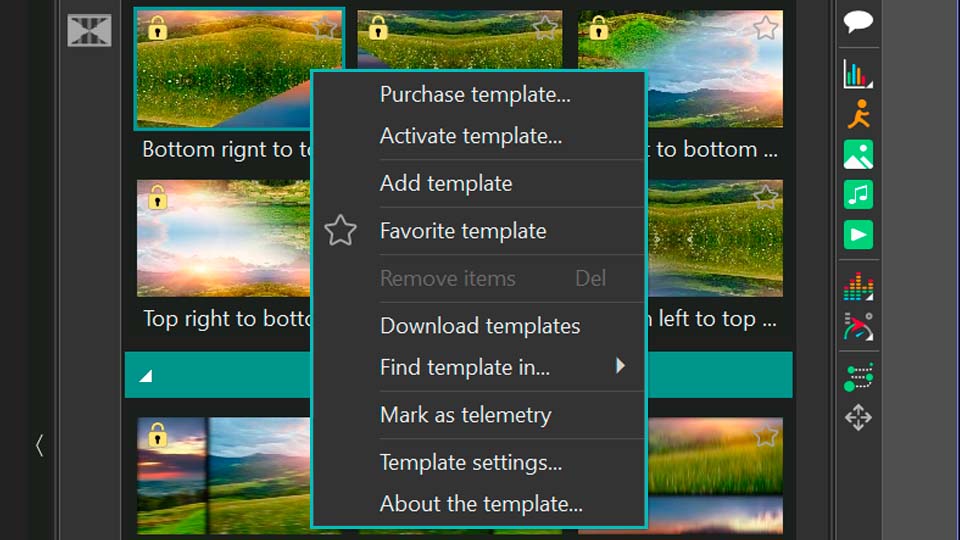
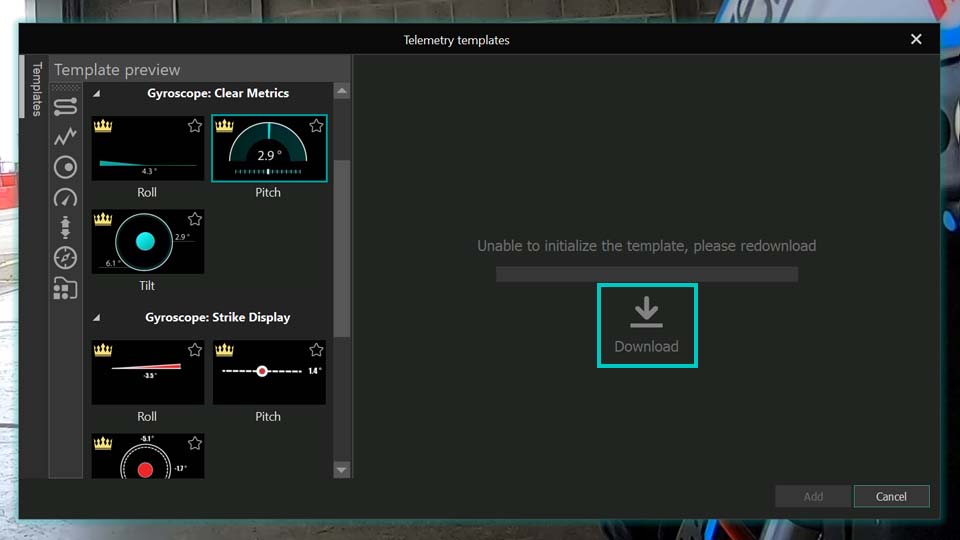
If you pick a template and find the "Add" option isn’t available or you don’t see anything in the preview, just click the "Download" button inside it. Once you’re happy with how it looks here, go ahead and add it to your video.

VSDC telemetry template gallery showing various gauge and graph styles for adventure videos
Gallery of telemetry templates for speed, altitude, and route maps in VSDC.

Remember, you’re not limited to adding just one template at a time, you can add entire dashboards, as we mentioned earlier. For our walkthrough, we’ll actually use a dashboard to better illustrate the different settings available for each type of template.

All the dashboards are located in the last option inside the telemetry templates window. Let’s go with the "Mint" style. Now we have a whole set of different sensors right on the scene. Notice that each one is nested inside a Template object, with the actual GPS objects placed inside those templates. It’s important to make sure these GPS objects are linked to the correct GPX files. Simply double-click each template, locate the GPS object inside, and using the Properties window, check or reassign the correct source (your video name) via the "Telemetry resource" option.

Configuring a complete telemetry dashboard for travel videos in VSDC.

Each type of template, whether it’s a speedometer, path or something else, comes with its own set of customizable settings. Let’s explore each one.

GPS Path

So, the first GPS object whose settings we’ll explore is the Path. Let’s double-click the template, then the GPS object on the timeline to open the Properties window for this widget. At the top we’ll see the standard settings for duration, position, and so on. But what we’re really interested in is the section dedicated specifically to telemetry settings.

As you can see, there’s quite a lot you can do here to change how the path looks on the scene. The first option, Presets, lets you browse through different ready-to-use template variations for the path.

Telemetry resource is where you choose the source for your data. Just as important is the next option: Sync to video. It helps synchronize your data with the video, which is especially useful if the video or data file has been trimmed, moved on the timeline, or otherwise edited. But keep in mind that this option can be disabled if you are working with GPX file itself because it hasn't got any information about a video. If you notice any discrepancy in the timing, be sure to expand this option and adjust the Time shift value to match your specific situation. It may not be available for the path track, but it can always be used for other widgets.

Next, you’ll find options for working with maps. You can generate a Google Maps link to locate where the footage or data was recorded. You can also load a map directly and place it underneath your path trajectory. Just keep in mind that some map features may require an API key.

GPS path settings panel in VSDC showing map overlay and route customization options
Customizing GPS route path with map overlay in VSDC video software.

After this come the settings dedicated to refining the path trajectory itself. This is where you can really tweak and adjust everything to your liking.

With Path mode you choose whether the path displays or its elevation as a simple line or as a filled graph. Stretch image controls whether the route image stretches to fit the designated frame.

If you want to avoid distorting the route image when it’s resized, make sure "Stretch image" is turned off.

From there, you can adjust the line thickness, choose which point on the path is the starting point and set what percentage of the total path is displayed. These options are very important for creating drawing animation.

The Use embedded time option is useful if your .gpx file includes timestamp data. When activated, the marker will move along the route according to that timing: slower on some segments, faster on others. If it’s inactive, the marker will move at a steady, uniform pace. If the option isn’t available, it means your file either doesn’t contain timing data or you’ve chosen not to use it.

Enable gradient lets you add a gradient fill to the route itself. You can set it to change over time or by the elevation of the route.

Don’t forget to click the small triangular icons next to options whenever you see them, they often open up additional settings. For example, in the color settings that follow, you can expand options to adjust transparency.

When Enable gradient is set to None, the Front color controls the route's color, with Opacity determining how transparent it is (0 is fully transparent, 255 is fully opaque). Back color is useful when you’re only displaying a segment of the route using "Start point of path" and "Length of path". It lets you color the inactive parts of the route, with its own opacity control. If you don’t need this, just set the Back color Opacity to zero.

If Enable gradient is set to By time or By elevation, then Start color defines the route color at the beginning of the video (for "By time") or at low-elevation sections (for "By elevation"). End color defines it at the end of the video or for high-elevation sections.

Gradient settings opens a separate window where you can choose from preset gradients or customize your own before applying it.

Marker settings let you adjust the appearance of the moving point along the path. There you can adjust its size, form, position, etc.

There’s another interesting category of settings here: text settings. If your .gpx file contains any textual elements like waypoint names, this section allows you to configure what text is displayed on the route and how it appears.

Please see what we can achieve using these settings:

Advanced GPS path visualization for travel vlogs created in VSDC.

For a clearer, more detailed walkthrough, be sure to check out our YouTube video dedicated to exploring this tool.

Altitude (Elevation)

The next template type in our dashboard is about altitude. Here, you’ll see a graph representing the elevation profile along your route.

Altitude graph widget displaying elevation data from a hiking or biking trip in VSDC
Altitude/elevation graph visualization for adventure sports footage.

To customize it, click on the template and then double-click the GPS object on the timeline or simply double-click the altitude graph right on the scene. This will open its specific settings window.

As you’ll notice, many of the general settings overlap with what we’ve seen before, which keeps things consistent. One particularly interesting option here is Use 4th-order filter, which helps smooth out the data in case it was recorded inconsistently or contains irregularities.

But the real focus is on the settings specific to elevation data. With the Brush option you can choose how to fill the empty space behind the graph making it transparent or adding a solid background, for instance.

The Telemetry metric option lets you decide what data to display. While this template is set for altitude, you can actually switch it to show speed or another metric if you prefer. For altitude, speed, and any other metrics that involve units of measurement, the Units option becomes available, allowing you to choose your preferred measurement system.

Next, you’ll find a set of options dedicated to refining your data further. You can apply smoothing, set custom thresholds, enhance the overall quality of the graph and merge any duplicate data points. There are also settings to choose your data source type whether you want to use pre-processed (raw) data, raw data with only GPS filtering applied or the original recorded data.

Additionally, there’s an option to fine-tune an echo filter, which can help clean up signal noise or repeated readings for a clearer, more accurate graph.

Fine-tuning elevation data display for outdoor activity videos.

Inside a telemetry template on the timeline you'll also find a telemetry text object. Clicking on it opens a settings panel in the Properties window where you can customize the text within the template. It goes beyond basic text editing: you can adjust positioning, control how values are displayed (аccurate to tenths and hundredth), enable text effects and even use curve binding for dynamic animation.

Speedometer, Compass, Gyroscope, Acceleration

For these widgets the core settings are very similar to those of the altitude graph template. The real difference lies in their composition. Depending on the internal design of each template, the number of images, text objects and graphic elements: some may offer more customization layers than others. But each one gives you the creative freedom to tweak, adjust and personalize the original template, helping you craft something that feels uniquely yours.

Personalizing gauge widgets like speedometer and compass for travel videos.

You'll also notice effects that come as part of the template such as Zoom, Duotone, and others and these too can be customized! For a practical example, take a look at our video where we demonstrate how to import footage from a GoPro camera into the editor and enhance it with gauges. There you can see exactly how to work with the effects embedded within the template.

Unlock Your Creative Potential

Of course, the possibilities of these GPS tools are virtually limitless. With the right adjustments you can achieve a great deal, and all it takes is a willingness to experiment! We recommend starting with the ready-made presets, and once you feel comfortable, try your hand at creating your very own speedometer, compass or any other custom gauge you can imagine!

Looking for more inspiration? Subscribe to our YouTube channel for tutorials, tips and creative ideas!

And if you ever need direct support, our team is just a message away at このメールアドレスはスパムボットから保護されています。閲覧するにはJavaScriptを有効にする必要があります。.

Frequently Asked Questions

Q1: Which versions of VSDC support GPS and telemetry features?

A: You need VSDC Video Editor version 10.2 or higher. The GPS visualization tool was first introduced in version 10.1, but version 10.2 offers expanded functionality.

Q2: Do I need a Pro license to use GPS features?

A: You can try all GPS and telemetry features for free inside the editor. However, exporting your final video with these overlays requires a VSDC Pro license. Additionally, some premium template packs may need to be purchased individually or as part of a bundle.

Q3: Can I add a map under my GPS route path?

A: Yes. In the GPS Path object settings you can load a map as a background for your route trajectory. Please note that some advanced map features (like dynamic Google Maps) may require you to provide your own API key.

Q4: Can I change what data is displayed in a template? For example, show speed on an altitude graph?

A: Yes. In the Properties window for widgets like the Altitude graph find the "Telemetry metric" option. You can use this to switch the displayed data, for instance, from altitude to speed. The "Units" option will also change accordingly.

Q5: Where can I find tutorials on creating custom gauges and dashboards?

A: Please visit our official YouTube channel. The article also references specific videos for creating custom widgets and working with GoPro footage.

返金・返品ポリシー

本「返金・返品ポリシー」では、 videosoftdev.com から直接購入されたデジタル製品、 具体的には VSDC Video Editor のライセンス、有料テンプレート、 LUT パック、GPS テレメトリーウィジェット、アニメーション要素、 アニメーション背景(以下総称して「本製品」)に関する 返金および返品の取り扱いについて説明します。

1. デジタル製品と納品方法

本サイトで提供している製品はすべてデジタル製品です。 ご購入手続きが完了すると、ご注文内容の確認と ダウンロード情報が記載されたメールが送信されます。 納品はオンラインで即時に行われ、物理的な発送や 送料は発生しません。

2. 30 日間返金保証

私たちは、お客様にご購入いただいた製品に満足していただきたいと考えています。 技術的な問題が発生した場合、製品が説明どおりに動作しない場合、 あるいはその他の理由でご満足いただけない場合には、 ご購入日から 30 日以内 であれば返金をリクエストできます。

まずは、トラブルシューティング手順のご案内、更新ファイルの提供、 使い方のご説明などを通じて問題解決に努めさせていただく場合があります。 それでも問題が解決しない場合、もしくはお客様が継続利用を希望されない場合には、 本ポリシーに基づき返金を行います。

3. 返金の対象となる条件

返金リクエストには、一般的に以下の条件が適用されます。

  • 返金リクエストが、元の購入日から 30 日以内に送信されていること。
  • 購入が videosoftdev.com または公式の決済プロバイダー経由で行われていること。
  • 本製品が、ライセンス条件または適用される法令に反する形で利用されていないこと。

状況を正確に把握し、製品やサービスの改善につなげるため、 問題の詳細な説明やスクリーンショット、プロジェクトの情報などの 提供をお願いする場合があります。

4. 返金対象外となる主なケース

私たちは可能な限り柔軟で公正な対応を心がけていますが、 以下のような場合には返金をお断りすることがあります。

  • 返金リクエストが購入日から 30 日を過ぎて送信された場合。
  • リクエストの内容が、製品説明やシステム要件に含まれていない 機能・利用方法に関するものである場合。
  • 複数製品に対して繰り返し返金を要求するなど、 返金ポリシーの乱用とみなされる状況が確認された場合。
  • サードパーティの販売サイトやマーケットプレイス経由で購入された場合。 その際は各販売元の返金ポリシーが適用されます。

5. 返金の申請方法

返金を希望される場合は、サポートチームまでご連絡いただき、 次の情報をお知らせください。

  • お名前(フルネーム)
  • 購入時に使用したメールアドレス
  • ご注文番号またはトランザクション ID
  • 購入された製品名
  • 問題の内容または返金を希望する理由の簡単な説明

サポートへのお問い合わせは、以下のサポート用メールアドレスまでお送りください。
このメールアドレスはスパムボットから保護されています。閲覧するにはJavaScriptを有効にする必要があります。
いただいたリクエストは個別に確認し、通常、合理的な時間内にご返信いたします。

6. 返金方法と処理にかかる期間

承認された返金は、ご購入時に使用された元の支払い方法に対して実行されます。 返金処理に要する時間は、ご利用の銀行、カード発行会社、 または決済プロバイダーによって異なりますが、多くの場合、 返金承認後数営業日以内に完了します。

当社から返金処理に対して追加の手数料を請求することはありません。 ただし、ご利用の銀行や決済プロバイダーが独自に手数料を課すことがあり、 その場合は各社の利用規約に従うものとします。

7. 交換および代替ファイルの提供

破損したファイルを受け取った場合、ダウンロードにアクセスできない場合、 または誤った製品を受け取ったと思われる場合には、まずサポートまでご連絡ください。 多くの場合、返金ではなく、新しいダウンロードリンクや更新されたファイルを 提供することで、迅速に問題を解決できることがあります。

8. 本ポリシーの変更について

当社は、本製品やサービスの内容、または法的要件の変更を反映するために、 本「返金・返品ポリシー」を随時更新することがあります。 最新バージョンの施行日は、本ページ上部に記載されます。 変更後も当社製品のご利用を継続されることにより、 お客様は改定後のポリシーに同意したものとみなされます。

9. お問い合わせ

本「返金・返品ポリシー」に関するご質問や、 ご注文内容についてサポートが必要な場合は、 下記のサポートチームまでお問い合わせください。
メールアドレス: このメールアドレスはスパムボットから保護されています。閲覧するにはJavaScriptを有効にする必要があります。

VSDCで動的な背景画像と壁紙を作成する方法

エイミー・シャオ 2025年9月1日公開

VSDCでアニメーショングラデーションロゴを作成する方法

あの息をのむようなダイナミックな壁紙をご覧になったことはありますか?色が溶け合い、渦を巻き、幻想的な光の流れを作り出す…まさに(催眠術的)な動きです。スマートフォンのロック画面でよく見かけますが、その鮮やかで流動的、そして人の心を捉えて離さない魅力から、つい見入ってしまうことでしょう。驚くべきことに、この見事な色彩の流れを、VSDC PRO を使えばご自身で再現できるのです。必要なのは少しの想像力だけ。それ以外は、VSDC のツールが簡単に実現してくれます。

なお、無料版をご利用の場合でも、ご自身の思い通りの、そして何よりもあなただけの美しいスタティック(静止)デザインを作り上げることが可能です。

どうぞお待たせなく、記事に飛び込んで、創造の旅を始めましょう!

スタティックカラーデザイン(無料版)

まずは、このタスクにおいてVSDCの無料版で利用可能な機能を確認していきましょう。プロジェクトの新規作成から始めます:スタートページの「空のプロジェクト」をクリックするか、プロジェクトタブの上部メニューから「新規プロジェクト」を選択します。スマートフォンの背景をデザインするため、適切な解像度を選択する必要があります。プロジェクト起動時に表示される設定ウィンドウに希望の解像度がリストにない場合、その場で幅と高さを手動で調整できます。

了解きました。以下のように翻訳します。

  • 1080x1920 (フルHD、多くの端末で標準)
  • 1440x2560 (Quad HD、ハイエンド端末向け)
  • 1242x2688 (iPhone Pro Max モデル)
  • 1125x2436 (iPhone X/XS/11 Pro)

プロジェクトのサイズと解像度を設定する方法プロジェクトの寸法の正確な高さと幅を入力するためのガイド

次に、背景を作成するには「カスタムシェイプ」ツールを使用します。シェイプがシーン全体をカバーするようにしてください。VSDCバージョン10.1以降を使用している場合は、組み込みのプリセットシェイプギャラリーにアクセスできます。左クリックで「カスタムシェイプ」オプションを選択し、「ギャラリーから」を選んでデザインに合うシェイプを選択します:今回のケースでは四角形を使用し、シーン全体を覆うように引き伸ばします。

シェイプにポイントグラデーションを適用するには、タイムライン上でクリックしてプロパティウィンドウの設定を開きます。ブラシオプションを見つけ、「ポイントグラデーション」に設定します。

その後、タイムライン上のカスタムシェイプをダブルクリックして制御点を表示します。これらの点がグラデーションの分布を決定します。最初の点を選択し、選択した点のプロパティウィンドウに移動します。「ブラシのグラデーション設定」を有効にして、必要に応じて色を調整します。このプロセスを各点で繰り返します。

正しいモードを有効にして、カスタム グラデーション 背景の色を選択する準備をします。

本例では、カスタムシェイプは4つの主要なポイントで構成されているため、グラデーションは4色に基づいています。よりスムーズで複雑なグラデーションや追加の色が必要な場合は、カスタムシェイプを最初にデザインする際に、より多くのポイントを作成する必要があります。

もし特定の色が明るすぎたり、明るさが足りないと感じた場合は、プロパティ内の該当するポイントを選択し、「重さ」パラメーターを調整することで、希望の見た目を実現できます。

パレットを選択し、Weightパラメータを使用して色のブレンドを制御する

グラデーション画像の準備ができたら、次は保存です!エディタタブに移動して、レンチのアイコンが付いた緑の丸(修復ツール)を見つけ、「スナップショットを作成」を選択しましょう。すぐに、画像がリソースウィンドウに表示されますので、右クリックして対応するオプションを選び、エクスポートできます。保存したら、スマホに転送して壁紙に設定してください。

スナップショットで静的背景をエクスポートするスナップショットツールを使用してグラデーションデザインの静止画像を作成する

もちろん、このような画像はスマートフォン向けだけではなく、様々な他の目的のために作成することもできます。

グラデーション壁紙がスマートフォンでどのように見えるか
最終的な静的背景をモバイルデバイスに表示されるとおりに表示する

カラーのキーフレームを使用して画像を動的にする (PRO)

PRO版にアップグレードすると、動的エフェクトで画像を強化できます。これを実現するには、キーフレームを定義し、特定のカラー値を割り当てる必要があります。画像の各コーナーがカラーシーケンスを循環する、アニメーションするグラデーションを作成しましょう。

このプロジェクトでは、初期カラーは次のように設定されます:右上は青(blue)、左上は黄(yellow)、右下は紫(purple)、左下は緑(green)です。

キーフレーム機能を有効にして、時間の経過とともに色の変化をアニメーション化します。

タイムライン上の任意のカスタムシェイポイントをクリックし、「色」オプションを探します。この設定の隅にある三点リーダーをクリックして、キーエディターを起動します。

キーエディターでの作業を効率化するため、「色*」タブを「1」(このポイントが持つ色に対応)に変更します。この手順を、タイムライン上にある4つのポイントそれぞれに対して繰り返します。全部で4つのポイントがありますので、最終的にはキーエディター内に4つのタブができるはずです。

アニメーションプロセスを効率化するためにエディタータブの名前を変更して整理する

各ポイントについて、3つのキーフレームを設定します。すべてのポイントにおいて、最初のキーフレームの表示時間は同一であり、2つ目のキーフレームも別の統一されたタイミングを共有し、以降も同様であることにご留意ください。

番号1で名付けたポイントを例に挙げましょう。これはぼかし色です。カーソルをおよそ2.5秒の位置に移動し、キーエディターでダイヤモンドアイコンをクリックしてキーフレームを追加します。5秒の位置と7.5秒の位置でも同じ手順を繰り返します。

デフォルトでは、あるポイントに対して新しく追加されたすべてのキーフレームは、そのポイントに割り当てられた元のカラー値(ここでは青)を保持します。この同じプロセスが、カスタムシェイプの残りのポイントにも適用されます。

次に、各キーフレームのカラーを設定しましょう。キーエディターのタブ1に移動し、2番目のキーフレームを見つけてダブルクリックし、例えば黄色を選択します。このようにして、各タブのキーフレームに対してカラーを設定していきます。

右上隅(青): 青 → 黄 → 緑 → 紫 → 青
左上隅(黄): 黄 → 緑 → 紫 → 青 → 黄
右下隅(紫): 紫 → 青 → 黄 → 緑 → 紫
左下隅(緑): 緑 → 紫 → 青 → 黄 → 緑

キーエディターでは、選択した色に基づいて各ポイントの位置を調整し、ポイントを移動するだけで色合いや色そのものを変更することができますが、最終的な結果は個人の好みに委ねられます。

カラーキーフレームを追加して操作し、ダイナミックな動きを作り出す

「再生する」オプションをクリックして結果を確認してください!とても素敵ですよね?

ダイナミックな背景で色が滑らかに変化する最終結果

もっと目立たせたい場合は、トラッキングポイント機能で簡単にアクセントを加えられます。Scene 0に移動してタイムラインをダブルクリックし、オブジェクトツールバーにある「トラッキングポイントを追加する」オプションをクリックして、プレビューウィンドウの任意の場所に配置してください。

アニメーション効果のためのトラッキングポイントの追加
トラッキングポイントの追加ツールを使用して光源をアタッチしてアニメーション化する

プロパティウィンドウでブラシのグラデーション設定を有効にし、未来走行灯のカラー値を設定、その不透明度と太さをお好みで調整してください。

ライト効果のためのブラシの設定
ブラシツールの色、不透明度、太さを調整して光の筋をデザインする

その後は、走行灯がたどる軌道を設定するだけです。タイムライン上のトラッキングポイントをダブルクリックし、オブジェクトツールバーから別のツール「移動」を選択してください。このツールをクリックし、シーン上でクリックして走行灯が通過すべき場所を選択します。軌道を続けたい場合は、追加したポイントを選択し、もう一度「移動」ツールをクリックして次のポイントを追加します。軌道はいくつでも作成できます。「移動」ツールの詳細については、こちらの記事をお読みください

以上が結果になります。VSDCを使ってできることの一例です!

流れるような色彩と動く光の軌跡で完成した効果を披露

VSDCのチュートリアルをさらに探して、あなたの創造性の可能性を最大限に解き放ちましょう。ご質問がございましたら、このメールアドレスはスパムボットから保護されています。閲覧するにはJavaScriptを有効にする必要があります。までいつでもお気軽にお問い合わせください。

YouTubeでビデオチュートリアルを視聴することや、ソーシャルメディアでのフォローもお忘れなく。

How to Activate VSDC Premium Template Packs to Fix Export Issues

Solved: Learn how to properly activate your VSDC premium templates and remove export restrictions.

Understanding the Premium Template Activation Process

Have you purchased a VSDC premium pack but still can't export your project? Are you seeing the warning message again during export? This usually means the activation process wasn't fully completed.

But don't worry, things like this happen. Let's walk through the entire process step-by-step to ensure everything is set up correctly.

VSDC premium template notification screen

Initial Setup: Using Premium Templates

It all starts when you use a premium template in your project. A notification will appear, informing you that the content you used in the project requires a purchase. This happens in both the Free and Pro versions of VSDC, as these templates are a separate category created by our designers to speed up your editing.

When you see this message, you have two options: remove the premium template from your timeline or purchase the pack by clicking the "Unlock" button in the warning message that appears when you want to export your project.

VSDC purchase form and license key email

Receiving Your License Key

When making a purchase, you fill in a short form. Following a successful transaction, an email containing your license key in the format X-XXXXXX-XXXXXX-XXXXXX-XXXXXX and activation instructions is sent to the address you provided.

Therefore, at this stage, it is crucial to ensure you have access to the email address you use for the purchase.

VSDC license key activation methods

Two Methods to Activate Your Premium Pack

Let's review the two activation methods mentioned in the email and walk through the suggested steps together.

After purchasing, you must enter the received license key into the editor, as without this final step, you will still be unable to export your project using the premium template(s)!

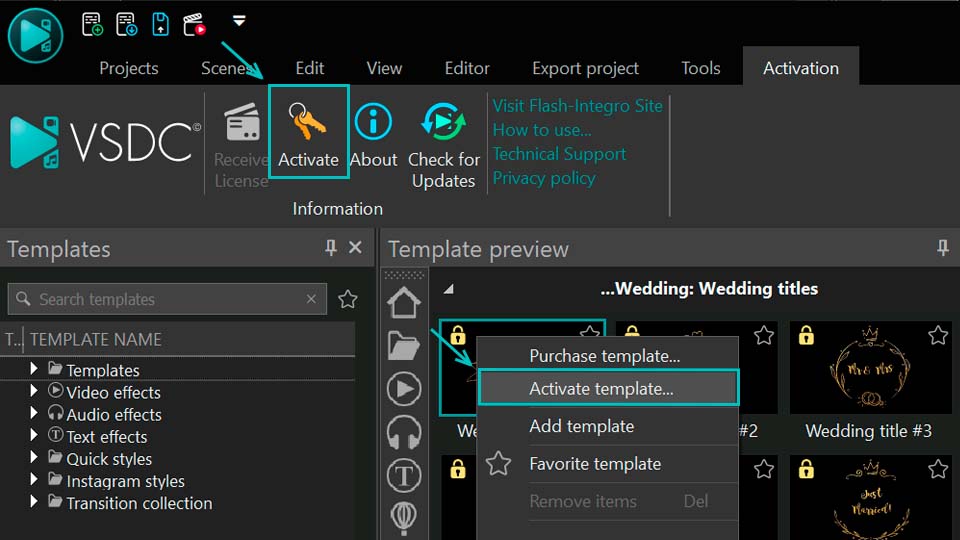
Method 1: Activation via the Application Menu

This method provides a direct path to the software's licensing system and is the recommended approach.

  1. Open VSDC Video Editor and initiate either a new project or an existing one.
  2. Access the Activation Tab from the top menu bar.
  3. Select the Activate option from the dropdown menu. This action will launch a dialog box requesting your key.
  4. Paste or type your key carefully.
  5. Confirm the entry and restart the application for the changes to take full effect.

Method 2: Contextual Activation from the Templates Window

This method offers a convenient way to activate your pack directly from the resource you intend to use.

  1. Open VSDC Video Editor and initiate either a new project or an existing one.
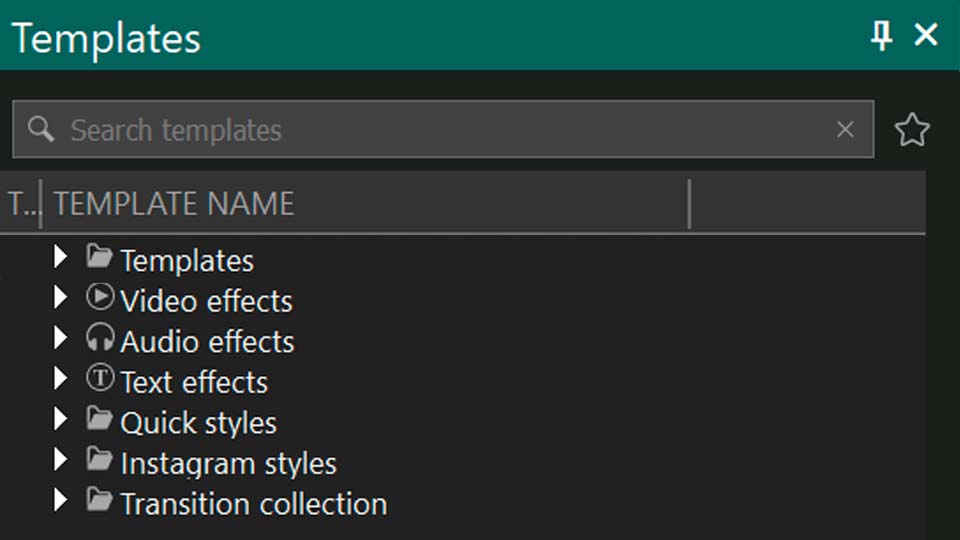
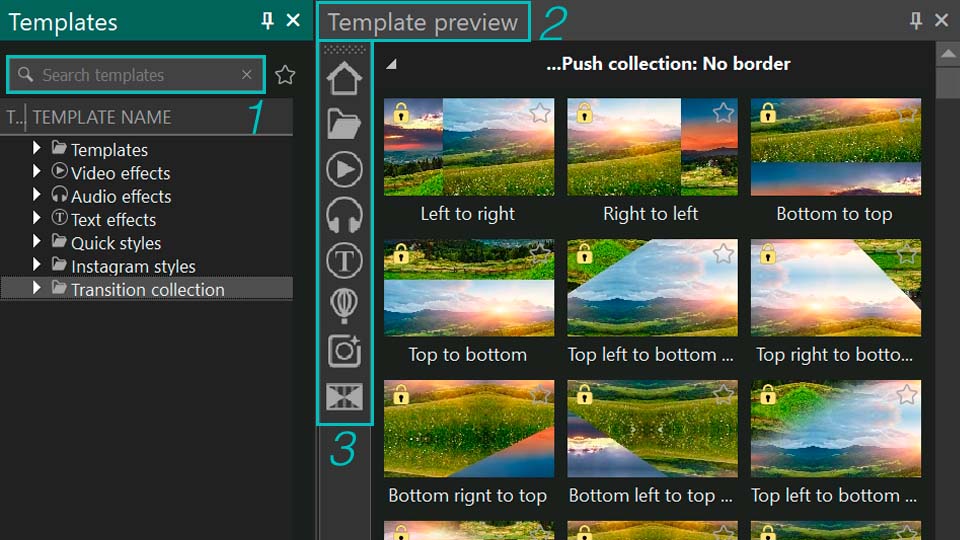
  2. Find and right-click on any template that is part of the premium pack you need via the Templates window.
  3. Choose the Activate template option.
  4. A prompt will appear for you to input your license key. Paste or type your key carefully.
  5. After submitting the key fully restart VSDC to complete the activation sequence.

Verifying Successful Activation

Once you restart the software, the activation is complete. The absence of the restriction window will be the main confirmation that the license key has been successfully applied. The program will no longer display warning messages for the previously locked templates, and you will be able to export your projects without any limitations.

Frequently Asked Questions (FAQ)

I purchased a pack and entered the key, but I'm still getting the warning on export. What should I do?

This is almost always because the application wasn't fully restarted. Please close VSDC and then reopen it. The activation is only finalized after a restart. If that doesn't work, double-check that you copied and pasted the entire key correctly, without any extra spaces.

Do I need the VSDC Pro version to use premium template packs?

No. Premium template packs are a separate product and can be purchased and activated in both the Free and Pro versions of VSDC. The warning and activation process is the same for both editions.

I'm getting an "Invalid Key" error. What does this mean?

This usually means the key was entered incorrectly. Please ensure you are typing or pasting the key in the exact format: X-XXXXXX-XXXXXX-XXXXXX-XXXXXX, have not confused similar characters (e.g., the number 0 for the letter O or the number 1 for the letter l) and have not included any extra spaces at the beginning or end of the key.

Will my premium pack activation expire?

Yes, each license key is valid for one year, after that you need to renew it.

Where can I see the full catalog of available template packs and their descriptions?

You can browse the entire collection of premium template packs directly on our official website. There you'll find high-quality previews, descriptions of what's included in each pack (e.g., intro scenes, transitions, etc.) and the current pricing. You can find the catalog here: View the full catalog here.

Need Additional Help?

Couldn't find the answer you were looking for? Then please don't hesitate to contact our team at このメールアドレスはスパムボットから保護されています。閲覧するにはJavaScriptを有効にする必要があります。.

VSDCで可変の太さ、グラデーション、アニメーション付きの動的な曲線を作成する方法

エイミー・シャオ 2025年7月29日公開

曲線ツール: 知っておくべき新機能!

VSDC 10.1で最も注目すべきアップグレードの1つは、強化された曲線ツールです。これにより、線の可変太さ、丸みを帯びたエッジ、ソフトな境界線、カスタマイズ可能なブラー設定などが可能になりました。これらの機能を組み合わせることで、調整可能な太さの自然な手書き風の表現から、プロ級のグロー効果、滑らかな光の軌跡、ソフトエッジとブラーを使った(3Dのような)深度効果まで実現できます。これらの改善があなたの動画をどのように変えるのか、詳しく知りたいですか?続きを読んで全てをチェックしましょう!

新曲線のプロパティ

アップグレードされた曲線機能について探っていきましょう。まず、シーンに曲線を追加し、タイムラインで選択すると、右側のパネルで利用可能なすべてのプロパティを確認できます。おなじみのオプションの中に(詳細が必要な場合は、この記事を再度確認してください)、プロパティウィンドウの「曲線ラインの追加設定」セクションにいくつかの新しい設定があります。これが今日の焦点です。

このセクションが非アクティブな場合は、近くのスライダーを切り替えて有効にし、左矢印をクリックしてセクションを展開してください。

曲線の追加のカスタマイズオプションの検討

最初のプロパティは「端点モード」で、曲線の端をカスタマイズするのに便利です。矢印をクリックすると4つのオプションが表示されます:「両端に端点」はすべての開いた端に滑らかなキャップを追加し、「開始点のみ端点」または「終了点のみ端点」は片側のみに効果を適用します。「切り落とし」は端を修正せずそのままにします。ニーズに合ったものを選んでください。

ヒント:有機的で手描き風の効果には「両端に端点」が最適です。「開始点のみ端点」は成長するラインのような方向性のある要素に、「終了点のみ端点」は光の軌跡のような流れるデザインに適しています。UI/UXデザインで鋭い技術的な精度が必要な場合は「切り落とし」を選んでください。

この設定は次の「端点スタイル」に直接関連しています。ここでは、ストロークの端を表示する3つの方法があります:「丸み端点」は有機的な形状に最適な滑らかな半円形のキャップを作成し、「角形」は技術的なデザインのためにキャップをストローク幅の半分だけ延長し、「長方形」はストロークを端点で正確に止めてクリーンな切り口を実現します。

次のオプション「丸みのある端」を有効にすると、曲線の鋭い角をすべて滑らかな弧に丸め、自然な形状を作成します。

仕上げの際には、2つの重要なスムージングオプションをお試しください。1つ目は「エッジの滑らかさを使用」で、曲線と背景の間になだらかな遷移を作成します。その強度を調整することで、微妙なグローから完全にブレンドされたエッジまで実現可能です。2つ目は「ぼかしを使用」で、さらにソフトな結果を得られ、線にエーテル的な質感を与えます。こちらも強度調整が可能です。

これらのオプションがどれだけクリエイティブな可能性を解き放つか、一緒にプロジェクトを作りながら探っていきましょう。

線幅を動的に変更する方法

新しい曲線の設定について理解したところで、実際に試してみましょう。多くの要望があった「動的な線の太さ」機能がついに実装されました。その仕組みを詳しく見ていきます。

曲線の各ポイントの「太さ」パラメーターに異なる値を設定するだけです。各ポイントでこの設定値が異なる場合、エディターが自動的にそれらの間を滑らかに補間し、曲線セグメントに沿って徐々に先細りする効果を生成します。

特定のポイントでの線の太さを調整するには、曲線上の目的のポイントをCTRLを押しながらクリックするだけで、プロパティウィンドウにそのポイントのカスタマイズ可能なパラメータがすぐに表示されます。「曲線の線の太さ設定」を有効にし、シクネスオプションに希望の値を入力してください。

曲線のポイントの太さを変更して、さまざまな視覚効果を実現します。

制御点を増やしたいですか? 「曲線」ツールを選択し、「ポイントを挿入する」を選んで、曲線上の任意の場所をクリックすると新しいポイントを追加できます。ポイントハンドルをCTRLキーを押しながらドラッグすると、ベジェベクトルを使って曲線の滑らかさを微調整できます。

実際にやってみましょう:3つの点で曲線を作成し、最初の点の太さを100、2番目を300、3番目を500に設定します。線が先細りになり、自然な筆跡や書道を模倣しているのがわかります。この滑らかな値の補間は、丸みを帯びたキャップで仕上げた終端、柔らかなブラーと太さを組み合わせることで、さらに目を引くセルフドローイング効果を生み出します。

動的に変化する太さの曲線のデモンストレーション

デザインチャレンジ

可変の厚みの機能を実際に試してみましょう。参照画像を選び、VSDC動画編集ソフト内で再現してみます。曲線の調整を行い、どのように動作するか確認します。

新しい曲線の設定とスタイルをテストするために使用したサンプル画像

この画像は、線の太さを変えるだけでなく、完全に対称的であるため、この詳細が私たちの利点になります。まず、参照画像をシーンに追加して視覚的なガイドとして使用します。次に、デザインの一部(例えば左側だけ)を慎重にトレースし、各曲線のポイントを手動でプロットしながら、特定の太さの値を割り当てます。作業中に、これらのテーパー状の変化が線に沿って流れるような動きを生み出すことがすぐにわかります。トレースしたセクションに満足したら、タイムラインの目アイコンを切り替えて参照レイヤーを非表示にするか、完全に削除します。

曲線ツールを使用して参照画像から要素を再現またはトレースする

その後、描画を整理するために、作成したすべての曲線をスプライトにグループ化します:タイムライン上でそれらを選択し、右クリックしてメニューから「スプライトに変換」を選びます.

複数の曲線オブジェクトを1つの統合スプライトにグループ化して、ナビゲーションを容易にします。

次のステップは、スプライトのミラー版を作成して画像の右半分を完成させることです。スプライトをコピーし、それをクリックして「動画エフェクト」>「変換」から「反転」効果を適用します。この効果はタイムライン上の複製スプライトに追加されます。プロパティウィンドウを開くためにそれをクリックし、画像に応じて反転のタイプを選択します。今回の実験では、方向オプションに水平反転を選びます。2つの半分をシーン上で整列させ、反射を実現します。

デザインの一貫性を保つために、元のスプライトのミラーまたは繰り返しバージョンを作成する

両方のパーツを配置したら、カラースキームを適用して見た目を向上させることができます。画像の全体的な雰囲気を変えたい場合は、VSDCのグラデーションテンプレートの1つを使用することを検討してください。そのためには、まず2つのミラー化されたスプライトを前回と同じ方法で1つの統合されたスプライトに変換します。次に、「General backgrounds」ウィンドウに移動し、「Background templates」の下にある「一般背景」セクションを探します。この例では「Fuchsia Gradien」テンプレートを使用します。このテンプレートをタイムライン上またはシーンに直接ドラッグして、統合されたスプライトに適用します。 適切なコンポジットのためにトップレイヤーに配置し、プロパティウィンドウで「エッジをトリム」パラメータを「いいえ、エフェクトとクリッピングを使用」に設定してください。次に、グラデーションテンプレートのレイヤーのコンポジションモードを「Source in」に変更します。これはタイムラインの左側、コンポジションモードセクションで行えます。

ソースインブレンドモードを使用して透明効果のあるレイヤーを結合する

結果は、豊かなグラデーションのトーンによって引き立てられた、スタイリッシュで対称的なアートワークです。

曲線の調整、グループ化、構成モードを適用した結果

無料、PRO、プレミアムのテンプレートから選べます(各カテゴリの詳細はこちら).

もっとダイナミックな表現をお求めなら、線にアニメーションを加えてみましょう。「曲線」ツールには「表示する長さ」というパラメータがあり、線がリアルタイムで描かれるような効果をシミュレートできます。これを使えば、見えない手がスケッチしているかのように画像が徐々に現れる印象的なビジュアルを作成可能です。タイムライン上の曲線をクリックし、このオプションを展開して、各線の「初期値」と「最終値」を設定するだけです。

VSDCなら、複雑なイラストの再現、精密なミラーリング、鮮やかなグラデーションの適用、そしてすべてのストロークにアニメーションを加えることが、わずか数ステップで実現できます。

この仕上がり、気に入りましたか?

これらの設定を一緒に探求するのを楽しんでいただけたなら幸いです。ここで止まらず、ご自身のプロジェクトで実験を続けてください。さらに素晴らしい結果を達成し、共有したくなるような作品ができると確信しています。

ご質問やクリエイティブなアイデアがありましたら、このメールアドレスはスパムボットから保護されています。閲覧するにはJavaScriptを有効にする必要があります。またはソーシャルネットワーク(FacebookXRedditDiscord)までお気軽にお寄せください。また、さらなるインスピレーションを得るために、YouTubeチャンネルもチェックしてくださいね!

1 / 41 ページ

News

GoProやその他のアクションカメラ用のGPSゲージ、メタデータ編集、拡張コーデック、よりスマートなワークフロー

Amy Shao 公開 2025年11月19日 待望のVSDC 10.2アップデート:ホビイストからプロまで、すべてのユーザーを支援するために設計された信じられないほどの機能と重要な拡張が詰まった新バージョンです。 GPSゲージ、選択エクスポート、メタデータ、アラビア語UI、拡張コーデック 注目の追加機能は、市場の他のどの動画編集ソフトにも匹敵しない機能を提供する革命的なGPSテレメトリツールのスイートです!GoPro、Garminなどのアクションカメラ、ドローン、またはGPSデータを収集するガジェットの誇りある所有者なら、これこそが待ち望んでいたものです。お持ちでない場合でも、スクロールしてしまわないでください。すべての編集愛好家のために、共有する新機能と拡張があります!

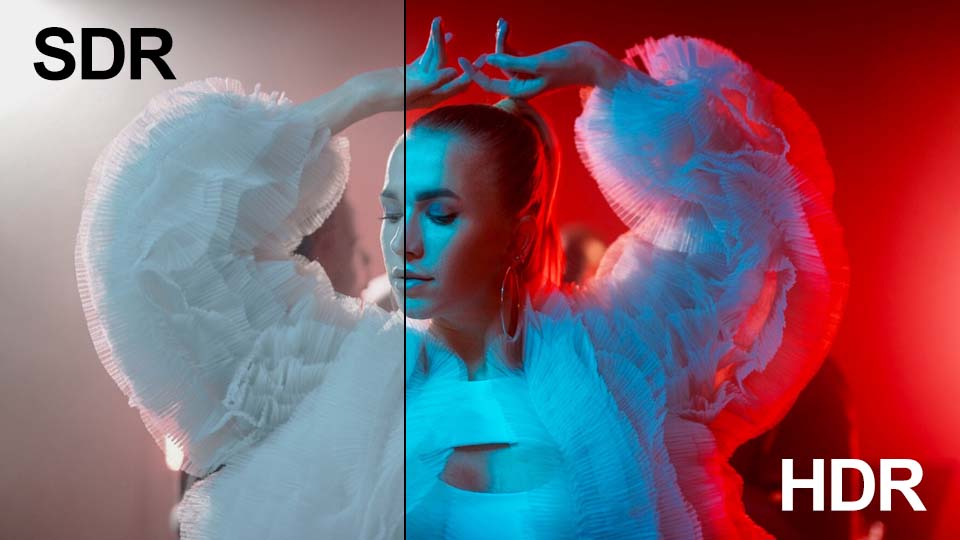
Major VSDC 10.1 Update: Advanced HDR, GPS Telemetry, New Effects, Great Variety of New Templates and Tools For Different Needs

published Amy Shao 6/10/25 待ちに待った新しくてユニークなアップデートがついに登場!これは単なるバージョンアップではありません:VSDC 10.1です!! VSDC...

VSDC Christmas Update 9.4: Enhanced Effect Management, 100+ Background Templates and Streamlined Editing

このホリデーシーズンは、VSDC Video Editorの最新アップデートと共に新しい始まりを迎えましょう!皆様のフィードバックを受けて、最も愛されているツールを強化することに注力しました。来年に向けて、さらにエキサイティングな革新の基盤を築いています! 強化されたエフェクト管理、100以上の背景テンプレート、合理化された編集 更新には、改良されたテキスト変換ツール、独立したぼやけた背景効果、新しいカラーグレーディングの機会、より使いやすいテンプレートのプレビューウィンドウなどが含まれています。さらに、特別なホリデーギフトをご用意しました。無料とプレミアムの両方のクリスマステーマの背景を特集した、祝祭感溢れるテンプレートコレクションです。これらであなたの動画に魔法を加え、また、すべての季節に対応したさまざまな抽象的な背景もお楽しみいただけます。 さらに詳しく読み進めて、VSDC...

VSDC Freeが透かしの秘密兵器になった経緯(2025年の無料4K編集)

こんにちは、シアトル在住の旅行ビデオグラファー、マティア・ワートンです。3年間も、動画に醜い透かし(ウォーターマーク)を入れてくる編集ソフトに悩まされてきましたが、VSDCに出会って全てが変わりました。このサブスクリプション不要の無料編集ソフトは、私のワークフローを完全に変え、今日はそれが如何に隠れたコストや煩わしい制限なしに、必要な全ての必須編集ツールを提供できるかをご紹介します。 私のチャンネルをほぼ終わらせた透かしの罠 私のアリゾナ砂漠のVlogを覚えていますか?人気の無料編集ソフトで夕焼けのシーケンスを14時間かけて編集したのに、巨大な透かしが作品を台無しにしているのを発見しました。その週のエンゲージメントは40%も下落しました。 その時、VSDCを見つけました。彼らの約束はあまりにも良すぎるように思えました:無料版でも本当に透かしなしの出力が可能、『試用期間』の罠もなく、卑怯な機能制限もない。疑わしいながらも絶望的だった私は、試してみることに。驚いたことに、Vlog全体をすぐに再編集し、透かしが一切ない完璧な品質の最終動画を手に入れることができたのです! 透かしの見えないVSDC...

150以上のテンプレート、テキストトランスフォーマー、スプライト自動検出、GUIアップデート

変化は改善に関するものであり、このプロセスはあなたのご意見なしでは実現できませんでした。あなたのフィードバックを慎重に確認した結果、いくつかの重要な問題に対処し、編集体験を向上させるために設計されたアップデートを導入しました。 150以上のテンプレート、テキストトランスフォーマー、スプライト自動検出、GUIアップデート VSDC...

最高の特殊効果ソフトウェア

イントロ 2024年、ビジュアルエフェクトを作成するためのオプションの範囲は非常に多様化しており、トップの選択肢を特定することがますます困難になっています。ここでは、プロジェクトに独自性を加えるのに役立つ、トップクラスのビジュアルエフェクトソフトウェアのガイドを紹介します。高度なコンポジティングツール、強力な3Dアニメーション機能、使いやすいインターフェースを探している場合でも、この記事はオプションをナビゲートし、ニーズや好みに最も適したソフトウェアを見つける手助けをします。 各プログラムは、その機能、使いやすさ、専門知識の異なるレベルに適した適合性に基づいてレビューされています。初心者向けの直感的なソリューションであるVSDC...

VSDC 9.2: AIセグメンテーションモデル、300以上の新しいトランジション、VSDCクラウド、新しいテンプレートコレクション

VSDC 9.2が登場し、画期的な機能を提供します。たとえば、新しいAIによるセグメンテーションツールは、正確なオブジェクト除去を可能にし、色補正を強化し、ビデオを向上させるための多くの効果を提供します。さらに、VSDCクラウドサービスを紹介します。これはメディアファイルとプロジェクトを保存および共有するためのサービスです。...

白黒映画はどのようにカラー化されたか

古典的な白黒映画のファンですか?もしカラー化されたらどのように見えるのか、気になったことはありませんか?多くの映画人が同じことを考え、数々の名作映画がカラー化された。何年もの間、モノクロ映画に色をつける技術は格段に進歩し、手作業で各フレームを塗りつぶす方法から、各ピクセルに自動的に色をつける最先端のソフトウェアを使用するようになり、プロセスは大幅にスピードアップしました。今日は、カラー化がどのように行われるかを見て、私たちがとても楽しんでいる昨日の白黒映画が、どのように完全で鮮やかなカラーに生まれ変わるかを探求し、

2024年のベストオンラインビデオエディター:利点と欠点

July 15, 2024 published by Amy Shao 現在、ビデオコンテンツの人気は高まっており、多くのユーザーが個人的およびプロの目的でビデオクリップを作成する必要に直面しています。市場が提供する多くの選択肢から適切なビデオエディターを選ぶ際、多くのユーザーは無料のオンラインビデオエディターに優先を与えています。これらのエディターはリアルタイムでメディアファイルを操作でき、デスクトップの代替とは異なり、PCの内部リソースを必要とせず、ほとんどのデバイスで利用できます。 しかし、オンラインビデオエディタには世界中で隠された落とし穴があるのでしょうか? 私たちのチームは、3つのベストオンラインビデオエディタを集め、その機能をテストし、データの転送と保存の条件を調査し、今ではその経験を共有する用意ができています。 Clipchamp Clipchampは、ビデオ編集のためのウェブプラットフォームで、ユーザーが編集の経験がなくてもビデオを作成および処理できるものです。Clipchampは、ソーシャルメディア向けに調整された多くのプリセットテンプレートを提供し、ゲームコンテンツや広告素材の作成に優れています。このオンラインエディターは、プロフェッショナルからビデオ編集の手法を探している初心者まで、シンプルで使いやすいツールとして適しています。 Clipchampの基本的な編集ツールは、シーンの隣に便利に配置されており、ビデオフレームのトリミング、シーンのパラメータに合わせたサイズの調整、画像の断片化、またはクリック一つで回転などができます。シーンのサイズはリストから選択できますが、デフォルトではプログラムはアップロードされたビデオに基づいてシーンのパラメータを設定します。 さらに、Clipchampには、基本的なカラーコレクションのツールセットがあり、露出、コントラスト、彩度、温度のパラメータを含んでいます。このプログラムは透明度と重ね合わせモードにも対応し、さまざまなアニメーションテンプレート、多数のフォント、ストックビデオ、オーディオファイルを提供し、フレーム間のトランジションの作成やブランドロゴの追加など、プロフェッショナルなビデオを作成するのに役立ちます。 すべてのテンプレートはすでに使用準備が整っており、ダイナミックな開始画面、スムーズなトランジション、または単純なフェードが必要な場合、該当するテンプレートを選んでタイムラインに追加し、カスタマイズを行うだけです。ただし、魅力的なオプションの多くはプレミアムアイコンで表示され、料金が必要です。 С...

トランジションの新しい追加方法、RAWおよびBRAWファイルのサポート、無料のオーディオビジュアライゼーション

時が来ました: VSDC 9.1の待望のアップデートをご紹介できることを嬉しく思います!新バージョンの改善された機能は、ビデオ編集を加速し、編集プロセスをさらに快適にします。 新しいトランジション追加メソッド、RAW/BRAWサポート、フリー波形 今回は何が新しいのでしょうか?遷移の新しい操作方法は、高品質のビデオシーケンスを迅速かつ容易に作成するのに役立ちますし、RAWおよびBRAWファイルのサポートは、ビデオクリップの最高品質を保証します。 VSDC...
 

Screen Recorder Box

このプログラムは、あなたのデスクトップのビデオをキャプチャし、パソコンで様々なフォーマットでも動画を保存できます。プログラムは、動画編集と結合して、プレゼンテーションの作成や、チュートリアルや、デモビデオのためにすごいツールです。

スクリーンキャプチャについて...


Video Capture Box

このプログラムは外部の装置からビデオをキャプチャーし、自由なフォーマットでパソコンに記録します。ビデオチューナーや、ウェブカメラや、キャプチャカードなどからビデオを保存できます。

ビデオキャプチャーについて...

VSDC Video Editor Reviews & Ratings (Trustpilot, Capterra & Media)

VSDC Free Video Editor is rated 4.5/5 by real users on Trustpilot and Capterra. Here are a few reviews and quotes from creators and tech media.

Overall rating:4.5/5based on200+ reviews on Trustpilotand89 reviews on Capterra.

★★★★★

VSDC Free Video Editor is the best free video editor for Windows I’ve used, from color grading to picture-in-picture and cinematic results.

— Ejikeme Eloka Augustine

Source:Trustpilot

★★★★☆

Easy-to-use interface and quick export to social media make VSDC a versatile video editing tool for everyday projects.

— Karen C., E-Learning

Source:Capterra

★★★★☆

A feature-packed non-linear video editor for Windows that can compete with many paid video editing solutions.

— TechRadar

Source:TechRadar review

★★★★★

The free VSDC editor saved my YouTube channel – a powerful video editing software for chroma key, text effects and picture-in-picture.

— Paul Roberts

Source:Trustpilot

★★★★★

Fast and simple for YouTube videos with green screen, zoom, color tools and creative effects in one app.

— Marie R., Media Production

Source:Capterra

★★★★★

One of the best free video editor options for Windows users, ideal for GoPro, YouTube and family videos.

— VidProMom, YouTube creator

Source:Media reviews

★★★★★

I’ve been using VSDC for years; editing is easy and the final videos look great for my personal and professional projects.

— Long-time VSDC user

Source:Trustpilot

★★★★★

Great value and faster than many other free tools; I quickly create videos for YouTube, Instagram and Facebook with features my audience loves.

— Rabika B., Marketing & Advertising

Source:Capterra

★★★★★

VSDC offers many features you don’t usually find in free editors, including picture-in-picture, stabilization and modern codec support with no watermarks.

— Tech media review

Source:Media reviews