 User Help Manual
  Learn FAQ
  Send us feedback


Video Editor
Download and use the free video software to create and edit videos of any complexity from a family greeting card to a company presentation. Apply vsdc free video editor for light edit hdr-video, any raw-video formats from cams - BRAW, ProRes RAW, any high resolution 4k or more due to video proxies technologies in the editor.
Cut, merge video files, apply visual and audio effects, use filtration and image correction, make slideshows and add an appropriate soundtrack. Use multi-color Chroma Key and advanced parameters settings to give your video a professional look.
All popular video and audio formats are supported.
Video Converter
This program is intended for converting video files from one format to another. Nearly all popular video formats are supported (both reading and saving). In addition, the program drastically simplifies the task of converting videos for playback on specific multimedia devices, such as iPhone, Samsung Galaxy or Huawei P30 Pro. The program is extremely easy to use, has a modern interface and all necessary video processing functions.
Audio Converter
The audio converter will help you convert audio files from one format to another. All key audio formats and codecs are supported. The program also allows you to manage playlists and meta tags, extract audio from video files and save these tracks on your computer in any format.
Animated Intro & Title Templates
Explore the VSDC Template Store with ready-made video templates for intros, animated titles, lower thirds, logo reveals, slideshows, glitch transitions, LUTs, and color grading presets. Drop a template into the VSDC Video Editor timeline, edit text, timing, and colors, and finish professional video projects in minutes.
Choose from 300+ exclusive packs of video transitions, LUT packs, text effects, GPS telemetry widgets, animated elements, and animated backgrounds for VSDC. All templates are fully customizable, support up to 4K resolution in 16:9, and help you build intros, wedding slideshows, travel videos, and tutorials much faster.
VSDC Cloud - Online video management
Keep your work safe, organized and always accessible! Back up your video projects, store media files online and access them from any device. Enjoy collaboration, share project updates and exchange files easily.
 Video Editor
 Video Converter
 Audio Tools
 Templates store
 Cloud
Cloud

Multifunctionality
A wide array of multimedia processing tools in one free video software suite.

High speed
Our programs use fast
and high-quality algorithms optimized for single and multi-core CPU’s.

Affordability
VSDC video software is freely available for download to Windows OS-based PCs and laptops.
News:
- Published by Amy Shao on June 30, 2026 Meet the new major update ...
- Published by Amy Shao on March 11, 2026 What is the best gift for...
- published Amy Shao 11/19/25 Meet the long-awaited VSDC 10.2 update: a new ve...
- Hi, I'm Mattea Wharton, a travel videographer from Seattle. For three years I ba...
How to Use the Particle Effect in VSDC Free Video Editor
Particles is a beautiful effect you often see in music videos, sci-fi movies, and romantic clips. It’s a surefire way to create depth and achieve the desired atmosphere in a video. The most popular types of particles used for this effect are snowflakes, leaves, raindrops, and dust. However, any image can be used as a particle, including your own logo.
In this tutorial, we’ll show you how to apply the particle effect in VSDC Free Video Editor. It’s available starting from version 6.6, so make sure to download it from the official website.
Before moving to the text version of the tutorial, feel free to watch this video:
Once ready, visit the particle template gallery and download the collection you like. These templates are free, but you will only be able to open them in VSDC.
How to apply the particle effect in VSDC
To get started, import your video to VSDC and place the cursor on the timeline, right where you’d like the effect to start displaying. Next, open the Video effects menu, proceed to Nature, and select Particles – the effect layer will be added in a new timeline tab. From the right-hand side, you’ll see the Properties window: it contains three groups of settings you’ll be using to customize the effect.
The first group, titled Common settings, allows you to name the effect layer on the timeline, manually set the moment the effect appears in the video and the duration of the effect – in frames or in seconds.
The second group, Adjustments effect settings,contains one parameter: Transparency. Transparency defines the visibility level of the effect and can be either constant or dynamic. The latter means that you can gradually change the visibility of the particles, from transparent to non-transparent or back.
To apply the gradual change, you’ll need to use the parameters called Initial value and Final value. Keep in mind that 100 will mean that the particles are completely non-transparent and 0 will mean they are completely transparent. For instance, this is what the effect will look like if you set the Initial value at 10, and the Final value at 100.
The third group of settings is called Particle effect settings, and this is where you can change particle appearance and their movement style. We’ll take a closer look at this group of settings below.
How to select particle template
Once you apply the particle video effect, you’ll be able to change their size, movement speed and direction, quantity, and even position in the video. But first, you’ll need to select the type of particles you want to use. To do that, you’ll be using the Template groups and Template dropdown menus.
If you have already downloaded templates from the gallery, use the Browse icon to upload the template collection from your PC. If you have more than one collection uploaded, use the dropdown menu to select the one you need.
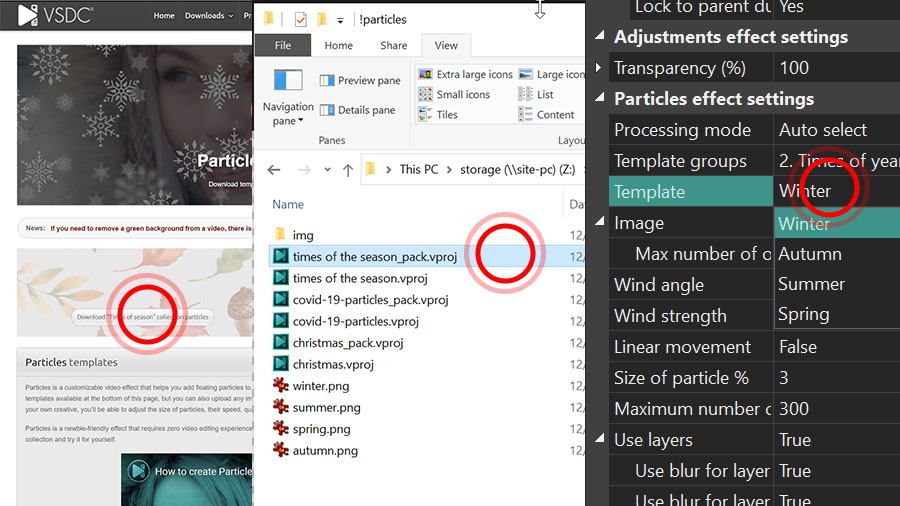
Each collection has several templates. In our example, the collection named “Seasons” includes snowflakes, green leaves, orange leaves, and waterdrops. Use the Template dropdown menu to preview the particles available in the collection.
You can upload your own image and use it as a particle as well. To do that, click the Browse icon located in front of Image.
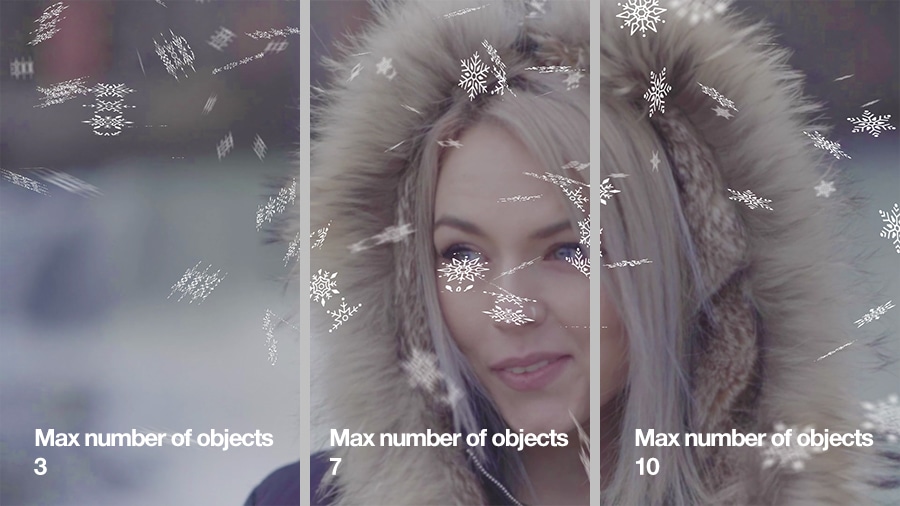
Notice that the Image parameter also allows you to set the Maximum number of objects. This is not, however, the number of particles displayed in the video. The maximum number of objects is the parameter defining into how many pieces the original particle image will be divided. If the maximum number of objects equals 1, the entire image will be displayed. If you increase the value to 2, the original image will be divided into two parts, and so on.
Wind angle enables you to change the wind direction, which defines the direction of the particle movement.
Wind strength affects the particle movement speed. The higher its value is, the faster the particles move.
The following parameter in the list of settings is called Linear movement and it has two modes: True and False. The former means that the particle movement will be linear and defined by the wind angle you’ve set up earlier. The latter means that the particle movement will be more chaotic.
Size of particle % and Maximum number of particles should be self-explanatory. Use these parameters to change the size and quantity of the particles displayed in a single frame.
The following parameter is called Use layers. It allows you to create depth and perspective by treating the three layers of the video – foreground, middle ground, and background – differently. If you activate the “True” mode, particles will be of different size on each layer. Plus, you’ll be able to blur and rotate them on the selected layers too.
Blur levels are applied to the particles located on the blurred layers and help you make them look less distinct.
Finally, the Rotate object option enables you to apply rotation to the particles. If you switch this parameter to “False”, there will be no rotation. If you activate rotation by switching to “True”, you’ll be able to set up rotation on each layer.
Try the new particle effect in your next video
The new effect gives you a lot of flexibility and provides yet another creative approach to movie making. Download the latest version of VSDC and try it for yourself.
 Download VSDC 8.2 now
Want to stay tuned and find out more about the effects available in VSDC? Then subscribe to our YouTube channel.


This program allows you to capture the video of your desktop and save it on your PC in various formats. Coupled with a video editor, the program is a great tool for creating presentations, tutorials and demo videos.

The program captures video from external devices and records it to computer in a free format. You can save video from video tuners, webcams, capture cards and other gadgets.
VSDC Video Editor Reviews & Ratings (Trustpilot, Capterra & Media)
VSDC Free Video Editor is rated 4.5/5 by real users on Trustpilot and Capterra. Here are a few reviews and quotes from creators and tech media.
Overall rating: 4.5/5 based on 200+ reviews on Trustpilot and 89 reviews on Capterra.
★★★★⯪
VSDC Free Video Editor is the best free video editor for Windows I’ve used, from color grading to picture-in-picture and cinematic results.
— Ejikeme Eloka Augustine
Source:Trustpilot
★★★★☆
Easy-to-use interface and quick export to social media make VSDC a versatile video editing tool for everyday projects.
— Karen C., E-Learning
Source:Capterra
★★★★☆
A feature-packed non-linear video editor for Windows that can compete with many paid video editing solutions.
— TechRadar
Source:TechRadar review
★★★★★
The free VSDC editor saved my YouTube channel – a powerful video editing software for chroma key, text effects and picture-in-picture.
— Paul Roberts
Source:Trustpilot
★★★★★
Fast and simple for YouTube videos with green screen, zoom, color tools and creative effects in one app.
— Marie R., Media Production
Source:Capterra
★★★★★
One of the best free video editor options for Windows users, ideal for GoPro, YouTube and family videos.
— VidProMom, YouTube creator
Source:Media reviews
★★★★★
I’ve been using VSDC for years; editing is easy and the final videos look great for my personal and professional projects.
— Long-time VSDC user
Source:Trustpilot
★★★★★
Great value and faster than many other free tools; I quickly create videos for YouTube, Instagram and Facebook with features my audience loves.
— Rabika B., Marketing & Advertising
Source:Capterra
★★★★★
VSDC offers many features you don’t usually find in free editors, including picture-in-picture, stabilization and modern codec support with no watermarks.
— Tech media review
Source:Media reviews
 Like us on Facebook
 Follow us on Twitter
Watch us on YouTube
 / @VSDCFreeVideoEditor
© 2011-2026, www.videosoftdev.com, FLASH-INTEGRO LLC. Privacy policy | Terms of use | About us
All trademarks referenced herein are the sole property of their respective owners.
Copying any materials from this site allowed only with written consent of Site Administration.