Video Editor

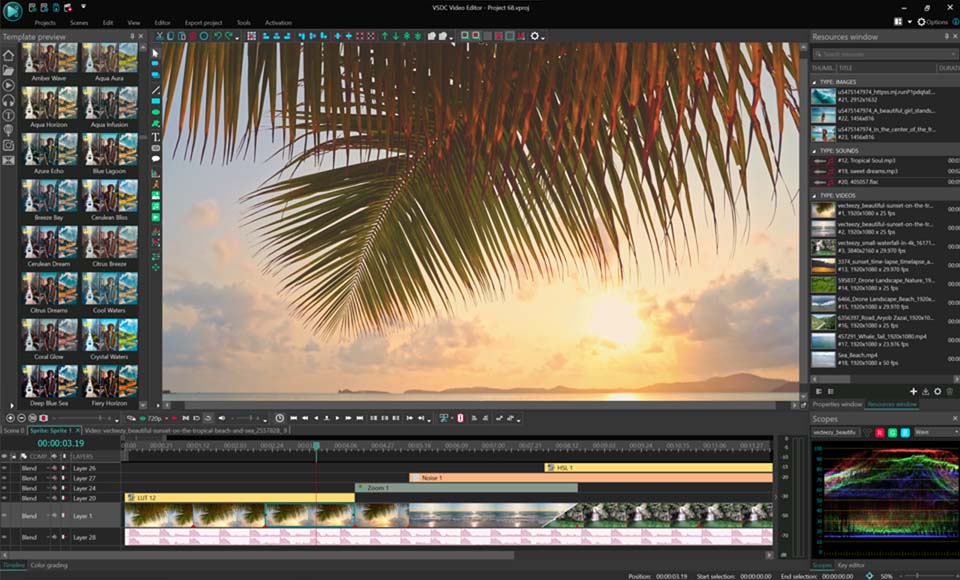
Download and use the free video software to create and edit videos of any complexity from a family greeting card to a company presentation. Apply vsdc free video editor for light edit hdr-video, any raw-video formats from cams - BRAW, ProRes RAW, any high resolution 4k or more due to video proxies technologies in the editor.
Cut, merge video files, apply visual and audio effects, use filtration and image correction, make slideshows and add an appropriate soundtrack. Use multi-color Chroma Key and advanced parameters settings to give your video a professional look.
All popular video and audio formats are supported.

Read more about Video Editor...

Video Converter

This program is intended for converting video files from one format to another. Nearly all popular video formats are supported (both reading and saving). In addition, the program drastically simplifies the task of converting videos for playback on specific multimedia devices, such as iPhone, Samsung Galaxy or Huawei P30 Pro. The program is extremely easy to use, has a modern interface and all necessary video processing functions.

Read more about Video Converter...

Audio Converter

The audio converter will help you convert audio files from one format to another. All key audio formats and codecs are supported. The program also allows you to manage playlists and meta tags, extract audio from video files and save these tracks on your computer in any format.

Read more about Audio Converter...

Animated Intro & Title Templates

Explore the VSDC Template Store with ready-made video templates for intros, animated titles, lower thirds, logo reveals, slideshows, glitch transitions, LUTs, and color grading presets. Drop a template into the VSDC Video Editor timeline, edit text, timing, and colors, and finish professional video projects in minutes.

Choose from 300+ exclusive packs of video transitions, LUT packs, text effects, GPS telemetry widgets, animated elements, and animated backgrounds for VSDC. All templates are fully customizable, support up to 4K resolution in 16:9, and help you build intros, wedding slideshows, travel videos, and tutorials much faster.

Store catalog

VSDC Cloud - Online video management

Keep your work safe, organized and always accessible! Back up your video projects, store media files online and access them from any device. Enjoy collaboration, share project updates and exchange files easily.

Online video editing management capabilities

Multifunctionality

Multifunctionality

A wide array of multimedia processing tools in one free video software suite.

High speed

High speed

Our programs use fast
and high-quality algorithms optimized for single and multi-core CPU’s.

Affordability

Affordability

VSDC video software is freely available for download to Windows OS-based PCs and laptops.

VSDC 11.2: Smart search for lost files, GPS data and video sync, H.266 (VVC), accelerated proxy generation even for 4K/8K, keyframe support for shapes and brand-new designer templates

Published by Amy Shao on

Meet the new major update to VSDC Free Video Editor: version 11.2!

Remember how much time you used to spend hunting for lost files in your projects? With VSDC 11.2, that headache is officially a thing of the past! Moved your videos or images to a different folder, renamed them and now have no idea how to get them back into your project? Keep reading to see exactly how this version solves it for good!

Action cam users, this one's for you too. If you work with video in the editor and add telemetry data, you'll love this: now, whenever your telemetry and video are recorded separately, VSDC gives you a fast and easy way to sync them up in no time!

We're also thrilled to say that VSDC 11.2 is among the very first editors to support the H.266 (VVC) codec which shrinks video files to record-breaking sizes with zero quality loss. And for those of you handling 4K footage and beyond, we've added hardware transcoding through the Vulkan graphics API, so proxy generation is now noticeably faster than ever!

And yes, we haven't forgotten about our VSDC Store fans! If you've been waiting for fresh premium template collections, here's the moment you've been waiting for: three new GPS data template packs in a variety of styles, plus two collections for creating vintage-looking videos, are now available in our catalog!

Check out the full rundown of everything else including shape-handling upgrades, hotkeys for LGG (Lift/Gamma/Gain), new options and more right below!

VSDC 11.2: Auto File Recovery, Video-Telemetry Sync, H.266 (VVC) and More!

In this article

  • Smart Lost File Search
  • Fast GPS Data and Video Synchronization, Expanded GPX File Support
  • Brand-New designer-made premium templates
  • H.266 (VVC) Codec and Hardware-Accelerated Proxy Generation
  • Shape Animation, Three-Color Gradients and New Settings for Lines
  • Color Workflow Improvements: LGG Hotkeys and a New Enhanced Color Profile for HDR
  • New Options for a More Comfortable Video Editing Experience
  • Other Fixes and Improvements
  • VSDC 11.2 Frequently Asked Questions

Smart Lost File Search

Moving project folders or renaming source files used to mean dealing with endless error messages and manually relinking each lost file. With version 11.2, we've put an end to that hassle by introducing a smart system for handling lost media.

Now, when you open a project with missing files, VSDC instantly alerts you and brings up a file search window. You can still point to a single file manually if you prefer, but here's the real breakthrough because you can also select a new directory for just one file and let our algorithm scan the full directory automatically. In one operation it will locate every missing file stored in that folder.

If you'd prefer to locate some files later, you can simply close the window and return to the search the next time you open the project.

How to find and recover missing project media

Fast GPS Data and Video Synchronization, Expanded GPX File Support

If you're using a GoPro or Insta360, video and telemetry are usually already linked out of the box. But if you're working with any other device, there's no built-in connection between the footage and the data and creating one manually can be tricky.

VSDC 11.2 changes that with a new feature: telemetry markers. They allow you to manually establish the link between video and GPS data with pinpoint accuracy, without compromising data integrity.

Here's how it works: you add your video and GPX file to the scene, then place a telemetry marker on the video to mark a precise moment — say, a turn, a jump, or any other noticeable action. Next, you do the same on the telemetry data, placing a matching marker at the corresponding point. Finally, simply select the target video in the telemetry object's properties and sync them.

How to sync telemetry and video using markers

Video filtering for sync has also been upgraded. In the properties window you can now choose how to display your video list: show all videos with a marker, only those that overlap with the telemetry timeline or those that meet both conditions. When dealing with lots of footage, it makes finding the right video for syncing faster and easier than ever.
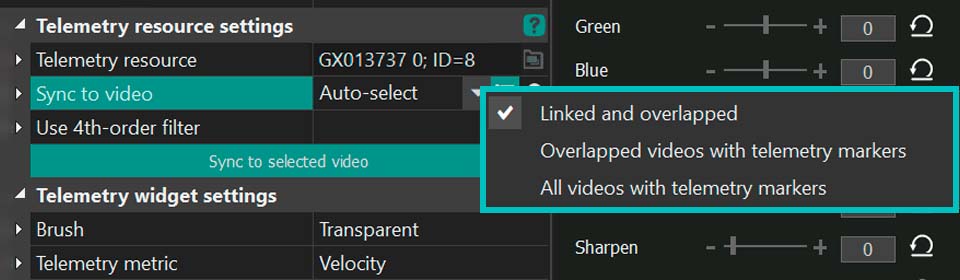
Video Filter for Telemetry Sync
Choosing video type filter in the properties window for telemetry synchronization

What's more, GPX file support has been significantly expanded in this release. The editor now reads data from a wider range of devices with greater accuracy, ensuring more precise and stable telemetry processing across the board.

Brand-New Designer Templates

We've prepared a major update to the VSDC Store catalog! Version 11.2 introduces several new collections of premium templates that help you create professional-looking videos without spending ages tweaking effects manually.

You'll find three premium packs for GPS telemetry data visualization:

  • SegMentor Dash: a clean, minimalist style with crisp digital indicators for a sleek, informative look;
  • Dynamic Hues: a vibrant, color-dynamic set perfect for high-energy footage;
  • AeroSense Dash: an aviation-inspired design with instrument-panel elements for a cockpit feel.

Plus, two stylized premium packs for creating vintage cinema looks: Grain Texture and Vintage Reel. For professional version users, there's also the Vintage Grain collection in the same style available at no extra cost. These templates let you add grain, scratches, film noise, color shifts and a classic old-film palette with a single click. Now you can give your videos that retro, old-school atmosphere in just seconds without complex color grading or manual noise overlays required!

Exploring new telemetry templates and presets for creating vintage cinema looks

All templates are now available in the VSDC Store catalog!

Learn more about working with the templates window: premium-templates

H.266 (VVC) Codec and Hardware-Accelerated Proxy Generation

The H.266 (VVC) codec is now available in the export profile settings. This next-generation compression standard delivers the same quality as H.265 while taking up 30–50% less storage space and up to 70% less than H.264 while keeping the same visual quality.

How to select H.266 (VVC) codec in VSDC free video editor

To streamline your workflow we've also added Vulkan acceleration so your GPU can now generate lightweight proxy copies much faster, even for 4K footage and beyond. To activate it, simply head to the program Options, find the proxy section and select this decoder type for proxy creation.
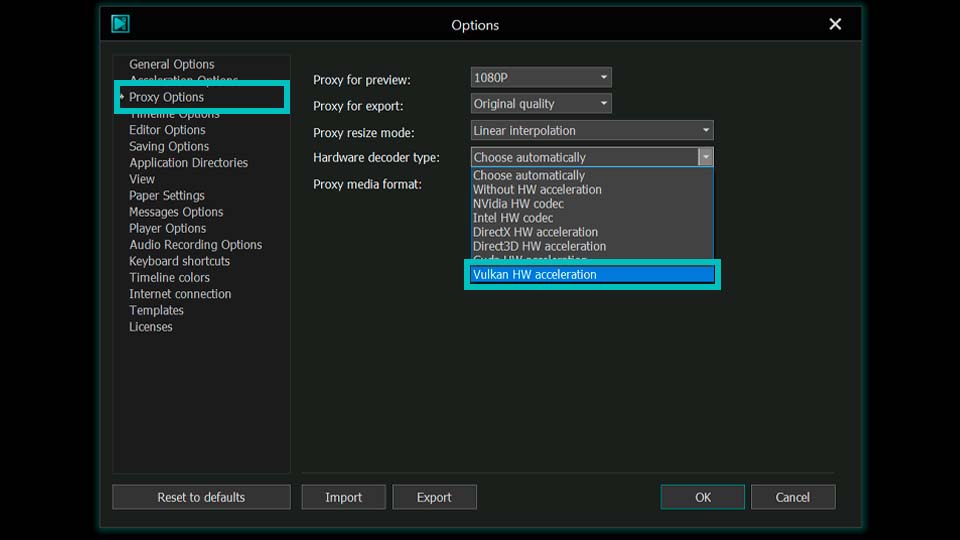
New Option for Hardware-Accelerated Proxy Creation
Vulkan Acceleration for proxy generation, even for 4K and 8K videos

Shape Animation, Three-Color Gradients and New Settings for Lines

VSDC 11.2 expands the creative toolkit for those working with graphic elements and color. The Rectangle, Line and Ellipse tools now feature keyframe support via the Key Editor just like the Free Shape tool. That means you can now use them to create animations too!

How to work with keyframes for shape options in the properties window

On top of that, all shape types now support animation for a third color in gradients, allowing for more complex and dynamic fills. This option becomes available when the Brush mode in the properties window is set to Gradient. Three-color transitions open up far more design possibilities than standard two-color gradients.

How to create a three-color gradient for shapes in the properties window

The Line tool has also received a major functionality boost. In the properties window you'll now find opacity settings and the ability to customize the start and end caps of a line. You can choose from round, square, arrow, and other shapes: a feature that's sure to be a hit with anyone working on infographics, diagrams or technical illustrations.

Adjusting opacity, thickness and start/end caps for lines in the properties window

Color Workflow Improvements: LGG Hotkeys and a New Color Profile for HDR

Working with color is one of the core tasks in video editing, and with VSDC 11.2, it's now more convenient and faster than ever!

We've added hotkeys for controlling LGG (Lift/Gamma/Gain) so you can now adjust shadows, midtones and highlights without ever taking your hands off the keyboard. This is especially valuable for those who prefer working with external controllers, since you can map these hotkeys to your controller and adjust everything right from it.

What's more, the key assignments are compatible with all VSDC keyboard layouts. Whether you stick with the default scheme or opt for familiar presets from Adobe Premiere, Filmora or HitFilm, you'll feel right at home. It will make the transition to VSDC from other video editors smoother and more intuitive.
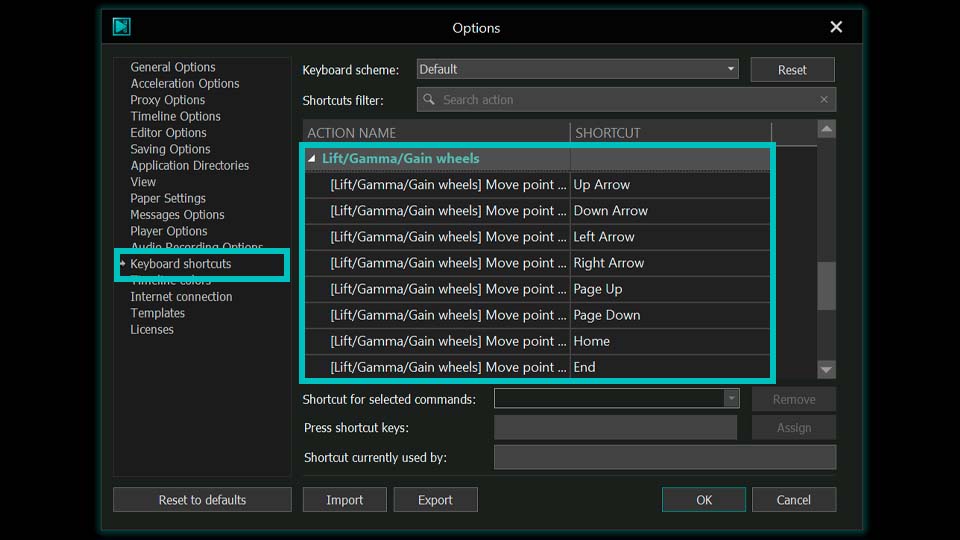
Hotkeys for LGG Controls
Hotkeys for Lift, Gamma and Gain controls in VSDC options

And for everyone working with HDR footage, there's an important addition: we've introduced a new hardware-accelerated color profile, which you can find in the properties window. With this new profile, you'll be able to process high dynamic range video significantly faster than before!
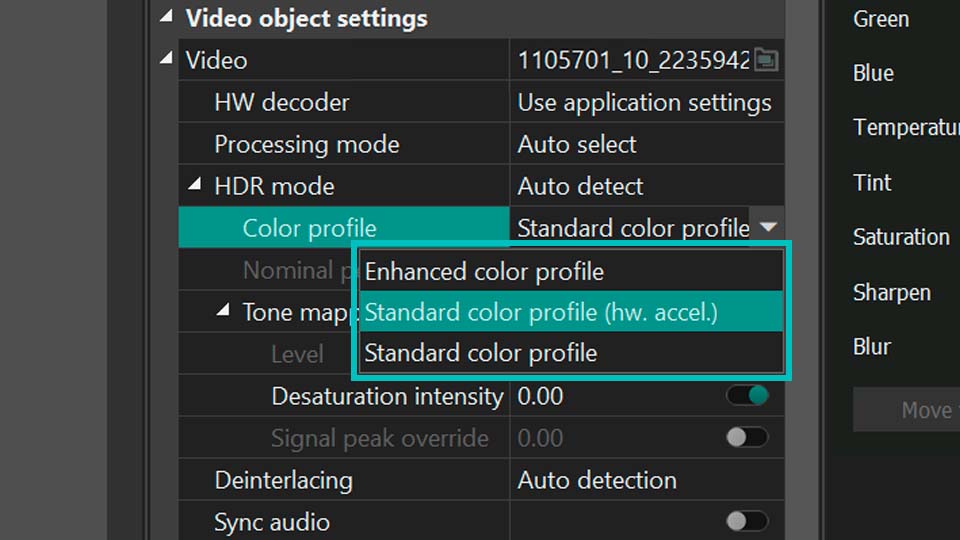
HDR Color Profiles
New hardware-accelerated standard HDR color profile

New Options for a More Comfortable Video Editing Experience

VSDC 11.2 introduces new settings that make working in the video editor even more comfortable!

In the Timeline Options section, you'll now find an option that controls storyboard display when adding video to the timeline. If needed, you can disable it to save system resources and keep your workflow smooth.
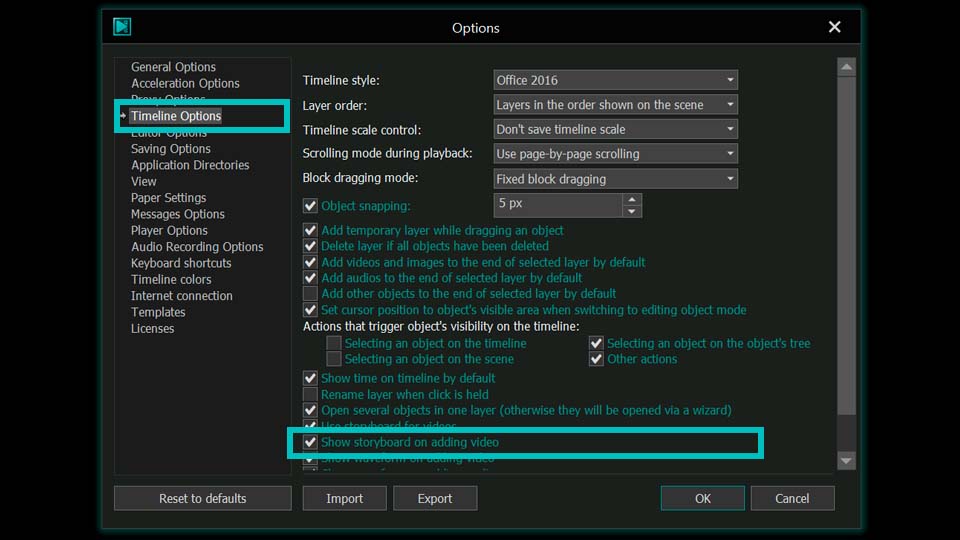
New Option for Show/Hide Storyboard Thumbnails
Control thumbnail preview when adding video to the timeline

Another handy addition — in the Messages Options section you can now disable the sound of program notifications if their alerts are distracting you from focusing on your video editing.
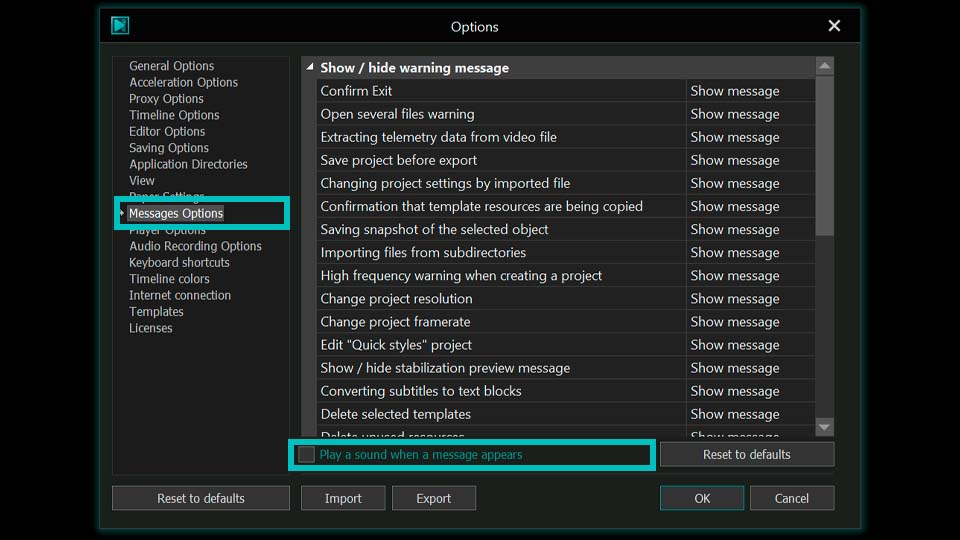
Checkbox for Muting Notification Sounds
Disable sound alerts when program messages appear

Other Fixes and Improvements

VSDC 11.2 also addresses a number of issues. For instance, audio handling has been improved, crashes related to Intel hardware decoding have been fixed and problems with marker timestamps and docked window locking have been resolved.

Project workflow has also become more convenient: layer heights on the timeline no longer reset when undoing or redoing actions, since this change is no longer recorded in the history keeping your timeline layout intact. Additionally, cloned objects now receive more meaningful names, making timeline navigation easier and reducing confusion.

A huge thank you to all users who reported issues — your feedback helps us make VSDC better and more stable with every release!

We always love to see you in our social media communities: follow us to stay updated on news and helpful editing tips, ask questions and share your experiences!

And if you need prompt assistance or run into any issues, don't hesitate to reach out to our support team at This email address is being protected from spambots. You need JavaScript enabled to view it..

VSDC 11.2 Frequently Asked Questions

1. How does the smart search for lost files work?

If a file is no longer available at its previously specified path, the editor turns it into an offline object while keeping it in the Resources window. When you reopen the project, VSDC automatically checks for all media files and, instead of bombarding you with individual error messages for each missing file, offers to locate all of them at once. Simply point to the new location of a single file and the editor will automatically restore the links for all the others found nearby.

2. How do I sync video and GPS data recorded separately?

Use the new telemetry markers. Place a marker on your video at a key moment (e.g., a jump), add a matching marker on the GPS telemetry data and sync via the properties window.

3. What is H.266 (VVC) and why does it matter?

It's the latest compression standard that creates files 30–50% smaller than H.265 and up to 70% smaller than H.264 while delivering the same quality.

4. How can I speed up working with 4K and 8K video in VSDC?

VSDC has long supported proxy file creation to help you edit high-resolution footage more smoothly. With version 11.2 we've taken it a step further by adding hardware-accelerated transcoding through the Vulkan graphics API. Your GPU can now generate lightweight proxy copies even for 4K and 8K footage significantly faster than before, so you can jump into editing even sooner.

5. Any new templates?

Yes, three GPS telemetry packs (SegMentor Dash, Dynamic Hues, AeroSense Dash), two vintage cinema packs (Grain Texture, Vintage Reel), plus Vintage Grain for users of VSDC professional version. All are already available in the VSDC Store.

6. What new settings are available?

Timeline Options now let you disable showing storyboard thumbnails when adding videos to the timeline to save resources, and Messages Options let you mute notification sounds.
VSDC 11.1 Adds Direct Insta360 Video Editing, GPS Overlays and Auto-Save

Published by Amy Shao on

What is the best gift for a creative person? New possibilities, of course. With the VSDC 11.1 update, editing footage from Insta360 cameras becomes much more straightforward. If you shoot panoramic or action videos and want a simple yet powerful editor for turning them into polished 2D content, this release is built for you.

Alongside the new Insta360 workflow, VSDC 11.1 also brings smoother everyday editing with Auto-Save, enhanced waveform visualization, quicker timeline navigation and stability improvements.

New Features: Insta360 Support, Telemetry Data, Improved HDR and Audio

In this article

  • Direct Insta360 Editing: from Fisheye Footage to 2D Video
  • GPS Workflow for Insta360 Footage: Add Speedometers and Route Maps
  • Made for Smoother Video Editing: Auto-Save, Enhanced Waveform, Timeline Controls and Stability Fixes
  • FAQ: Your Questions About VSDC 11.1 Answered

Editing Insta360 footage in VSDC

Direct Insta360 Editing: from Fisheye Footage to 2D Video

If you have ever opened raw Insta360 footage and seen two fisheye spheres instead of a ready-to-edit frame, you know how awkward the first step can be. VSDC 11.1 simplifies that workflow and helps you move from native camera footage to an editable 2D result much faster.

Imagine you filmed an active winter ride on a snowmobile or on skis using an Insta360 camera and copied the .insv files to your computer. Previously, preparing such footage often meant relying on extra tools before the real editing could even begin. In VSDC 11.1, that process becomes much more direct.

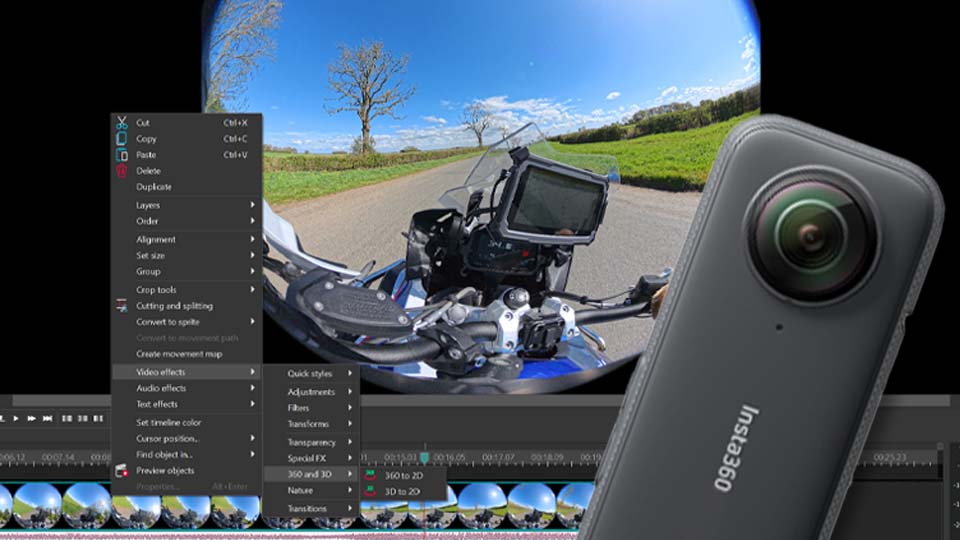
To get started, add your Insta360 files to VSDC 11.1 or later. Right-click the clip on the timeline and go to Video Effects → 360 and 3D → 360 to 2D. In the Properties window, use the new adjustment mode under the Type of 360 option to convert fisheye footage into a 2D view. You can then fine-tune the field of view, edge blending and camera convergence angle along the X and Y axes.

Transforming Insta360 fisheye footage into a 2D view in VSDC 11.1.

GPS Workflow for Insta360 Footage: Add Speedometers and Route Maps

For action footage, visuals are only part of the story. Speed, route and motion data make the final video much more immersive. If your Insta360 workflow includes recorded GPS data, VSDC makes it easy to turn that information into visual overlays such as speedometers, route maps and other telemetry elements.

Adding GPS overlays such as speedometers and route maps to action footage in VSDC.

Important: to use this workflow correctly, your footage must contain recorded GPS data or you need a separate telemetry file. Make sure your tracker or mobile app had a stable signal during filming and that telemetry recording was enabled. For camera-specific setup details, refer to the official Insta360 website.

You can extract GPS data directly from the video if it is embedded in the file by using the editor’s Resources window and right-clicking the clip there, or you can load the data separately as an external file. Then, with ready-made VSDC templates, you can add a speedometer for a mountain descent, overlay an animated route map and build a much more informative action edit. You can also watch our video on working with GPS gauges in VSDC.

Made for Smoother Video Editing: Auto-Save, Enhanced Waveform, Timeline Controls and Stability Fixes

And that is not all. VSDC 11.1 also expands the creative side of the 360 workflow by making it easier to turn panoramic footage into stylized fisheye clips within the same editing process.

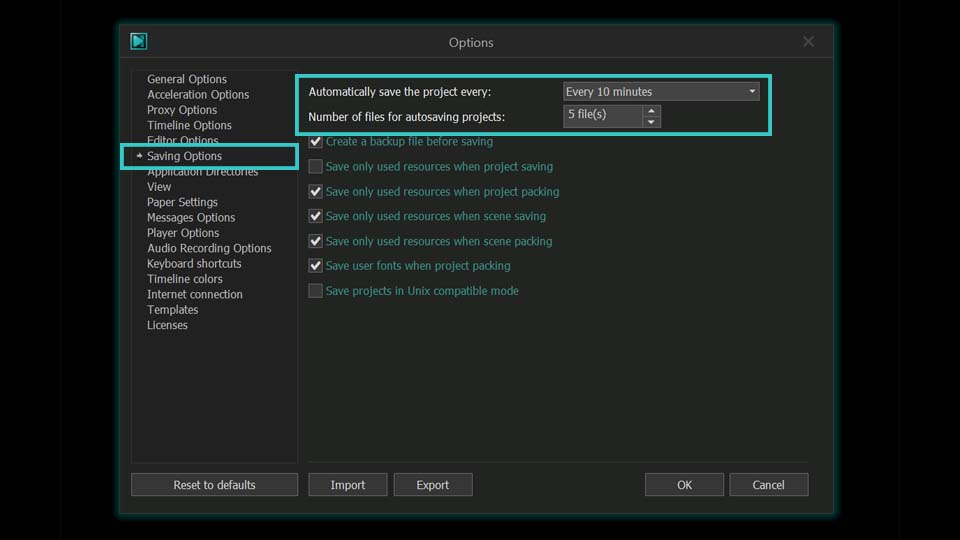
We have also added Auto-Save to help protect your work. By default, the project is saved every 15 minutes, so you can focus on editing instead of worrying about manual saves. If you want a different interval, open Options > Saving Options and adjust it to your preference.

Auto-Save settings in VSDC

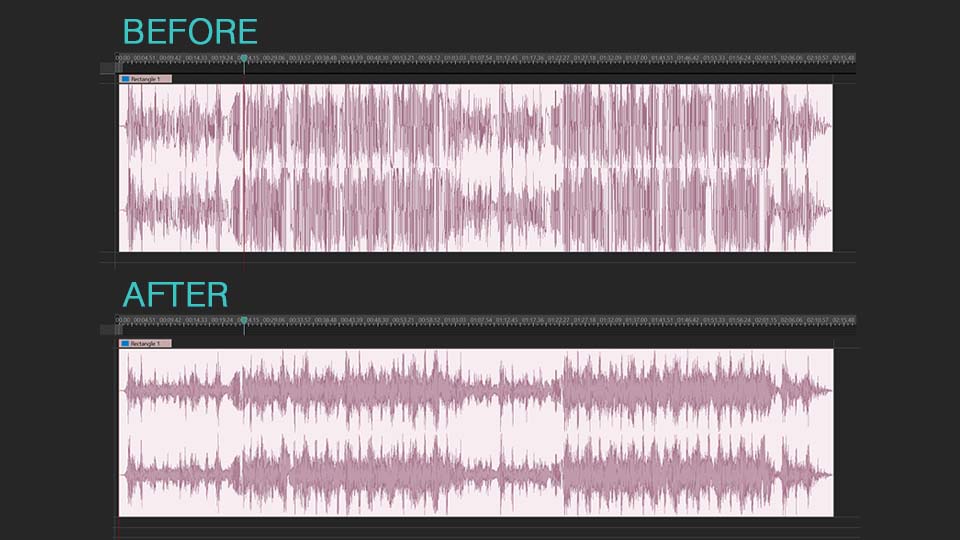
The waveform visualization is now more detailed, giving you a clearer view of beats, pauses and subtle audio changes. You can also enable automatic waveform generation as soon as you add a video to the timeline. In addition, new quick navigation controls in the bottom-left corner of the timeline help you move around the project faster and adjust your workspace more comfortably.

Enhanced audio waveform on the VSDC timeline

We have also addressed reported issues and improved overall stability, especially in projects involving effects, where reliability matters most. HDR workflows on supported configurations have also been refined to provide more consistent on-screen playback.

We are excited to see what you create with the new tools in VSDC 11.1. Share your projects, impressions and suggestions with us at This email address is being protected from spambots. You need JavaScript enabled to view it..

FAQ: Your Questions About VSDC 11.1 Answered

1. I have an Insta360 camera. Should I update to VSDC 11.1?

Yes. VSDC 11.1 makes working with Insta360 footage much more direct by simplifying the path from native camera files to an editable 2D result. If your workflow also includes GPS data, you can combine that footage with VSDC telemetry overlays such as speedometers and route maps.

2. What if my GPS data is not showing up correctly?

This usually happens when the GPS signal was unstable during recording or telemetry recording was not enabled. Check your Insta360 app or tracker settings and make sure the data was recorded properly. If needed, refer to the official Insta360 website for camera-specific setup instructions.

3. I saw something about a fisheye effect. Is that part of the new workflow too?

Yes. VSDC 11.1 makes it easier to work with this type of footage by expanding the 360 to 2D workflow and allowing you to create stylized fisheye-looking results within the same editing process.

4. Auto-Save sounds useful. Can I change how often it saves?

Absolutely. By default, VSDC saves every 15 minutes, but you can change the interval in Options > Saving Options.

How VSDC Free Became My Secret Weapon for Watermark (Free 4K Editing in 2025)

Hi, I'm Mattea Wharton, a travel videographer from Seattle. For three years I battled with video editors that slapped ugly watermarks on my videos until I found VSDC. This free no-subscription editor completely changed my workflow and today I want to share how it can give you all the essential editing tools you need without hidden costs or annoying limitations.

The Watermark Trap That Almost Ended My Channel

Remember my Arizona desert vlog? I spent 14 hours editing sunset sequences in a popular free editor, only to find a giant watermark ruining my work. My engagement dropped 40% that week.

That's when I found VSDC. Their promise seemed too good: truly watermark-free exports, even in the free version. No 'trial period' traps, no sneaky downgrades. Skeptical but desperate, I gave it a shot. To my amazement I reedited my entire vlog in no time and got my final video in flawless quality without a single watermark!

Mattea Wharton editing travel vlog in VSDC Free Video Editor on Windows laptopMattea Wharton editing desert vlog in VSDC Free with no watermark interface visible
4K/8K Performance That Shocked Me

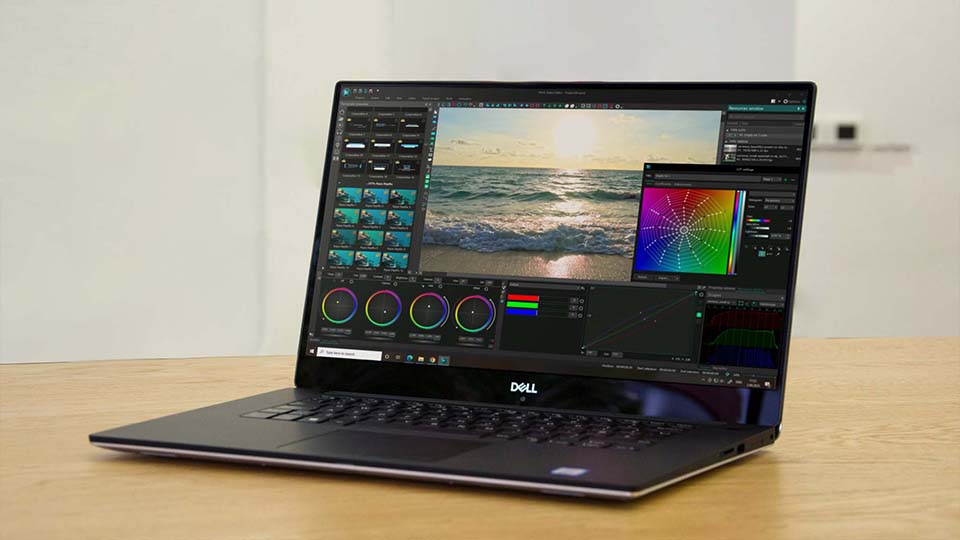
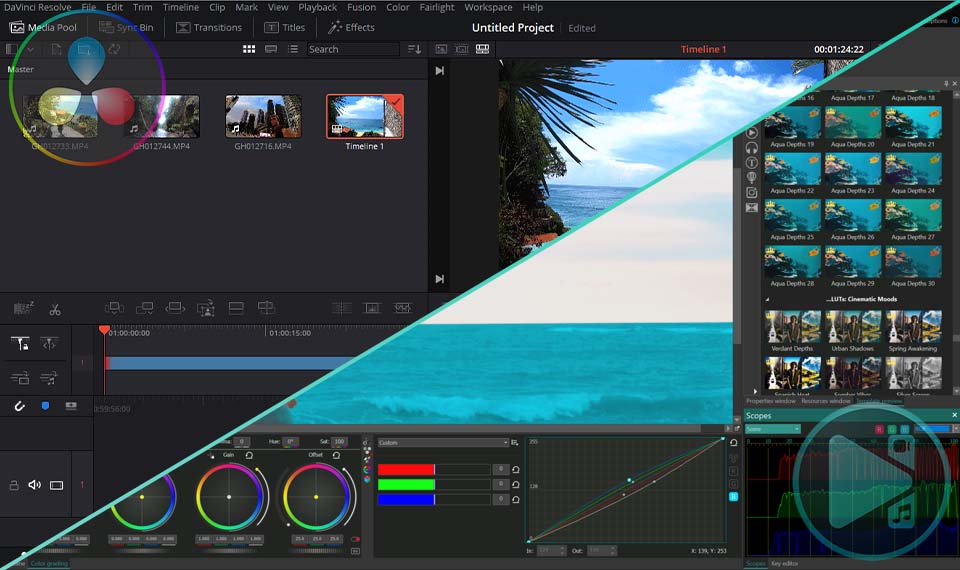
Testing VSDC on my mid-range Dell XPS 15 (GTX 1650) I imported Sony A7 III 4K footage expecting lag. Instead scrubbing was buttery smooth at 24FPS. Why? Unlike DaVinci Resolve's free version VSDC leverages full hardware acceleration without paywalls. My rendering time for 10-minute videos dropped from 45 to 12 minutes.

My Settings for Perfect 4K Workflow

For my videos, I use these optimal VSDC possibilities:

  • Proxy Editing: Enabled for smooth 8K drone footage playback
  • GPU Acceleration: my NVIDIA CUDA selected for faster rendering
  • Export Format: MP4 H.264 (YouTube-optimized for best quality/size balance)

I'm confident these settings will help you create eye-catching videos just like mine!

Optimal VSDC export settings for YouTube 4K videos without watermarkRecommended export settings for crystal-clear 4K videos on YouTube
Free Tools That Rival Paid Alternatives

During my Bali project I needed advanced chroma keying for waterfall greenscreen shots. Without $300/month for Adobe I used VSDC's free alpha channel editor achieving cleaner edge detection than Filmora Pro. VSDC’s R&D team packed pro features like:

  • AI-powered spill removal
  • Non-destructive color grading LUTs
  • 360/VR stabilization for my Insta360 cam

VSDC's developers clearly understand what real creators need. So I finished my entire Bali project without a single watermark or 'please upgrade' popup. Just pure creative freedom!

When Upgrading to Pro Made Sense

After six months with VSDC Free I upgraded to Pro during their limited-time promotion scoring lifetime access for just $19.99! This unlocked two necessary VSDC tools for my work: precision motion tracking and 10-bit HDR color export. Suddenly, tracking surfers along California's coast became effortless, while VSDC HDR exports preserved those breathtaking sunset gradients that used to show banding. These professional features came at a fraction of what other software charges. I essentially paid less than the cost of a single month's Adobe subscription for permanent access. Talk about value for money!

Beginner Mistakes I Made (Save Yourself!)

In my first week with VSDC I almost gave up. The interface felt overwhelming, it took some time to get accustomed to it. But after binge-watching tutorials on the official VSDC YouTube channel (seriously, their tips are gold), everything clicked. Here are my top workflow hacks:

  1. Great variety of ready-made presets: instead of building effects manually I raid the Templates window daily. Their preset collections for cinematic title animations, dynamic transitions, filters and many more saved me countless design hours
  2. Quick color correction through the Color grading panel that easily fixes fixes overexposed beach shots, dull indoor footage, inconsistent white balance
  3. Drag-and-drop effects, transitions and objects
  4. Quick Mode: auto-edits for Instagram Reels
  5. Many available shortcuts with possibility to set your own ones

Now I teach workshops where students remove backgrounds in under 90 seconds!

Optimizing for YouTube's Algorithm

I want to share the exact VSDC workflow that transformed my channel's performance. After months of stagnant growth, I discovered these algorithm-friendly editing techniques that made my hiking videos look greater than ever:

  • Using VSDC's YouTube 4K H.264 preset ensured my videos looked crisp while maintaining fast load times
  • Color profile: ready-made "Cinematic Contrast" LUT
  • Stabilization: 70% smoothness (retains natural movement)

The results shocked me: my hiking videos gained a 25% boost in average watch time, achieved higher click-through rates from search results and even started ranking for competitive keywords like 'best hiking trails'!

Client Work Without Subscription Shame

When a local ski resort hired me for their promo videos, I had that sinking feeling: could free editing software really deliver professional results? Then I found VSDC's commercial license. While other "free" editors slap on watermarks or demand expensive subscriptions, VSDC let me complete this $2,500 project with zero software costs. And honestly, it was easier than I expected!

Hardware Acceleration: Game Changer

Editing my 45-minute documentary on a storm-chasing trip, VSDC Pro's GPU optimization cut rendering from 3.5 hours to 48 minutes. The key? Enabling NVIDIA NVENC encoding in preferences. Now I edit 4K on a $599 laptop during flights.

VSDС Hardware Acceleration

When editing my 45-minute storm-chasing documentary, I braced for the usual rendering nightmare until VSDC Pro's GPU optimization surprised me. By simply enabling NVIDIA NVENC encoding in preferences, my render times dropped from 3.5 hours to just 48 minutes! Now I confidently edit 4K footage on my $599 laptop, even during flights, knowing VSDC won't let me down.

Comparison VSDC vs DaVinci

Still have doubts? Let my real-world test settle the debate. For my "Desert Stars" timelapse project I put VSDC Pro and DaVinci Resolve Free through a head-to-head showdown. Here's what mattered most for night-sky editing:

Comparison of video editor features
FeatureVSDC ProDaVinci Free
HDR Export✅ Full 10-bit❌ Limited
RAM Usage1.2GB2.8GB
Watermarks❌ None❌ None

VSDC rendered 22% faster on my i7/RTX 3060 rig.

HDR timelapse comparison: VSDC Pro vs DaVinci Resolve Free desert footageReal test: VSDC's 10-bit color preserves sunset gradients better than DaVinci!
Advanced Features I Use Daily

Let me share the VSDC features that quietly became the backbone of my editing workflow. The tools most creators overlook but now I can't live without.

  • AI Optical Flow: my secret weapon for transforming ordinary 30fps footage into cinematic slow-motion, especially for capturing the dramatic crash of waves or birds in flight.
  • Audio Ducking: saves me countless hours by automatically balancing music and voiceovers
  • Mask Tracking: isolates moving objects without keyframes

What makes these tools truly special is how they combine professional results with surprising simplicity, all while preserving my original footage through non-destructive editing.

Just last week I easily removed a tourist from two minutes of beach footage with just eight clicks! Really, I counted.

2025 Performance Benchmarks

When I benchmarked VSDC on my modest Asus Zenbook (Core i5/16GB RAM), I expected good results but what I got redefined what "free editing software" could do:

  • 4K Playback: A fluid 25 FPS timeline performance without proxy filesб it’s just something even paid editors struggle with
  • 8K Export Speed: Just 1 minute 42 seconds per minute of footage
  • Instant Startup: 3.2 seconds cold launch (versus Premiere Rush's 14-second wait)

Surprisingly, it even runs on my nephew's Windows 10 tablet.

My Social Media Shortcut System

Let me break down my killer workflow that slashed my daily editing time from 2 hours to just 25 minutes for my TikTok/Reels content:

  1. Record vertical footage on phone
  2. Import to VSDC with Smartphone 4K profile
  3. Apply preset with viral colors
  4. Auto-crop to 9:16 with padding
  5. Export with #Shorts metadata

VSDC handles all the grunt work: I just pick my best takes and boom, content's ready! Tested on 100+ clips.

TikTok transformation using VSDC: raw phone footage vs edited viral videoMy 5-step TikTok transformation using VSDC's vertical editing tools

Why “Hollywood Editors” Keep VSDC Handy

Don't just take my word for it. Hear from a sundance winner. That is what James Cole (Sundance-winning DP) told me:

"We were 50 miles from the nearest town when Adobe Premiere crashed during our Utah desert shoot. With dailies due that night I pulled out a $300 Windows tablet from my bag as a last resort. Here's the miracle: VSDC's proxy editing handled our 8K Red RAW files smoothly. Something I'd never attempt on budget hardware normally".

After that he uses VSDC each time he needs to edit something.

Free Commercial Use: Legal Checklist

Here's what most creators don't realize: you can build profitable video businesses using completely free tools. I've personally used it for:

  • ✔️ Client commercials
  • ✔️ YouTube monetization
  • ✔️ Stock footage creation
  • ❌ Enterprise broadcasting (needs Pro)

Wedding videographers report the biggest savings. One colleague cut $600/project by dosing subscription editors. When clients can't tell the difference, why pay more?

My 5-Minute Startup Guide

Here's how I create polished videos faster than my coffee brews. Literally that is all I need to do:

  1. Open VSDC
  2. Drag footage onto timeline
  3. Apply "Color Correction" with ready-made preset
  4. Add transitions via drag-and-drop library
  5. Export: Select "YouTube 4K” and get your result without any watermarks.

Try it for your first experience, you’ll love your video, I promise.

When to Upgrade to Pro (Honest Advice)

After 18 months I recommend Pro if you need:

  • Motion tracking for product reviews
  • 10-bit color for HDR projects
  • Advanced stabilization for action cams
  • Priority support (responds in 6 business hours)

At $19.99 lifetime as it was in my case, it's cheaper than 2 coffees monthly!

Join the Watermark-Free Revolution

From frustrated creator to full-time videographer: VSDC changed my career! Download the free version today and experience true editing freedom. When ready, the Pro upgrade unlocks professional-level tools at hobbyist prices. Your audience deserves watermark-free content: start creating it now!

This is a real review from one of our users, who kindly allowed us to share her experience. If you'd like your own VSDC story featured on our website, we'd love to hear from you! Send us your detailed review at This email address is being protected from spambots. You need JavaScript enabled to view it. and we might publish it to inspire other creators.

VSDC 10.2: GPS Gauges for GoPro and Other Action Cameras, Selective Export, Metadata Editing, Extended Codecs and Smarter Workflow

published Amy Shao 11/19/25

Meet the long-awaited VSDC 10.2 update: a new version packed with incredible features and significant enhancements designed to empower all of you, from hobbyists to professionals.

GPS Gauges, Selective Export, Metadata, Arabic UI, Extended Codecs

The standout addition is a revolutionary suite of GPS Telemetry tools, offering capabilities unmatched by any other video editor on the market! So, if you're a proud owner of an action camera (GoPro, Garmin, etc.), a drone or any other gadget that collects GPS data, this is exactly what you've been waiting for. And even if you don't have one, don't scroll away because for all editing enthusiasts out there, we have new features and enhancements to share!

GPS Telemetry: An Exclusive VSDC Feature

VSDC 10.2 transforms your footage with data-driven storytelling. While other editors lack these advanced features, VSDC brings a complete, integrated solution right to your scene.

Now you can easily place a detailed map underneath your recorded route, сhoose your preferred style, download the map image and it automatically trims to fit your journey. Besides, it's possible now not only to show your path but also add stunning, animated gauges like speedometers, compasses and many more directly inside the editor.

The update introduces tools for creating custom telemetry displays: the Telemetry Widget and Telemetry Text Value. Use them to build your own unique data overlays from scratch, with full control over every element.

For those who want professional-looking results instantly, we offer a vast library of ready-made templates. You can choose individual gauges to place freely or opt for pre-assembled panels for a cohesive look. These templates are available with a PRO license, and you can unlock even more creative options with exclusive Premium packs.

Quick Export of Individual Scenes

VSDC 10.2 introduces a highly anticipated feature: the ability to export individual scenes or a custom selection of them. This gives you the freedom to render only the parts you need, saving you time and storage space.

For the fastest results simply navigate to the Projects Explorer window, right-click on the desired scene and select the new "Export scene" option to render it immediately.

When you need more control, use the main Export project tab. Go to the "Additional settings" tab and disable the "Join scenes to a single file" option. This reveals a full list of all your scenes, allowing you to check the exact ones you want to process.

Advanced Metadata and Chapter Markers

Embed essential details like title, author and copyright directly into the file properties, establishing credibility and ownership from the get-go. You can even assign a compelling custom thumbnail that instantly captures attention before your video is ever played.

Beyond basic info, transform viewing experiences with intuitive chapter markers. Break down lengthy content into digestible, navigable segments. If you create tutorials, documentaries or online courses, this is surely the feature you waited for. These chapters are baked directly into your exported video.

No Missing Fonts Across PCs

Now your carefully selected fonts travel within your packed project file! Whether you're collaborating with a team or moving between your office and home setup, every text element will maintain its exact appearance!

Simply enable the "Save user fonts when project packing" option in Options and rest assured that your packed project will contain not just your media files, but all the fonts used.

Broadened Codec Support

The free video editor now handles high-efficiency formats like ProRes, DNxHD and CineForm in their native MOV, MXF and AVI containers exactly as they come from your professional camera.

For those who like to work with sound, Microsoft XAudio2 was implemented for pristine Windows audio processing. The update also brings hardware-accelerated support for Intel VP9 and Motion JPEG, while ProRes becomes available for creating smooth proxy workflows.

Even your photos get smarter treatment: JPEG, HEIC and WEBP files now automatically read their orientation data, appearing correctly rotated the moment you import them into your project.

A More Comfortable and Welcoming VSDC

VSDC 10.2 delivers a cleaner, more modern interface with a redesigned timeline color scheme that minimizes eye strain and enables faster object recognition. While you can preserve your current setup, we encourage you to experience the new optimized defaults via the Options!

Embracing our global community, this update introduces full Arabic localization, allowing Middle Eastern users to edit in their native language. Switch to Arabic in General Options and discover a truly localized editing experience.

Other Improvements That Matter

While VSDC 10.2 brings major new features, we've also devoted special attention to refining the tools you use every day. Now you can:

  • Restore trimmed clips with new one-click buttons in video properties that return your footage to its original length;
  • Capture complex objects with all their nested elements using the snapshot function;
  • Simplify your final export through streamlined controls that let you rename files, copy paths and open folders instantly;
  • and many more!

These thoughtful refinements work alongside our major innovations to deliver the most reliable and enjoyable VSDC experience.

Find VSDC on social media: Facebook, Discord, X, YouTube and Reddit.

Share your thoughts and suggestions with us on our social media or at This email address is being protected from spambots. You need JavaScript enabled to view it.. Your feedback directly influences future updates and helps us create the video editor you truly want to use!

Frequently Asked Questions (FAQ)

1. Is the new GPS Telemetry feature available in the free version of VSDC?

Yes, you can fully test all GPS telemetry features for free within the video editor. Simply add your video containing an embedded GPX file to the timeline. The editor will automatically detect and extract the GPS data, displaying it in the Resources window.
Once extracted, you can use this data to add various widgets like speedometers, maps, compasses and other gauges. Please note: each widget requires specific data to be present in your GPX file. For instance, if speed information wasn't recorded in the file, you won't be able to display a speedometer.
While all these tools are available for free testing, exporting projects created with GPS features requires an active PRO subscription.

2. I have a GoPro. How do I get the GPS data into VSDC?

Most action cameras (like GoPro, DJI, Garmin) record your journey in a separate .GPX file alongside your video files. Simply import your video into VSDC, then drag and drop the corresponding .GPX file from the Resources window onto the timeline to get started.

3. If I pack a project with fonts to work on another computer, do I need to install those fonts on the other machine?

No, you don't. By enabling the "Save user fonts when project packing" option VSDC directly embeds the font files into the project package. This allows you or anyone else opening the project to see all the text exactly as you intended, without needing those fonts installed separately. But please ensure you have the proper license to embed any third-party fonts you use.

4. How do I revert to the old interface if I don't like the new color scheme?

You can easily customize the timeline colors in Options > Timeline color. If you prefer your previous setup, you can manually adjust the colors or, if you exported your settings before updating, simply import them back.

Major VSDC 10.1 Update: Advanced HDR, GPS Telemetry, New Effects, Great Variety of New Templates and Tools For Different Needs

published Amy Shao 6/10/25

The wait for something new and unusual is finally over! The update is here and it isn’t just another version: it’s VSDC 10.1!

VSDC 10.1 Update: Advanced HDR, GPS Telemetry, New Effects, Great Variety of New Templates and Tools For Different Needs

A number that marks a turning point.

A release that takes everything you love about VSDC and represents another big leap forward.

With the new VSDC 10.1 update you can edit your brightest videos in HDR with vibrant colors, deep contrast and every detail fully preserved, overlay GPS-based metrics like route data, create dynamic animated strokes using the upgraded Curve Line tool, enhance your visuals with new Duotone color effect, remap audio channels and much more!

We invite you to explore these enhancements firsthand.

Precise Color Control

Have you ever noticed how vibrant HDR footage often looks washed out in the editor? That used to happen due to a lack of HDR support. But not anymore! With the PRO version your colors and brightness stay exactly as they should. Thanks to advanced HDR (High Dynamic Range) video processing, VSDC 10.1 makes your footage look true-to-life. All you need to do is open the video file properties, go to the HDR mode section and adjust the settings as you need.

Even vivid clips from the latest iPhones (those in HEIC format), are now fully supported ensuring accurate color representation.

So if you're working with footage from modern smartphones, action cameras or professional gear, VSDC now has all you need to keep your colors bright!

Learn more about VSDC color possibilities

GPS Telemetry Integration from GoPro, Garmin and More

A real must-have for sports, travel and outdoor content! VSDC PRO now supports importing GPS telemetry data from GoPro, Garmin, Insta360, Suunto, TomTom and most smartphone tracking apps. It means you can now overlay real-time route data directly on your videos using VSDC.

The process is rather simple: when your footage contains embedded data, the app will automatically suggest extracting it into a resource file. Just drag it to your timeline and boom: your route will appear on the scene. Customize its style or apply presets if needed. You can display altitude graphs and markers too if your camera recorded the data. Stay tuned: we're adding even more cool features soon!

This isn’t just about showing your journey. It’s about making your audience feel it and follow you in racing down mountain trails, conquering urban marathons or exploring uncharted paths. Use this new feature to let them live these moments with you!

New Properties for Curve Line

One of the most significant changes in this release is the overhaul of the Curve Line tool. With enhanced settings of it you can now adjust the thickness of your lines dynamically (for example, starting a line at 0% thickness and gradually swelling it to 200% for a beautiful tapered effect), apply blur or feathering to soften edges and choose from multiple end cap styles, for example, rounded or square ends.

Also, you no longer need to dive into the object’s timeline to adjust its structure: you can now select and modify point properties directly on the scene with just Ctrl+click any point of your line. Be sure: it will be a real time-saver that makes digging through timelines a thing of the past!

New Effects

When it comes to video editing, color and sound are everything because they set the tone and shape the atmosphere. That’s why VSDC 10.1 introduces two new effects to give you greater control over both.

  • The Duotone effect that allows you to recolor any image or video using just two shades: one for highlights and one for shadows. It replaces all colors in the original with a smooth gradient between your chosen tones.
    If you need to quickly recolor logos, icons or overlays, it’s exactly what you’re looking for!
    Besides, for this effect you can find 50 ready-made presets: some are available in the free version, while others require a Pro subscription. Simply pick the one that works best for your project.

  • Audio channel remapping that can help you remap, balance or even duplicate channels to fix one-sided recordings and improve audio quality in seconds. Anyone who works with sound knows how frustrating it is when one channel turns out louder, cleaner or completely silent. With this effect your audio sounds exactly the way it should.

  • New Templates

    We’re happy to unveil our biggest template expansion yet! More than 600 new options! Dive into a treasure trove of new assets including sleek new titles, smooth transitions, magic backgrounds and our exclusive Premium Elements collection featuring hand-drawn animated arrows, lines, expressive emojis, lots of popular and unique symbols. Visit our Store to explore even more Premium packs.

    But that's not all! We've also supercharged your workflow with new presets for video effects like Shift, Perspective, Lens Flare and Distort and almost all text effects: Recoloring, Glyph FX and Shift position. Simply head to the Properties window for one of them to discover these time-saving gems. Choose the best for your needs and don’t spend much time on working with settings.

    Also be sure to check out the updated Free Shape presets and the brand-new gallery of presets for Curve Line. Why draw something that's already been done for you? All of them are available in the Free version. Just find the option “From gallery”, pick one of the presets, set its duration and draw on the scene.

    Tip: hold Shift while adding these objects on the scene to keep their proportions.

    What Else Is New?

    This update brings more improvements than we can list. All of them are aimed at making your video editing faster, safer and more convenient. For example, if you are a PRO user who likes to stream content, you can now hide your name from public view directly in the Options. It’s also useful that the Basic Effects window now supports direct numeric input for more accurate adjustments, which can automatically be saved after that as applied effects.

    File management becomes smarter with the ability to assign custom metadata keywords, while technical editing is streamlined thanks to Ctrl+Click point access (e.g., on Curve Lines) and proportional scaling using the Shift key on any handle.

    Additional improvements include a percentage-based volume adjustment mode for the Amplify effect, customizable preview backgrounds during text conversion and the ability to convert subtitles into editable text directly in the Properties window.

    Further expanding accessibility, full Polish interface support has been added, helping break down language barriers and make the video editor accessible to more creators worldwide.

    To top it all off, we’ve addressed many bugs reported through social media platforms (Facebook, X, Reddit, Discord and YouTube) as well as those submitted directly to our support team.

    Got ideas? Share them with us: your suggestion might be implemented in the next update!

    We're excited to share this new version with you and look forward to your feedback!

Page 1 of 17

News

VSDC 11.2: Smart search for lost files, GPS data and video sync, H.266 (VVC), accelerated proxy generation even for 4K/8K, keyframe support for shapes and brand-new designer templates

Published by Amy Shao on June 30, 2026 Meet the new major update to VSDC Free Video Editor: version 11.2! Remember how much time you used to spend hunting for lost files in your projects?...

VSDC 11.1 Adds Direct Insta360 Video Editing, GPS Overlays and Auto-Save

Published by Amy Shao on March 11, 2026 What is the best gift for a creative person? New possibilities, of course. With the VSDC 11.1 update, editing footage from Insta360 cameras becomes...

VSDC 10.2: GPS Gauges for GoPro and Other Action Cameras, Selective Export, Metadata Editing, Extended Codecs and Smarter Workflow

published Amy Shao 11/19/25 Meet the long-awaited VSDC 10.2 update: a new version packed with incredible features and significant enhancements designed to empower all of you, from hobbyists to professionals. GPS...

Major VSDC 10.1 Update: Advanced HDR, GPS Telemetry, New Effects, Great Variety of New Templates and Tools For Different Needs

published Amy Shao 6/10/25 The wait for something new and unusual is finally over! The update is here and it isn’t just another version: it’s VSDC 10.1! VSDC 10.1 Update: Advanced HDR, GPS Telemetry,...

VSDC Christmas Update 9.4: Enhanced Effect Management, 100+ Background Templates and Streamlined Editing

This holiday season embraces new beginnings with the latest update of VSDC Video Editor! We’ve listened to your feedback and decided to focus on enhancing the tools you love most—all while laying the...

How VSDC Free Became My Secret Weapon for Watermark (Free 4K Editing in 2025)

Hi, I'm Mattea Wharton, a travel videographer from Seattle. For three years I battled with video editors that slapped ugly watermarks on my videos until I found VSDC. This free no-subscription editor completely...

VSDC 9.3: 150+ Templates, Text Transformer, Sprite Auto-Detect and GUI Update

Change is all about improvement, and this process wouldn't be possible without your input. After carefully reviewing your feedback, we’ve addressed several key issues and introduced updates designed...

Best Special Effects Software

Intro In 2024 the options range for creating visual effects is incredibly diverse and it becomes more and more challenging to identify the top choices. Here you can find a guide to the top visual FX...

VSDC 9.2: AI Segmentation Models, 300+ Transitions, VSDC Cloud and New Templates Pack

Are you ready to explore new heights with the latest major VSDC update? Finally, Version 9.2 is here! Packed with groundbreaking features, including the new AI-powered Segmentation tool, this update offers...

How Black and White Movies Were Colorized

Are you a fan of classic black and white films? Ever been curious about how they would appear if they were in color? Many filmmakers have pondered the same, leading to numerous classic movies being colorized....
 

Screen Recorder Box

This program allows you to capture the video of your desktop and save it on your PC in various formats. Coupled with a video editor, the program is a great tool for creating presentations, tutorials and demo videos.

Read more about Screen Recorder...


Video Capture Box

The program captures video from external devices and records it to computer in a free format. You can save video from video tuners, webcams, capture cards and other gadgets.

Read more about Video Capture...

VSDC Video Editor Reviews & Ratings (Trustpilot, Capterra & Media)

VSDC Free Video Editor is rated 4.5/5 by real users on Trustpilot and Capterra. Here are a few reviews and quotes from creators and tech media.

Overall rating: 4.5/5 based on 200+ reviews on Trustpilot and 89 reviews on Capterra.

★★★★⯪

VSDC Free Video Editor is the best free video editor for Windows I’ve used, from color grading to picture-in-picture and cinematic results.

— Ejikeme Eloka Augustine

Source:Trustpilot

★★★★☆

Easy-to-use interface and quick export to social media make VSDC a versatile video editing tool for everyday projects.

— Karen C., E-Learning

Source:Capterra

★★★★☆

A feature-packed non-linear video editor for Windows that can compete with many paid video editing solutions.

— TechRadar

Source:TechRadar review

★★★★★

The free VSDC editor saved my YouTube channel – a powerful video editing software for chroma key, text effects and picture-in-picture.

— Paul Roberts

Source:Trustpilot

★★★★★

Fast and simple for YouTube videos with green screen, zoom, color tools and creative effects in one app.

— Marie R., Media Production

Source:Capterra

★★★★★

One of the best free video editor options for Windows users, ideal for GoPro, YouTube and family videos.

— VidProMom, YouTube creator

Source:Media reviews

★★★★★

I’ve been using VSDC for years; editing is easy and the final videos look great for my personal and professional projects.

— Long-time VSDC user

Source:Trustpilot

★★★★★

Great value and faster than many other free tools; I quickly create videos for YouTube, Instagram and Facebook with features my audience loves.

— Rabika B., Marketing & Advertising

Source:Capterra

★★★★★

VSDC offers many features you don’t usually find in free editors, including picture-in-picture, stabilization and modern codec support with no watermarks.

— Tech media review

Source:Media reviews