


Editor de vídeo
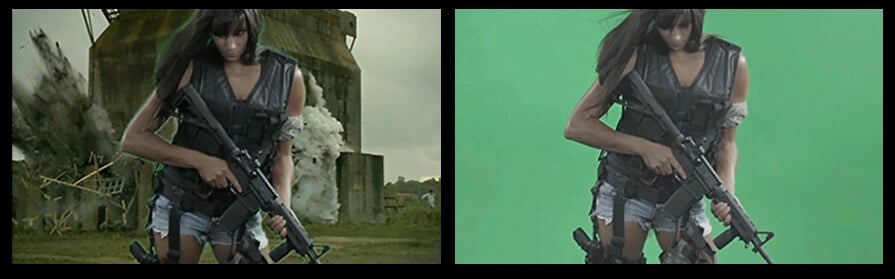
Use o editor de vídeo gratuito para criação e edição de vídeos de qualquer complexidade. Corte vídeos, aplique efeitos visuais e de áudio, use filtros e correção de imagem, faça apresentações de slides, adicione uma trilha sonora. Use Chroma Key e outras funções avançadas. Todos os formatos populares são suportados.
Conversor de vídeo
Converta vídeo de um formato para outro. Todos os formatos de vídeo mais populares são suportados - AVI, MOV, QT, MP4, M4V, MPEG, WMV, FLV, MKV, RealVideo (RM e RMVB), 3GP e 3G2. Prepare seus arquivos multimídia para reprodução instantânea em qualquer formato e em qualquer dispositivo.
Conversor de áudio
Converta arquivos de áudio de um formato para outro. Todos os principais formatos e codecs de áudio suportados. Você também pode gerenciar listas de reprodução e meta tags, extrair o áudio de arquivos de vídeo e salvar faixas em seu dispositivo em qualquer formato.
Gravador de CD de áudio
Tire faixas de áudio de CDs e guardá-los em qualquer formato no seu PC. Quase todos os formatos e codecs de áudio são suportados. O programa pode remover detalhes da faixa do servidor FreeDB para renomeação de arquivos automática e atualização de meta tags.
 Editor de vídeo
 Conversor de vídeo
 Conversor de áudio
 Gravador de CD de áudio

Multifuncionalidade
Uma ampla gama de ferramentas de processamento multimídia em um pacote de software de vídeo gratuito.

Alta velocidade
Algoritmos de nossos programas são rápidos e otimizados para CPU de núcleo único e múltiplos núcleos.

Disponibilidade
VSDC está disponível gratuitamente para PCs e laptops com sistema operacional Windows.
News:
- published Amy Shao 6/10/25 A espera por algo novo e incomum finalmente acabou!...
- Nesta temporada de festas, celebramos novos começos com a mais recente atualizaç...
- A mudança é sinônimo de melhoria, e esse processo não seria possível sem a sua c...
- Introdução Em 2024, a gama de opções para criar efeitos visuais é incrivelment...
How to change image or video color with gradient tool in VSDC
The Gradient tool allows you to make a gradual blend between various colors. Photo and video making experts and those who are tech-savvy enough can benefit from ´Gradient´ tool in VSDC Video Editor to make their own smooth video transitions, apply advanced multiple color correction and create gradient background for text and subtitles. You can choose from gradient presets or create your own.
In this instruction, you can see an example how the eye color is changed in a few steps.
At first, add an image or a video where you'd like to change colors to the editor.
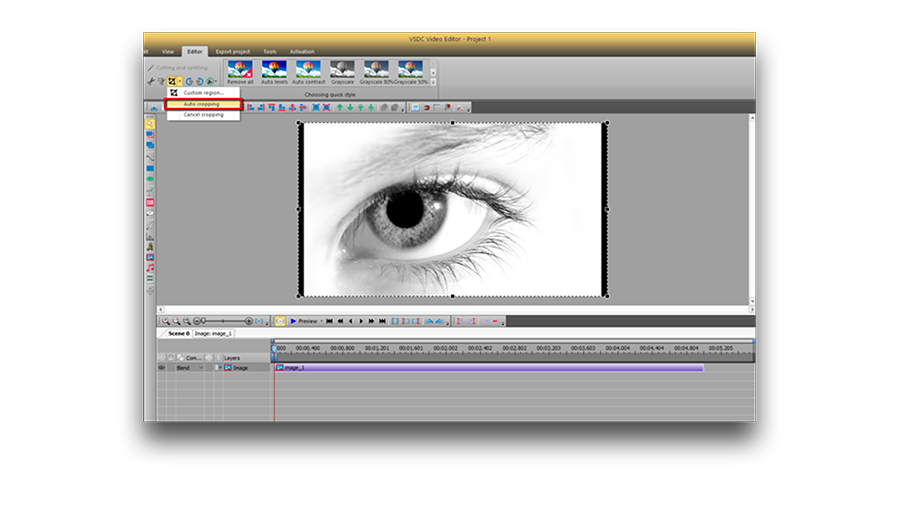
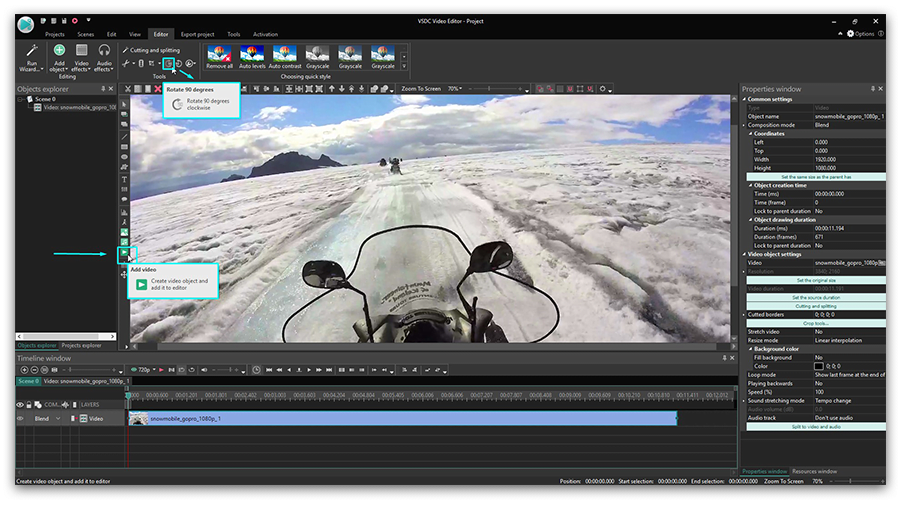
If it’s necessary, apply auto cropping. The corresponding button is on upper the toolbar. This option helps you to get rid of black bars in an image or a video and makes the object fit the scene.
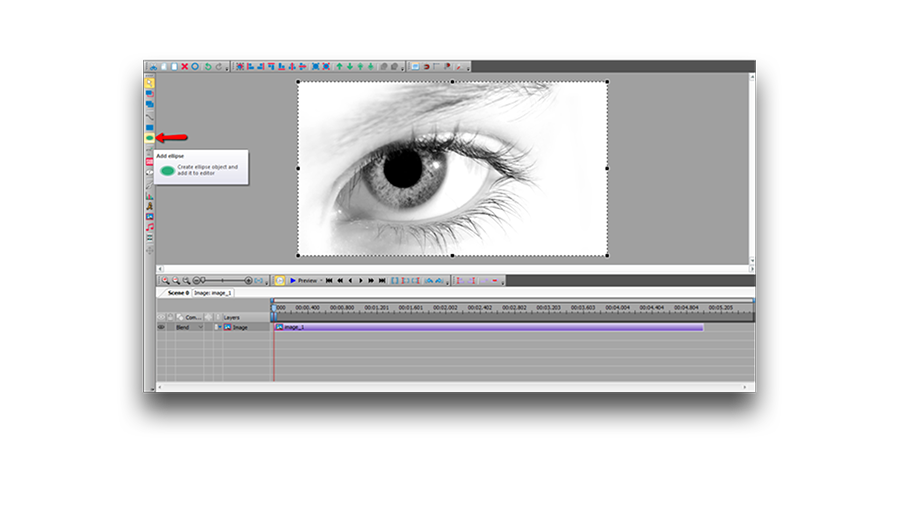
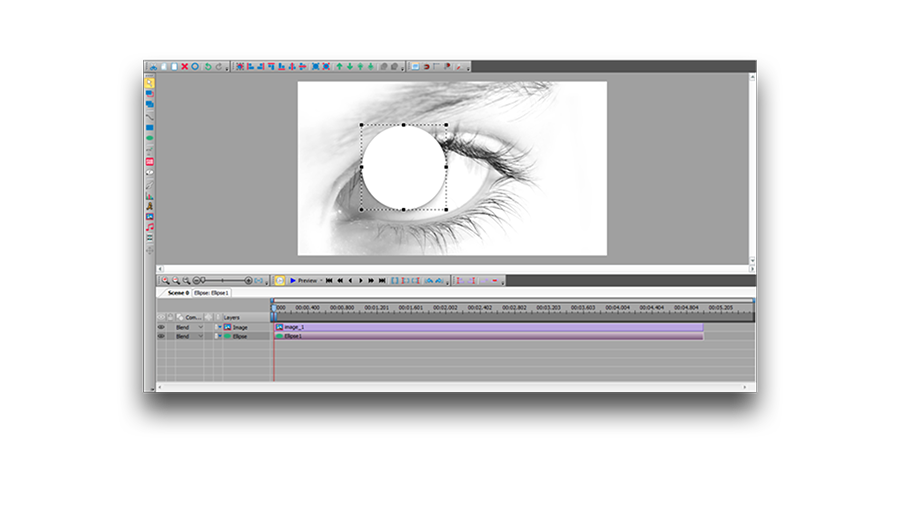
After that, add a shape. In this case, we use the ellipse. You can find different shapes on the left toolbar. Then place it over the required area.
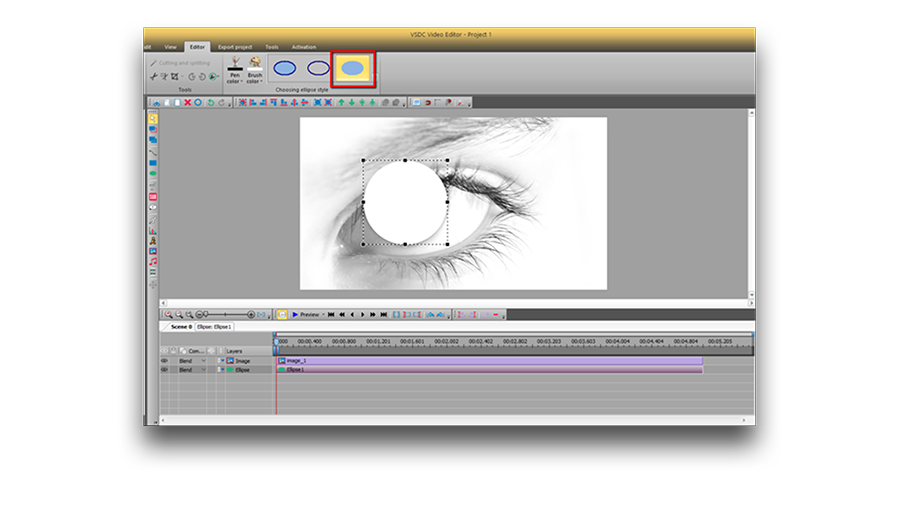
After that, select a colored type without borders on the bar above the scene.
Make a double click on the ellipse layer and add one more ellipse in order to apply the gradient tool on.
Then place it over the needed area.
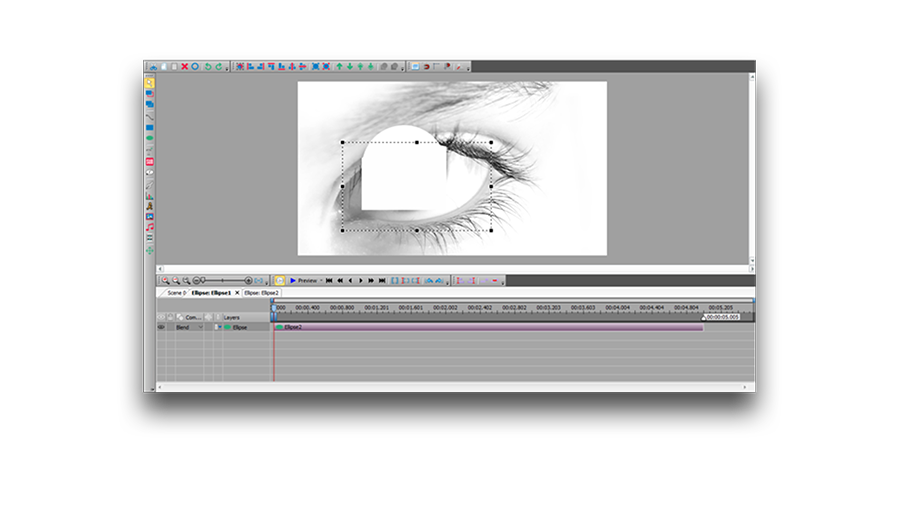
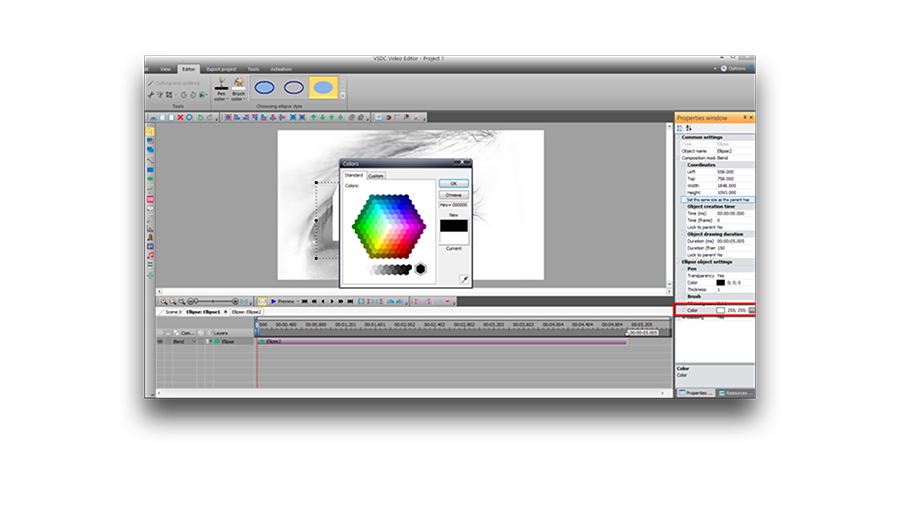
Select a black color and adjust its position to cover the targeted area. To change the color of the ellipse, go to the properties window and click on the color option in the object settings.
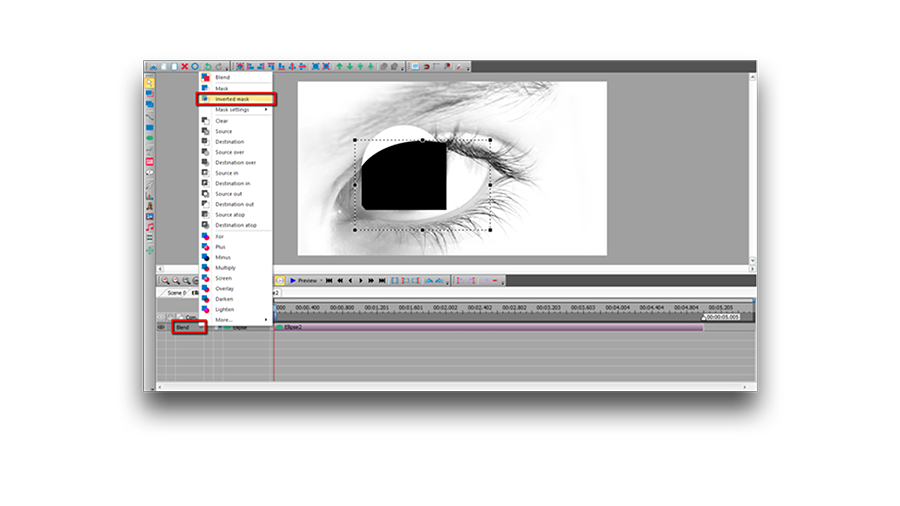
Select an inverted mask from compositing modes on the timeline.
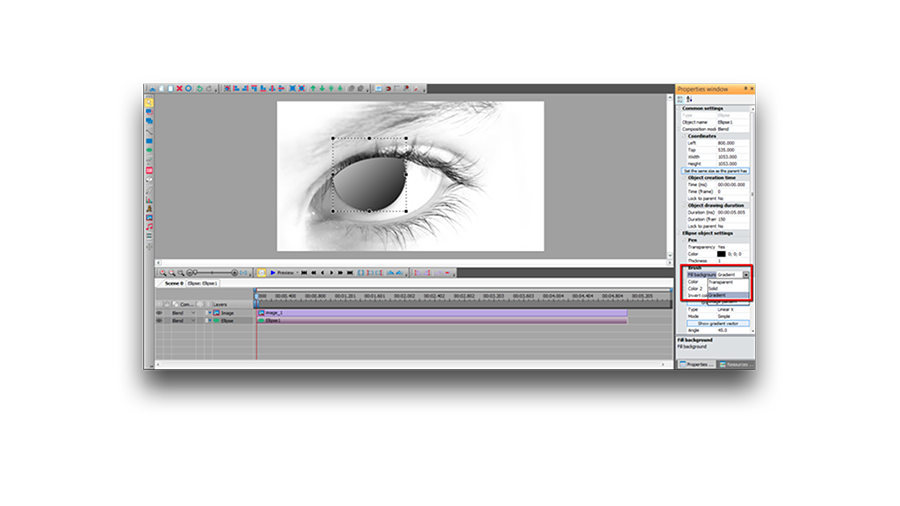
Go to the main scene, highlight the ellipse and apply the gradient tool. Go to the object setting and in “Fill background” select “Gradient”.
Open gradient settings and select the appropriate gradient type.
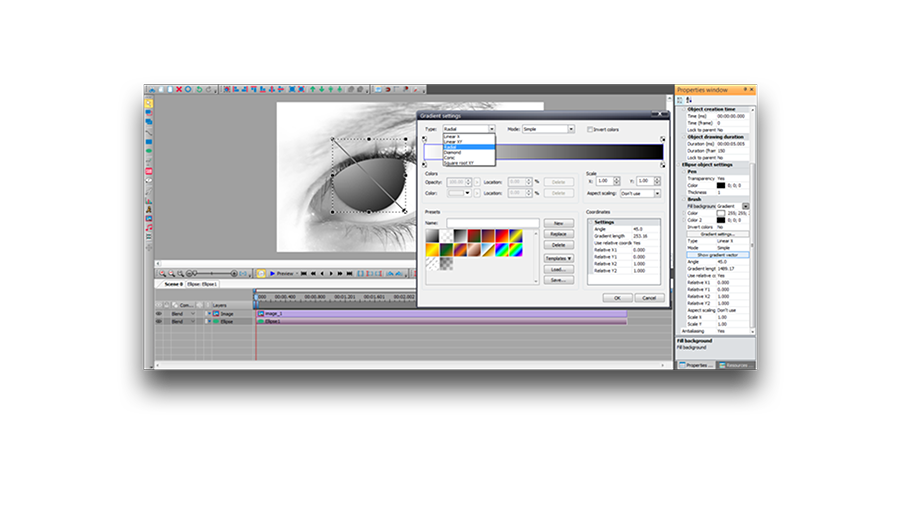
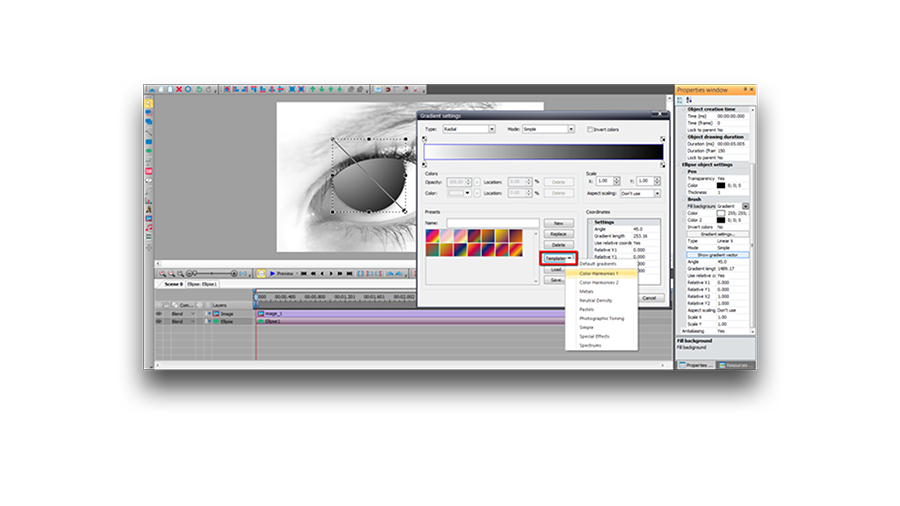
Among presets and templates select the one you like most of all.
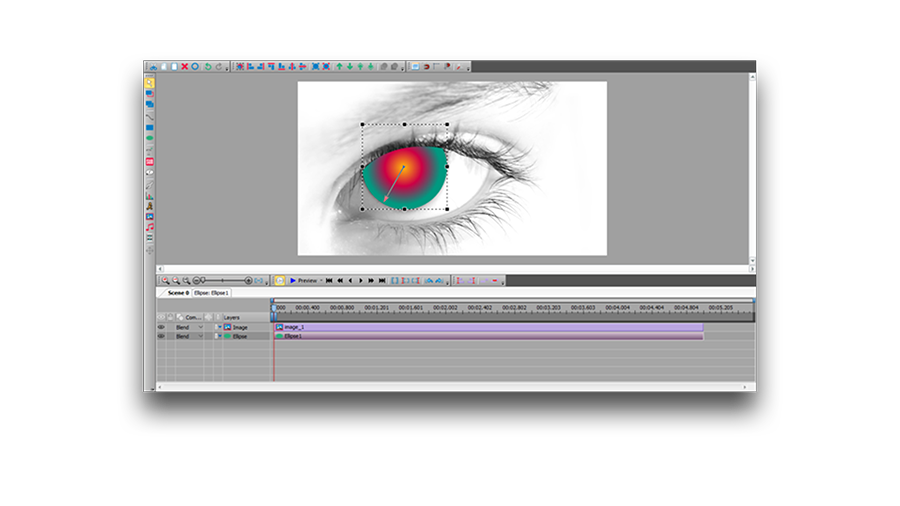
Adjust the gradient vector.
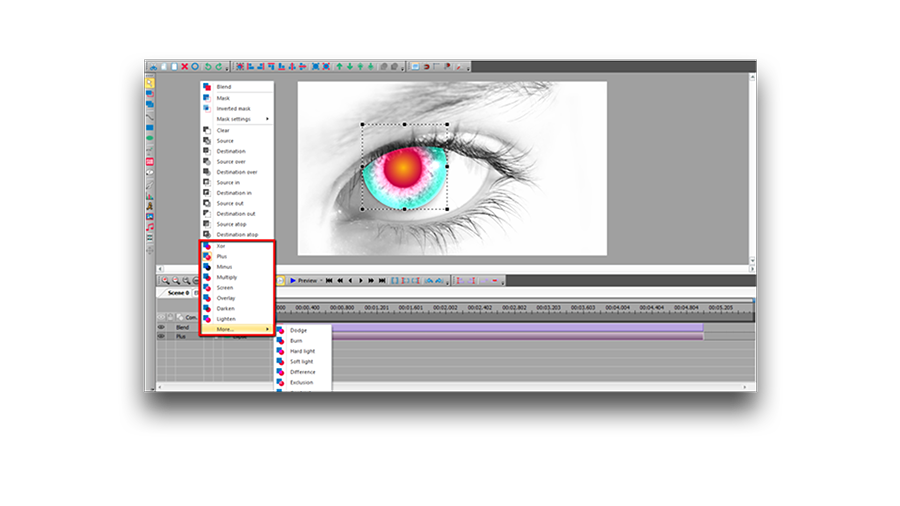
To reach the desired result, apply different blending modes.
You can get more information about the program on Free Video Editor' description page.
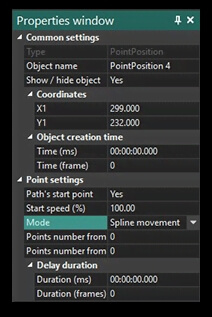
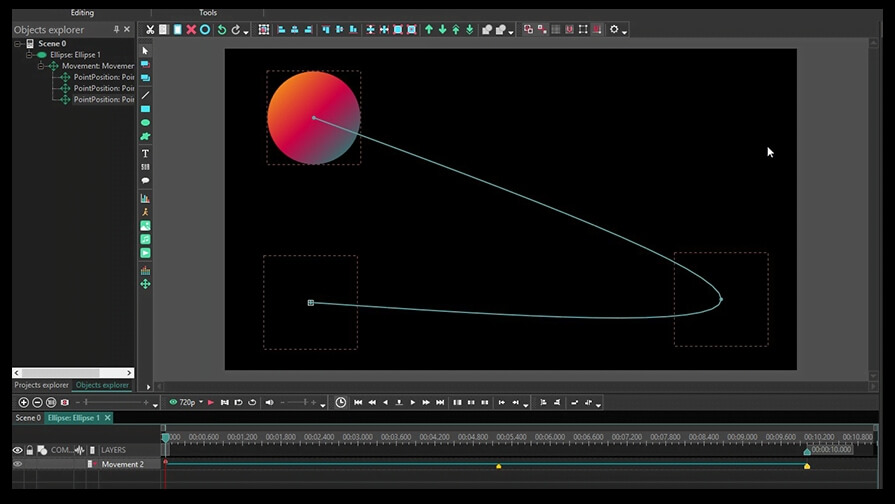
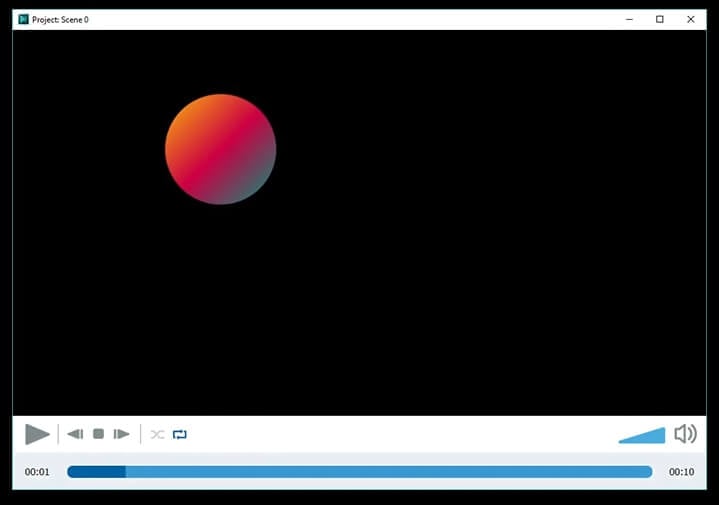
 O cursor assumirá a forma de mira, permitindo que você especifique a posição de um novo objeto na cena. Você verá um quadrado preto representando uma posição inicial, que pode ser substituído por uma imagem mais tarde.
 correspondente na barra de ferramentas ou clicando no botão Adicionar objeto na aba Editor e selecionando a opção Movimento no menu.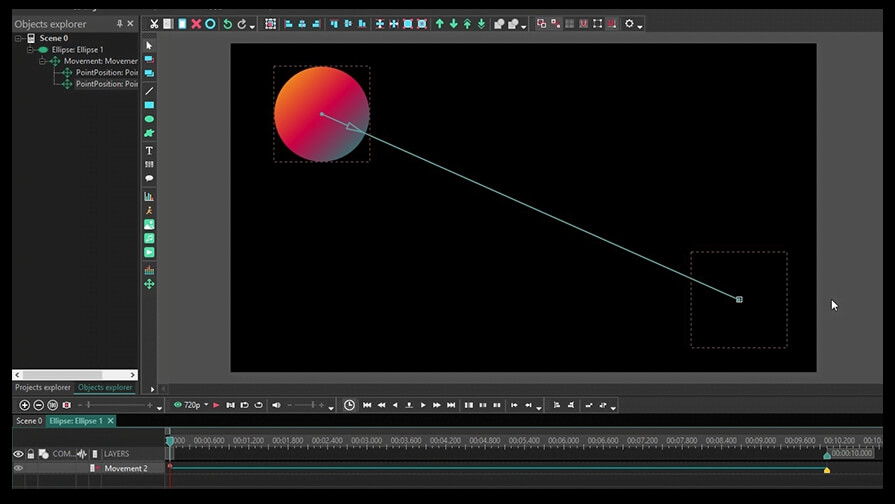




Ferramenta de captura de sua Área de Trabalho, que lhe permite salvar essa captura em um arquivo de vídeo e processar no editor.

Um programa para capturar vídeo de dispositivos externos. Você pode salvar o vídeo de sintonizadores de vídeo, câmeras web, placas de captura e outros dispositivos.

"VSDC Free Video Editor is a surprisingly powerful, if unconventional video editor"
- PC Advisor

"This video editor gives you tons of control and editing power"
- CNet

"The editor handles many common formats and boasts a good deal of capabilities when it comes time to alter lighting, splice video, and apply filters and transitions in post production"
- Digital Trends
 Like us on Facebook
 Follow us on Twitter
 Watch us on YouTube
 © 2011-2025, www.videosoftdev.com, FLASH-INTEGRO LLC. Política de privacidade | Termos de uso | Sobre nós
Todas as marcas comerciais mencionadas neste documento são de propriedade exclusiva de seus respectivos proprietários.
A cópia de qualquer material deste site é permitida apenas com o consentimento por escrito da Administração do Site.