


動画編集
家族のグリーティングカードから会社のプレゼンテーションまでのどんな複雑性でも動画を作成できるように、動画編集 フリーウェアを使用しています。 カットをはじめて、動画ファイルの併合、視覚効果や効果音やフィルターや画像修正などの適用、適当なサウンドトラックの追加、スライドショーを作成できます 。動画がプロフェツショナルに見えるように、クロマキーおよび詳細設定を使用してください。 全ての人気の動画形式/音声フォーマットをサポートしています。
ビデオ変換器
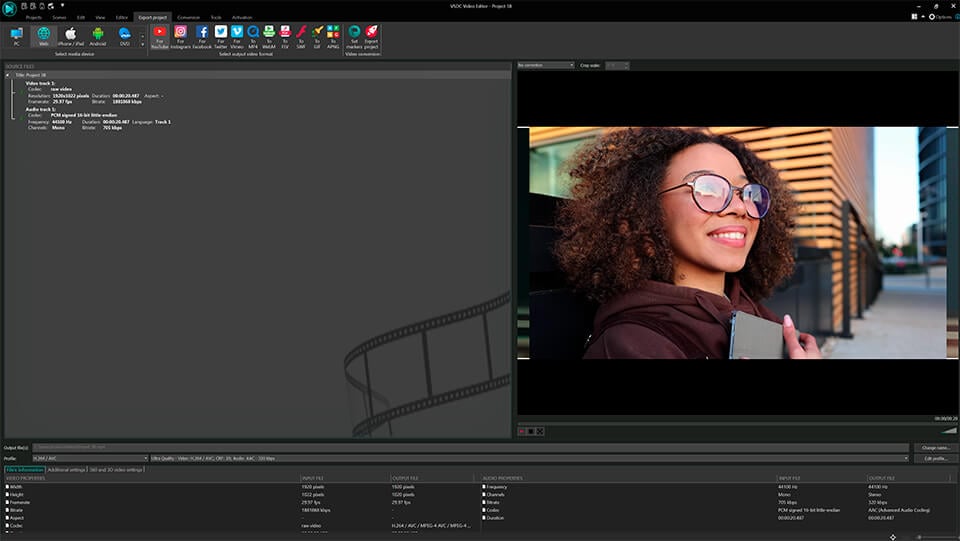
このプログラムは他のフォーマットにビデオを変換することに志向されます。人気のビデオフォーマットの大半をサポートしています。(読込みと保存)その上、プログラムは特定のマルチメディア装置で、例えばiPhone、 Microsoft ZuneまたはArchos、再生するためにビデオを変換するタスクを大幅な簡素化します。プログラムは非常に簡単で使用するし、モダンインターフェースがあるし、必要なビデオ処理の機能があります。
オーディオ変換器
オーディオ変換器は他のフォーマットにオーディオファイルを変換します。基本的なオーディオフォーマットとコーデックをサポートしています。プログラムはプレイリストとメタタグを管理し、ビデオファイルからオーディオを抜き出して、パソコンでどんなフォーマットでもこのトラックを保存させます。
オーディオCDグラバ
このオーディオツールはオーディオトラックをグラブし、ユーザーのパソコンでどんなフォーマットでも保存するように使えます。人気のビデオフォーマットとコーデックの大半をサポートしています。プログラムはまた自動のファイルのリネームし、メタタグを更新のためにFreeDBからトラックの詳細を抜き出すことができます。
 動画編集
動画編集 ビデオ変換器
 オーディオ変換器
 オーディオCDグラバー

多機能性
1つのビデオソフトウェアのスイートではマルチメディア処理ツールの広い配列があります。

高速度
シングルコアやマルチコアのCPUに最適化した高品質と高速なアルゴリズムを使用します。

費用を負担できること
VSDCはWindows OSベースのPCとラップトップに無料でダウンロードできます。
News:
- published Amy Shao 6/10/25 待ちに待った新しくてユニークなアップデートがついに登場!これは単なるバージョンアップではありません...
- このホリデーシーズンは、VSDC Video Editorの最新アップデートと共に新しい始まりを迎えましょう!皆様のフィードバックを受けて、最も愛されているツー...
- 変化は改善に関するものであり、このプロセスはあなたのご意見なしでは実現できませんでした。あなたのフィードバックを慎重に確認した結果、いくつかの重要な問題に対処し...
- イントロ 2024年、ビジュアルエフェクトを作成するためのオプションの範囲は非常に多様化しており、トップの選択肢を特定することがますます困難になっています。...
VSDC無料動画編集でクリップや画像をブレンドする方法
「描画モード」を使用すると、独自の視覚効果とフィルタを作成できます。例えば、いわゆるゴースト効果ということを作成し方を見ましょう。
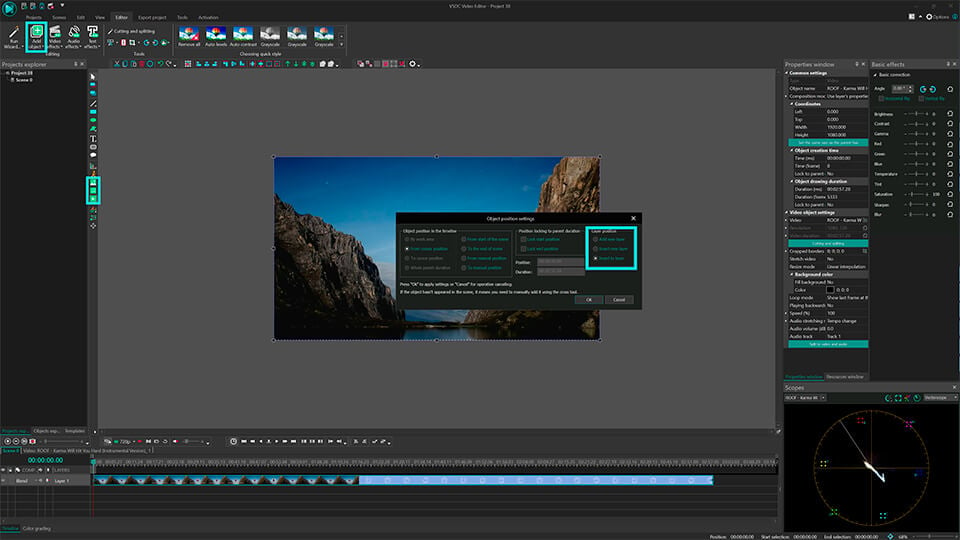
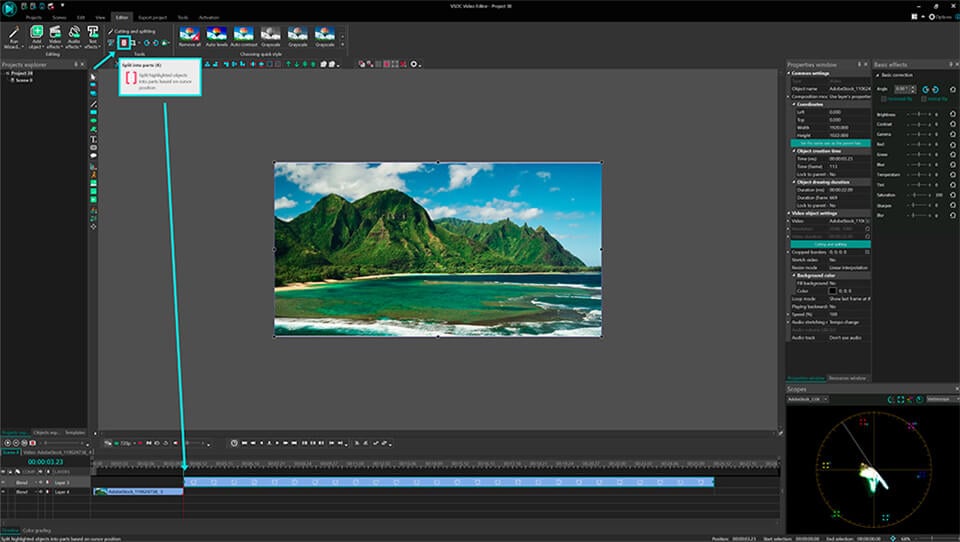
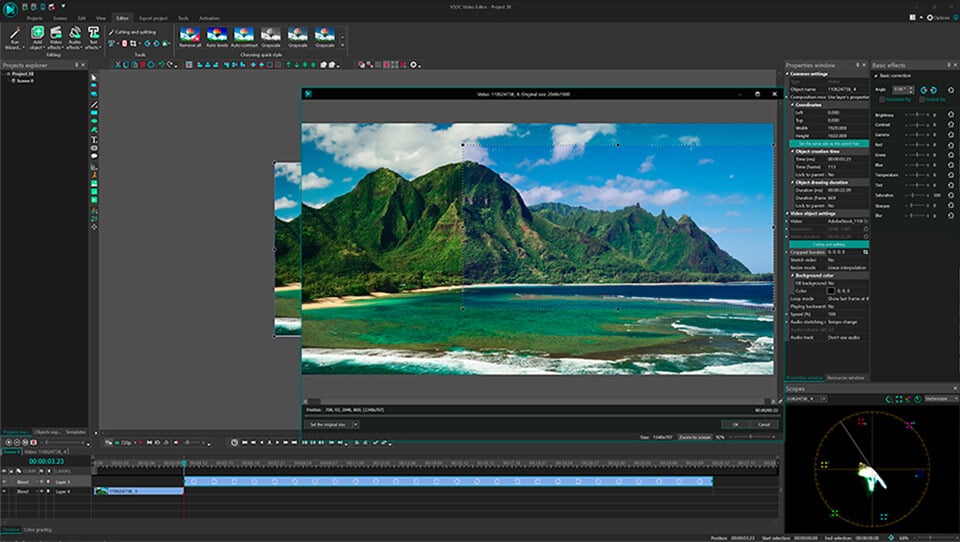
ゴースト効果を適用したい動画を追加します。動画はシーンにぴったり合うようにするに、「動画の伸縮」のオプションで「はい」をクリックします。
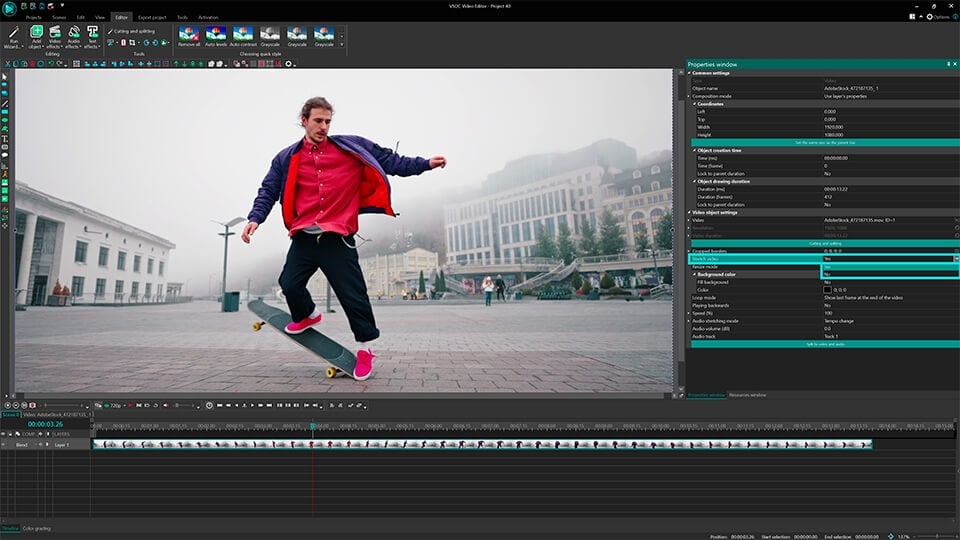
ヒント:シーンにぴったり合うようにするに、内容をインポートのオプションを利用して動画を追加します。
ゴースト効果のため、オブジェクトは異なる種類や色ある輪郭のいくつかを取得します。この効果を達成するには、できるだけ多く同じビデオレイヤを追加する必要があります。
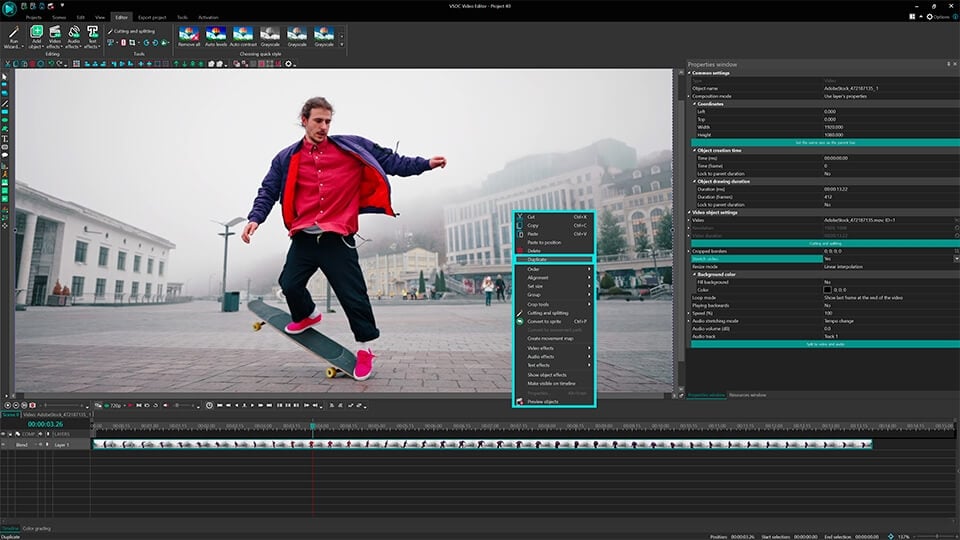
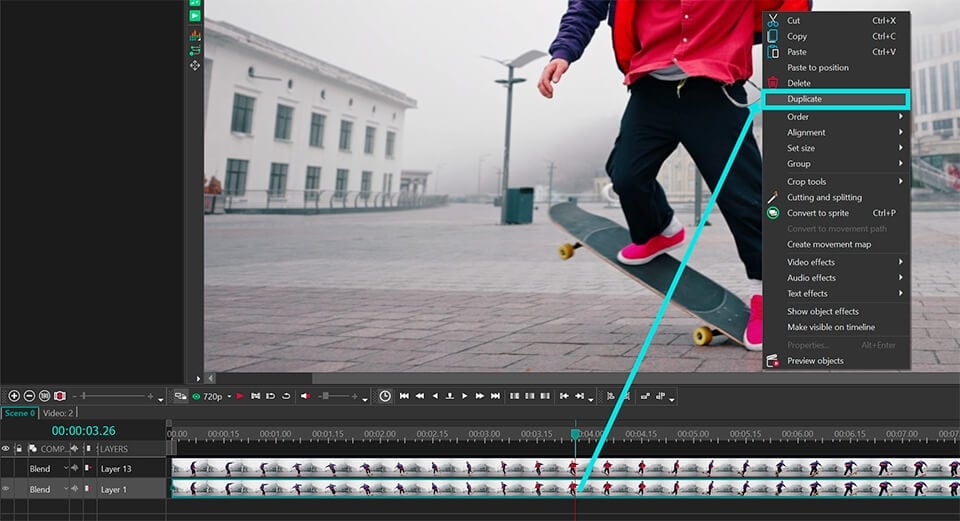
追加された動画のすべては同じサイズでなければなりません。このため、挿入した動画の全てを複製することをお勧めします。シーンの元の動画をマウスの右ボタンでクリックして、「複製」オプションを選択します。複製されたレイヤーは即座にタイムラインに表示されます。
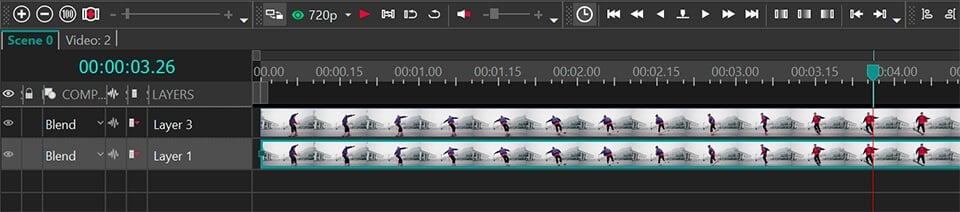
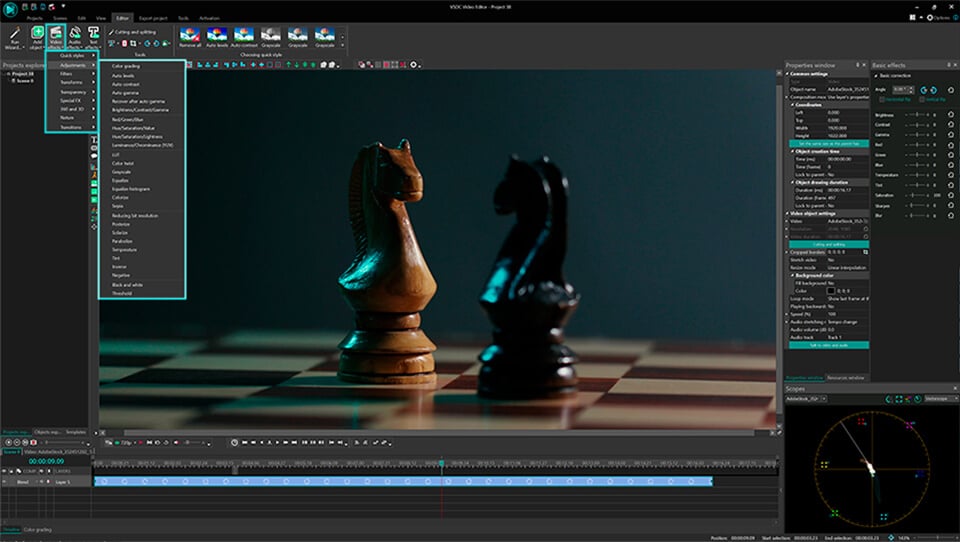
一番面白い部分は、次のとおりです。描画モードをビデオレイヤーの1つに適用します。フィルタを適用するレイヤー(タイムライン上)をダブルクリックして「長方形」ツールを選択します。
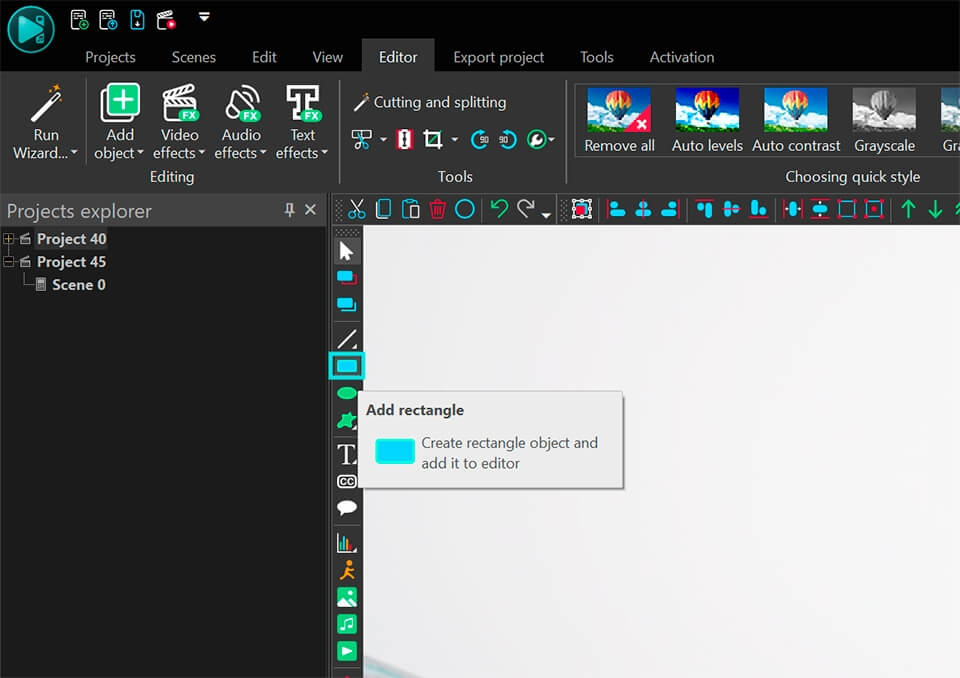
全体のシーンの上に長方形を配置します。
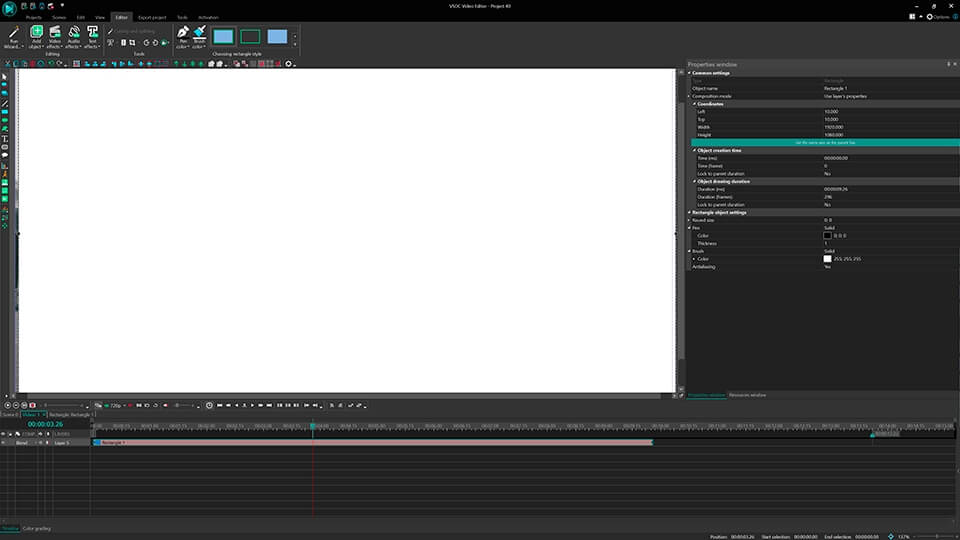
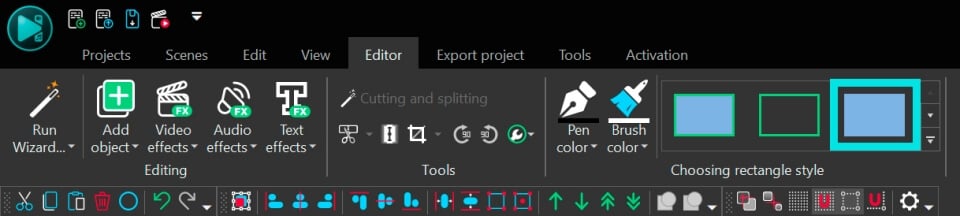
ヒント:フレームがないし、色で塗りつぶされた長方形を選択ます(3番目のタイプ):
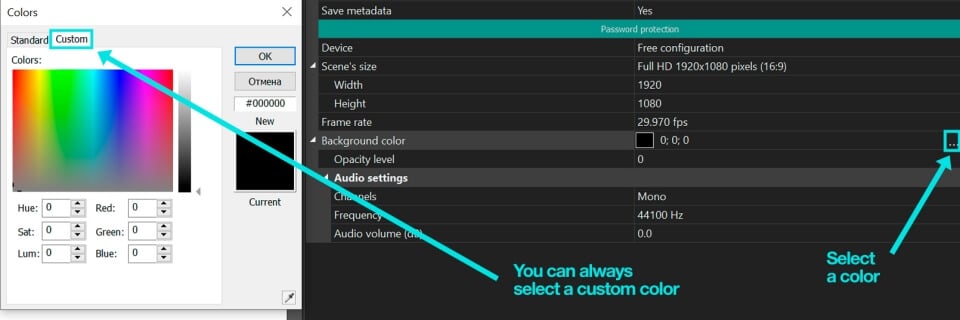
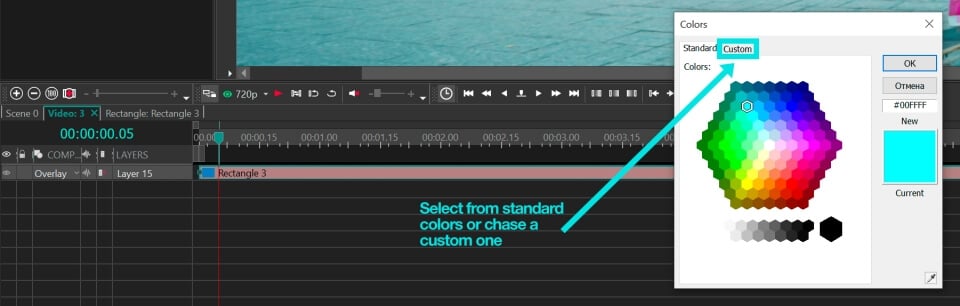
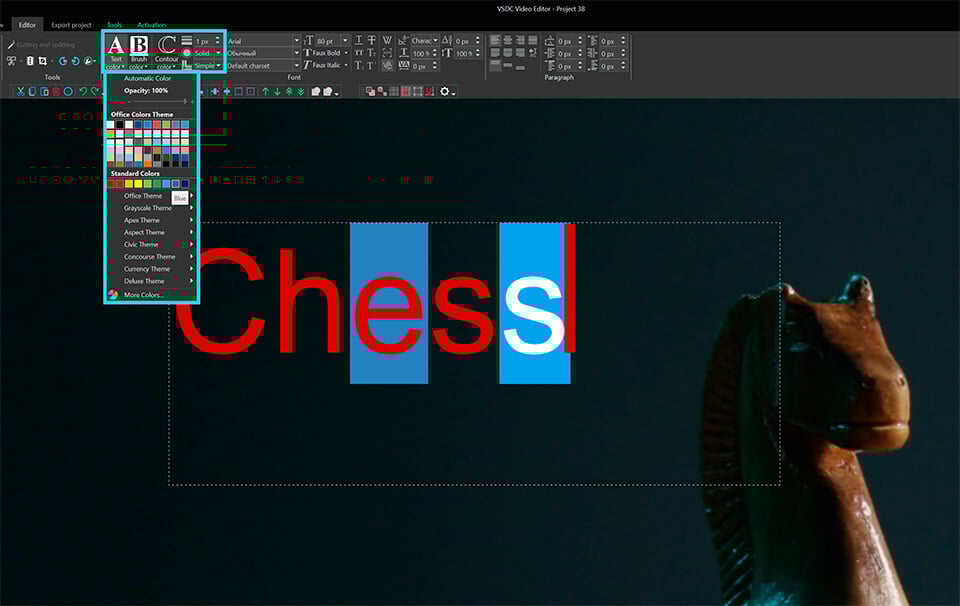
「プロパティ」ウィンドウに移動して、長方形の色を選択します。
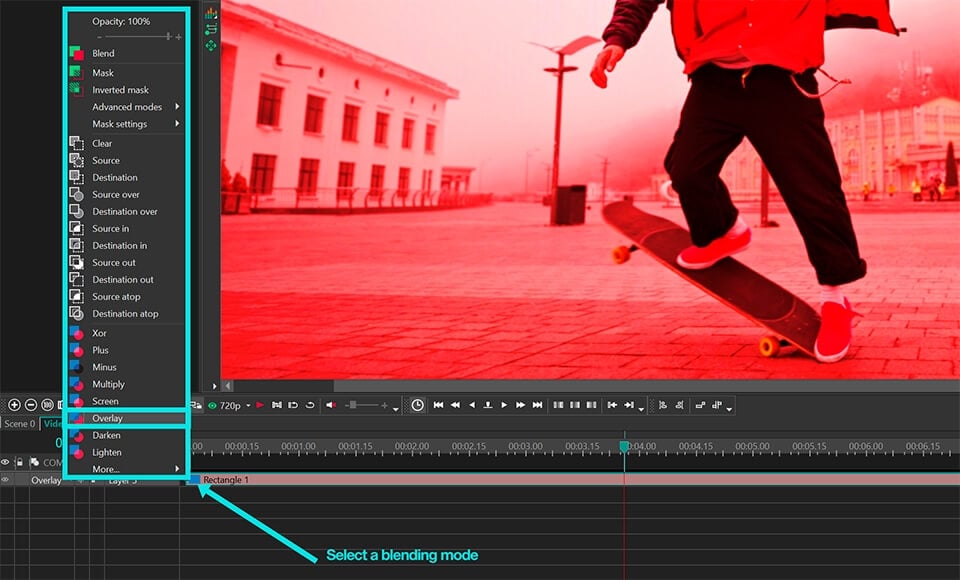
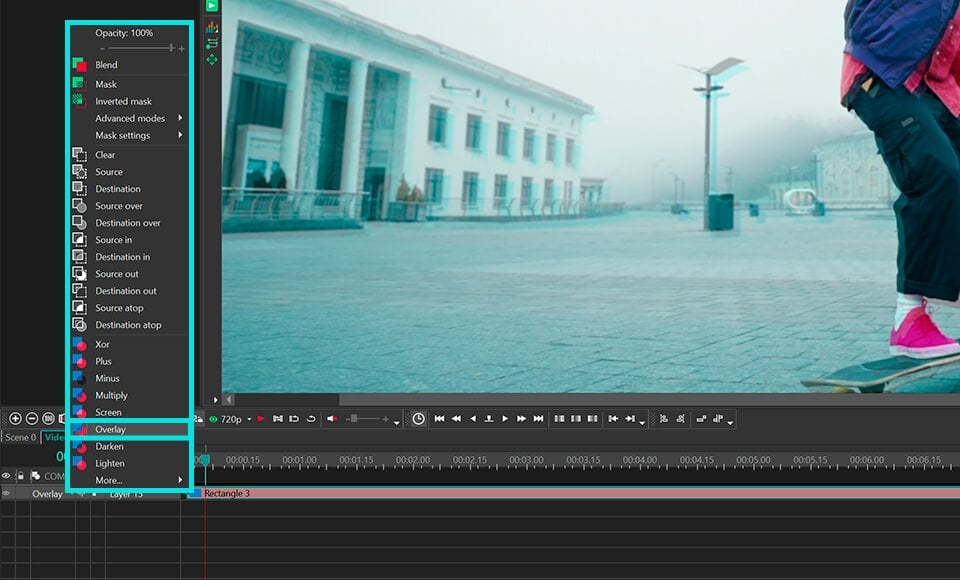
描画モードのタイプを変更するには、「コンポジションモード」タブで適切な描画のタイプを選択します。
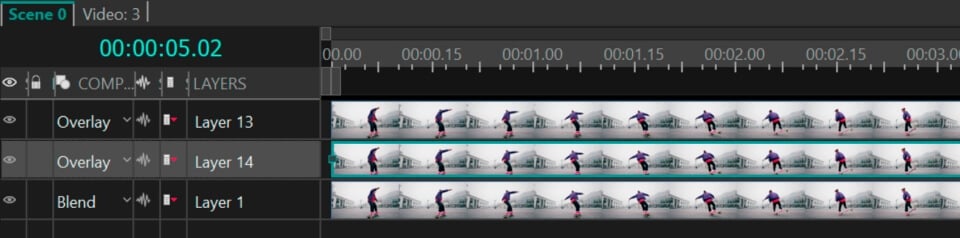
ゴースト効果をもっと印象的にするには、もう1つレイヤーを追加しましょう。メインシーンに移動して、ブレンドしたレイヤーを複製し、シーンのサイズに合わせて伸ばします。
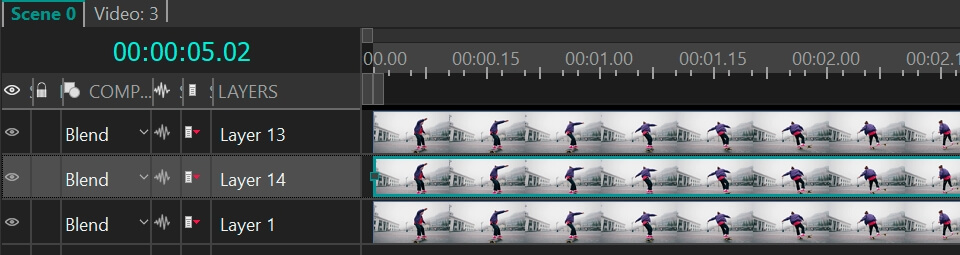
複製したレイヤーをダブルクリックして長方形の色を変更します。(ここに長方形があるのはなぜですか?それは簡単です。以前に矩形を追加したところでブレンドレイヤーを複製したのです)
ヒント:最高の効果を達成するには、異なるレイヤーにコントラストの色を使用してみてください
タイムラインの「コンポジションモード」のメニューで描画モードの1つを選択します。
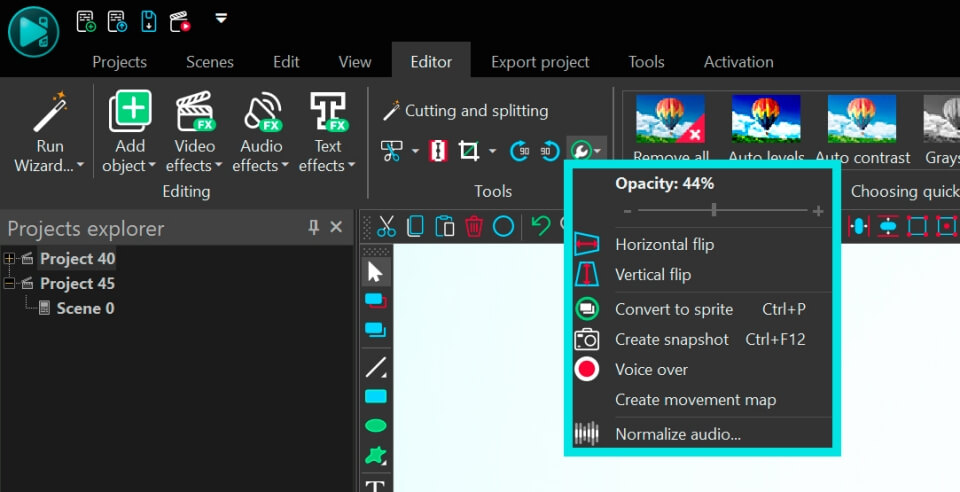
ブレンドレイヤーをよりファントムにするには、透明度を調整しましょう。ブレンドしたレイヤーの1つをダブルクリックして長方形の不透明度を下げます。
それで、マルチ輪郭効果を達成するには、ブレンドしたレイヤーを移動してみましょう。メインシーンに移動して、マウスでレイヤーをドラッグアンドドロップするだけでレイヤーの位置を変更できます。
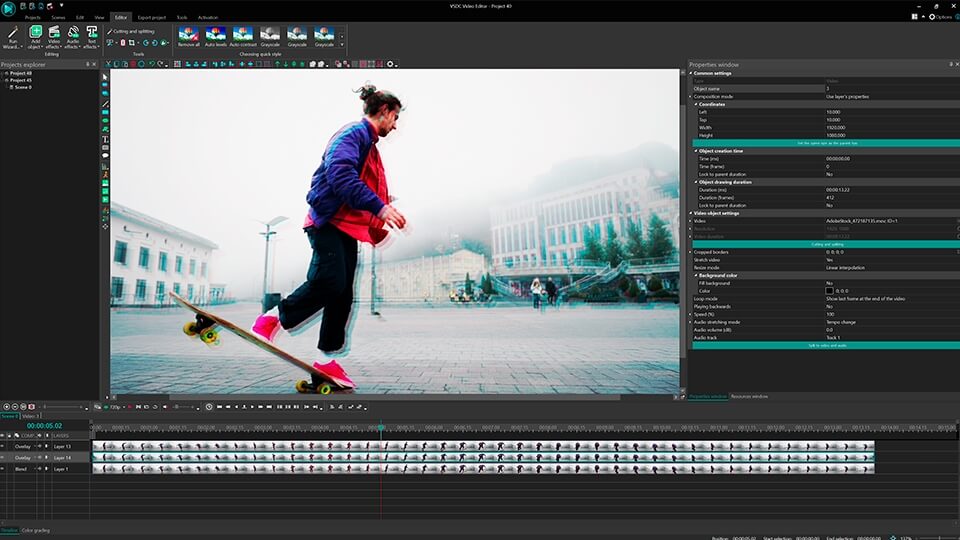
ヒント:最良の効果を達成するには、メインシーンでブレンドモードや透明度を変更します。
無料動画編集の説明ページでプログラムに関する詳細な情報を得ることができます。
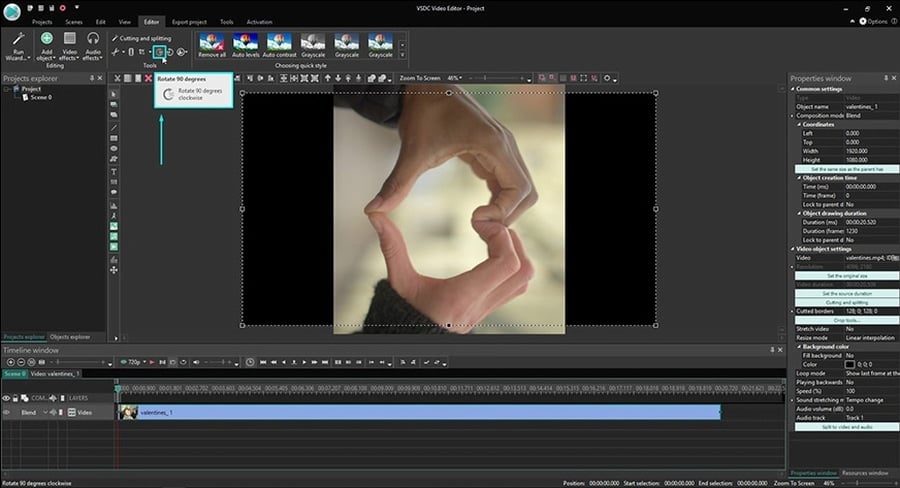
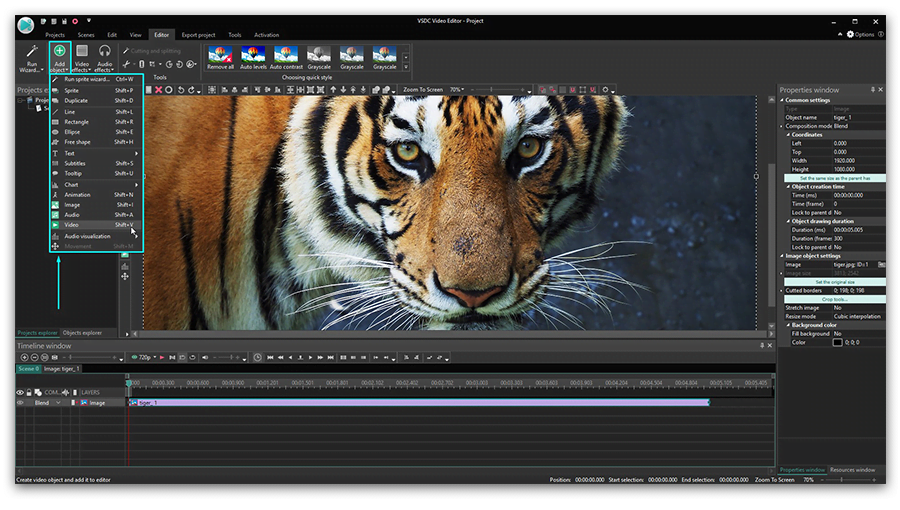
 ボタンをクリックします。後で、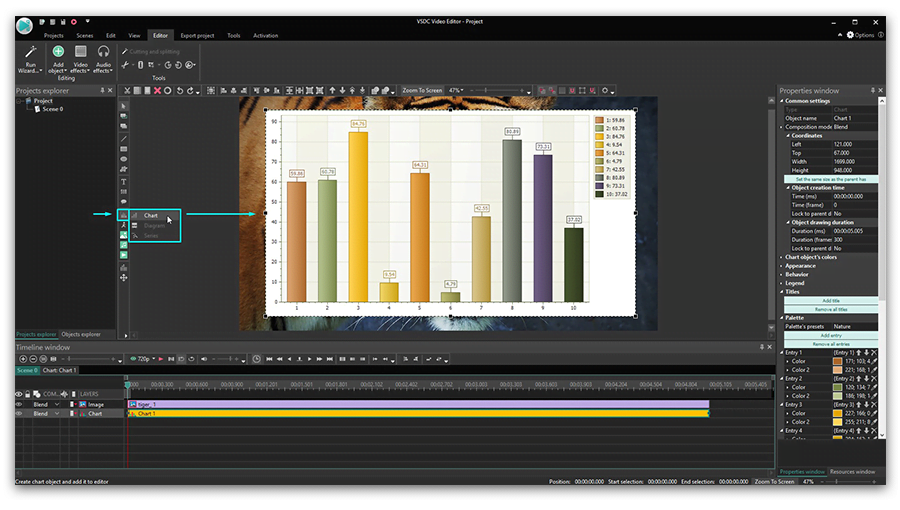

このプログラムは、あなたのデスクトップのビデオをキャプチャし、パソコンで様々なフォーマットでも動画を保存できます。プログラムは、動画編集と結合して、プレゼンテーションの作成や、チュートリアルや、デモビデオのためにすごいツールです。

このプログラムは外部の装置からビデオをキャプチャーし、自由なフォーマットでパソコンに記録します。ビデオチューナーや、ウェブカメラや、キャプチャカードなどからビデオを保存できます。

"VSDC Free Video Editor is a surprisingly powerful, if unconventional video editor"
- PC Advisor

"This video editor gives you tons of control and editing power"
- CNet

"The editor handles many common formats and boasts a good deal of capabilities when it comes time to alter lighting, splice video, and apply filters and transitions in post production"
- Digital Trends
 Like us on Facebook
 Follow us on Twitter
 Watch us on YouTube
 © 2011-2025, www.videosoftdev.com, FLASH-INTEGRO LLC. Privacy policy | Terms of use | About us
本サイトに表示されている全ての商標はそれぞれの所有者の財産です。
書面による許可のない限り、本サイトからの情報および資料をコピーすることを認められません。