 User Help Manual


Editor Video
L'editor video consente di modificare file e creare video di qualsiasi complessità. Potete applicare effetti video e audio effects ad oggetti modificati, trasformarli, applicare filtri e correzioni d'immagini. Tutti i popolari formati video e audio sono supportati (sia lettura che salvataggio).
Convertitore Video
Questo programma serve a convertire video file da un formato ad un altro. Quasi tutti i popolari formati video sono supportati. Inoltre, il programma semplifica drasticamente il compito di convertire video da riprodurre su determinati dispositivi multimedia quali iPhone, Microsoft Zune oppure Archos. Il programma è semplicissimo da usare, dispone di una moderna interfaccia e di tutte le necessarie funzioni per processare i video.
Convertitore Audio
Il convertitore audio vi aiuterà a convertire file audio da un formato ad un altro. Tutti i formati audio e codec chiavi sono supportati. Il programma vi consente inoltre di gestire playlist e meta tags, di estrarre audio dai file video e di salvare queste tracce sul vostro computer in qualsiasi formato.
Animated Intro & Title Templates
Explore the VSDC Template Store with ready-made video templates for intros, animated titles, lower thirds, logo reveals, slideshows, glitch transitions, LUTs, and color grading presets. Drop a template into the VSDC Video Editor timeline, edit text, timing, and colors, and finish professional video projects in minutes.
Choose from 300+ exclusive packs of video transitions, LUT packs, text effects, GPS telemetry widgets, animated elements, and animated backgrounds for VSDC. All templates are fully customizable, support up to 4K resolution in 16:9, and help you build intros, wedding slideshows, travel videos, and tutorials much faster.
VSDC Cloud - Online video management
Keep your work safe, organized and always accessible! Back up your video projects, store media files online and access them from any device. Enjoy collaboration, share project updates and exchange files easily.
 Editor Video
 Convertitore Video
 Convertitore Audio
 Store templates
 Cloud
Cloud

Versatilità
Più strumenti contemporaneamente per elaborare file video e audio in una singola applicazione.

Alta velocità
I nostri programmi
impiegano rapidi algoritmi di alta qualità per processori singoli a multipli.

Accessibilità
I nostri prodotti sono disponibili per essere scaricati gratuitamente su tutti i computer e dispositivi che supportano i sistemi operativi Windows.
Notizie:
- Pubblicato da Amy Shao l’11 marzo 2026 Qual è il regalo migliore pe...
- pubblicato da Amy Shao 19/11/25 Ecco l'attesissimo aggiornamento VSDC 10.2: ...
- Ciao, sono Mattea Wharton, una videomaker di viaggi di Seattle. Per tre anni ho ...
- published Amy Shao 6/10/25 L'attesa per qualcosa di nuovo e straordinario è ...
Working with the Timeline
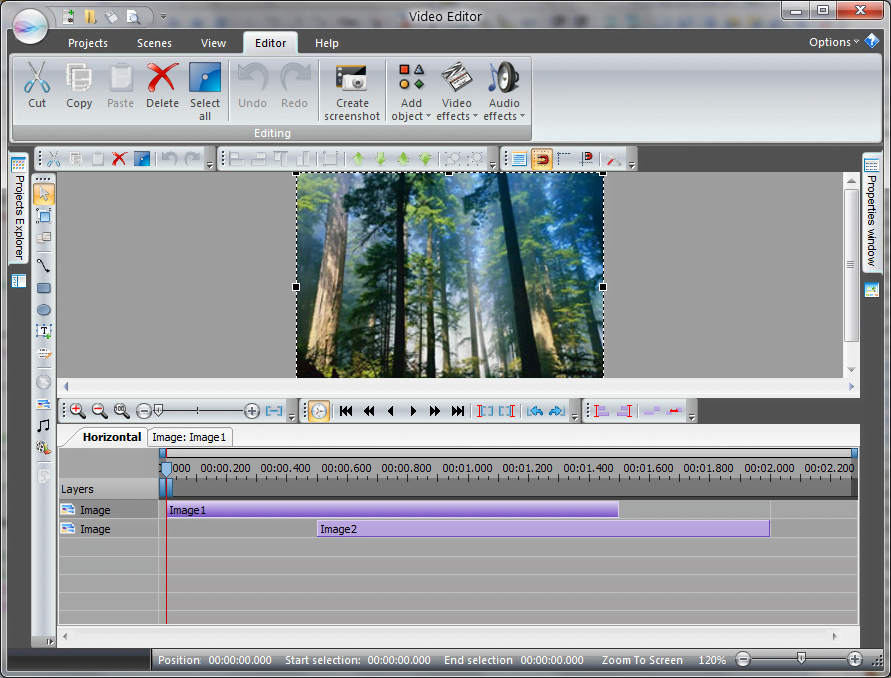
The Timeline area located under the Scene area is the main editing tool of the program. It represents a time scale with several layers designed for the media files you load to your project, graphical objects you add and various effects you apply. It also has many useful buttons and options helping you achieve the best result. You may watch our video guide to see how the main timeline options work but a more comprehensive toolset is described below:
The main elements of the Timeline area are the following:
- Cursor: This is a red vertical line indicating the moment shown in the scene area. You can move the cursor with the mouse or using the appropriate buttons on the toolbar.
- Cursor position: This bar is an information area located on the left from the time scale that shows you the cursor position value (in milliseconds and in frames). You can also use it to move the cursor to a particular position. Just double click there and enter a new value.
- Time scale area: This is a gray horizontal line with time marks along which the cursor moves.By right-clicking the time scale area the following options become available:
- Move cursor to begin: Use it to move the cursor to the very beginning.
- Move to previous keyframe: Use it to move the cursor to the previous keyframe position.
- Move to previous second: Use it to move the cursor to the previous second of the video.
- Move to previous frame: Use it to move the cursor to the previous frame of the video.
- Move to next frame: Use it to move the cursor to the next frame of the video.
- Move to next second: Use it to move the cursor to the next second of the video.
- Move to next keyframe: Use it to move the cursor to the next frame keyframe position of the video.
- Move cursor to end: Use it to move the cursor to the end of the video.
- Set cursor position: Use this option to set a precise position for the cursor.
- Work area: This area is located above the file on the timeline and helps you work with more accuracy on a particular part of a video. To adjust this area, move gray rectangles under the time scale to achieve necessary positions at the beginning and at the end of the desired fragment. After that, you will be able to zoom in this fragment by clicking the Scale by work area button. You can adjust this area by using the corresponding buttons on the timeline or by right-clicking on the work area, unlocking a context menu. This menu offers the following options:
- Scale by work area: Use it after setting the work area to work only with the selected section.
- Set work area: Use it to set the work area so that it fits the selected object.
- Start work area: Use it to set the beginning of the work area by the cursor position.
- End work area: Use it to set the end of the work area by the cursor position.
- Move work area: Use it to move the work area so that it starts at the cursor position.
- Align work area: Use it to move the work area so that it ends at the cursor position.
- Synch with key editor: Use it to synchronize the timeline with Key editor for working with keyframes parameters.
- Scale work area: This is a narrow line above the Time scale area. Here you can easily find the cursor position which is represented by a blue mark. You can zoom the timeline by dragging the edges of the scale work area for your convenience.
- Show/hide object: This option is located on the left of the file layer and looks like an eye icon to show/hide the object in the scene area. When the icon is enabled, the object is visually presented on the screen. If there is no icon next to the object, you cannot see it on the screen or perform any actions with it.
- Lock/unlock object: This option is located on the left of the timeline, next to the Show/hide object option and is used to make an object unmovable and unelectable on the scene area. Then the icon is enabled, it is impossible to move or select the object on the screen. You can select it in the timeline area or via Objects explorer. If there is no icon next to the object, the object is unlocked.
- Composition mode: This option is located next to the Lock/unlock object button and is used for blending the current object with another object on the scene. For more information on these modes, you can refer to our guide on VSDC Blending Modes. (It's important to note that blending modes are different from masking). Here you can also adjust the Opacity level of your footage by moving the slider left or right.
- Show/hide waveform: This option is represented by a wave-like icon which is located next to the Composition mode. Use it to adjust the audio waveform of the video file added to the timeline. By clicking this button, the following options are available.
- Show/hide waveform: Use it to display or hide the audio waveform of a video file.
- Signal power: This option allows you to color your waveform signal.
- Resulting signal: This is a waveform with applied effects if there are any.
- Source signal: This is the original signal without any effects.
- Fixed height: Use it to set the size of the waveform for more convenience.
- Show menu: This option is represented by a white vertical rectangle next to the Show/hide waveform option. Use it to show the context menu of the object and use one of the available options. This menu is the same as described below that is also available by right-clicking the object on the timeline.
- Layers: This column is located on the left from the object on the timeline and shows you the name of the layer you work with. You can rename the layer by double-clicking on it which is especially useful when you have to work with dozens of layers in one project.
Timeline Options
This section can be reached by clicking the Options button located in the top right corner of the screen. Timeline options are available in the left-side menu and contain the following:
- Timeline style:This option allows you to select the outlook of the timeline scale, either the latest one (2016), or 2007 if you are used to it.
- Layer order: This option allows you to determine how the layers will be displayed: in rendering order or in the order shown on the scene.
- Timeline scale control: this option contains several available modes. By default, the program doesn’t save the timeline scale. To avoid manual changes every time you switch between objects, select Always save timeline scale (with constant value) or Save timeline scale for every object.
- Scrolling mode during playback: This option is mainly used when the timeline is zoomed in and you want it to follow the cursor during playback.
- Block dragging mode: This option allows you to select one of two appropriate modes from the drop-down list. Using the default method may distort the files sequence when dragging. The second method allows you to group the order of the files.
- General objects settings:
- Object snapping: This value allows you to adjust the distance between objects when moving them on the timeline.
- Add temporary layer while dragging an object: Enabled by default.
- Delete layer if all objects have been deleted: Enabled by default.
- Add videos and images to the end of selected layer by default: Enabled by default.
- Add audios to the end of selected layer by default: Enabled by default.
- Add other objects to the end of selected layer by default: Disabled by default.
- Set cursor position to object’s visible area when switching to editing object mode: Enabled by default.
- Actions that trigger object’s visibility on the timeline
- Selecting an object on the timeline: Disabled by default.
- Selecting an object on the scene: Disabled by default.
- Selecting an object on the object’s tree: Enabled by default.
- Other actions: Enabled by default.
- Other timeline options:
- Show time on timeline by default: Enabled by default.
- Rename layer when click is held: Disabled by default.
- Open several objects in one layer (otherwise they will be opened via a wizard): Enabled by default.
- Use storyboard for videos: Disabled by default.
- Use Shift to trim file from start while dragging the left edge: Enabled by default.
- Show waveform on adding audio: Enabled by default.
Timeline Tools
At the top of the Timeline area, you can see the following toolbar:
Timeline Zoom Tools
- Increase scale: Use it to enlarge the timeline scale.
- Decrease scale: Use it to reduce the timeline scale.
- 100% scale: Use it to set a 100% timeline scale.
- Timeline scale: Use it to find the appropriate scale using a slider.
- Scale by work area: Use it to zoom in a particular moment of the video. First, select a work area moving gray rectangles under the time scale, and then click this button.
Playback Tools
- Show proxy files: Use it to show proxy or montage files.
- Preview: Use it to play the video with the chosen quality and preview the result of your work in a separate window.
- Play/ pause scene: Use it to preview the adjustments directly on the scene.
- Lock area: Use it to preview only the selected area (work area) on the timeline.
- Return cursor: Use it to move the cursor to the very beginning automatically after the preview pauses.
- Loop: Use it to loop the video playback.
- Mute/ unmute sound: Use it to mute the video playback.
- Volume: Use it to adjust the volume of the preview.
Cursor Tools
Some of the tools in this section are described above.
- Show time/ frame: Use it to switch between time scale and frame scale views.
- Move to previous keyframe
- Move to previous second
- Move to previous frame
- Create marker: Use it to add a comment marker and indicate important points on the timeline, or select the segmentation marker type if you want to split your video into parts before export. Note that the comment marker does not actually split your video into parts and will not appear after exporting.
- Move to next frame
- Move to next second
- Move to next keyframe
- Set work area
- Start work area
- End work area
- Move work area
- Align work area
Block Tools
- Cut out fragment: Use it to cut out the selected fragment of your video.If you expand the cutting menu, you will see 4 options available:
- Cut out fragment: This option cuts out the selected area and splits the file into parts.
- Cut out content: This option cuts out the selected area without splitting the file.
- Trim start/end: These options cut the beginning or end of the video without changing the file placement on the timeline or removing blank space.
- Split into parts: Use it to split the video file into two fragments.
- Move blocks: Use it to move blocks (several selected objects) so that they start at the cursor position.
- Align blocks: Use it to move blocks (several selected objects) so that they end at the cursor position.
- Set blocks order: Use it to put blocks (several selected objects) so that the second starts at the end of the first one.
- Set order with offset: Use it to put blocks (several selected objects) so that they follow one by one with offset.
To disable any of these buttons click a small arrow next to each section, select the appropriate button group and uncheck unnecessary buttons. You can enable them or use Reset Toolbar any time later. Under the toolbar described above, you can see the main working space of the Timeline area. There are several tabs allowing you easy navigation between added objects. The tab has the same name as the selected object. Open the tab to apply additional effects to this particular element only.
Working With Objects on the Timeline
Selecting Objects
The timeline allows you to adjust objects in time and visually displays the order of the objects. There is a direct connection between objects in the timeline and objects in the scene editor. For example, when you select an object in the timeline, the same object gets selected in the editor; when you delete an object from the timeline, it is also deleted from the editor and vice versa. In fact, this is the same object shown both in the scene editor and in the timeline. Keep in mind that in order to apply various effects and use different tools the first step to make is always to select the object on the timeline.
Adjusting Objects Position
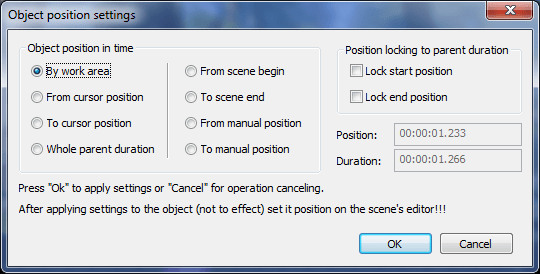
Each object you add while editing occupies its individual line on the timeline area and represents a colored block. You can easily change the duration and the position of the block with a mouse. To change the duration, place the mouse cursor on the block’s boundary (so it becomes a bidirectional arrow) and move it to the left or to the right. To change the position, place the mouse cursor at the center of the block (so it becomes a hand shape) and move the block to the left or to the right. Multiple objects can be placed in different layers and in one layer as well.
Objects Options
You can adjust objects on the timeline using the right-click menu. Here the following options are available:
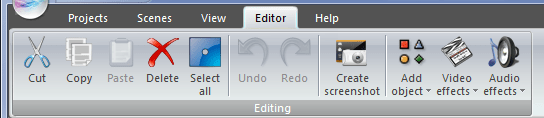
- Cut: Use it to remove the selected object from the scene with a view to paste it to another scene.
- Copy: Use it to copy the selected object with a view to paste it to another place of the scene.
- Paste: Use to paste the object you have previously cut or copied.
- Delete: Use it to remove the selected object from the scene.
- Duplicate: Use it to create a duplicate of an object.
- Layers: Use it to manage layers in your project:
- Add layer: a new layer will be added at the very top;
- Insert layer: a new layer will be added right below the selected layer;
- Rename layer: change the name for the layer.
- Order: Use it to transfer a particular object or a group of objects between layers:
- One layer up;
- One layer down;
- Bring to top;
- Set to bottom.
- Alignment: Use it to align selected objects according to each other or by the parent object’s position. These options are also available on a horizontal toolbar above the scene.
- Alignment mode: Use it to align selected objects according to each other or by the parent object’s position.
- Left align: Use it to locate the selected object on the left side of the screen.
- Horizontal align center: Use it to locate the selected object at the horizontal center of the screen.
- Right align: Use it to locate the selected object on the right side of the screen.
- Top align: Use it to locate the selected object on the top of the screen.
- Vertical align center: Use it to locate the selected object at the vertical center of the screen.
- Bottom align: Use it to locate the selected object on the bottom of the screen.
- Make the same width: Use it to increase the width of the selected object by the scene screen.
- Make the same height: Use it to increase the height of the selected object by the scene screen.
- Make the same size: Use it to increase/decrease the selected object so that it occupies the same size as the scene screen.
- Make the same size and position: Use it to increase/decrease the selected object so that it occupies the same size and the same position as the scene screen
- Set size
- Set the same size as the parent has: This option automatically adjusts an object's size to match that of the parent object or the overall scene. This feature is particularly useful for maintaining consistent sizing within nested objects
- Set the original size: This option adjusts an object's size to the original size parameters.
- Set width in accordance with the image’s aspect ratio: This option adjusts an object's width to match that of the parent object.
- Set height in accordance with the image’s aspect ratio: This option adjusts an object's height to match that of the parent object.
- Group: Use it to group several objects selected on the screen.
- Group objects: Use it to group several objects selected on the screen.
- Ungroup objects: Use it to ungroup several objects selected on the screen.
- Link objects: Use this option when you want to reconnect previously split files or when you want to link an array of tracks on the timeline in a certain order and edit them as a whole.
- Unlink objects: Use this option when you want to disconnect linked files.
- Crop tools
- Custom region: Use this option for the video size to be automatically adjusted to the size of the scene.
- Auto cropping: The video size will be automatically adjusted to the size of the scene.
- Cancel cropping: Use this option to return to the original size.
- Cutting and splitting: Use it to open an additional window that helps delete unnecessary scenes from your video or split it into parts.
- Convert to sprite: Use this option to create a sprite by selecting the media files you want to include in the sprite on the timeline using the mouse.
- Within objects resolution
- Within the scene resolution
- Convert to movement path: Use this option to designate a trajectory for tracking points. A new tracking point block will appear on the timeline, containing all the key points of the shape you created.
- Create movement map: Use this option to create a map based on the trajectory of this object’s movement. The movement map will be saved to your PC and VSDC will automatically switch to the regular video editing mode.
- Video effects: Use it to select and apply a video effect to your video or image file.
- Audio effects: Use it to select and apply an audio effect to your audio file.
- Text effects: Use it to select and apply a text effect to your text file.
- Set timeline color: Use this feature to change the color for different categories of objects and effects on the timeline.
- Cursor position: the options are the same as at the time scale area described above.
- Find object in: These options are designed to simplify the process for users who need to deal with complex projects consisting of numerous elements and to find files in some particular locations:
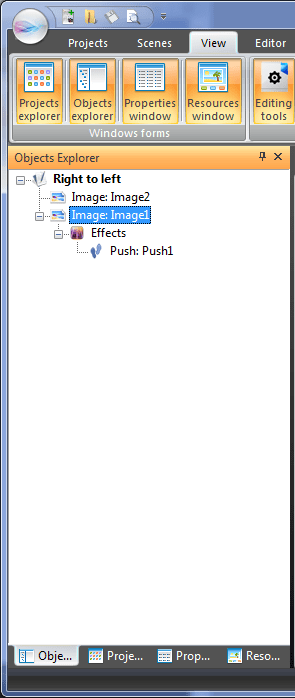
- Objects explorer
- Resources window
- Preview in sources
- Show in folder
- Preview objects: Use this option to preview elements in a separate window.
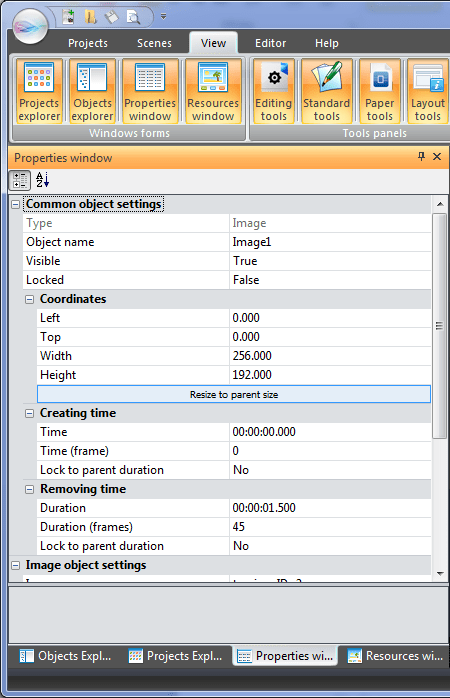
- Properties: Use this option to access the Properties window for an object. This option is disabled if the Properties window is already displayed on the right of the scene.
This software can be downloaded from Free Video Editor description page.





Altri articoli...

Con questo programma è possibile registrare i video dal desktop e salvarli sul computer in diversi formati. Insieme al video editor è ideale per creare presentazioni e demo.

Il programma serve per catturare video da dispositivi esterni e e per registrarli sul computer in qualsiasi formato video. Potete salvare il video da sintonizzatori video, webcam, schede di acquisizione e vari dispositivi.
VSDC Video Editor Reviews & Ratings (Trustpilot, Capterra & Media)
VSDC Free Video Editor is rated 4.5/5 by real users on Trustpilot and Capterra. Here are a few reviews and quotes from creators and tech media.
Overall rating: 4.5/5 based on 200+ reviews on Trustpilot and 89 reviews on Capterra.
★★★★⯪
VSDC Free Video Editor is the best free video editor for Windows I’ve used, from color grading to picture-in-picture and cinematic results.
— Ejikeme Eloka Augustine
Source:Trustpilot
★★★★☆
Easy-to-use interface and quick export to social media make VSDC a versatile video editing tool for everyday projects.
— Karen C., E-Learning
Source:Capterra
★★★★☆
A feature-packed non-linear video editor for Windows that can compete with many paid video editing solutions.
— TechRadar
Source:TechRadar review
★★★★★
The free VSDC editor saved my YouTube channel – a powerful video editing software for chroma key, text effects and picture-in-picture.
— Paul Roberts
Source:Trustpilot
★★★★★
Fast and simple for YouTube videos with green screen, zoom, color tools and creative effects in one app.
— Marie R., Media Production
Source:Capterra
★★★★★
One of the best free video editor options for Windows users, ideal for GoPro, YouTube and family videos.
— VidProMom, YouTube creator
Source:Media reviews
★★★★★
I’ve been using VSDC for years; editing is easy and the final videos look great for my personal and professional projects.
— Long-time VSDC user
Source:Trustpilot
★★★★★
Great value and faster than many other free tools; I quickly create videos for YouTube, Instagram and Facebook with features my audience loves.
— Rabika B., Marketing & Advertising
Source:Capterra
★★★★★
VSDC offers many features you don’t usually find in free editors, including picture-in-picture, stabilization and modern codec support with no watermarks.
— Tech media review
Source:Media reviews
 Unisciti a noi
  Seguici
 Guardaci
 / @VSDCFreeVideoEditor
© 2011-2026, www.videosoftdev.com, FLASH-INTEGRO LLC. Tutela della privacy | Condizioni di utilizzo | Chi siamo
Tutti i marchi citati nel presente documento sono di proprieta esclusiva dei rispettivi proprietari.
La copia di qualsiasi materiale da questo sito e consentita solo con il consenso scritto dell'amministrazione sito.