视频编辑器

使用免费软件制作和编辑从贺卡到公司简介等不同复杂程度的视频。可以剪切和合并视频文件,应用音效和视效,添加滤镜,进行图像校正,创建幻灯片秀、添加背景音乐。使用多彩色色键和高级属性设置可以将视频升级到专业水平。软件支持所有常用的视频和音频格式。

解更多关于编辑器…

视频转换器

此应用程序针对转换视频文件的格式,支持几乎所有常用的视频格式(读取和保存均可)。此外,程序可以大大简化转码任务,使视频能兼容特殊的多媒体设备,如iPhone、Microsoft Zune或Archos。操作非常简单,软件具有现代化界面以及所有处理视频必须的功能。

解更多关于视频转换器…

音频转换器

音频转换器针对转换音频文件的格式,支持几乎所有关键的视频格式。应用程序也助于管理歌单、标记、能从视频文件中提取音频,并保存它为任何格式。

解更多关于音频转换器…

CD音频截取器

此音频工具用于从CD截取音频轨迹并存为任何格式。支持几乎所有常用的音频格式。此应用程序也能够从FreeDB服务器中获得音频轨迹的信息,并自动改名及更新文件的标记。

解更多关于CD音频截取器…

Multifunctionality

多功能

一套免费视频软件包含丰富处理工具的种类。

High speed

高速

应用程序采用高速高效算法,适合于单核和多核处理器

Affordability

实惠

VSDC视频软件可年免费下载到Windows系统操作的PC和笔记本。

The conversion process

You have already opened the file in the converter and chosen the suitable format! All you need to do now to start converting is to press the button "Start conversion"


It is necessary to mention, that the button "Start conversion" will change to "Stop conversion", by means of which you will be able to interrupt the conversion. Progress bar control shows you how much video has already been converted in per cent correlation. Also, under the form you can find the information about the rate of conversion (frame per second), and the time: how much time the video has already been converted and how much time is left.


The installation "Preview" allows enable/disable the display of the video while converting. On low-performance machines, the disabling of this function can accelerate the process of conversion.


When the conversion is completed, the program will inform you about the end.
Changing the directory for saving the result video

By default, the result video will be saved in the folder where the initial video is kept.


If you want to save the file in some other folder or change the name of the file, you just need to push the button "Change name…".

Opening video file in the application

Before you want to start converting or editing the file, it should be opened in Video Converter. To open the file, please follow one of the ways:

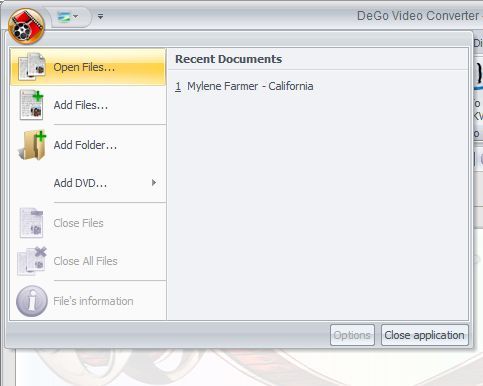
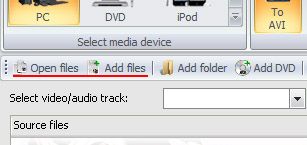
1) Pressing the button "Open files…", you can open one or some files in Video Converter.

2) Pressing the button "Add files" (on the panel it looks like "+"), you will add one or several files to the opened ones.

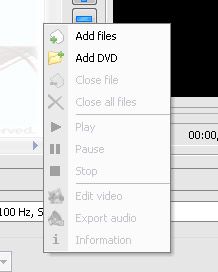
3) While pushing the right mouse button on the list of the opened files, the menu will appear, where you can choose one of the actions:

  • to add video file

  • to add DVD

  • to delete file from the list of converted ones

  • to delete all the files.

By means of this menu, you can begin to play the video, suspend it or stop at all. To get  more interested information, click "Information".

4) Also you can open video files from main menu (that will be appeared after clicking on application icon):


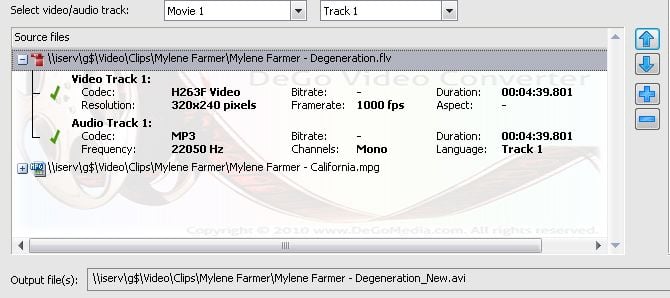
All the opened video files are shown in the list "Source files":


In this list you can choose the file for both: deleting it from Video Converter or playing it.

Choosing a suitable video format

To choose a suitable video format, please, do the following:
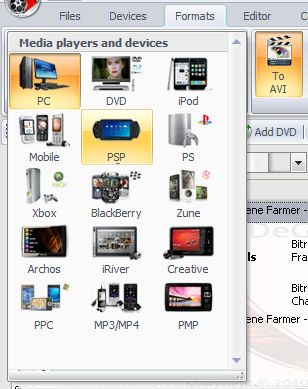
First of all, you need to choose the device you want to play the video on. For this purpose, click the picture of the shown items on "Devices" Tab:


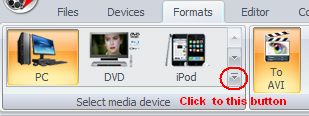
Also you can choose media player in the "Format" Tabs:


Various devices support various formats. The majority of them can play some formats:

Personal computer supports AVI, MPEG, Quick Time, WMV, MKV, Real Media, SWF и FLV.

DVD-player plays DVD, VCD, and SVCD. The latest generation of players can also play AVI or MPEG format.

Portable Sony PlayStation supports only MP4 format.

Apple iPod plays only M4V files.

Archos support AVI format and WMV video.

Portable media-players, subject to their models, can play AVI, MREG, QuickTime, WMV, MTV or AMV.

Mobile phones, as a rule, support 3GP/3G2, MP4 or RealMedia.

Blackberry phones can play AVI, MP4 or 3GP video files.

Creative Zen player support AVI and WMV formats.

iRiver player support AVI and WMV formats.

Play Station can play DVD and MP4 files.

Zune Media player can play WMV and MP4 video files.

Xbox support video files with such format as WMV, AVI, MP4 and DVD

Windows Mobile PPC can play WMV, AVI and MPEG videos.

MP3 / MP4 players support MP4, AMV and MTV video formats.


After you have chosen the device, a list of supported formats will appear.


Secondly, you need to choose the format you want to convert to.
Our program supports practically all the modern formats.

AVI – most of all, this format is used on the PC, but the up-dated players also can support this format. Using it, you are lucky to get the video of any quality.

MPEG – is an extensively used format, which allows you to obtain the good quality of the video with small required resources of PC.

MOV – is a QuickTime format, created by the firm Apple. The format is mostly used in operational systems and media-devices of Apple firm.

WMV – Windows Media Video is specially created by Microsoft. It is used in operational systems like Windows, and also in some players, promoted by Microsoft.

RM – Real Media format was created as a special format for the Internet. Files with such a format can be played by mans of RealPlayer.

SWF – this format is used in the Internet. The format can be also played with the help of Internet explore or Adobe Flash Player.

FLV – this format is created for passing video via Internet in real time.

DVD – is a very popular format. It is used for playing on a DVD-player and distributed on DVD compact discs.

VCD и SVCD – an out-of-date video format, which was practically displaced by DVD. By analogy, it is used for playing on DVD, but distributed only on CD discs.

MP4 – the format for playing on Sony PSP, some mobile phones and Smartphones. It was created by Apple firm and is considered to be one of the varieties of a QuickTime format.

M4V – is played on Apple iPod. The format is created by Apple firm and considered to be one of the varieties of a QuickTime format.

MTV – this format is played in not very expensive media-players.

3GP – is used for mobile phones of GSM connection. The format is made by Apple firm and called to be the kind of QuickTime format.

3GPP – is used for mobile phone of CDMA connection. The format is made Apple firm and called to be the kind of QuickTime format.

MKV - this format is used on the PC, but the up-dated players also can support this format.

AMV – this format is played in not very expensive media-players.

第2页 共2页

News

適用於 GoPro 和其他運動相機的 GPS 儀表、元數據編輯、擴展編解碼器和更聰明的工作流程

作者:Amy Shao 2025年11月19日发布 欢迎了解期待已久的VSDC 10.2更新:这个新版本包含了令人难以置信的功能和重大改进,旨在为从爱好者到专业人士的所有用户赋能。 GPS仪表盘、选择性导出、元数据、阿拉伯语界面、扩展编解码器 最突出的新增功能是一套革命性的GPS遥测工具,提供了市场上任何其他视频编辑器都无法比拟的功能!因此,如果您是运动相机(GoPro、Garmin等)、无人机或任何其他收集GPS数据设备的所有者,这正是您期待已久的功能。即使您没有这些设备,也不要划走,因为对于所有编辑爱好者,我们还有新功能和改进要分享!

VSDC 10.1 重大更新:先进HDR技术、GPS遥测、全新特效,以及针对不同需求推出的多样化新模板和工具

published Amy Shao 6/10/25 等待全新非凡体验的日子终于结束了!这次更新不只是又一个版本——而是VSDC 10.1! VSDC 10.1 更新:進階 HDR、GPS 遙測、新效果、滿足不同需求的各種新範本和工具 一个标志着转折点的版本号。 一次在您喜爱的VSDC基础上实现的重大飞跃。 借助全新的VSDC...

VSDC Christmas Update 9.4: Enhanced Effect Management, 100+ Background Templates and Streamlined Editing

这个节日季,迎接全新的开始!VSDC视频编辑器带来了最新的9.4版本。我们倾听了您的建议,专注于优化您最常用的工具,同时为明年更多创新功能奠定基础。 增強的效果管理、100...

VSDC Free 如何成為我的浮水印秘密武器(2025 年免費 4K 編輯)

你好,我是Mattea Wharton,來自西雅圖的旅行影片創作者。整整三年,我一直在與那些會在我影片上加上難看浮水印的編輯軟體鬥爭,直到我發現了VSDC。這款免費、無需訂閱的編輯軟體徹底改變了我的工作流程,今天我想分享它如何為您提供所需的所有基本編輯工具,沒有隱藏成本或煩人的限制。 幾乎毀掉我頻道的浮水印陷阱 還記得我在亞利桑那沙漠的旅行日誌嗎?我花了14個小時在一個流行的免費編輯器中編輯日落片段,卻發現一個巨大的浮水印毀了我的作品。那一週,我的影片互動率下降了40%。 就在那時,我找到了VSDC。他們的承諾好得令人難以置信:真正無浮水印輸出,即使在免費版中也是如此。沒有「試用期」陷阱,沒有偷偷降級。雖然懷疑但絕望,我試了一下。令我驚訝的是,我很快重新編輯了整個旅行日誌,並獲得了完美質量的最終影片,沒有一個浮水印! Mattea...

150+模板、文本转换工具、精灵自动检测和界面更新

改变就是进步,而这个过程离不开您的参与。在仔细审阅您的反馈后,我们已经解决了多个关键问题,并引入了旨在提升您编辑体验的更新。 150+模板、文本转换工具、精灵自动检测和界面更新 我们非常高兴地宣布,VSDC...

最佳特效软件

简介 2024年,用于创建视觉特效的选择范围极其多样化,越来越难以确定顶级选择。 在这里,您可以找到一份关于顶级视觉FX软件的指南,帮助您为项目增添原创性。不管您是在寻找高级合成工具、强大的3D动画功能,还是用户友好的界面,这篇文章将帮助您导航各种选项,找到最适合您需求和偏好的软件。 每个程序都根据其功能、易用性和适合不同水平用户的情况进行评审。您将了解到像

VSDC 9.2:AI 分割模型、300+ 转场、VSDC 云和新模板集

VSDC 9.2 已发布,带来了突破性的功能,例如新的AI 辅助分割工具,它能精确地移除对象、进行高级颜色校正,并提供多种效果以增强您的视频。此外,我们还推出了我们的最新服务...

黑白电影是如何上色的

您是经典黑白电影迷吗? 有没有好奇过如果它们是彩色的会是什么样子?许多电影制作人都曾有过同样的疑问,这也导致许多经典电影被彩色化。多年来,为黑白电影添加色彩的技术有了长足的进步--从手动为每个画面上色,到使用尖端软件自动为每个像素上色,大大加快了整个过程。今天,我们将了解彩色化的工作原理,探索我们喜爱的黑白电影是如何以饱满、生动的色彩重新呈现的,并学习如何在

2024年最佳在线视频编辑器:优点和缺点

July 15, 2024 published by Amy Shao 如今,视频内容的普及势头越来越猛,许多用户都面临着为个人和专业目的制作视频的需求。在从市场上提供的各种视频编辑器中选择一款合适的视频编辑器时,许多用户更倾向于免费的在线视频编辑器,因为这些编辑器可以实时处理媒体文件,而且与桌面版编辑器不同,不需要使用个人电脑的内部资源,几乎可以在任何设备上使用。 但是,在线视频编辑器的世界里是否存在陷阱呢? 我们的团队收集了...

添加转场效果的新方法、支持 RAW 和 BRAW 文件以及免费音频可视化

时刻已到:我们很高兴向您介绍期待已久的VSDC 9.1更新!新版本的增强功能将加速视频编辑,并使编辑过程更加便捷。 新的轉換添加方法、RAW/BRAW 支援和自由波形 本次更新有什么新鲜事?新的工作过渡方式将帮助您快速轻松地创建高质量的视频序列,而支持RAW和BRAW文件将确保视频的最高质量。 VSDC...
 

免费屏幕截取器 Box

此应用程序能从桌面截取视频并用各种格式保存在电脑上。带着视频剪辑器,此应用程序作为创建PPT、教材和简介视频的神器。

解更多关于免费屏幕截取器


VSDC免费视频捕获器 Box

应用程序从外部设备捕获视频,并在电脑上存为自由格式。从视频调谐器、网络摄影机、撷取卡等均可捕获视频。

解更多关于免费视频捕获器…

VSDC Video Editor Reviews & Ratings (Trustpilot, Capterra & Media)

VSDC Free Video Editor is rated 4.5/5 by real users on Trustpilot and Capterra. Here are a few reviews and quotes from creators and tech media.

Overall rating:4.5/5based on200+ reviews on Trustpilotand89 reviews on Capterra.

★★★★★

VSDC Free Video Editor is the best free video editor for Windows I’ve used, from color grading to picture-in-picture and cinematic results.

— Ejikeme Eloka Augustine

Source:Trustpilot

★★★★☆

Easy-to-use interface and quick export to social media make VSDC a versatile video editing tool for everyday projects.

— Karen C., E-Learning

Source:Capterra

★★★★☆

A feature-packed non-linear video editor for Windows that can compete with many paid video editing solutions.

— TechRadar

Source:TechRadar review

★★★★★

The free VSDC editor saved my YouTube channel – a powerful video editing software for chroma key, text effects and picture-in-picture.

— Paul Roberts

Source:Trustpilot

★★★★★

Fast and simple for YouTube videos with green screen, zoom, color tools and creative effects in one app.

— Marie R., Media Production

Source:Capterra

★★★★★

One of the best free video editor options for Windows users, ideal for GoPro, YouTube and family videos.

— VidProMom, YouTube creator

Source:Media reviews

★★★★★

I’ve been using VSDC for years; editing is easy and the final videos look great for my personal and professional projects.

— Long-time VSDC user

Source:Trustpilot

★★★★★

Great value and faster than many other free tools; I quickly create videos for YouTube, Instagram and Facebook with features my audience loves.

— Rabika B., Marketing & Advertising

Source:Capterra

★★★★★

VSDC offers many features you don’t usually find in free editors, including picture-in-picture, stabilization and modern codec support with no watermarks.

— Tech media review

Source:Media reviews