










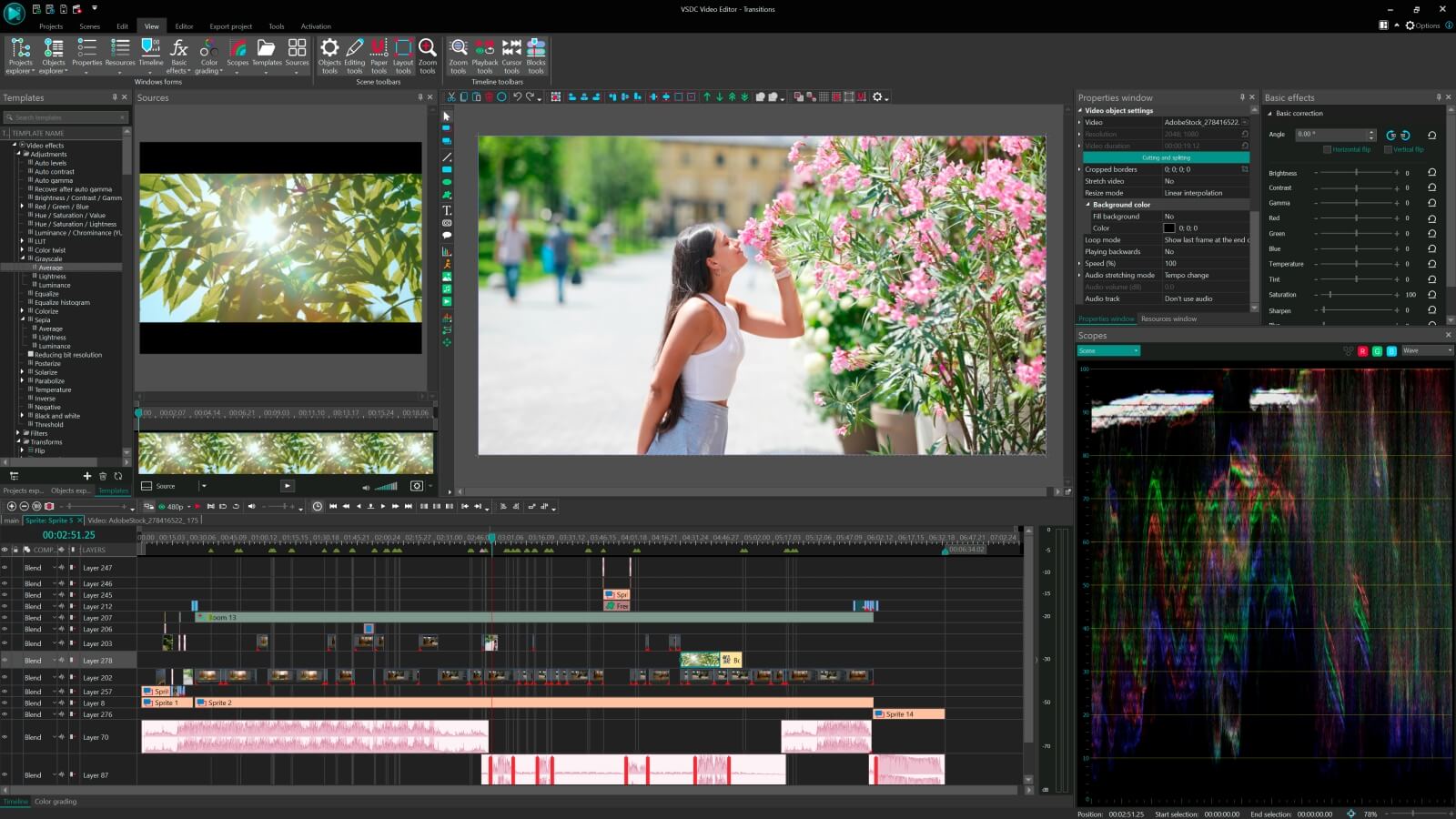
Editor de vídeo
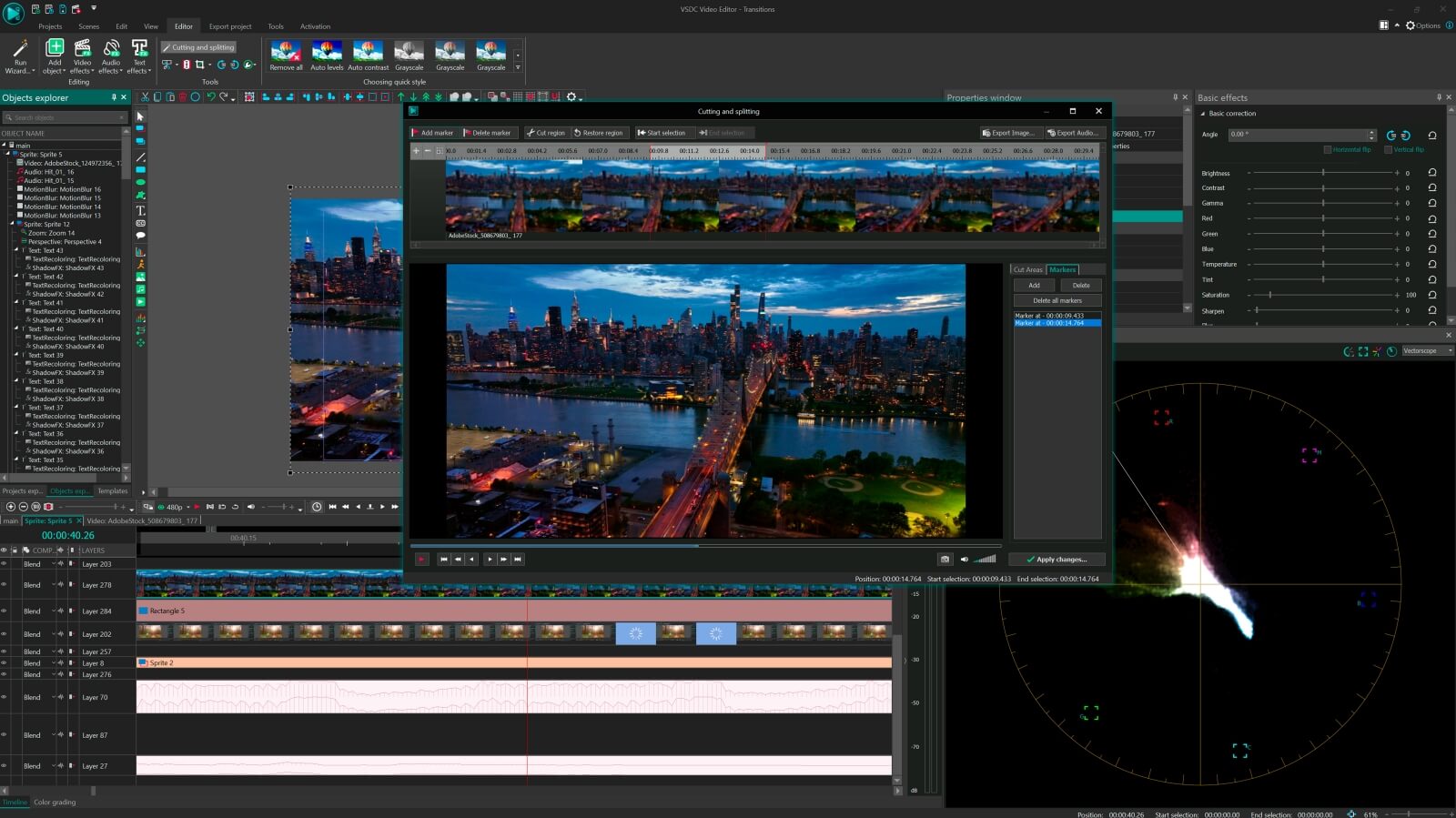
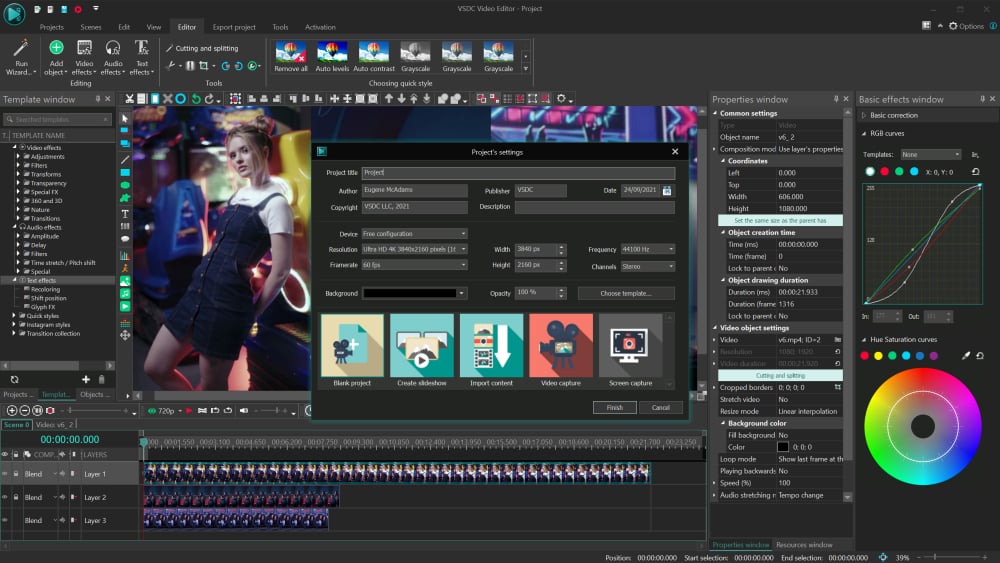
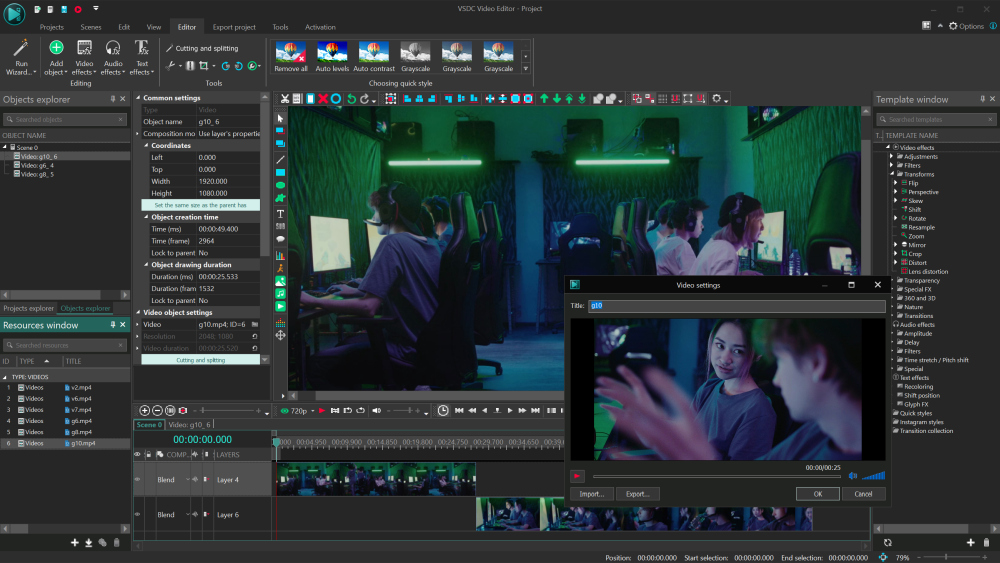
Use o editor de vídeo gratuito para criação e edição de vídeos de qualquer complexidade. Corte vídeos, aplique efeitos visuais e de áudio, use filtros e correção de imagem, faça apresentações de slides, adicione uma trilha sonora. Use Chroma Key e outras funções avançadas. Todos os formatos populares são suportados.
Conversor de vídeo
Converta vídeo de um formato para outro. Todos os formatos de vídeo mais populares são suportados - AVI, MOV, QT, MP4, M4V, MPEG, WMV, FLV, MKV, RealVideo (RM e RMVB), 3GP e 3G2. Prepare seus arquivos multimídia para reprodução instantânea em qualquer formato e em qualquer dispositivo.
Conversor de áudio
Converta arquivos de áudio de um formato para outro. Todos os principais formatos e codecs de áudio suportados. Você também pode gerenciar listas de reprodução e meta tags, extrair o áudio de arquivos de vídeo e salvar faixas em seu dispositivo em qualquer formato.
Animated Intro & Title Templates
Explore the VSDC Template Store with ready-made video templates for intros, animated titles, lower thirds, logo reveals, slideshows, glitch transitions, LUTs, and color grading presets. Drop a template into the VSDC Video Editor timeline, edit text, timing, and colors, and finish professional video projects in minutes.
Choose from 300+ exclusive packs of video transitions, LUT packs, text effects, GPS telemetry widgets, animated elements, and animated backgrounds for VSDC. All templates are fully customizable, support up to 4K resolution in 16:9, and help you build intros, wedding slideshows, travel videos, and tutorials much faster.
VSDC Cloud - Online video management
Keep your work safe, organized and always accessible! Back up your video projects, store media files online and access them from any device. Enjoy collaboration, share project updates and exchange files easily.
 Editor de vídeo
 Conversor de vídeo
 Conversor de áudio
 Store templates
 Cloud
Cloud

Multifuncionalidade
Uma ampla gama de ferramentas de processamento multimídia em um pacote de software de vídeo gratuito.

Alta velocidade
Algoritmos de nossos programas são rápidos e otimizados para CPU de núcleo único e múltiplos núcleos.

Disponibilidade
VSDC está disponível gratuitamente para PCs e laptops com sistema operacional Windows.
News:
- Publicado por Amy Shao em 11 de março de 2026 Qual é o melhor pre...
- publicado por Amy Shao 19/11/25 Conheça a tão aguardada atualização VSDC 10....
- Olá, eu sou Mattea Wharton, videomaker de viagens de Seattle. Durante três anos ...
- published Amy Shao 6/10/25 A espera por algo novo e incomum finalmente acabou!...
Application

360/3D Editor
Convenient preview and editing of your panoramic and VR footage
Motion tracking
Advanced toolset for attaching any objects, for example, masks, titles, or images, to a moving element in a video
Edit the beat
Syncing any elements of your video, from text to effects, to the beat of your audio

AI Art Generator
Turning your footage into art masterpieces by neural networks

Video effects
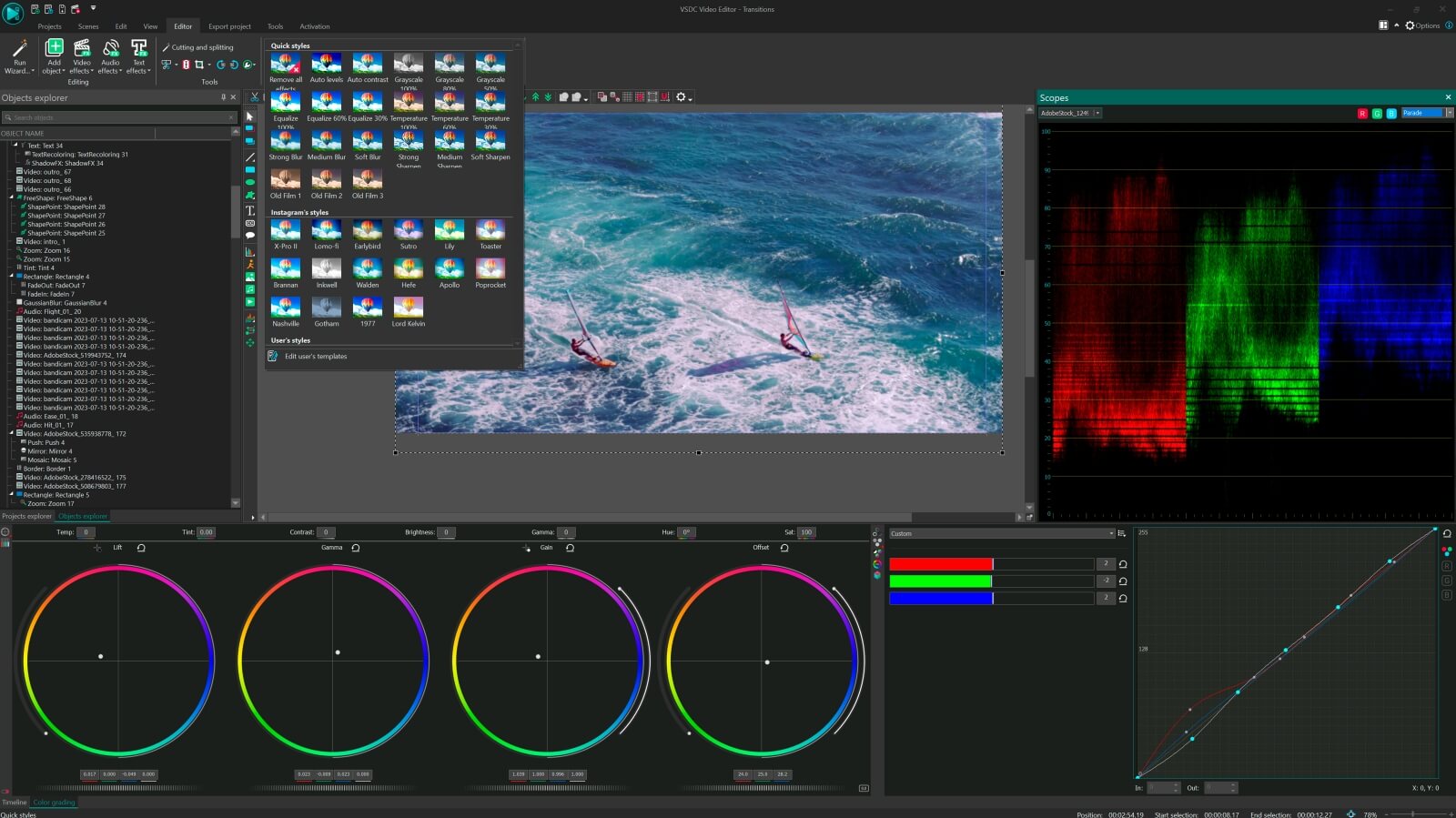
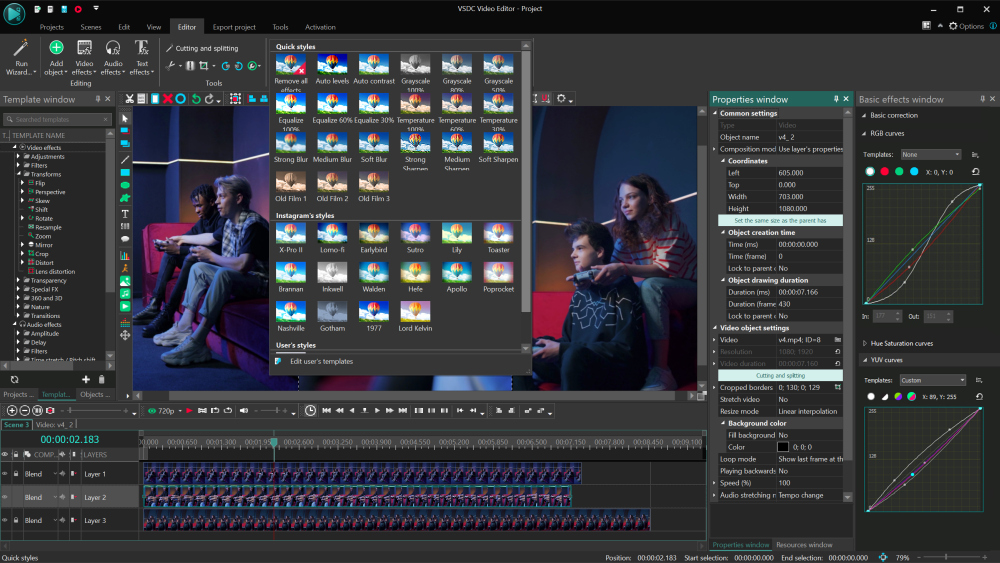
Quick color correct styles, pro filters, transparency and transformation effects, 70+ dynamic transitions

UHD&HD
2k and 4k support,adjustable output resolution, framerate, bitrate, video and audio codecs

Blending modes
Modifying the look of your video image according to your preferences with color blending or applying ready Instagram-like filters in one click

Masking tool
A choice of different shaped masks for hiding, blurring or highlighting certain elements in your video

Chroma-key
Background removal in an image or a video per one or several colors

Waveform
Zoomable audio intensity curve for comfortable professional editing

3D pro charts
20+ customizable chart types including 3D dynamic models

Multimedia combiner
Conversion into multiple formats and extra apps for your creative work - video manager, dvd burner and screen recorder
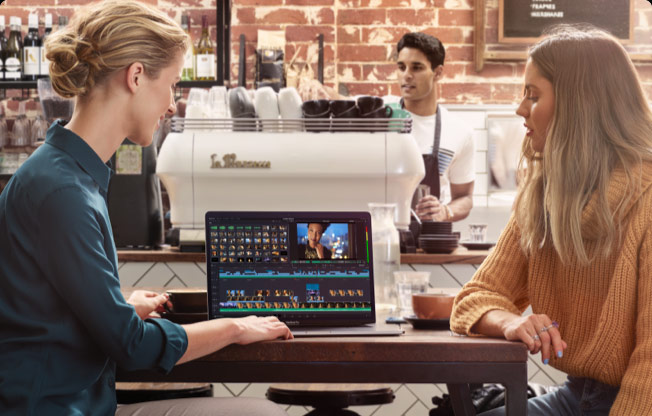
VSDC FREE
Video Editor is the perfect tool to bring your creative ideas to life and share them with the world. Make your videos rock with special effects
VSDC PRO
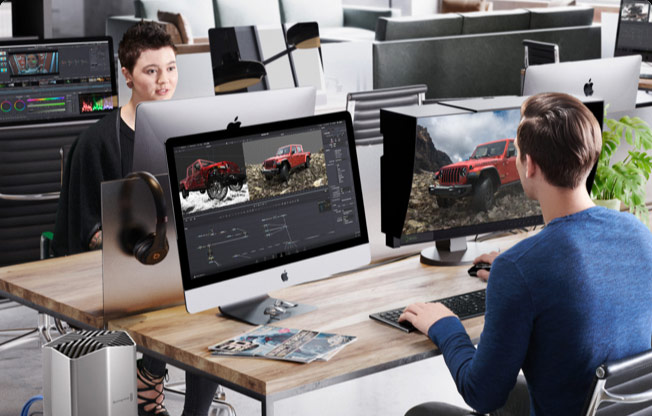
Video Editor is the perfect tool to bring your creative ideas to life and share them with the world. Make your videos rock with special effects, keyframe animation, and ready-made intros. Apply Chroma Key to easily change the background of your clips to anything you like.
* The business license permits the use of the software for commercial purposes in a business environment. The personal and business versions of the software are identical in terms of features and functionality.
I 30-day money back guarantee
If you experience technical or other problems that cannot be solved, you can get a complete refund of your purchase price within 30 days. Check our Refund Policy to find out if you are eligible for a full refund.
I Totally secure payments
Our payments are processed via the 2Checkout payment gateway. 2Checkout provides the highest standards of online security. It guarantees the safety of your payments and personal information.
I What do I get?
15 minutes after purchase, you will receive an email with a download link and activation key to the account used to make the purchase. Use these to download and activate the program.
How to Create a Custom Effect Template
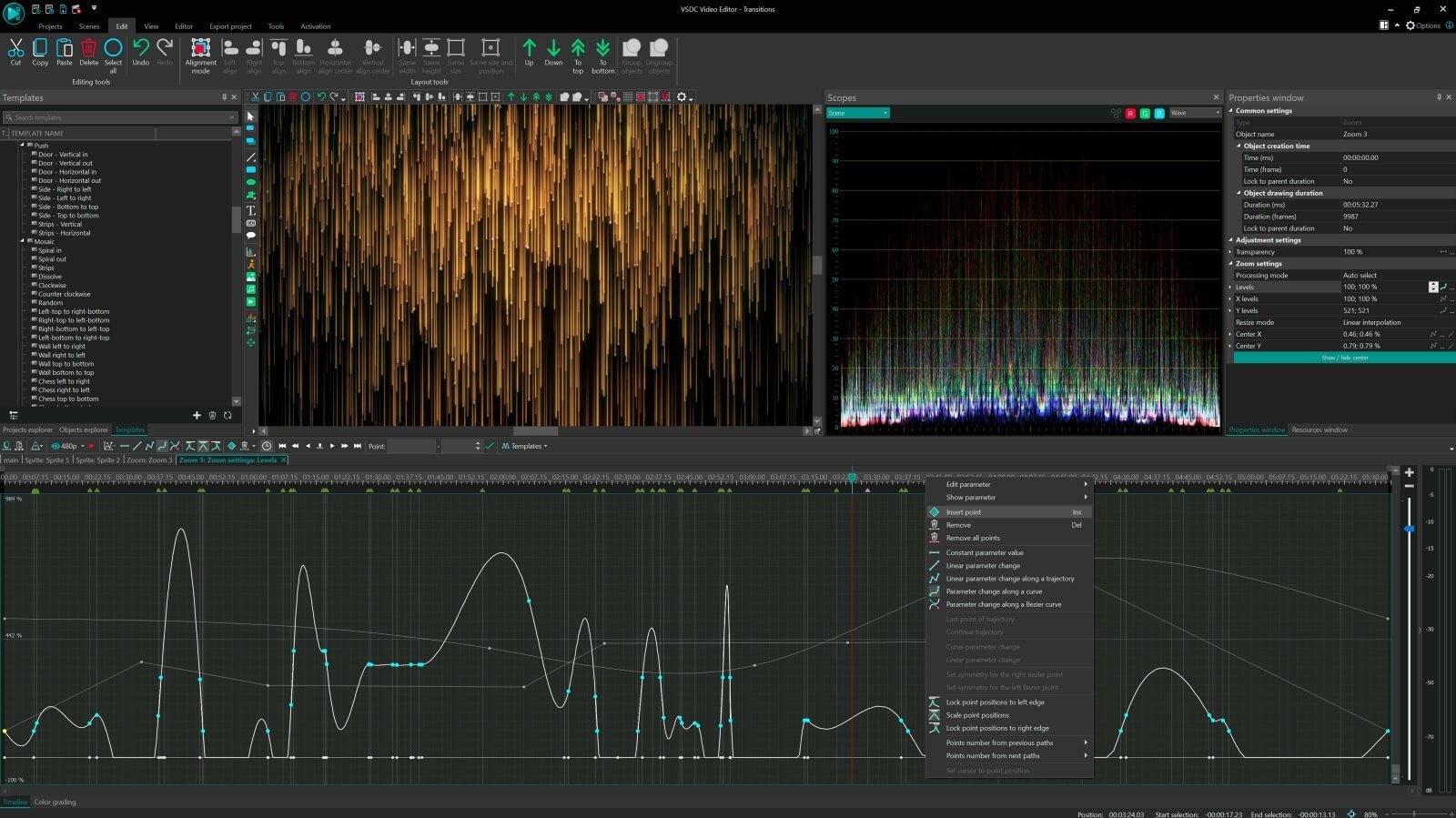
Effect templates can speed up your editing process tremendously. Using the template window you can save your custom-made effects and transitions for later use, instead of having to remake them every time.
Starting VSDC 6.8, creating templates has become as simple as it can possibly be. In this tutorial, we’ll walk you through the process, step by step, and show you how to save all the settings of your effect.
Create an effect for a template
First things first, you need to create an effect you want to save. It can be a transition, a video or audio effect, a media file, a picture, or even a combination of those things. It can be absolutely anything. In our case, it will be a transition containing several effects and a moving picture.
Vid
Make sure to only change parameters in the Properties window, because the parameters from the Basic effects window will not be saved.
Save your template
Now, all you have to do is save your template and assign the right properties to it. First, select all the objects you want to save as a template. Then, go to the Template window located on the left side of the window and press the Plus sign at the bottom.
Pic
By default, the new template will be named “New Template 1”. However, in some cases, it can be called after the object that you are trying to save as a template, for example, “Image 1”. Double click your template to change its name so that you can easily find it later.
Now the only thing left to do is to set the duration of your template. Right-click on it and select Use as a transition if your template is a transition, or choose Use default duration if it is an effect template that can be stretched and applied to any part of a video.
Make use of your template
Now you know how to create a custom effect template! As you can see, the process is rather straightforward. But most importantly, it’s a huge time saver because you’ll be able to apply these effects later with a single click.
If you want to learn more about cinematic transition effects you can create and save as templates, check out our how-to section. And if you would rather watch a video tutorial, we have you covered as well — here’s our YouTube channel.
Screenshots haise

Mais artigos...

Ferramenta de captura de sua Área de Trabalho, que lhe permite salvar essa captura em um arquivo de vídeo e processar no editor.

Um programa para capturar vídeo de dispositivos externos. Você pode salvar o vídeo de sintonizadores de vídeo, câmeras web, placas de captura e outros dispositivos.
VSDC Video Editor Reviews & Ratings (Trustpilot, Capterra & Media)
VSDC Free Video Editor is rated 4.5/5 by real users on Trustpilot and Capterra. Here are a few reviews and quotes from creators and tech media.
Overall rating: 4.5/5 based on 200+ reviews on Trustpilot and 89 reviews on Capterra.
★★★★⯪
VSDC Free Video Editor is the best free video editor for Windows I’ve used, from color grading to picture-in-picture and cinematic results.
— Ejikeme Eloka Augustine
Source:Trustpilot
★★★★☆
Easy-to-use interface and quick export to social media make VSDC a versatile video editing tool for everyday projects.
— Karen C., E-Learning
Source:Capterra
★★★★☆
A feature-packed non-linear video editor for Windows that can compete with many paid video editing solutions.
— TechRadar
Source:TechRadar review
★★★★★
The free VSDC editor saved my YouTube channel – a powerful video editing software for chroma key, text effects and picture-in-picture.
— Paul Roberts
Source:Trustpilot
★★★★★
Fast and simple for YouTube videos with green screen, zoom, color tools and creative effects in one app.
— Marie R., Media Production
Source:Capterra
★★★★★
One of the best free video editor options for Windows users, ideal for GoPro, YouTube and family videos.
— VidProMom, YouTube creator
Source:Media reviews
★★★★★
I’ve been using VSDC for years; editing is easy and the final videos look great for my personal and professional projects.
— Long-time VSDC user
Source:Trustpilot
★★★★★
Great value and faster than many other free tools; I quickly create videos for YouTube, Instagram and Facebook with features my audience loves.
— Rabika B., Marketing & Advertising
Source:Capterra
★★★★★
VSDC offers many features you don’t usually find in free editors, including picture-in-picture, stabilization and modern codec support with no watermarks.
— Tech media review
Source:Media reviews
 Like us on Facebook
 Follow us on Twitter
 / @VSDCFreeVideoEditor