 User Help Manual


Editor Video
L'editor video consente di modificare file e creare video di qualsiasi complessità. Potete applicare effetti video e audio effects ad oggetti modificati, trasformarli, applicare filtri e correzioni d'immagini. Tutti i popolari formati video e audio sono supportati (sia lettura che salvataggio).
Convertitore Video
Questo programma serve a convertire video file da un formato ad un altro. Quasi tutti i popolari formati video sono supportati. Inoltre, il programma semplifica drasticamente il compito di convertire video da riprodurre su determinati dispositivi multimedia quali iPhone, Microsoft Zune oppure Archos. Il programma è semplicissimo da usare, dispone di una moderna interfaccia e di tutte le necessarie funzioni per processare i video.
Convertitore Audio
Il convertitore audio vi aiuterà a convertire file audio da un formato ad un altro. Tutti i formati audio e codec chiavi sono supportati. Il programma vi consente inoltre di gestire playlist e meta tags, di estrarre audio dai file video e di salvare queste tracce sul vostro computer in qualsiasi formato.
Audiograbber
Questo strumento audio serve a catturare tracce audio dai CD e di salvarle nel computer dell'utente in qualsiasi formato. Quasi tutti i popolari formati e codec sono supportati. Il programma è inoltre in grado di estrarre dettagli di tracce dal server FreeDB al fine di rinominare automaticamente il file e di aggiornare i meta tag.
 Editor Video
 Convertitore Video
 Convertitore Audio
 Audiograbber

Versatilità
Più strumenti contemporaneamente per elaborare file video e audio in una singola applicazione.

Alta velocità
I nostri programmi
impiegano rapidi algoritmi di alta qualità per processori singoli a multipli.

Accessibilità
I nostri prodotti sono disponibili per essere scaricati gratuitamente su tutti i computer e dispositivi che supportano i sistemi operativi Windows.
Notizie:
- pubblicato da Amy Shao 19/11/25 Ecco l'attesissimo aggiornamento VSDC 10.2: ...
- Ciao, sono Mattea Wharton, una videomaker di viaggi di Seattle. Per tre anni ho ...
- published Amy Shao 6/10/25 L'attesa per qualcosa di nuovo e straordinario è ...
- Questa stagione festiva inaugura nuovi inizi con l'ultimo aggiornamento di VSDC ...
How to fix a vertical video with VSDC Free Video Editor
Alright, let's face it. With mobile cameras taking over, the way we record video and the way we watch it have changed. You can love it or you can hate it, but vertical videos are everywhere today. It all started with people just being forgetful and holding their phones vertically when recording. Today, however, many brands create vertical videos on purpose because they look more authentic when published on social media which is (surprise!) consumed on mobile phones that are held vertically most of the times.
Who would have expected that back in 2014, huh?
But can I fix a vertical video if I don’t like the way it looks?
Yes, you can. You don't have to follow those modern media trends if you don't like them. And you certainly don't have to put up with two ugly black bars on either side of your footage, if you accidentally record it vertically - or what is called a portrait mode.
VSDC Free Video Editor offers several ways how to fix vertical videos, and below we'll show you what they are.
Download VSDC Free Video Editor for Windows
One of the most popular hacks is to blur the sides of a vertical video. This is an elegant way to get rid of the black side bars.
Vertical video fix #1 – blurring its sides
- Add your footage to the timeline. To do that, click ‘Add object’ >> ‘Video’ and select the required file from the explorer.
- Use the right mouse button to click on the video and select ‘Duplicate’.
- For the new video object, set the same size as the original video has. See the illustration below.
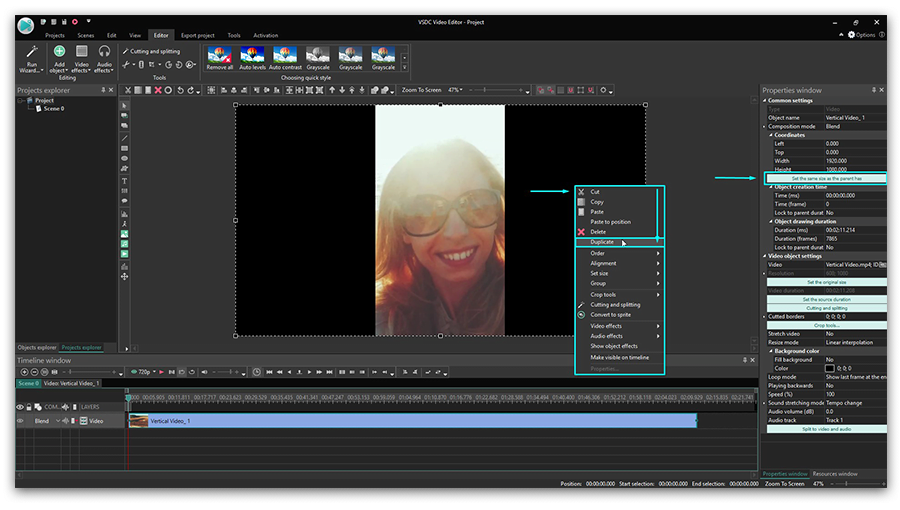
- Then go to the ‘Cutting and splitting’ tab at the top menu and choose ‘Auto cropping’. It will stretch the duplicated video to the size of the entire scene and create the effect of a background.
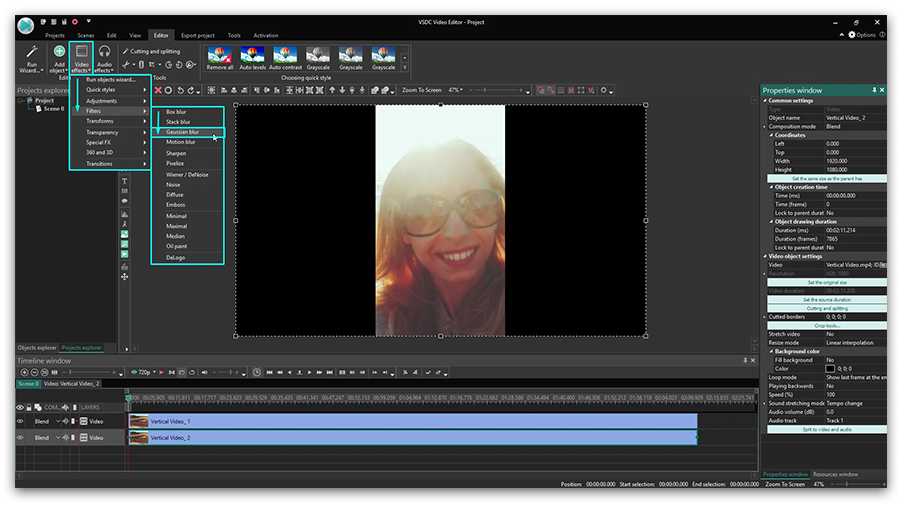
- Now, to finalize fixing your vertical video, you only need to blur its sides. To do that, in the ‘Video effects’ tab, select ‘Filters’ >> ‘Gaussian blur’. See the illustration below.
- Go to the Properties window and adjust the blur level to achieve the desired result. The Properties window tab can be found on the right side of the program interface.
- Enjoy the new look of your vertical video! By the way, you can use any other video or image for the blurred background effect if you don’t want to duplicate the original one.
Vertical video fix #2 – creating a project with the same resolution as in your original video
Blurring the sides of a vertical video is the most popular way to make it look decent but there is also a roundabout approach to it. You can just use the resolution the video is recorded in and create a project with the same size parameters. Technically, your video will remain in a “vertical format” but you’ll get rid of the black borders.
Here is how to do it:
- Add your vertical video to the timeline.
- Go to the View tab in the top menu – you’ll open a Project explorer.
- Click on your project name and go to the Properties window to find the scene’s size parameters.
- Reduce the scene’s width (and height if needed) to the size of your original video. See the video tutorial below.
- Now, click on the video object and go to the Properties window to use the “Set the same size as the parent has” button. This action will make the video perfectly fit the size of the scene.
Now you have a perfect vertical video without black bars on the sides. Note that once you perform it, all the objects – videos and images you add to the project – will be automatically adjusted to the new size of the scene.
Vertical video fix #3 – rotating a video that loads horizontally
Sometimes what happens is that we - the forgetful ones - start recording a video in a portrait mode and then rotate the phone to a landscape mode while the video is still being recorded. Or even the other way around! As a result, you can get a vertical video loading horizontally when played.
You can fix that too. In fact, it will literally require you a few seconds and a couple of clicks:
- Add your video to VSDC video editor timeline.
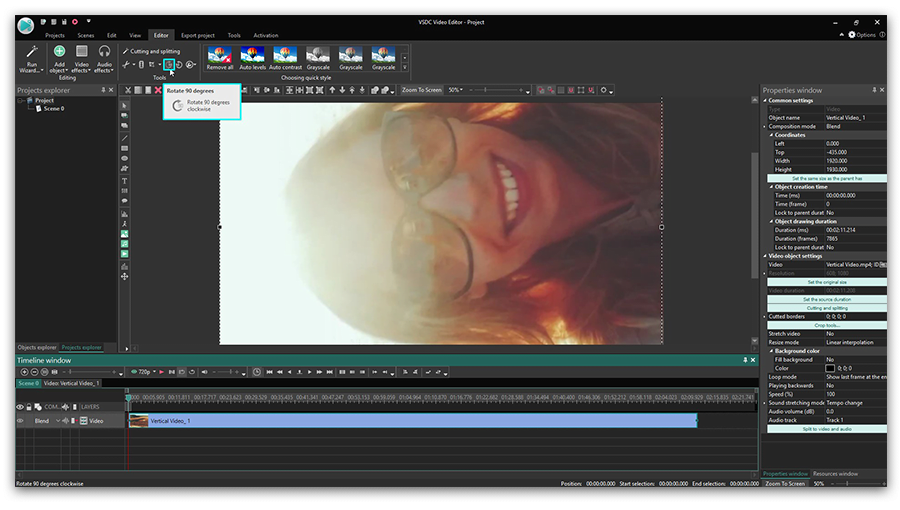
- Click ‘Rotate’ on the toolbar above the scene and preview the result.
- If your video appears to be larger than the scene size, you can manually reduce its size or adjust the parameters using the Properties window.
Now that you know how to use VSDC as a vertical video editor to blur the sides of the footage or change the scene size, you may want to check other guides for creating a great movie. We have over 200 of them on our YouTube channel. Don't forget to subscribe!
You can get more information about the program on Free Video Editor' description page.

Con questo programma è possibile registrare i video dal desktop e salvarli sul computer in diversi formati. Insieme al video editor è ideale per creare presentazioni e demo.

Il programma serve per catturare video da dispositivi esterni e e per registrarli sul computer in qualsiasi formato video. Potete salvare il video da sintonizzatori video, webcam, schede di acquisizione e vari dispositivi.
VSDC Video Editor Reviews & Ratings (Trustpilot, Capterra & Media)
VSDC Free Video Editor is rated 4.5/5 by real users on Trustpilot and Capterra. Here are a few reviews and quotes from creators and tech media.
Overall rating:4.5/5based on200+ reviews on Trustpilotand89 reviews on Capterra.
★★★★★
VSDC Free Video Editor is the best free video editor for Windows I’ve used, from color grading to picture-in-picture and cinematic results.
— Ejikeme Eloka Augustine
Source:Trustpilot
★★★★☆
Easy-to-use interface and quick export to social media make VSDC a versatile video editing tool for everyday projects.
— Karen C., E-Learning
Source:Capterra
★★★★☆
A feature-packed non-linear video editor for Windows that can compete with many paid video editing solutions.
— TechRadar
Source:TechRadar review
★★★★★
The free VSDC editor saved my YouTube channel – a powerful video editing software for chroma key, text effects and picture-in-picture.
— Paul Roberts
Source:Trustpilot
★★★★★
Fast and simple for YouTube videos with green screen, zoom, color tools and creative effects in one app.
— Marie R., Media Production
Source:Capterra
★★★★★
One of the best free video editor options for Windows users, ideal for GoPro, YouTube and family videos.
— VidProMom, YouTube creator
Source:Media reviews
★★★★★
I’ve been using VSDC for years; editing is easy and the final videos look great for my personal and professional projects.
— Long-time VSDC user
Source:Trustpilot
★★★★★
Great value and faster than many other free tools; I quickly create videos for YouTube, Instagram and Facebook with features my audience loves.
— Rabika B., Marketing & Advertising
Source:Capterra
★★★★★
VSDC offers many features you don’t usually find in free editors, including picture-in-picture, stabilization and modern codec support with no watermarks.
— Tech media review
Source:Media reviews
 Unisciti a noi
  Seguici
 Guardaci
 / @VSDCFreeVideoEditor
© 2011-2025, www.videosoftdev.com, FLASH-INTEGRO LLC. Tutela della privacy | Condizioni di utilizzo | Chi siamo
Tutti i marchi citati nel presente documento sono di proprieta esclusiva dei rispettivi proprietari.
La copia di qualsiasi materiale da questo sito e consentita solo con il consenso scritto dell'amministrazione sito.