Editor de vídeo

Use o editor de vídeo gratuito para criação e edição de vídeos de qualquer complexidade. Corte vídeos, aplique efeitos visuais e de áudio, use filtros e correção de imagem, faça apresentações de slides, adicione uma trilha sonora. Use Chroma Key e outras funções avançadas. Todos os formatos populares são suportados.

Saiba mais sobre o editor...

Conversor de vídeo

Converta vídeo de um formato para outro. Todos os formatos de vídeo mais populares são suportados - AVI, MOV, QT, MP4, M4V, MPEG, WMV, FLV, MKV, RealVideo (RM e RMVB), 3GP e 3G2. Prepare seus arquivos multimídia para reprodução instantânea em qualquer formato e em qualquer dispositivo.

Saiba mais sobre o conversor...

Conversor de áudio

Converta arquivos de áudio de um formato para outro. Todos os principais formatos e codecs de áudio suportados. Você também pode gerenciar listas de reprodução e meta tags, extrair o áudio de arquivos de vídeo e salvar faixas em seu dispositivo em qualquer formato.

Saiba mais sobre o conversor...

Animated Intro & Title Templates

Explore the VSDC Template Store with ready-made video templates for intros, animated titles, lower thirds, logo reveals, slideshows, glitch transitions, LUTs, and color grading presets. Drop a template into the VSDC Video Editor timeline, edit text, timing, and colors, and finish professional video projects in minutes.

Choose from 300+ exclusive packs of video transitions, LUT packs, text effects, GPS telemetry widgets, animated elements, and animated backgrounds for VSDC. All templates are fully customizable, support up to 4K resolution in 16:9, and help you build intros, wedding slideshows, travel videos, and tutorials much faster.

Store catalog

VSDC Cloud - Online video management

Keep your work safe, organized and always accessible! Back up your video projects, store media files online and access them from any device. Enjoy collaboration, share project updates and exchange files easily.

Online video editing management capabilities

Multifunctionality

Multifuncionalidade

Uma ampla gama de ferramentas de processamento multimídia em um pacote de software de vídeo gratuito.

High speed

Alta velocidade

Algoritmos de nossos programas são rápidos e otimizados para CPU de núcleo único e múltiplos núcleos.

Affordability

Disponibilidade

VSDC está disponível gratuitamente para PCs e laptops com sistema operacional Windows.

Main Interface Elements

Here you can learn main windows and interface elements of the video editor.

This software can be downloaded from Free Video Editor description page.

Removing borders

If you want to crop the source video file to a certain size you should click the “Cut borders” button in the object’s properties window. The following window appears:


Select the portion of the image you want to display and click the “Ok” button; parts lying outside the selected region will be deleted.

By clicking the “Get full size” button you can select the entire image. Also, you can adjust the scale of the image to precisely select the desired region.

This software can be downloaded from Free Video Editor description page.
Transition Effect Wizard

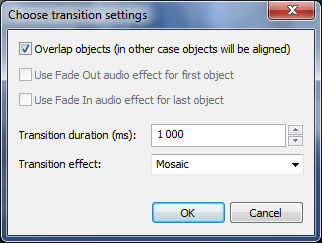
Você pode executar este assistente selecionando vários objetos e executando o assistente "Efeitos de vídeo -> Transições -> Executar objetos..." comando de menu. O Assistente permite que você crie uma sequência de objetos seguindo uns aos outros, um por um, com vários efeitos de transição entre eles. Ao executar o Assistente, você verá a seguinte janela:


Nesta janela, você pode configurar os seguintes parâmetros:

  • Sobreposição de objetos. Se os objetos se sobrepuserem no tempo, você deve ativar essa opção. A maioria dos efeitos de transição requer objetos sobrepostos, por exemplo, um desaparece lentamente e o outro aparece lentamente ao mesmo tempo.
  • Use ou não os efeitos Fade In e Fade Out para áudio. Essas opções estão disponíveis somente para objetos com uma faixa de áudio.
  • A duração da transição determina quanto tempo o efeito de transição deve durar.
  • Efeito de transição.

Depois de concluir o assistente, os objetos serão alinhados no tempo e o efeito de transição selecionado será aplicado a eles.

Este software pode ser baixado de Free Video Editor página de descrição.

Editing Video or Audio Files

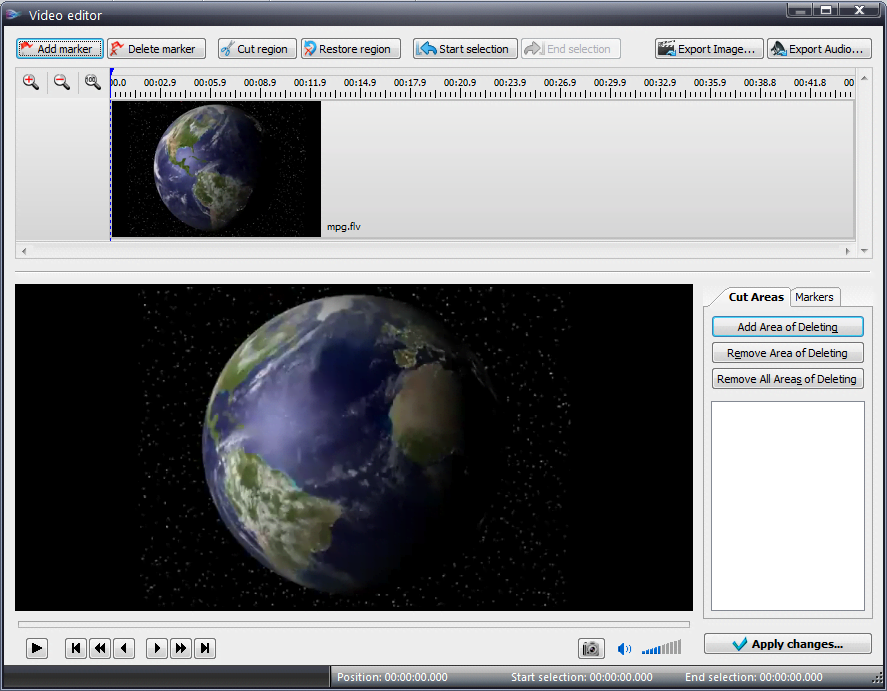
If you want to split a video or audio file to parts, or if you need to cut out an unnecessary fragment, you should click the “Cutting and splitting” button in the object’s properties window. The following window will open:


Here you can cut out an unnecessary fragment and set markers to split the file. Also, you can save a screenshot of a current frame to the computer or export an audio track in one of the supported formats.

As you click the “Apply settings” button, the program will offer you to split the file by markers (you can skip this step), and if you have deleted some part of the video, it will ask you if you want to adjust the length of the video object to the modified length of the source file.

This software can be downloaded from Free Video Editor description page.
File’s Sequence Wizard

This window allows you to add one or many media files and apply different transition effects to them.

The window consists of four parts: the effect category window, the effect window, the preview window and the timeline window.

In order to add a file click the “Add files” button at the timeline toolbar or click the empty frame in the timeline. Select a file in the open dialog and it will be added to the end of the timeline. If you want to change the order of the frames, use the corresponding buttons on the toolbar. If you want to remove a file, select it and click the “Remove” button. You can remove all files at once by clicking “Remove All”.

Here you can change the display duration of static images (by default it is 10 seconds). To do this, select the files you need from the timeline, specify new duration and confirm the change by clicking the “” button.

To add a transition effect between files, select the files from the timeline, then choose a desired effect in the effect window and click the “Add effect” button. The timeline will display the appropriate transition mark in the “Transitions” line. You can delete an effect using buttons the timeline toolbar.

The player window allows you to preview any given effect, file or the transition scene. Select an element you need and click the “Play” button. Note, if you select an effect, the playback starts automatically.

After you have opened all the required files, click the “Apply settings” button. Then a sprite will be created in the current scene with all selected elements. The size of the sprite and each element is equal to project’s resolution, that is, a sprite takes up all visible scene space.

This software can be downloaded from Free Video Editor description page.

Mais artigos...

  1. Creating a New Project

Pagina 1 de 2

News

Indicadores GPS para GoPro e outras câmaras de ação, edição de metadados, codecs alargados e fluxo de trabalho mais inteligente.

publicado por Amy Shao 19/11/25 Conheça a tão aguardada atualização VSDC 10.2: uma nova versão repleta de recursos incríveis e melhorias significativas projetadas para capacitar todos vocês,...

Major VSDC 10.1 Update: Advanced HDR, GPS Telemetry, New Effects, Great Variety of New Templates and Tools For Different Needs

published Amy Shao 6/10/25 A espera por algo novo e incomum finalmente acabou! A atualização chegou e não é apenas mais uma versão: é o VSDC 10.1!! VSDC 10.1 Update: HDR avançado, telemetria GPS,...

Atualização de Natal VSDC 9.4: Gerenciamento de Efeitos Aprimorado, Mais de 100 Templates de Fundo e Edição Simplificada

Nesta temporada de festas, celebramos novos começos com a mais recente atualização do VSDC Video Editor! Ouviu-se suas sugestões e decidimos focar em aprimorar as ferramentas que você mais gosta —...

Como o VSDC Free se tornou a minha arma secreta para marcas de água (edição 4K gratuita em 2025)

Olá, eu sou Mattea Wharton, videomaker de viagens de Seattle. Durante três anos lutei com editores de vídeo que colavam marcas d'água feias nos meus vídeos até encontrar o VSDC. Este editor gratuito...

Mais de 150 modelos, transformador de texto, detecção automática de sprite e atualização da GUI

A mudança é sinônimo de melhoria, e esse processo não seria possível sem a sua contribuição. Após revisar cuidadosamente o seu feedback, resolvemos várias questões importantes e introduzimos...

Melhor Software de Efeitos Especiais

Introdução Em 2024, a gama de opções para criar efeitos visuais é incrivelmente diversa e torna-se cada vez mais desafiador identificar as melhores escolhas. Aqui você pode encontrar um guia para...

VSDC 9.2: modelos de segmentação de IA, mais de 300 transições, VSDC Cloud e nova coleção de modelos

O VSDC 9.2 chegou e oferece recursos inovadores, como a nova ferramenta de segmentação alimentada por IA, que permite a remoção precisa de objetos, correção avançada de cores e uma variedade de...

Como os filmes em preto e branco foram coloridos

Você é fã de filmes clássicos em preto e branco? Já teve curiosidade de saber como eles ficariam se fossem coloridos? Muitos cineastas já se perguntaram o mesmo, o que fez com que vários filmes...

Os melhores editores de vídeo on-line de 2024: vantagens e desvantagens

15 de julho de 2024 publicado por Amy Shao Atualmente, a popularidade do conteúdo de vídeo está ganhando força, e muitos usuários se deparam com a necessidade de criar vídeos para fins pessoais...

Novas maneiras de adicionar transições, suporte para arquivos RAW e BRAW e visualização de áudio gratuita

O momento chegou: estamos felizes em apresentar a você a aguardada atualização do VSDC 9.1! A funcionalidade aprimorada da nova versão acelerará a edição de vídeo e tornará o processo de edição...
 

Caixa de Gravador de tela

Ferramenta de captura de sua Área de Trabalho, que lhe permite salvar essa captura em um arquivo de vídeo e processar no editor.

Saiba mais sobre Gravador de tela...


Caixa de Captura de vídeo

Um programa para capturar vídeo de dispositivos externos. Você pode salvar o vídeo de sintonizadores de vídeo, câmeras web, placas de captura e outros dispositivos.

Saiba mais sobre Captura de vídeo...

VSDC Video Editor Reviews & Ratings (Trustpilot, Capterra & Media)

VSDC Free Video Editor is rated 4.5/5 by real users on Trustpilot and Capterra. Here are a few reviews and quotes from creators and tech media.

Overall rating:4.5/5based on200+ reviews on Trustpilotand89 reviews on Capterra.

★★★★★

VSDC Free Video Editor is the best free video editor for Windows I’ve used, from color grading to picture-in-picture and cinematic results.

— Ejikeme Eloka Augustine

Source:Trustpilot

★★★★☆

Easy-to-use interface and quick export to social media make VSDC a versatile video editing tool for everyday projects.

— Karen C., E-Learning

Source:Capterra

★★★★☆

A feature-packed non-linear video editor for Windows that can compete with many paid video editing solutions.

— TechRadar

Source:TechRadar review

★★★★★

The free VSDC editor saved my YouTube channel – a powerful video editing software for chroma key, text effects and picture-in-picture.

— Paul Roberts

Source:Trustpilot

★★★★★

Fast and simple for YouTube videos with green screen, zoom, color tools and creative effects in one app.

— Marie R., Media Production

Source:Capterra

★★★★★

One of the best free video editor options for Windows users, ideal for GoPro, YouTube and family videos.

— VidProMom, YouTube creator

Source:Media reviews

★★★★★

I’ve been using VSDC for years; editing is easy and the final videos look great for my personal and professional projects.

— Long-time VSDC user

Source:Trustpilot

★★★★★

Great value and faster than many other free tools; I quickly create videos for YouTube, Instagram and Facebook with features my audience loves.

— Rabika B., Marketing & Advertising

Source:Capterra

★★★★★

VSDC offers many features you don’t usually find in free editors, including picture-in-picture, stabilization and modern codec support with no watermarks.

— Tech media review

Source:Media reviews
