


Editor de vídeo
Use o editor de vídeo gratuito para criação e edição de vídeos de qualquer complexidade. Corte vídeos, aplique efeitos visuais e de áudio, use filtros e correção de imagem, faça apresentações de slides, adicione uma trilha sonora. Use Chroma Key e outras funções avançadas. Todos os formatos populares são suportados.
Conversor de vídeo
Converta vídeo de um formato para outro. Todos os formatos de vídeo mais populares são suportados - AVI, MOV, QT, MP4, M4V, MPEG, WMV, FLV, MKV, RealVideo (RM e RMVB), 3GP e 3G2. Prepare seus arquivos multimídia para reprodução instantânea em qualquer formato e em qualquer dispositivo.
Conversor de áudio
Converta arquivos de áudio de um formato para outro. Todos os principais formatos e codecs de áudio suportados. Você também pode gerenciar listas de reprodução e meta tags, extrair o áudio de arquivos de vídeo e salvar faixas em seu dispositivo em qualquer formato.
Animated Intro & Title Templates
Explore the VSDC Template Store with ready-made video templates for intros, animated titles, lower thirds, logo reveals, slideshows, glitch transitions, LUTs, and color grading presets. Drop a template into the VSDC Video Editor timeline, edit text, timing, and colors, and finish professional video projects in minutes.
Choose from 300+ exclusive packs of video transitions, LUT packs, text effects, GPS telemetry widgets, animated elements, and animated backgrounds for VSDC. All templates are fully customizable, support up to 4K resolution in 16:9, and help you build intros, wedding slideshows, travel videos, and tutorials much faster.
VSDC Cloud - Online video management
Keep your work safe, organized and always accessible! Back up your video projects, store media files online and access them from any device. Enjoy collaboration, share project updates and exchange files easily.
 Editor de vídeo
 Conversor de vídeo
 Conversor de áudio
 Store templates
 Cloud
Cloud

Multifuncionalidade
Uma ampla gama de ferramentas de processamento multimídia em um pacote de software de vídeo gratuito.

Alta velocidade
Algoritmos de nossos programas são rápidos e otimizados para CPU de núcleo único e múltiplos núcleos.

Disponibilidade
VSDC está disponível gratuitamente para PCs e laptops com sistema operacional Windows.
News:
- publicado por Amy Shao 19/11/25 Conheça a tão aguardada atualização VSDC 10....
- Olá, eu sou Mattea Wharton, videomaker de viagens de Seattle. Durante três anos ...
- published Amy Shao 6/10/25 A espera por algo novo e incomum finalmente acabou!...
- Nesta temporada de festas, celebramos novos começos com a mais recente atualizaç...
Creating a New Project
In order to create a new project, select the “New project” command in the main menu or at the “Projects” tab. The following window will be displayed:
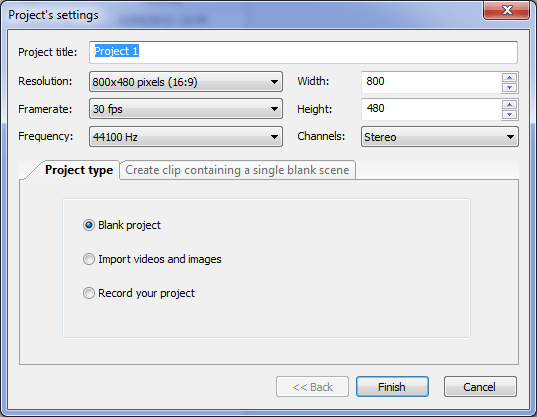
In this form you should type the name of the project which may differ from the file name. The name of the project is for informational purposes only.
Also you should select the base resolution and the framerate of the video, and the frequency and the number of channels for the audio. These parameters will be used as default settings for the clip project, but you will be able to select another profile with the same or other settings to save a resulting file. If settings in a profile differ from project’s settings, additional processing of the video and audio will be performed to adjust the file to profile’s settings. For example, if you set the resolution to 1920x1080 as the source parameter, and then select a profile with the resolution of 640x480, then every frame will be scaled down to the resolution specified in the profile, and that may greatly slow down the process. However, the higher a source resolution is, the higher is the quality of a resulting video.
In the above form you should also select the type of a project. If you select the “Blank project” option, an empty project is created with one scene in it. After that, the program immediately switches to the scene editor mode.
If you select “Import videos and images”, an empty project is created as well, but the File’s Sequence Wizard will be additionally launched. You can read more about this Wizard in the “File’s Sequence Wizard ” section.
The “Record your project” option is not implemented for now. In the future you will be able to capture video and audio from such devices as video tuner or a web camera, and also to record snapshots of your desktop and create a video from them.
This software can be downloaded from Free Video Editor description page.

Ferramenta de captura de sua Área de Trabalho, que lhe permite salvar essa captura em um arquivo de vídeo e processar no editor.

Um programa para capturar vídeo de dispositivos externos. Você pode salvar o vídeo de sintonizadores de vídeo, câmeras web, placas de captura e outros dispositivos.
VSDC Video Editor Reviews & Ratings (Trustpilot, Capterra & Media)
VSDC Free Video Editor is rated 4.5/5 by real users on Trustpilot and Capterra. Here are a few reviews and quotes from creators and tech media.
Overall rating:4.5/5based on200+ reviews on Trustpilotand89 reviews on Capterra.
★★★★★
VSDC Free Video Editor is the best free video editor for Windows I’ve used, from color grading to picture-in-picture and cinematic results.
— Ejikeme Eloka Augustine
Source:Trustpilot
★★★★☆
Easy-to-use interface and quick export to social media make VSDC a versatile video editing tool for everyday projects.
— Karen C., E-Learning
Source:Capterra
★★★★☆
A feature-packed non-linear video editor for Windows that can compete with many paid video editing solutions.
— TechRadar
Source:TechRadar review
★★★★★
The free VSDC editor saved my YouTube channel – a powerful video editing software for chroma key, text effects and picture-in-picture.
— Paul Roberts
Source:Trustpilot
★★★★★
Fast and simple for YouTube videos with green screen, zoom, color tools and creative effects in one app.
— Marie R., Media Production
Source:Capterra
★★★★★
One of the best free video editor options for Windows users, ideal for GoPro, YouTube and family videos.
— VidProMom, YouTube creator
Source:Media reviews
★★★★★
I’ve been using VSDC for years; editing is easy and the final videos look great for my personal and professional projects.
— Long-time VSDC user
Source:Trustpilot
★★★★★
Great value and faster than many other free tools; I quickly create videos for YouTube, Instagram and Facebook with features my audience loves.
— Rabika B., Marketing & Advertising
Source:Capterra
★★★★★
VSDC offers many features you don’t usually find in free editors, including picture-in-picture, stabilization and modern codec support with no watermarks.
— Tech media review
Source:Media reviews
 Like us on Facebook
 Follow us on Twitter
Watch us on YouTube
 / @VSDCFreeVideoEditor
© 2011-2025, www.videosoftdev.com, FLASH-INTEGRO LLC. Política de privacidade | Termos de uso | Sobre nós
Todas as marcas comerciais mencionadas neste documento são de propriedade exclusiva de seus respectivos proprietários.
A cópia de qualquer material deste site é permitida apenas com o consentimento por escrito da Administração do Site.